
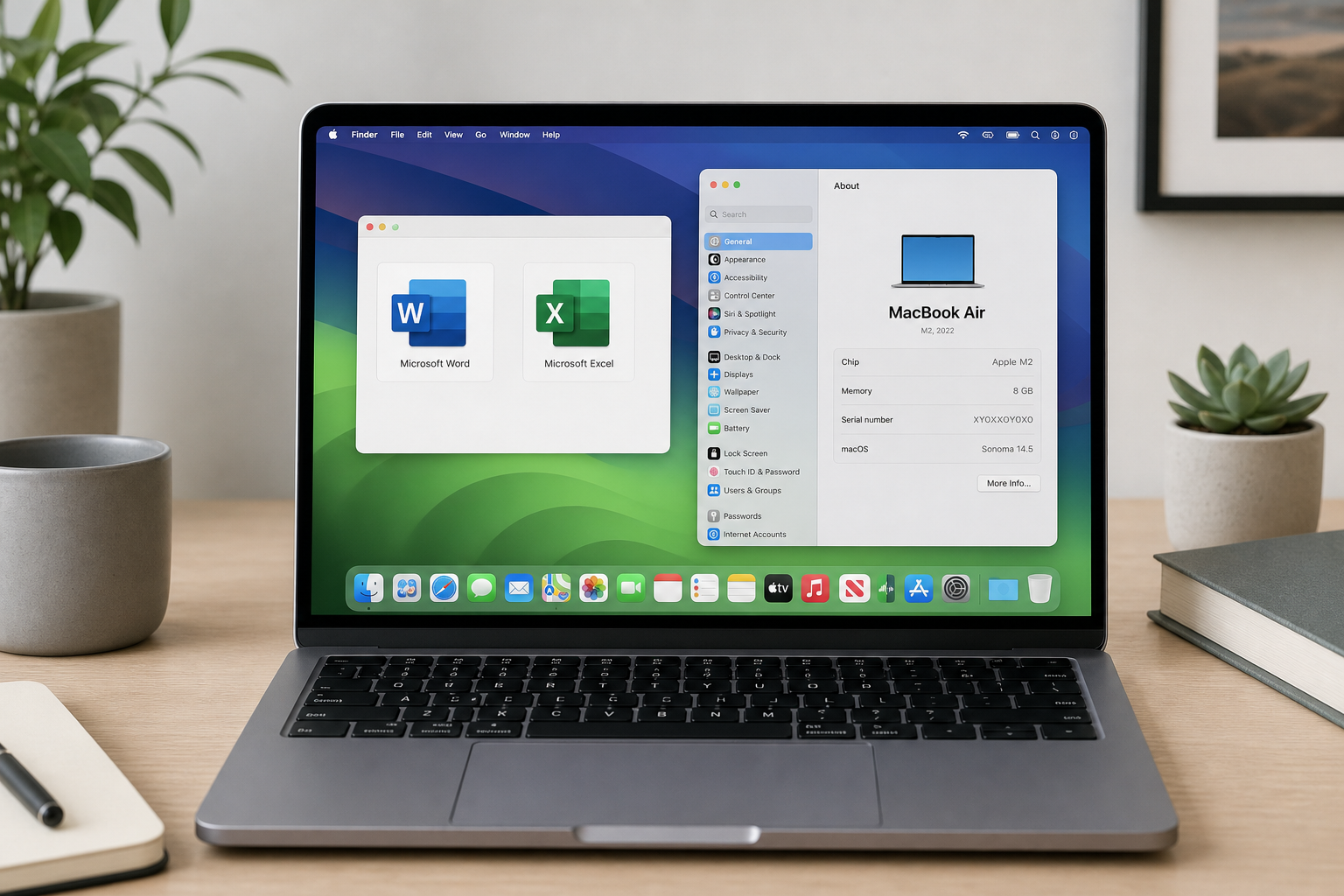
Office for Mac compatibility depends almost entirely on two things: which macOS version your Mac is running, and which Office version you’ve installed. As a rule, Microsoft only guarantees that current Office for Mac builds work on the three most recent versions of macOS — so a Mac running an older system like Sierra or even Monterey may already be locked out of the newest updates, while a Mac on Sonoma or later should be fully covered. This guide walks through exactly which Office editions pair with which macOS releases, and explains the July 2026 licensing certificate change that is now affecting Office 2019 and Office 2021 installations on Mac.
Why Office for Mac Compatibility Matters Right Now
Office for Mac compatibility isn’t just a technical detail — it determines whether your copy of Word, Excel, or Outlook keeps working at all. Apple ships a new major macOS version roughly every September, and Microsoft’s support window moves with it. If you bought a Mac a few years ago and never updated macOS, there’s a good chance your Office installation is quietly falling behind, even if the apps still open normally today.
This matters more in 2026 than in previous years because Microsoft has also introduced a licensing certificate change that affects older perpetual-license versions of Office on Mac — regardless of which macOS version you’re running. We’ll cover that separately below, but the short version is: macOS compatibility and license validity are now two separate hurdles you need to clear.
Which macOS Versions Does Microsoft Office Support?
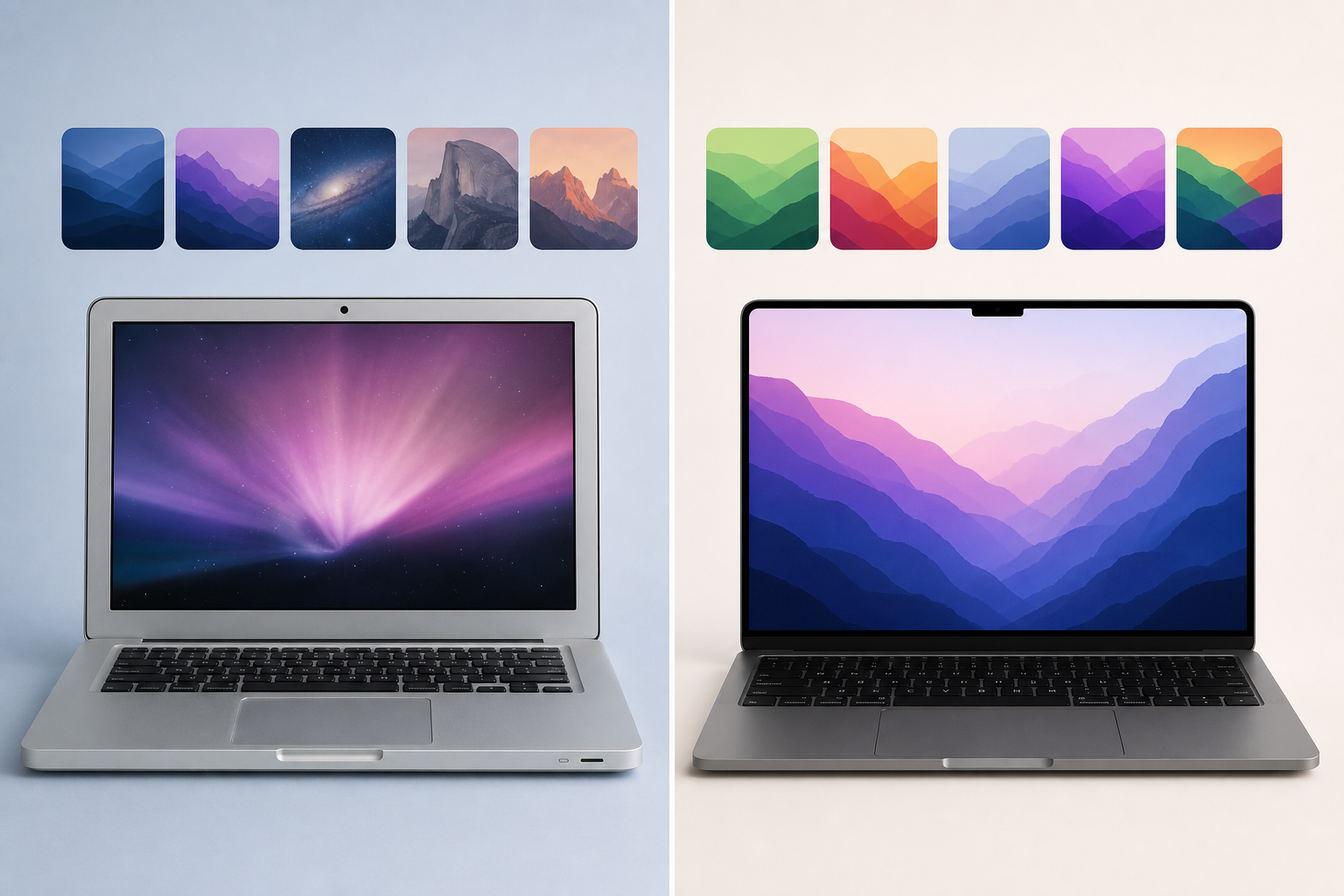
Microsoft’s official policy supports Office for Mac on the three most recent versions of macOS at any given time. According to Microsoft’s own guidance for Office for Mac, when Apple releases a new major macOS version, Microsoft drops support for the oldest of the three it previously covered. This “rolling three” model means the list of supported systems changes every year, which is exactly why Office for Mac compatibility confuses so many users.
As of today, the three most recent macOS releases are:
-
macOS Tahoe (macOS 26)
-
macOS Sequoia (macOS 15)
-
macOS Sonoma (macOS 14)
Anything older than Sonoma — including Ventura, Monterey, Big Sur, Catalina, and Sierra — sits outside Microsoft’s officially supported window for receiving new Office updates, even though many of these systems can still run specific older Office builds.
Office for Mac Compatibility With Older macOS Versions
If you’re running macOS Sierra, Big Sur, or Catalina, your options are more limited but not necessarily zero. Older perpetual-license versions of Office — such as Office 2016 or Office 2019 — were built with lower minimum requirements than today’s subscription apps. Office 2021 for Mac, for example, requires at least macOS Catalina, while Office 2024 requires a newer baseline. Practically speaking:
-
macOS Sierra and earlier: only legacy Office 2016 builds are likely to install; expect no further updates or security patches.
-
macOS Catalina or Big Sur: Office 2019 and Office 2021 for Mac can typically be installed, but won’t receive feature updates tied to newer macOS releases.
-
macOS Monterey: generally still compatible with Office 2019 and Office 2021, and was covered by Microsoft 365 updates until it aged out of the three-version window.
-
macOS Ventura, Sonoma, Sequoia, Tahoe: fully supported for current Microsoft 365 and the latest perpetual releases, assuming the install meets the licensing requirements discussed below.
If your Mac can’t be upgraded past Monterey or an earlier release, pairing it with an older perpetual license (Office 2016 or Office 2019) rather than a Microsoft 365 subscription is often the more realistic path, since subscription apps enforce the three-version rule strictly.
Office for Mac Compatibility and the July 2026 Licensing Certificate Change
Separately from macOS version requirements, Microsoft has rolled out a licensing certificate update that directly affects Office for Mac compatibility for perpetual-license users. According to Microsoft’s certificate update documentation, the certificate currently used to validate Microsoft 365 and Office licenses on macOS and iOS expires on July 13, 2026. Apps that have not been updated to the minimum required version by that date move into what Microsoft calls “reduced functionality mode” — meaning you can still open, view, and print existing documents, but you can’t create new ones, edit, or save changes until the app is updated.
This change has already taken effect and specifically affects:
-
Office 2019 for Mac — older builds whose licensing certificate can no longer be refreshed now run in reduced functionality mode.
-
Office 2021 for Mac — installations that haven’t received the certificate-carrying update are similarly affected.
-
Newer Microsoft 365 and Office 2024 installs on Mac — generally unaffected if Microsoft AutoUpdate has kept the app current, since updated builds already include the renewed certificate.
If your copy of Word or Excel on Mac suddenly can’t save files or shows a “most features are disabled” message, this certificate issue — not a macOS incompatibility — is the most likely cause.
How to Check If Your Office Installation Is Affected
Open any Office app on your Mac and check for an in-app banner mentioning a required update or a licensing/security notice. You can also check your version number under the app’s “About” menu and compare it against Microsoft’s published minimum build numbers for your Office edition. If your Office app is set to update automatically through Microsoft AutoUpdate, it most likely already received the fix; manual installs are the ones most at risk.
How to Fix Office for Mac Compatibility Issues
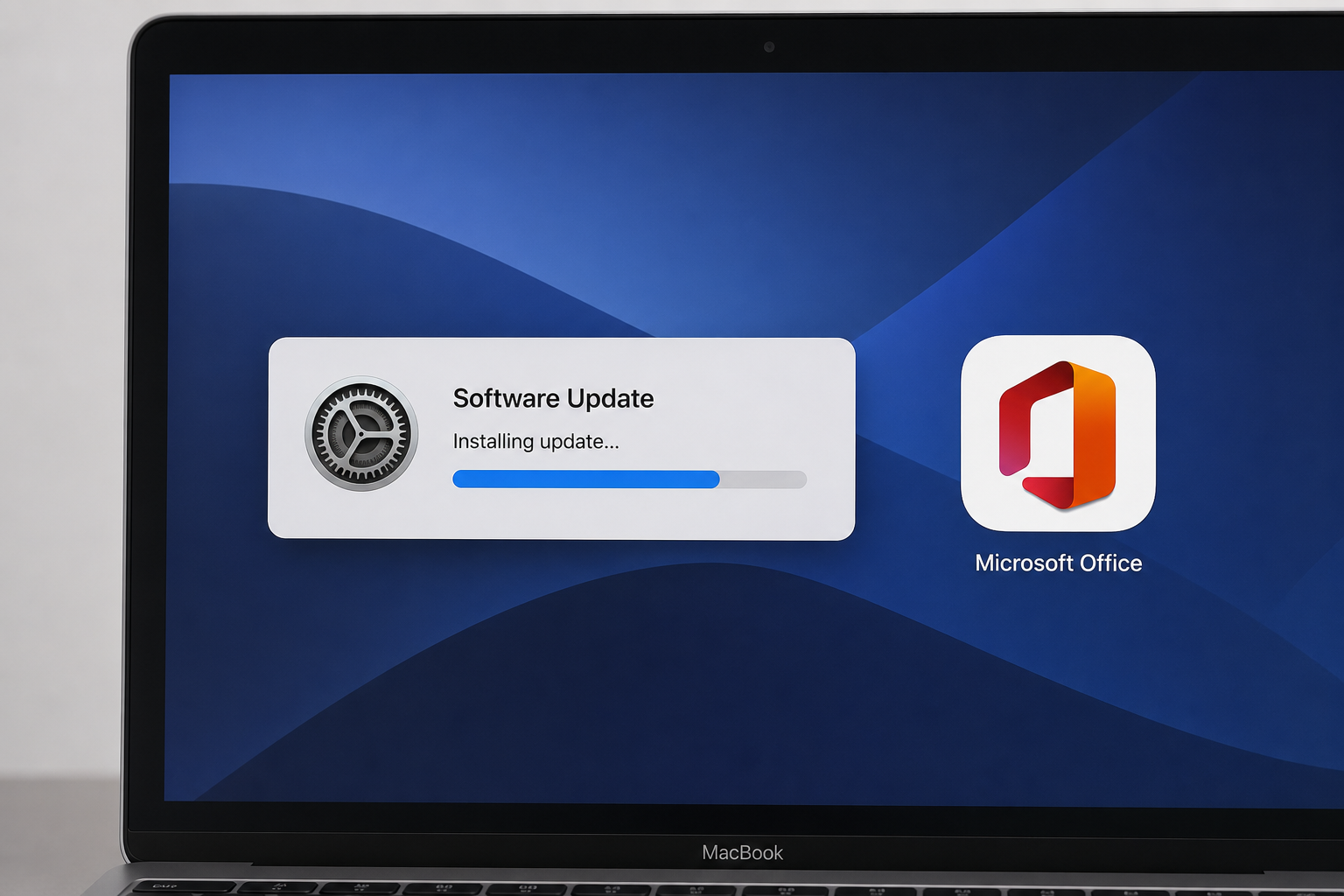
Fixing most Office for Mac compatibility issues comes down to updating either macOS, Office, or both — in the right order. Follow these steps:
-
Check your current macOS version via Apple menu > About This Mac.
-
Compare it against the minimum requirement for your Office edition (Office 2019, 2021, or 2024).
-
If macOS needs updating, back up your data first, then update through System Settings > General > Software Update.
-
Open Microsoft AutoUpdate (or check for updates inside any Office app) and install the latest available build for your Office version.
-
Restart the affected Office apps and confirm editing and saving work normally.
If macOS can’t be updated on your hardware — for example, on a Mac that’s hit its final supported system — staying on a compatible Office version (rather than forcing a newer one) is usually the safer route.
Choosing the Right Office Version for Your Mac
Picking the right edition up front avoids most Office for Mac compatibility headaches later. For Mac users who want a one-time purchase rather than a subscription, Shop Key Online carries several perpetual-license options:
-
Microsoft Office 2019 Home & Business for Mac — a solid fit for Macs running Catalina through Monterey that don’t need the newest features.
-
Microsoft Office 2021 Home & Business for Mac — the better choice for Macs on Monterey or Ventura that want a longer runway before the next upgrade decision.
-
Microsoft Office Home 2024 for Windows or Mac — the newest perpetual license, built for Macs already running Sonoma, Sequoia, or Tahoe.
Each listing includes setup guidance, and Shop Key Online’s Office 2021 Home & Business Mac installation and activation instructions walk through download, installation, and activation step by step so you’re not guessing which build you need.
Subscription vs. One-Time Purchase for Mac
Microsoft 365 subscriptions update automatically and always track the current three-version macOS window, which is convenient but means your access is tied to an active subscription and ongoing certificate updates. A one-time perpetual license like Office 2019, Office 2021, or Office 2024 for Mac avoids recurring fees but has a fixed macOS compatibility ceiling — it won’t gain support for future macOS releases. For most freelancers, students, and small offices who don’t need the latest cloud-integrated features, a perpetual license matched correctly to the current macOS version is the more predictable option.
Office for Mac Compatibility Checklist Before You Buy
Before purchasing any Office license for a Mac, confirm the following:
-
Your exact macOS version (Apple menu > About This Mac).
-
Whether that macOS version falls within the three most recent releases, or is older.
-
Whether you want a one-time license (fixed compatibility) or a subscription (rolling compatibility).
-
Whether your current Office install needs an update to avoid the July 2026 certificate restriction.
Getting these four details right before you buy — rather than after installation fails — saves time and avoids paying for a license your Mac can’t fully run.
FAQ
How do I check which macOS version my Mac is running?
Click the Apple menu in the top-left corner and select “About This Mac.” The version name and number (for example, Sonoma 14 or Sequoia 15) will be displayed at the top of the window. Compare this against the minimum requirement listed for your Office edition before installing.
How to download Office for Mac after purchase?
After buying a license, you’ll receive a download link and your product key by email, typically within minutes. Sign in with the Microsoft account tied to your order, go to the Office download portal, and choose the Mac installer that matches your edition (Home & Business, Home & Student, etc.).
How to install Office on a Mac?
Open the downloaded .pkg installer file and follow the on-screen prompts. The installer will check your macOS version automatically and warn you if it’s below the minimum requirement for that Office edition. Once installation finishes, launch any Office app to begin activation.
How to activate Office for Mac?
Open any installed Office app (Word, Excel, etc.) and sign in with the Microsoft account linked to your license, or enter your product key directly when prompted. The app will verify the license online and activate automatically — an internet connection is required for this step.
Why does my Office app say most features are disabled on Mac?
This message usually points to the July 2026 licensing certificate issue rather than a macOS compatibility problem. Update Office through Microsoft AutoUpdate to the latest available build, which includes the renewed certificate, then restart the app.
Can I still use Office 2019 or Office 2021 on an old Mac?
Yes, as long as your macOS version meets that edition’s minimum requirement and you’ve installed the certificate update where applicable. These perpetual licenses won’t gain support for future macOS versions, but they’ll continue working on the systems they already support.
Is a one-time Office purchase better than a Microsoft 365 subscription for Mac?
It depends on your update habits and budget. A one-time license avoids recurring fees but has a fixed macOS compatibility ceiling, while a subscription updates automatically and always tracks Microsoft’s current three-version support window.
