
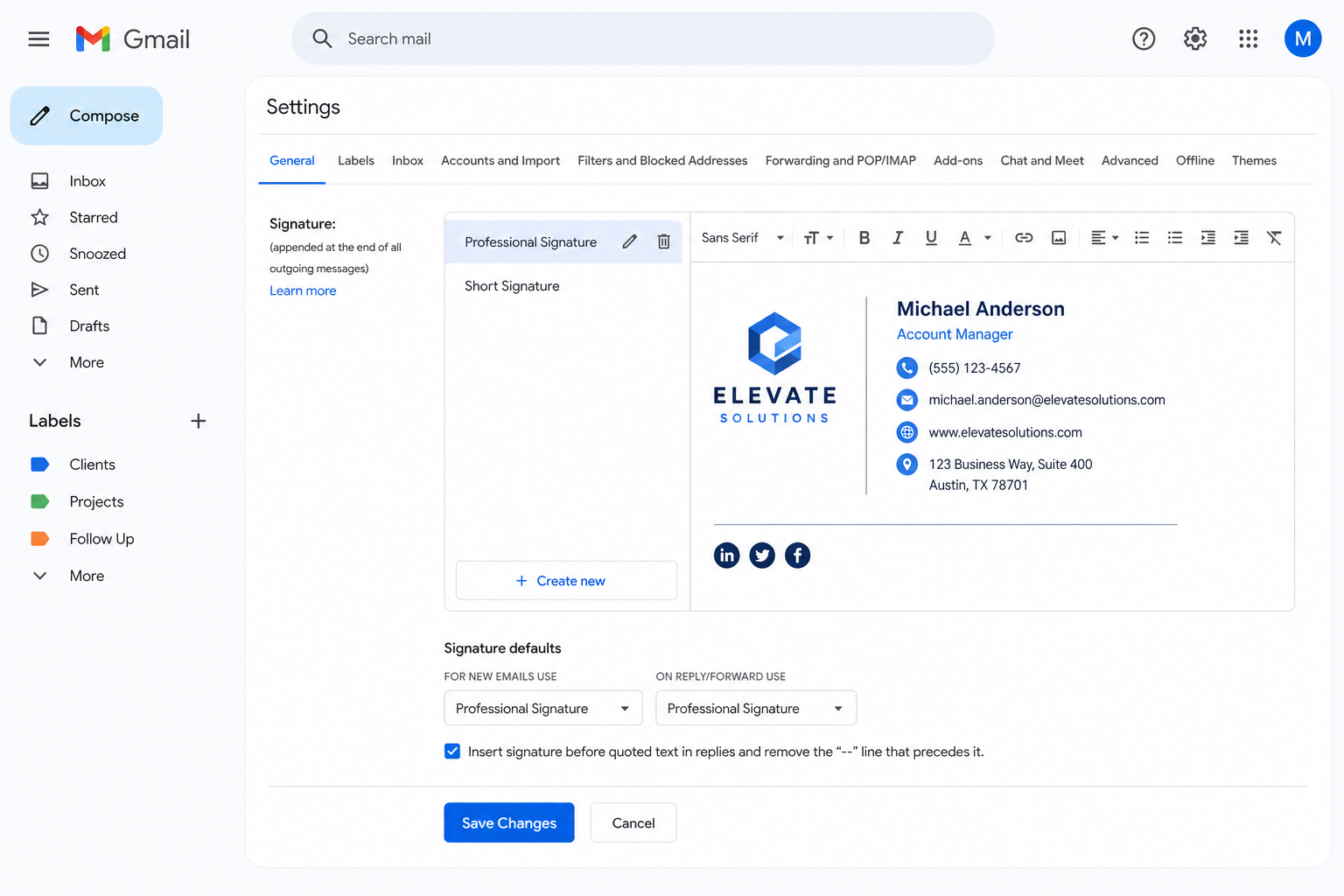
You build an email signature in Gmail by opening Settings, scrolling to the Signature section, creating a new signature, and formatting it with Gmail’s built-in text, image, and link tools before saving. The whole process takes about five minutes, but getting the formatting to actually hold together takes a bit more care — this guide covers both.
A good signature does more than list your name and title. It reinforces your brand, gives recipients an easy way to reach you, and can even drive traffic to your website or social profiles. Done badly, it looks cluttered, breaks on mobile, or triggers Gmail’s dreaded “signature too long” error. Let’s walk through how to do it properly.
Where to Find the Email Signature Settings in Gmail
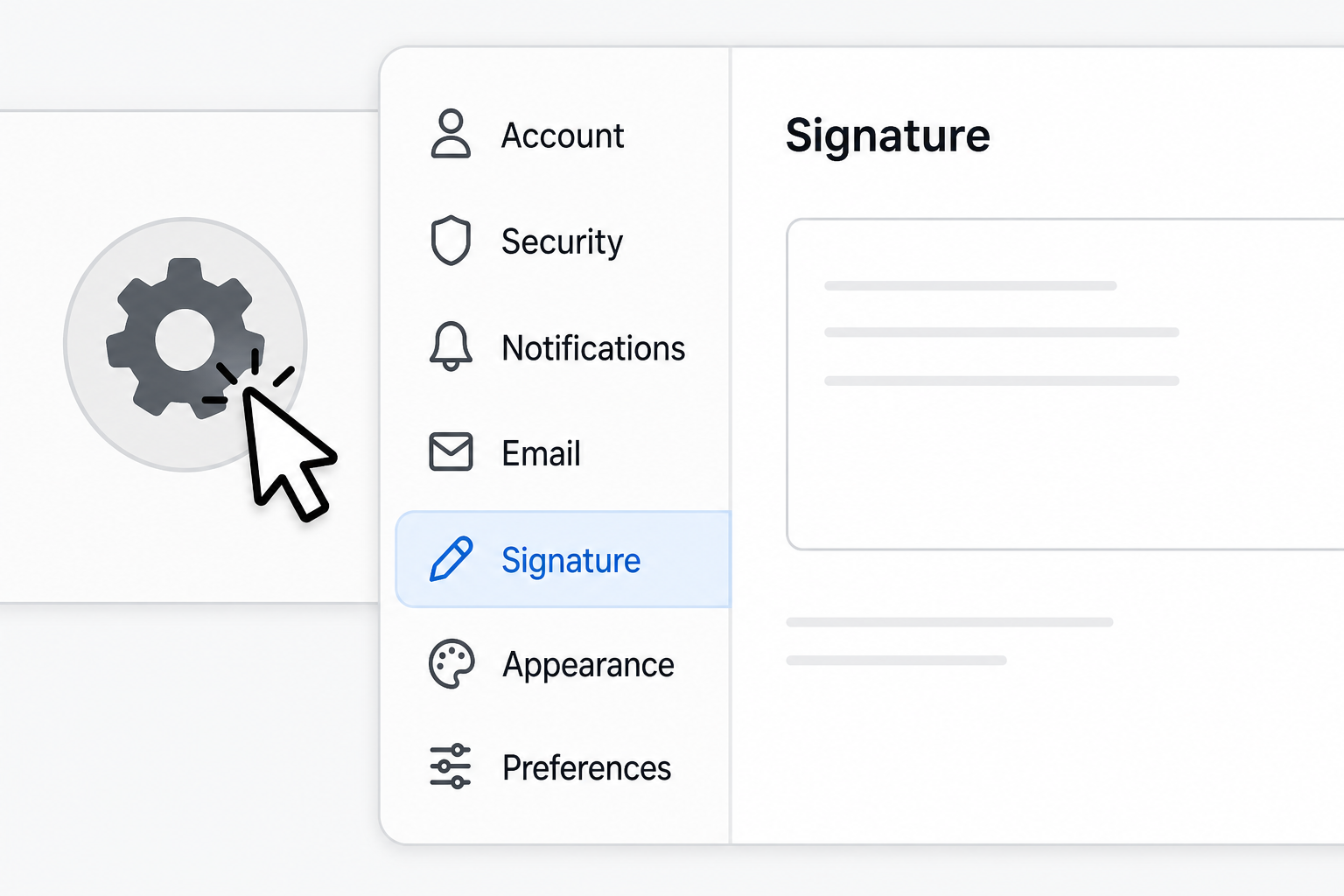
Gmail keeps all signature controls inside one settings panel, so you never need a third-party add-on for basic setup. Open Gmail on desktop, click the gear icon in the top right, and select See all settings. On the General tab, scroll down until you see the Signature section — this is where every signature you create will live.
From here you can create multiple signatures, assign a default for new emails, and choose a separate default for replies and forwards. This matters if, for example, you want a full signature with your logo and contact details on new messages, but a shorter one on replies to keep long email threads tidy.
How to Create a New Email Signature in Gmail
Creating a new signature starts with clicking Create new in the Signature section and giving it a name you’ll recognize later, such as “Work — Full” or “Support Team.” Naming matters once you have more than one signature, since Gmail lets you switch between them per message.
Once named, you’ll get a blank formatting box. Type your name, job title, company, and contact details first, then format and add images afterward. Building it in this order avoids most of the alignment problems people run into when they add a logo too early.
Basic Signature Structure
A clean, professional email signature typically includes:
- Full name and job title
- Company name, with a link to your website
- Phone number and a professional email address
- A small company logo or headshot (optional)
- One or two social or portfolio links, if relevant
- A legal disclaimer, if your company requires one
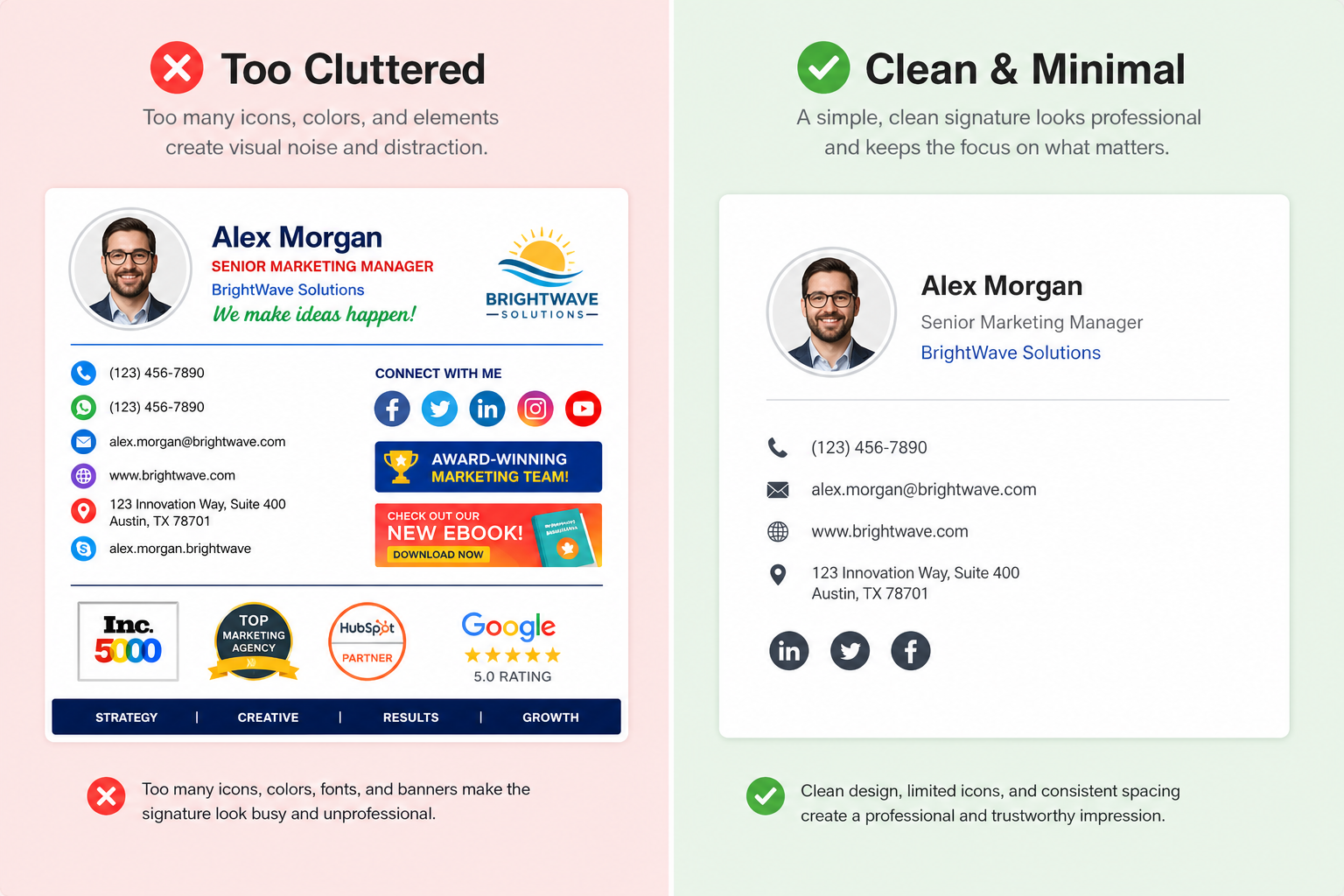
Resist the urge to add everything you can think of. A signature with six links and three images looks cluttered on desktop and often breaks entirely on mobile devices.
Formatting Your Email Signature in Gmail
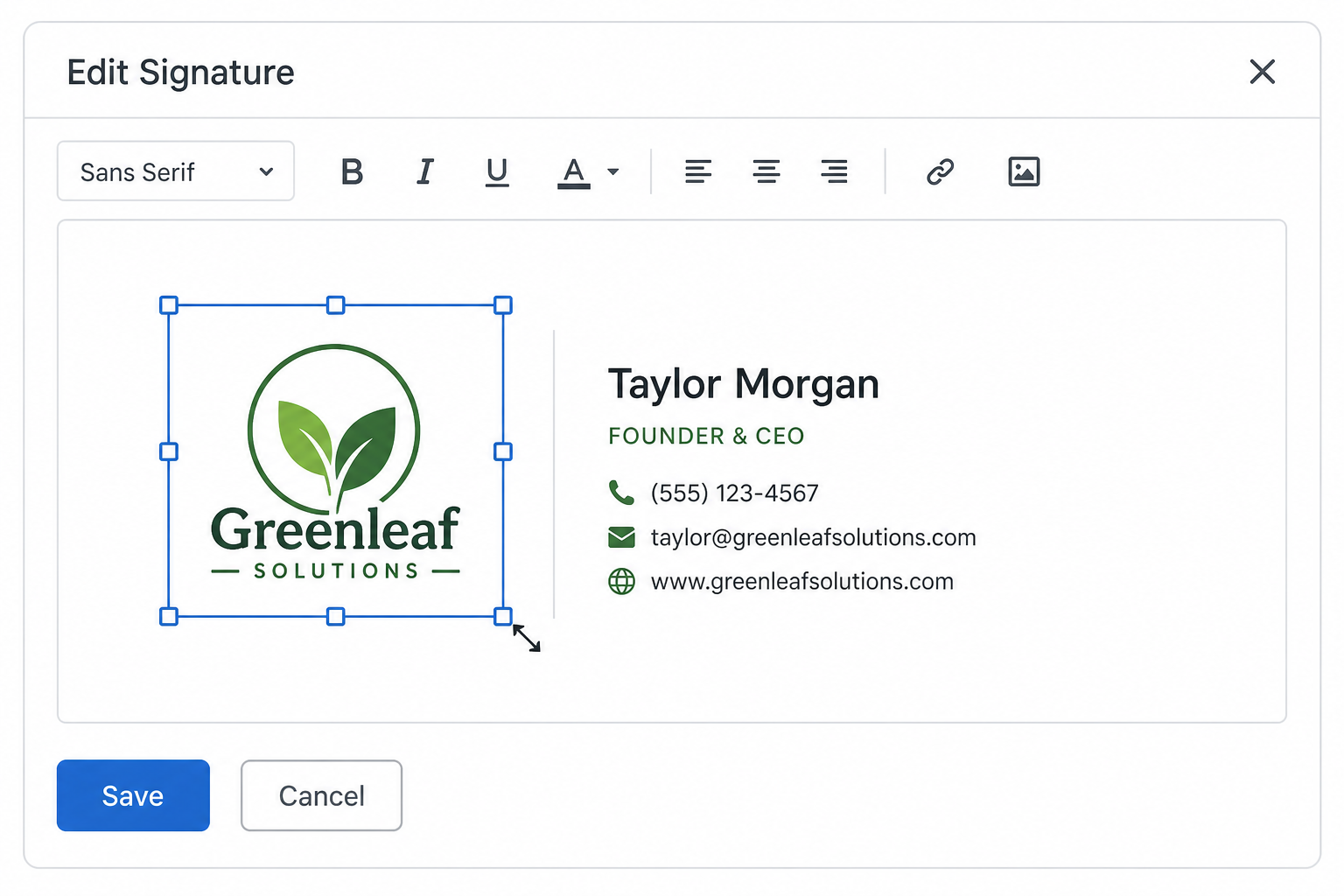
Gmail’s signature editor includes a basic formatting toolbar with bold, italic, font size, text color, alignment, and bullet options — use these to create visual hierarchy without needing outside design software. Bold your name, keep your title and company in regular weight, and use a muted gray or brand color for secondary details like phone numbers.
Keep font choices simple. Gmail’s editor only offers a handful of font families, and exotic fonts rarely render the same way for every recipient, since many email clients fall back to a default font if they don’t recognize the one you picked.
Formatting Tips That Hold Up Across Email Clients
- Stick to one or two font sizes — one for your name, one for everything else
- Avoid full-width colored backgrounds; they often render oddly in Outlook or on mobile
- Use a single accent color rather than multiple colors for different lines
- Keep line spacing tight — Gmail sometimes adds extra space between lines that carries over when the signature is pasted into a reply
Adding a Logo or Image to Your Email Signature
To add an image, click the image icon in the signature toolbar, then choose to upload a file from your computer or insert one via a web address. Gmail will insert the image directly into the signature box, where you can resize it by dragging the corner handles.
Image sizing is one of the most common places a signature goes wrong. Oversized logos push the rest of the signature out of alignment, and very large image files make the signature slow to load for recipients. For the cleanest result, resize your logo before uploading it rather than relying on Gmail’s drag-to-resize, which can stretch the image unevenly.
Choosing the Right Image Dimensions
A compact logo works best for most signatures — something close to a small icon rather than a full banner. Keep file sizes small, use PNG for logos with transparent backgrounds, and JPG for photos. If your signature uses a headshot, square-crop it so it doesn’t distort when Gmail applies its default sizing.
Adding Clickable Links to Your Email Signature
To turn text or an image into a clickable link, highlight the text (or click the image), select the link icon in the toolbar, and paste the destination URL. This works for your website, LinkedIn profile, scheduling page, or any other destination you want recipients to reach in one click.
Link your company name to your homepage and, optionally, link a small icon or line of text to one social profile. Avoid linking every line of your signature — recipients should immediately know which part is clickable, and a signature where everything is a hyperlink loses that clarity.
Setting Gmail to Insert Your Email Signature Automatically
Below the signature editor, Gmail lets you choose whether each signature appears on new emails, replies and forwards, or both, using two separate dropdown menus. Set your full signature for new emails and, if you prefer a shorter version on replies, create a second signature and assign it there instead.
Once you’ve made your selections, scroll to the bottom of the Settings page and click Save Changes. Gmail does not save signature settings automatically — if you navigate away without saving, your work is lost.
Fixing the “Signature Too Long” Error
This error appears when your signature’s underlying HTML — not just the visible text — exceeds Gmail’s limit. According to Google’s own Gmail help documentation, you can put up to 10,000 characters in a signature, and any image you add counts toward that limit along with all formatting code. A single uncompressed logo can quietly use up thousands of those characters.
If you hit this error:
- Remove and re-add the image after compressing it to a smaller file size
- Delete extra formatting, such as nested tables or repeated font tags, that may have been pasted in from another editor
- Simplify your signature to text and one image rather than multiple graphics
- Rebuild the signature from scratch in Gmail’s editor instead of pasting from Word or another program, since pasted content often carries hidden formatting code
Email Signature Design Best Practices
A well-designed email signature should load fast, look consistent across devices, and support your brand without overwhelming the message above it. Treat it the way you’d treat a small piece of business collateral — similar in spirit to a business card designed in Microsoft Word, where restraint and consistent branding matter more than cramming in every detail.
What Makes a Signature Effective
- Consistency: everyone on your team should use the same layout and colors
- Mobile-friendliness: test how it looks when viewed on a phone screen
- Minimal clutter: one logo, one or two links, no more than two font colors
- Accurate information: outdated phone numbers or job titles undercut credibility
Branded signatures can also do real marketing work. One industry report found that dynamic email signatures average a 4% click-through rate, compared to roughly 2.5% for standard marketing emails — a reminder that the few lines under your message get seen on every single email you send.
Managing Multiple Email Signatures in Gmail
If you manage several roles, departments, or campaigns, Gmail allows you to store multiple signatures and switch between them from the compose window using the signature icon in the toolbar. This is useful for anyone who needs one signature for internal emails and another, more formal one for client-facing messages.
To switch signatures while composing, open a new message, click the pencil/signature icon at the bottom of the compose window, and select the signature you want for that specific email. The signature you pick overrides whatever default you set in Settings for that one message only.
Keeping Your Signature Professional and Secure
Since your signature appears on every outgoing email, it’s worth treating it as part of your account’s overall professionalism and security posture. If you’re also tightening up other areas of your inbox — spam handling, third-party app access, or general account hygiene — a well-organized Gmail setup makes all of it easier to manage from one place. And if your work involves drafting documents, proposals, or newsletters that pair with your email signature branding, a licensed copy of Microsoft Office 2021 Pro Plus for Windows keeps your fonts, logos, and templates consistent across both your inbox and your documents.
Frequently Asked Questions
How to download a logo for my Gmail signature?
Save your company logo file (PNG or JPG) to your computer from wherever your brand assets are stored, such as a shared drive or your marketing team’s files. Make sure it’s sized appropriately before downloading, since very large files slow down the upload step in Gmail’s signature editor.
How to install an image in a Gmail email signature?
Open Gmail Settings, scroll to the Signature section, click the image icon in the signature toolbar, and choose to upload the image from your computer or insert it from a web address. Resize it using the handles that appear once it’s placed in the signature box.
How to activate a new email signature as the default?
After creating your signature, use the dropdown menus below the signature editor to assign it as the default for new emails and, separately, for replies and forwards. Click Save Changes at the bottom of the page to activate the selection.
How to fix a Gmail signature that looks different on mobile?
Open the Gmail app, go to Settings, select your account, and check the mobile signature field separately — Gmail treats desktop and mobile signatures independently. You may need to recreate a simplified version for mobile since the app’s formatting options are more limited.
How to add social media icons to an email signature?
Upload small icon images the same way you would a logo, then link each icon to the matching social profile using the link tool. Keep icons uniform in size and limit them to two or three platforms to avoid a cluttered look.
How to remove an email signature from Gmail entirely?
Go to Settings, find the Signature section, select the signature you want removed, and click the trash icon next to its name. Save your changes afterward to confirm the removal.
