

Microsoft Word business card templates give freelancers and small business owners a fast, familiar route to print-ready cards without expensive design software. Whether you are starting from one of Word’s built-in layouts or building a card from scratch using a table, the application handles the essentials — correct sizing, text formatting, and PDF export — with tools most users already know. This guide walks through every stage: sizing standards, built-in template access, layout best practices, and getting a file that won’t disappoint at the print shop.
Why Microsoft Word Is Still a Go-To for Business Card Design

Word business card design may not be the flashiest option on the market, but it wins on accessibility. An estimated 1.2 billion people use Microsoft Office worldwide, meaning the vast majority of small business owners and freelancers already have the tool installed. There is no learning curve for a new application, no subscription to a design platform, and no dependency on an internet connection once your copy is activated. For a one-person consultancy or a local tradesperson who needs fifty cards quickly, that convenience is genuinely hard to beat.
Word also ships with a library of business card templates accessible via the template gallery, and Microsoft maintains a dedicated online collection at word.cloud.microsoft. These range from minimal text-only layouts to more decorative designs with colour blocks and placeholder logo areas — all formatted to standard dimensions out of the box.
Standard Business Card Design Sizes: Get This Right First
Before you touch a template, lock in the dimensions. Using the wrong size is the most common DIY printing mistake, and it can mean wasted cardstock or cards that don’t fit a standard cardholder.
-
North America (US & Canada): 3.5 × 2 inches (88.9 × 50.8 mm) — by far the most widely used.
-
Europe (ISO standard): 85 × 55 mm (3.35 × 2.17 inches), used across the UK, EU, and Australia.
-
Japan: 91 × 55 mm, slightly wider than the European standard.
-
Square cards: typically 2.5 × 2.5 inches — eye-catching but may not fit standard cardholders.
Microsoft’s official support documentation for label and business card templates in Word and Publisher confirms that the built-in Avery-compatible templates are pre-set to the 3.5 × 2 inch US standard. If you are in Europe, you will need to adjust the table cell dimensions manually — a five-minute fix, but one worth doing before you design rather than after.
How to Access Built-In Business Card Templates in Word
Getting to Word’s template gallery is straightforward. Here is the quickest path in Word 2019, 2021, or 2024:
-
Open Word and click File → New.
-
In the search bar, type business card and press Enter.
-
Browse the thumbnails. Click any design to preview it full-size, then click Create to open it as a new document.
-
Replace placeholder text — name, title, phone, email, website — with your own details.
-
Repeat across all ten card cells on the page (most templates lay out 10 cards per A4 or letter sheet).
If the in-app gallery is sparse, Microsoft’s online template library at word.cloud.microsoft offers a wider selection and lets you edit directly in Word for the Web at no extra cost.
Create Business Cards in Word from Scratch Using a Table
When you need a custom layout that no template matches, building from a table gives you full control. This method is the one described in Microsoft’s developer community for users who want a blank 2-column × 5-row grid:
-
Set page margins to zero (or as close as your printer allows): Layout → Margins → Custom Margins → set all to 0″.
-
Insert a table with 2 columns and 5 rows: Insert → Table.
-
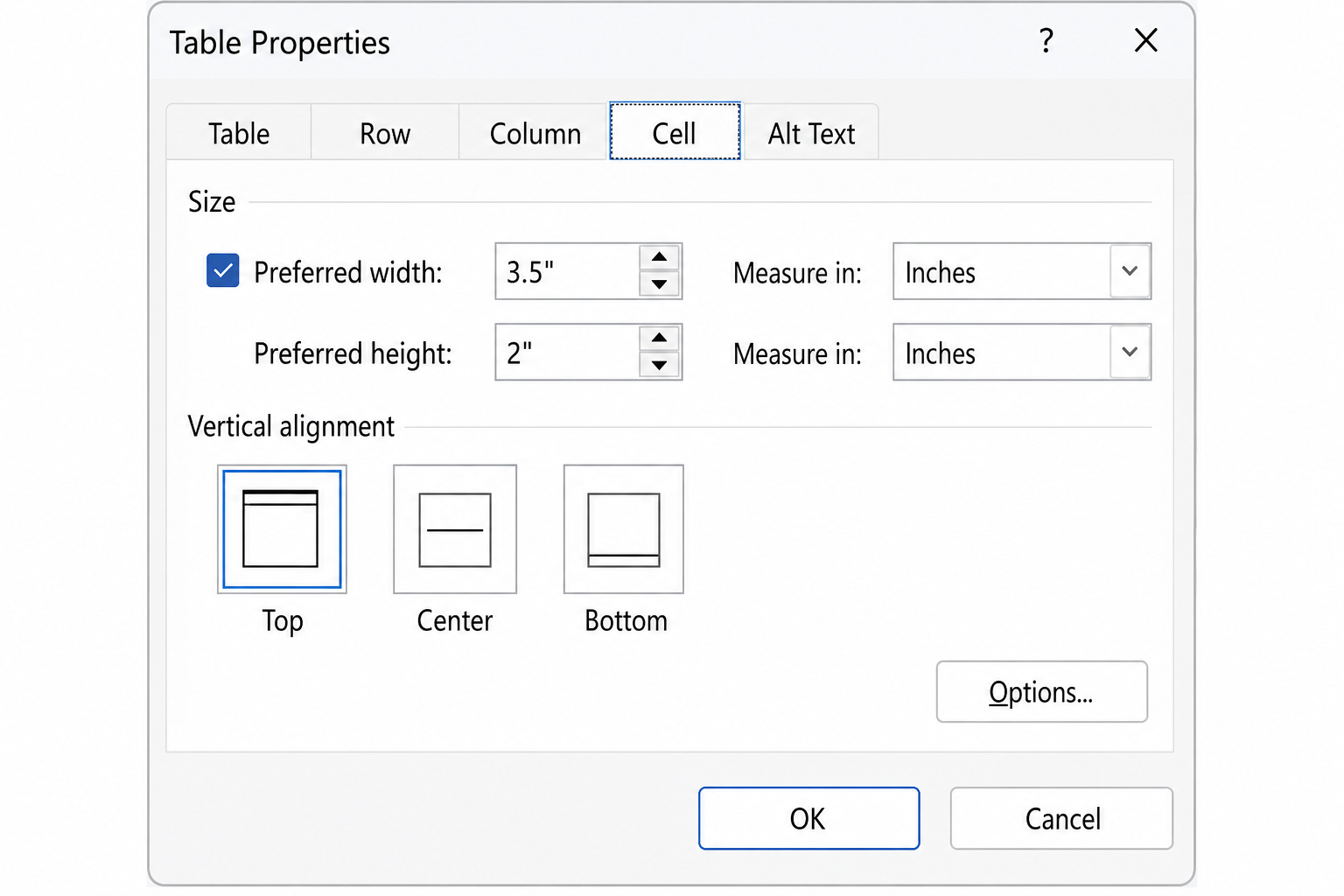
Set cell size: right-click each cell → Table Properties → Row (height: 2″) → Column (width: 3.5″). Tick Exactly for height.
-
Add content inside each cell. Use text boxes within cells for more flexible positioning.
-
Remove table borders before printing — unless you want crop marks, in which case use a 0.25pt light grey line.
This approach gives you a true print-ready grid and makes it easy to apply the same design consistently across all ten cards.
Word Business Card Design: Typography and Layout Best Practices
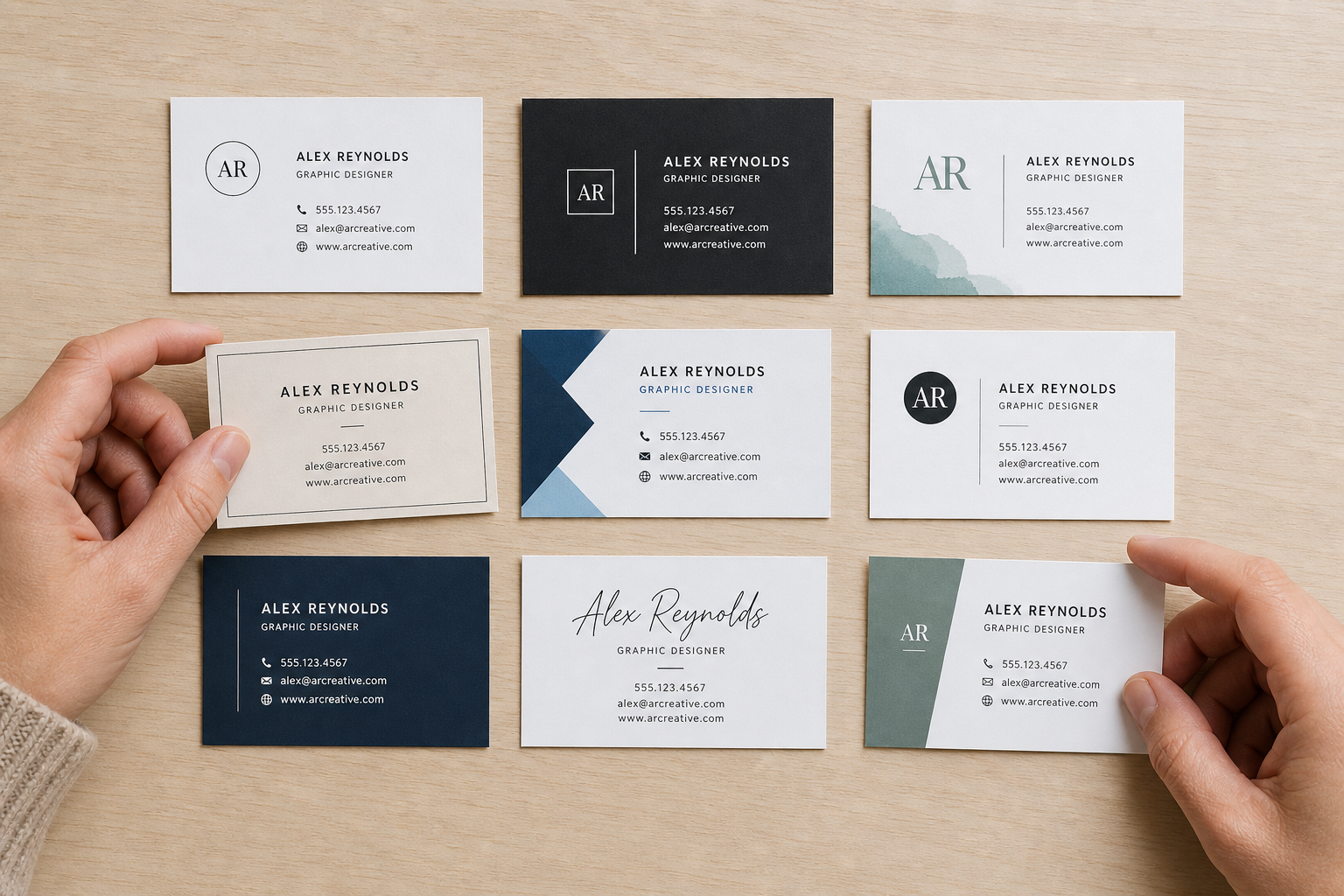
A business card is a tiny canvas — roughly the size of a large postage stamp. Every design decision has outsized impact at that scale. These principles apply whether you are editing a built-in template or working from scratch.
Keep the Hierarchy Clear
Your name should be the dominant element. Use a font size of 11–14pt for your name, drop to 8–9pt for title and contact details, and never go below 7pt — text smaller than that becomes illegible after printing. Stick to a maximum of two typefaces: one for display (your name) and one for body (contact info).
Respect the Safe Zone
Professional printers trim cards with a small margin of error. Keep all critical text and logos at least 3mm (roughly 0.12″) from each edge. This buffer — called the safe zone — prevents contact details from being clipped during cutting.
Contrast Is Non-Negotiable
Light text on a white background or dark text on a navy card both require sufficient contrast to be readable. The Web Content Accessibility Guidelines (WCAG) recommend a minimum contrast ratio of 4.5:1 for normal text — a useful benchmark even for print. Word’s drawing tools let you set exact fill colours using hex codes, so you can match your brand palette precisely.
Logo Placement
Insert your logo as a high-resolution PNG (300 dpi or higher). Word compresses images by default; go to File → Options → Advanced → Image Size and Quality, and tick Do not compress images in file before inserting your logo.
Exporting a Print-Ready PDF from Word
Sending a .docx file to a print shop is a recipe for font substitution and layout drift. Always export to PDF. The correct route in Word:
-
File → Save As → choose PDF (*.pdf) from the format dropdown.
-
Click Options and ensure ISO 19005-1 compliant (PDF/A) is ticked — this embeds all fonts.
-
Set Optimize for: High quality print.
-
Click OK, then Save.
The resulting PDF will have embedded fonts and colour data your printer can use without guessing. Check the finished file in a PDF reader before sending — zoom in to 300% to spot any blurry logos or text that has shifted unexpectedly.
Business Card Template Word Tips for Small Businesses and Freelancers
If you are a freelancer or run a small team, a few practical workflow tips will save you time every time you need to reprint or update cards.
Save Your Master Document as a Template (.dotx)
Once your design is finalised, save it as a Word Template (File → Save As → Word Template .dotx). Next time someone on your team needs a card — or you change your phone number — you open the template rather than recreating the layout from a blank page.
Use the Mail Merge Route for Multiple People
If you need cards for several staff members with different names and titles, Word’s Mail Merge feature (Mailings tab) can auto-populate each card cell from a spreadsheet. This is dramatically faster than manually editing ten cells per person.
Batch Update with Find & Replace
Changed your business email? Use Ctrl+H (Find & Replace) to swap the old address for the new one across all ten card cells simultaneously.
Getting the Most from Microsoft Office for Design Tasks
Word’s business card capabilities improve noticeably with each version of Office. Word 2021 and Word 2024 both include expanded template libraries, better image handling, and improved PDF export compared to older releases. If you are still running an older version, upgrading pays off not just for business card design but for every document-heavy task in your workflow.
At ShopKeyOnline, you can pick up Microsoft Office 2021 Professional Plus from €19.15 — a one-time purchase that covers Word, Excel, PowerPoint, and Outlook with no monthly subscription. For the latest features including improved template search and AI-assisted design suggestions, Microsoft Office 2024 Pro Plus is available from €24.50. Both deliver instant licence key delivery by email, so you can be designing your business cards within minutes of purchase.
Frequently Asked Questions
What is the standard business card size for Microsoft Word templates?
The standard US business card size is 3.5 × 2 inches (88.9 × 50.8 mm). Word’s built-in templates — particularly the Avery-compatible layouts — are pre-set to this size. European users should verify their template is set to 85 × 55 mm and adjust table cell dimensions if needed before adding content.
Can I create business cards in Word for free?
Yes. If you have Microsoft Word installed — through any version of Office — you can access free built-in templates via File → New → search for “business card”. Microsoft also offers additional free templates through Word for the Web at word.cloud.microsoft, which is accessible with a free Microsoft account.
How do I make my Word business card print-ready?
Export your finished design as a PDF using File → Save As → PDF, then click Options and enable ISO 19005-1 (PDF/A) compliance to embed fonts. Set image quality to “Do not compress images in file” before inserting any logos, and keep all text and graphics at least 3mm from each card edge to avoid trim issues.
What font size should I use on a business card in Word?
Use 11–14pt for your name (the most prominent element), 8–9pt for your job title, and 7–8pt for contact details such as phone, email, and website. Avoid going below 7pt — anything smaller risks becoming illegible after the card is printed and trimmed. Limit yourself to two typefaces for a clean, professional result.
Is Word better than Publisher for business card design?
Microsoft Publisher offers finer layout control and more robust bleed and crop-mark settings, making it the stronger choice for complex designs. However, Word is more than capable for straightforward business card layouts, especially when using the built-in templates, and it is available to anyone with a standard Office licence — Publisher has been discontinued in newer Office versions, which makes Word the practical default for most users.
