
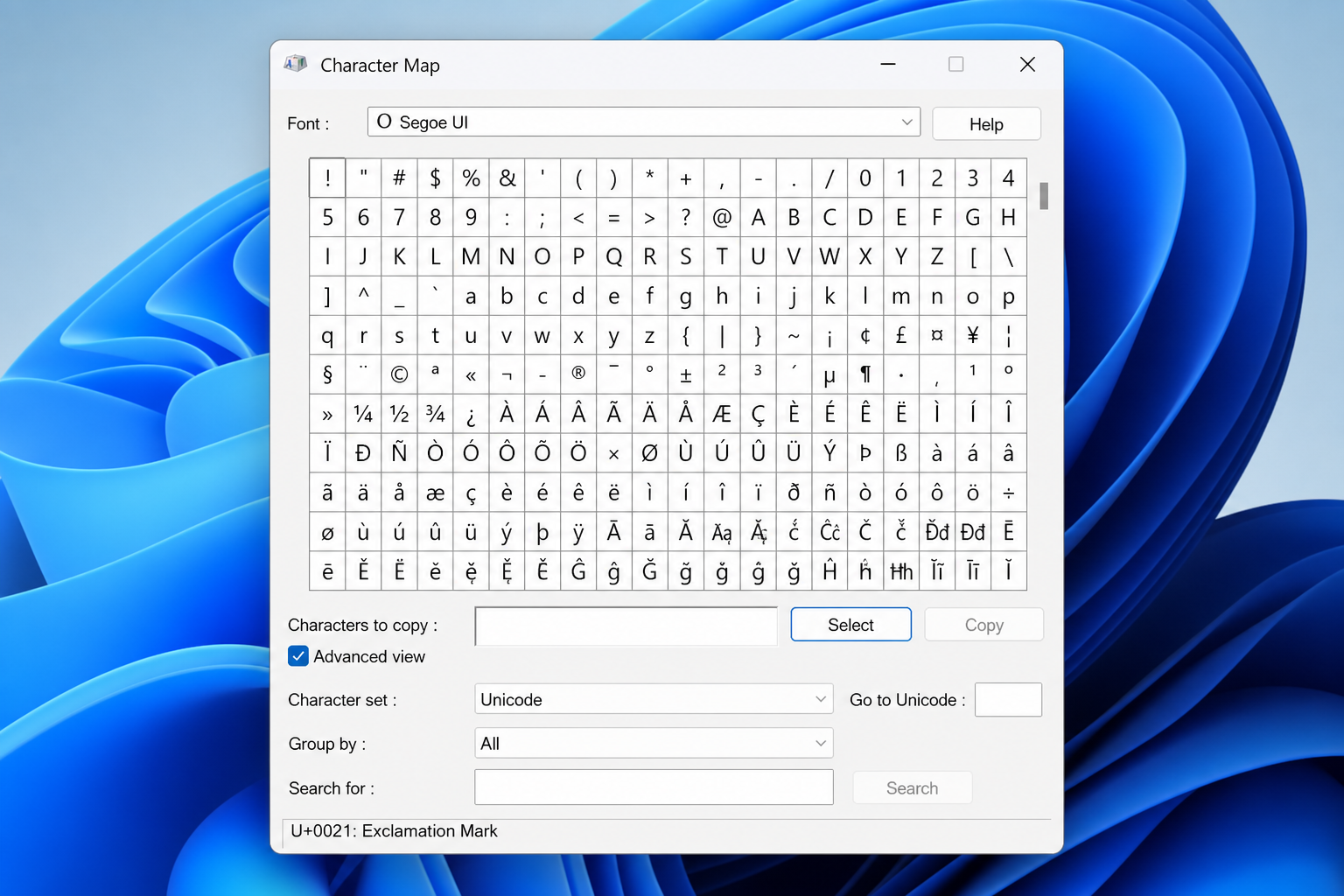
The Character Map is one of those Windows utilities that has quietly survived every major OS overhaul since 1993 — almost completely unchanged. Most users have never opened it, yet it ships with every copy of Windows to this day, from the very first release of Windows NT 3.1 right through to Windows 11. If you have ever wondered why such an ancient, bare-bones tool is still sitting inside a modern operating system, you are not alone.
What Is the Character Map?
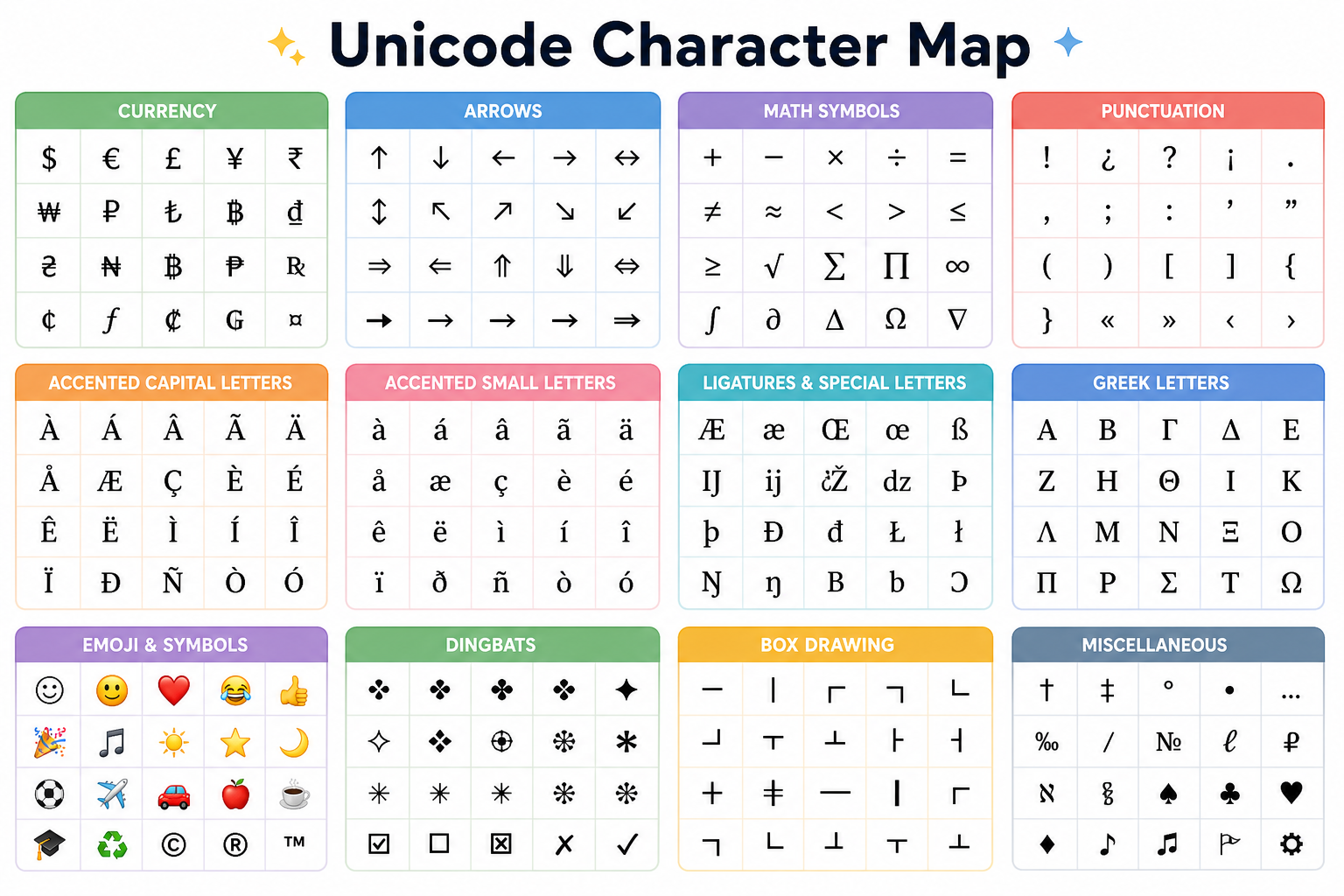
The Character Map (charmap.exe) is a built-in Windows utility that lets you browse, preview, and copy any character or symbol from any font installed on your system. Think of it as a visual keyboard for characters your physical keyboard simply cannot type: currency symbols (€, £, ¥), mathematical operators (±, ×, ÷), accented letters (é, ü, ñ), arrows, Greek letters, and thousands more Unicode glyphs. Rather than memorising cryptic Alt-code sequences, you just click the character you want, hit Copy, and paste it wherever you need it.
The tool is tiny — the executable weighs in at just over 30 KB on modern Windows builds — yet it exposes the full Unicode character set, which as of Unicode 15.1 (released in September 2023) contains 149,813 characters across 161 scripts. For a deeper history of the utility, see the Character Map article on Wikipedia.
A Brief History: Born in Windows NT 3.1
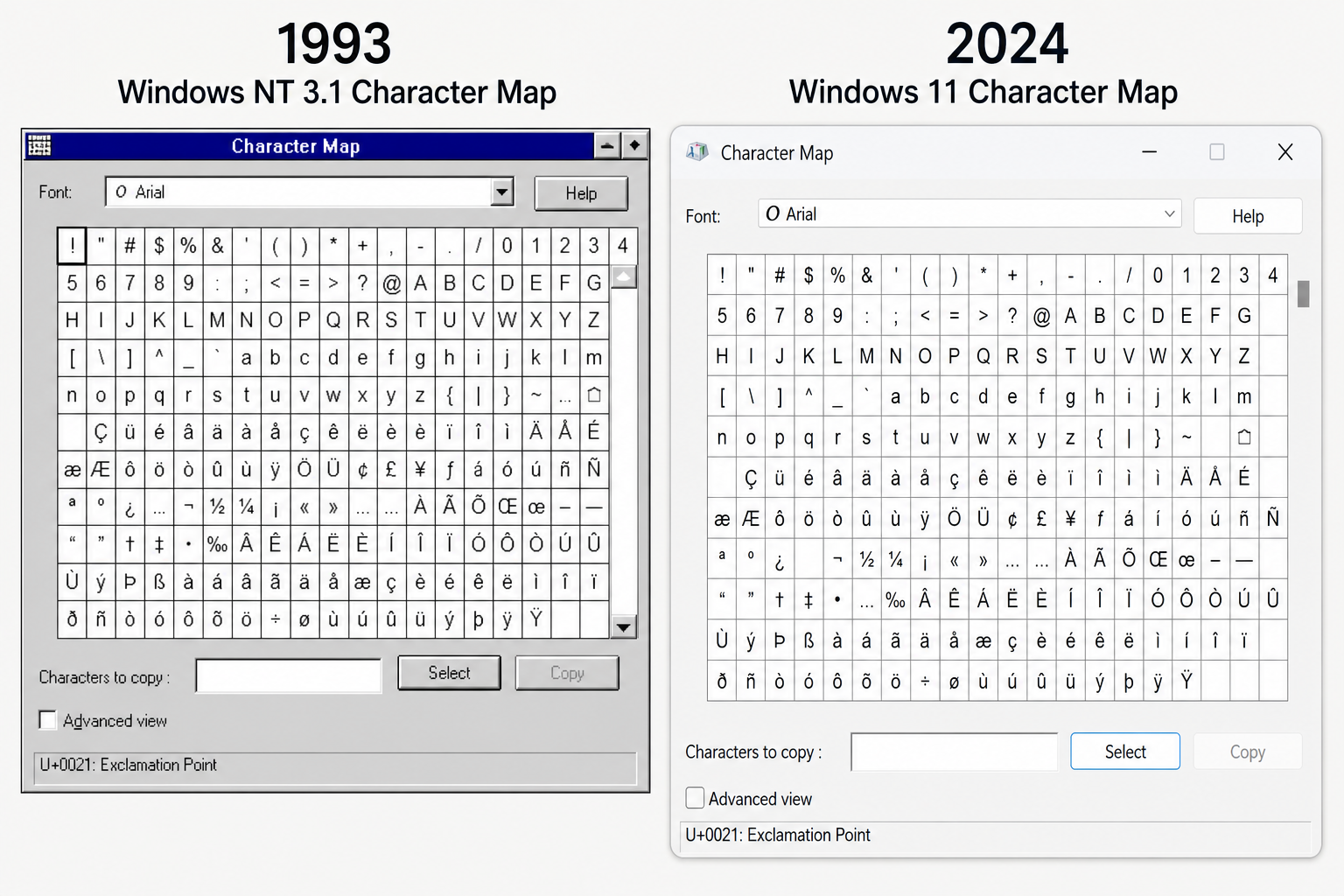
The Character Map first appeared in Windows NT 3.1, released in July 1993 — making it one of the oldest surviving utilities in the Windows ecosystem. It was designed to solve a very practical problem of that era: early Windows users needed a way to access extended character sets beyond basic ASCII without resorting to obscure keyboard shortcuts. The tool was so practical that Microsoft carried it forward into every subsequent Windows release: Windows 95, 98, ME, 2000, XP, Vista, 7, 8, 10, and now Windows 11.
What makes its survival remarkable is that the core interface has barely changed in over 30 years. The grid of characters, the font selector, the copy button — they are essentially the same today as they were in 1993. In the world of software, where tools are routinely deprecated, rewritten, or absorbed into newer products, that kind of longevity is genuinely extraordinary.
Why Does Windows Still Include charmap?
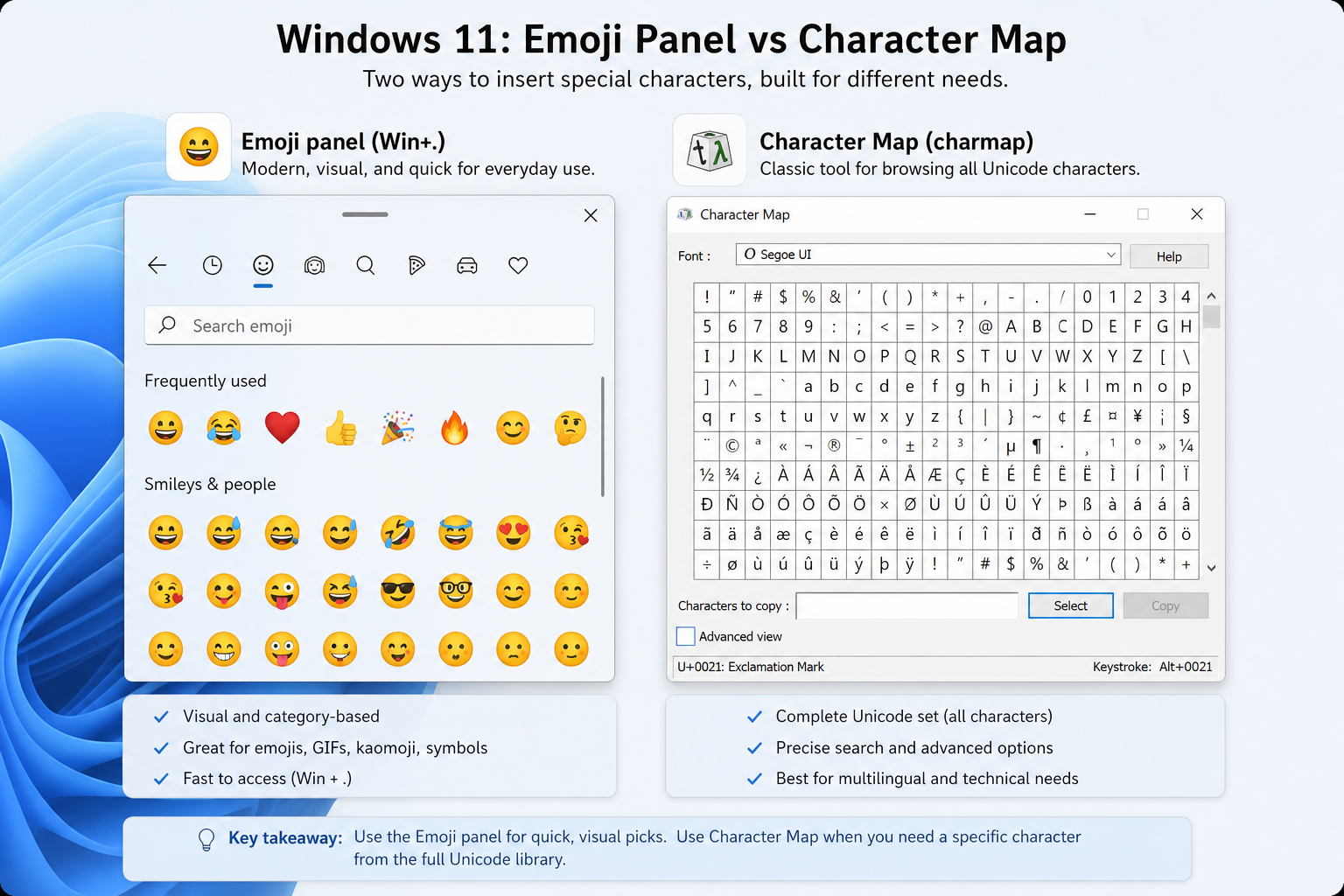
This is the question that puzzles tech enthusiasts. Windows 11 ships with the modern Emoji & More panel (Win + .), which covers emoji, symbols, and even some special characters. So why keep the old charmap utility alive?
-
Font-level browsing: The Character Map lets you browse characters by font, which the emoji panel does not. Designers working with icon fonts like Wingdings, Webdings, or custom typefaces rely on this feature daily.
-
Advanced search: You can search characters by their Unicode name — useful for finding obscure glyphs like “LATIN SMALL LETTER EZH WITH CIRCUMFLEX.”
-
Alt-code lookup: Hovering over a character shows you the corresponding keystroke, which power users and touch-typists still memorise.
-
Backward compatibility: Thousands of enterprise workflows, macros, and accessibility scripts reference charmap.exe directly. Removing it would break things Microsoft cannot fully predict.
-
Zero maintenance cost: Because the code is essentially frozen, it costs Microsoft almost nothing to keep shipping it.
How to Open the Character Map on Windows 10 and 11
Opening the Windows character tool takes just a few seconds using any of these methods:
-
Run dialogue: Press Win + R, type
charmap, and press Enter. -
Search bar: Click the Start menu or taskbar search and type Character Map. Click the top result.
-
Command Prompt / PowerShell: Type
charmap.exeand press Enter. -
File Explorer: Navigate to
C:\Windows\System32\charmap.exeand double-click.
Once open, select a font from the dropdown, find your character in the grid, double-click it to add it to the “Characters to copy” box, then click Copy and paste it into any application.
How to Find Special Characters in Windows Using Character Map
Finding special characters in Windows is straightforward once you know the tool’s layout. Here are some practical tips:
-
Use the “Advanced view” checkbox at the bottom of the window. This unlocks a search field where you can type a character’s Unicode name (e.g., “degree sign”) to jump straight to it.
-
Filter by character subset: The “Group by” dropdown lets you filter by Unicode subrange — handy when you need only Currency Symbols or Mathematical Operators.
-
Check the status bar: When you hover over or click a character, the status bar at the bottom shows its Unicode code point (e.g., U+00B0 for °), its keystroke, and its full Unicode name.
-
Build multi-character strings: You can double-click several characters in a row to queue them all in the copy box before pasting — useful for inserting a whole phrase with special glyphs in one go.
The Emoji Panel vs. charmap: Which Should You Use?
Windows 10 version 1903 introduced the emoji panel (Win + .), which was expanded significantly in Windows 11 to include a symbol tab and even a GIF tab. For casual use — dropping a smiley face or the copyright symbol into a message — the emoji panel is faster and more visual. But the Character Map still wins in several scenarios:
-
Working with a specific installed font that the emoji panel does not expose
-
Copying multiple uncommon symbols in a batch
-
Looking up exact Unicode code points for developer or accessibility work
-
Running older Windows versions (Windows 7 or Windows 10 pre-1903) that lack the emoji panel
Think of them as complementary tools: the emoji panel for quick, everyday glyphs, and charmap for precision and font-specific work.
Will Microsoft Ever Remove the Character Map?
As of Windows 11, there are no official plans to remove the Character Map. Microsoft has deprecated or removed several legacy accessories over the years — WordPad was removed in Windows 11 24H2, for example — but charmap has so far escaped the axe. Its negligible file size, its unique font-browsing capability, and its deep roots in enterprise compatibility make it a low-risk item to keep shipping. If anything, its continued presence is a testament to the principle of not breaking what still works.
If you want to run the latest version of Windows and keep all these hidden gems close at hand, explore the Microsoft Windows 11 Pro Retail licence available from ShopKeyOnline — instant email delivery, official download links included. Already on Windows 11 and want the full productivity suite? Check out the Windows 11 Pro + Office 2024 Pro Plus Bundle for great value on both licences.
Frequently Asked Questions
How old is the Windows Character Map?
The Character Map dates back to Windows NT 3.1, released in July 1993, making it over 30 years old. It has shipped with every version of Windows since then, making it one of the longest-surviving utilities in the entire Windows ecosystem.
What is charmap.exe used for?
charmap.exe is the Windows character tool that lets you browse all characters and symbols in any installed font. It is primarily used for inserting special characters — accented letters, currency symbols, mathematical signs, and Unicode glyphs — that are not directly accessible from a standard keyboard. You can copy characters to the clipboard and paste them into any application.
Does Windows 11 still have Character Map?
Yes. As of Windows 11, the Character Map is still included. You can open it by pressing Win + R and typing charmap, or by searching “Character Map” in the Start menu. Microsoft has not announced plans to remove it in any upcoming Windows release.
What is the difference between Character Map and the Windows emoji panel?
The emoji panel (Win + .) is a modern, touch-friendly overlay for quickly inserting emoji, common symbols, and GIFs. The Character Map is an older, more detailed utility that lets you browse characters per font, search by Unicode name, and copy multiple characters at once. Both tools are complementary — the emoji panel suits casual everyday use, while the Character Map is better for font-specific or technical work.
How do I search for a special character by name in the Character Map?
Open the Character Map, tick the “Advanced view” checkbox at the bottom of the window, and type the character’s name — such as “copyright sign” or “euro sign” — into the Search field. Click Search, and the utility will jump to the matching character in the grid. You can then click Copy to place it on your clipboard.
Can the Character Map handle all Unicode characters?
Yes. The Character Map on modern Windows versions supports the full Unicode standard. Unicode 15.1, released in September 2023, defines 149,813 characters across 161 scripts, and the Character Map can display any of them as long as you have a font installed that contains those glyphs.
