
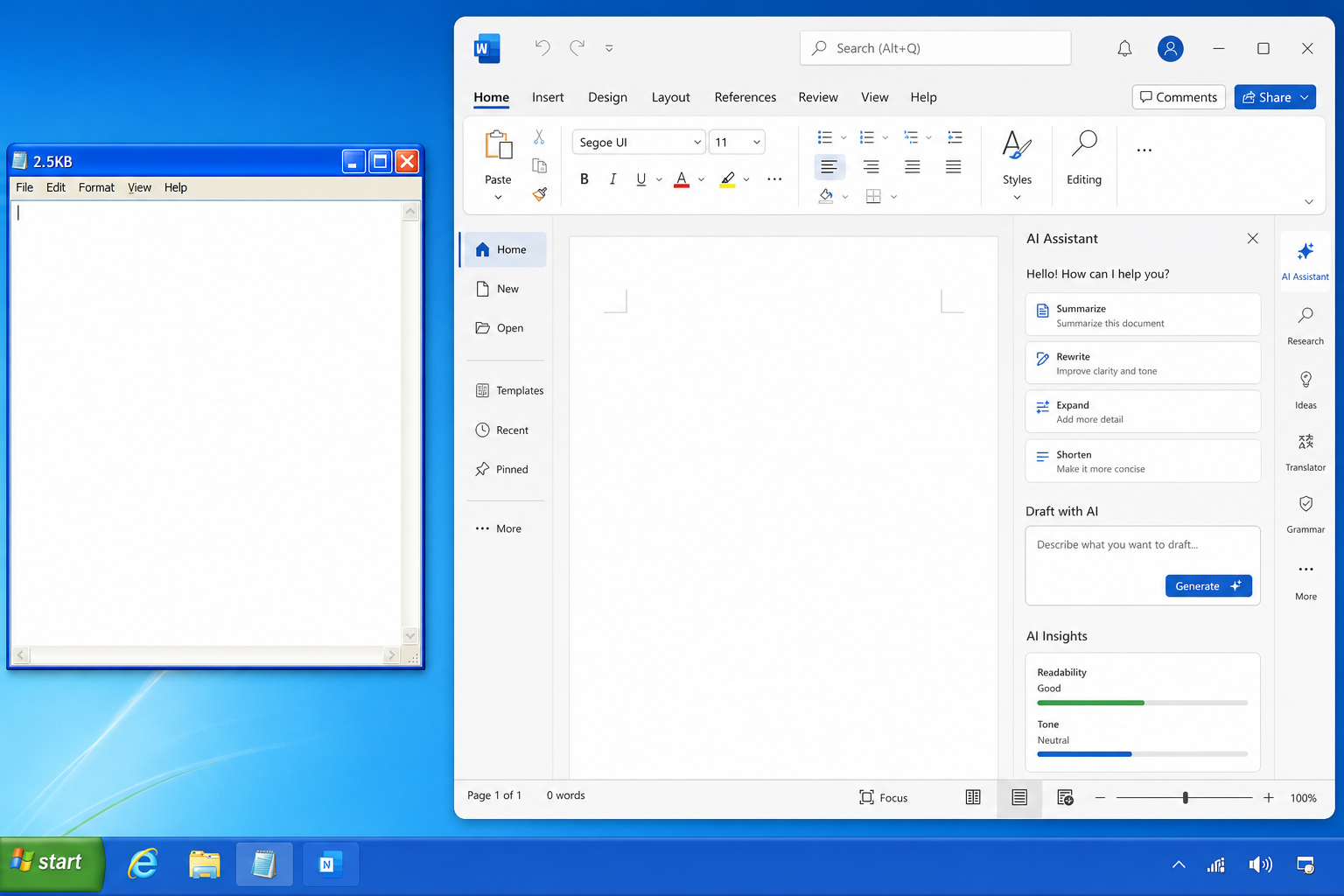
Minimalist Windows tools can still do everything most users need — and a 2.5KB Notepad rebuild by a former Microsoft engineer proves it. Dave Plummer, who wrote the original Windows Task Manager, released TinyRetroPad in mid-2026: a fully functional text editor built from nothing but components Windows already ships, weighing in at a fraction of the modern Notepad’s footprint. It’s a masterclass in what the OS was always capable of — and a sharp indictment of what everyday software has quietly become.
What Is TinyRetroPad and Why Does It Matter?
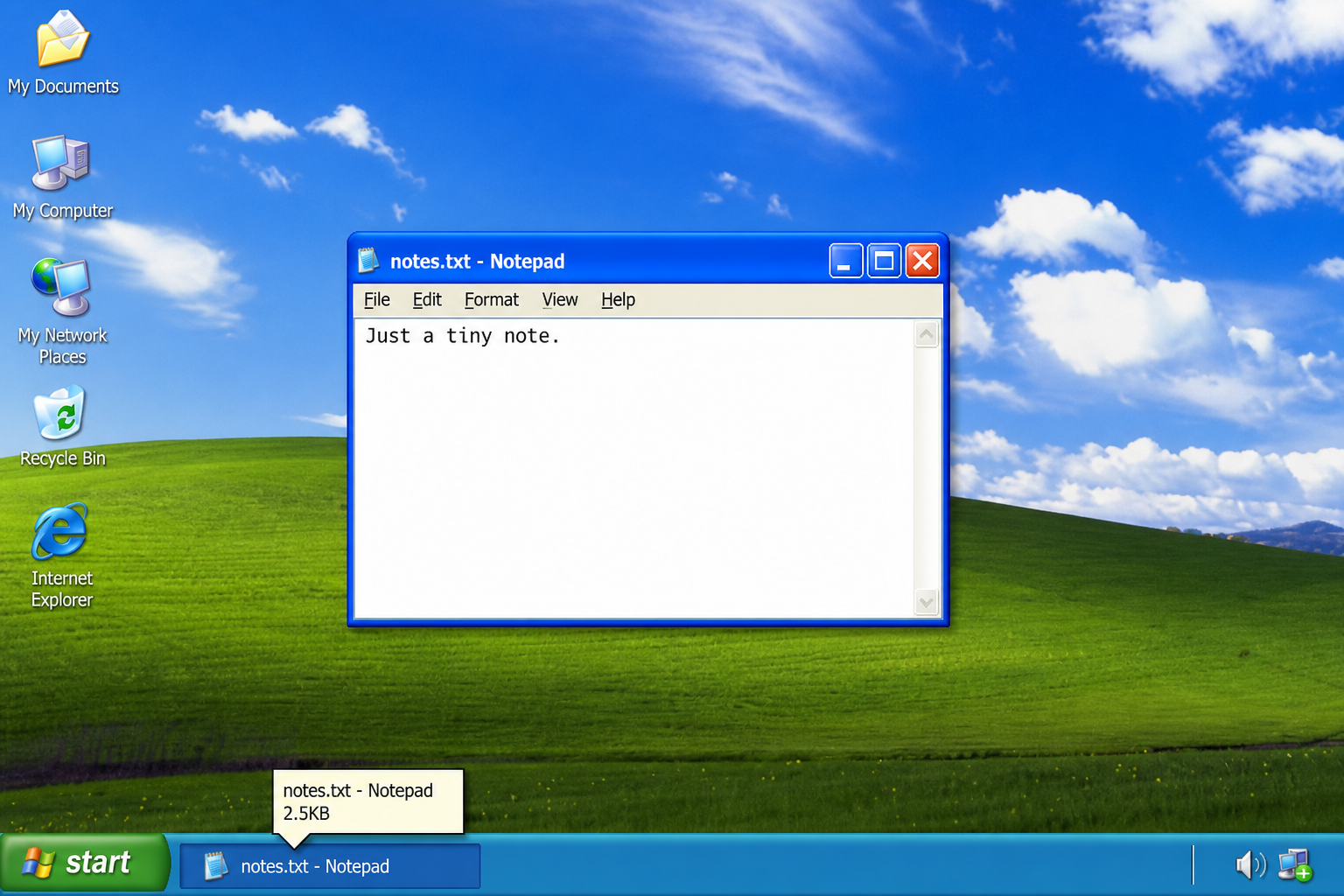
TinyRetroPad is Dave Plummer’s answer to a question most users never thought to ask: how small could Notepad actually be? Using only native Win32 API components — a standard edit control, a menu bar, a window frame — Plummer assembled a text editor that occupies just 2.5 kilobytes. No telemetry. No AI suggestions. No sign-in prompt. No background services. Just a window that opens instantly and lets you type.
By contrast, the modern Notepad shipped with Windows 11 has grown into a multi-megabyte application that loads via the Microsoft Store framework, ships with spell-check, character counts, and in some builds, AI-assisted features. The core job — open a file, show text, let you edit — hasn’t changed since 1985. The code around it has ballooned beyond recognition.
As Plummer himself put it: “I rebuilt it from scratch. 2.5 kilobytes. No bloat. No telemetry. No nonsense.” That quote, reported by The Register, cuts to the heart of a genuine tension inside modern operating system development.
The Windows App Bloat Problem: How Did We Get Here?
Windows app bloat isn’t a conspiracy — it’s a product of accumulated good intentions. Each of the following additions made sense in isolation; together, they compounded into something that slows down your machine.
- Runtime dependencies: Modern Windows apps often rely on .NET runtimes, UWP frameworks, or WinUI libraries that need to load before the application itself can open.
- Telemetry and diagnostics: Usage data collection is baked into many inbox apps, adding background threads even for simple tools.
- Microsoft Store packaging: Apps distributed through the Store are wrapped in MSIX containers that add overhead and tie the app to a packaging framework.
- Feature creep: Spell-check, auto-save, tabs, character encoding detection, and AI copilot integration all land in Notepad — a tool whose job is to show text.
- Cloud integration: Even a local text editor now sometimes pings Microsoft servers on launch to check for updates or load personalised features.
None of these individually ruins the experience. Combined, they explain why the Windows 11 version of Notepad consumes measurably more RAM than WordPad — a richer word processor — on the same machine.
Native Windows Apps: The Hidden Power Already in Your OS
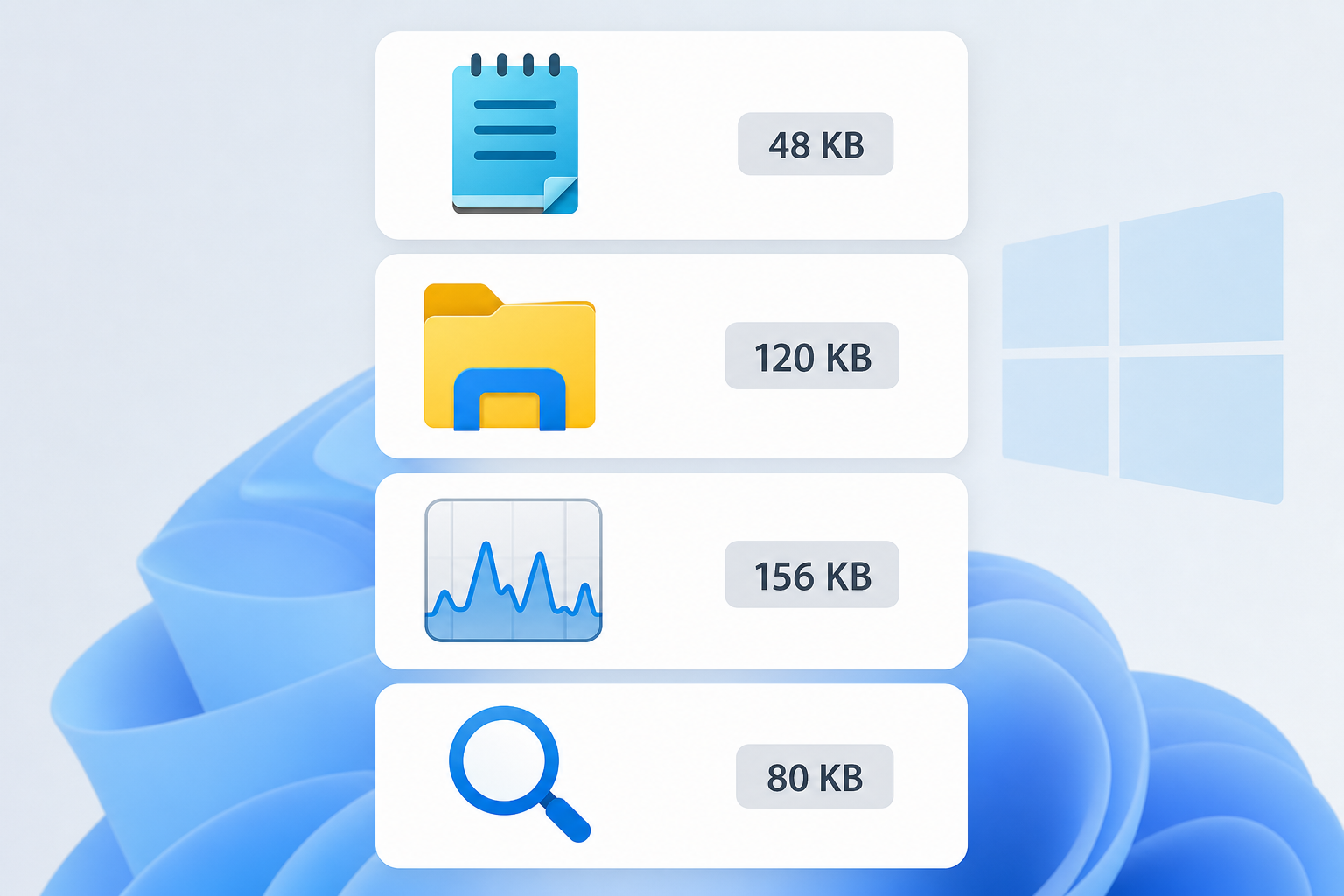
TinyRetroPad works because Windows has always shipped with a rich library of native controls that any developer can call directly. The Win32 API — first introduced with Windows 3.0 in 1990 — exposes text editing controls, file dialogs, menus, and window management without requiring a single external dependency. When you call these components directly, the OS handles the rendering; your executable just needs to wire them together.
This is how every classic Windows tool was built: Notepad, Paint, Calculator, WordPad. They were thin shells around OS-provided controls. The result was applications that launched in milliseconds and consumed kilobytes of disk space. Native Windows apps of that era were fast not because hardware was simpler, but because the code respected the OS architecture.
The lesson TinyRetroPad teaches is that this capability never went away. Windows still ships every control Plummer used. Any developer today could write a 2.5KB text editor. The choice to build something larger is exactly that — a choice.
Windows Lightweight Tools: A Practical Guide for Users
If you’re frustrated by the creep of bloat in everyday Windows apps, you have real options. Here is a practical breakdown of Windows lightweight tools that serve common tasks without unnecessary overhead.
Text Editing
- TinyRetroPad — Dave Plummer’s 2.5KB creation. Pure old-school Windows, XP-era experience, zero telemetry.
- Notepad++ — Written in C++ with pure Win32 API calls, Notepad++ weighs in at around 4MB installed but handles syntax highlighting for over 50 languages with no background services.
- Microsoft Edit — Microsoft’s own lightweight CLI text editor, available free for Windows 11 and Linux, designed for speed and simplicity.
File Management
- Classic Windows Explorer — The built-in File Explorer, used without add-ons, remains one of the most efficient native Windows apps for everyday file tasks.
- Everything by Voidtools — Indexes your entire drive nearly instantly and searches in real time, using a fraction of the resources Windows Search consumes.
System Monitoring
- Task Manager — Ironically, Dave Plummer’s own original creation. Still one of the most efficient diagnostic tools built into Windows, though even it has grown more complex across versions.
- Resource Monitor — Accessible from Task Manager, gives granular CPU, memory, disk, and network breakdowns without any third-party install.
What This Means for Windows 11 and Windows 10 Users
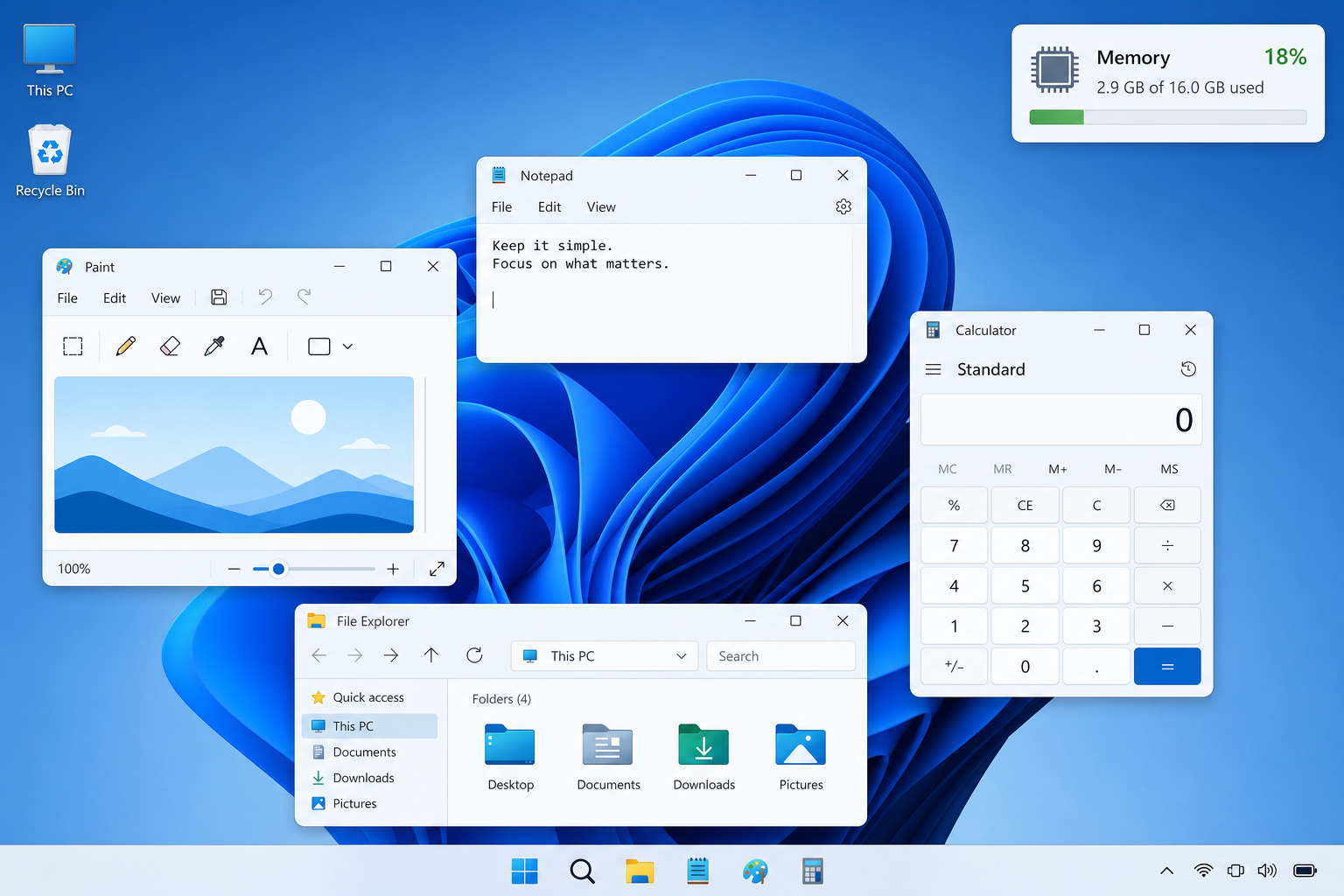
The debate around Windows app bloat has real-world consequences for everyday users, especially those on older or budget hardware. Windows 11 ships with higher baseline RAM usage than Windows 10 — and the AI-powered Copilot+ features Microsoft is actively promoting require at least 16GB of RAM to function properly. That’s a significant ask for a machine being used primarily for web browsing, document editing, and email.
If your priority is a lean, fast Windows experience, choosing a clean installation of Microsoft Windows 11 Pro OEM (from €15.95 at ShopKeyOnline) and deliberately opting out of Store-based inbox app updates is a legitimate strategy. You keep the modern security and driver support while sidestepping the feature creep in apps you rarely need in their bloated form.
Alternatively, Microsoft Windows 10 Pro Retail (from €14.95) remains a genuinely capable platform through its extended support window, and its lower baseline resource usage makes it a sensible choice for users who value responsiveness over novelty.
Legacy Tool Design: What the 1985 Notepad Got Right
The original Notepad shipped with Windows 1.0 in November 1985. It was written to do one thing: open plain text files and let you edit them. The constraints of the era — hardware with kilobytes of RAM and no network connection — forced engineers to be ruthless about scope. Every line of code had to earn its place.
That philosophy produced tools that aged extraordinarily well. The core interaction model of Notepad — open, edit, save, close — has not changed in 40 years, because it didn’t need to. Users understood it immediately in 1985 and understand it immediately today. Native Windows apps designed with this clarity of purpose tend to outlast their more ambitious successors.
TinyRetroPad is not nostalgia for its own sake. It’s a proof of concept: the design principles that made 1985-era tools excellent are still applicable in 2026. Scope discipline, OS-native rendering, and zero unnecessary dependencies are engineering virtues, not historical artefacts.
The Broader Lesson: Efficiency as a Feature
Dave Plummer’s TinyRetroPad went viral in mid-2026 because it touched a nerve. Developers and power users — people who spend hours a day inside Windows — are acutely aware of the steady creep of resource consumption. Applications that once opened in under a second now take three or four. Machines that were fast two years ago feel sluggish because the software has outgrown them, not because the hardware has failed.
The 2.5KB rebuild is a provocation. It asks: if you can build the whole thing in 2.5KB, what exactly is the other 99.9% of the modern Notepad doing? The honest answer is that much of it is infrastructure — frameworks, packaging, telemetry, update mechanisms — that serves Microsoft’s platform goals more than it serves the user sitting in front of the screen.
Recognising this doesn’t mean rejecting modern Windows entirely. It means being deliberate about which apps you allow to run, which features you enable, and which alternatives you reach for when the default option is heavier than the task demands. Minimalist Windows tools aren’t a compromise — used correctly, they’re a performance upgrade.
FAQ
What is TinyRetroPad and who made it?
TinyRetroPad is a minimalist text editor for Windows created by Dave Plummer, a former Microsoft engineer best known for writing the original Windows Task Manager. Released in mid-2026, it recreates the classic Windows XP-era Notepad experience in just 2.5KB using only native Win32 API components. It includes no telemetry, no AI features, and no external dependencies.
Why is modern Windows Notepad so much larger than TinyRetroPad?
Modern Notepad in Windows 11 is distributed as a Microsoft Store app wrapped in an MSIX package, which adds packaging overhead. It also includes spell-check, auto-save, tab support, and in some builds, AI-assisted features — all requiring additional frameworks and background services. The core editing function is unchanged; the surrounding infrastructure accounts for the size difference compared to Windows lightweight tools built on raw Win32 calls.
Are minimalist Windows tools actually safe to use?
Yes — tools built on native Win32 API components use the same OS controls that Windows itself relies on, and they carry no additional attack surface from third-party frameworks or network services. In fact, removing telemetry and cloud connectivity can reduce your exposure compared to some inbox apps. Always download from verified sources; TinyRetroPad is available through Dave Plummer’s official GitHub repository.
Does Windows app bloat affect performance on modern hardware?
On high-spec machines with 16GB or more of RAM, the overhead of modern Windows apps is largely invisible in day-to-day use. On budget PCs, older laptops, or machines running multiple applications simultaneously, the cumulative RAM and CPU cost of bloated native Windows apps is measurable and can cause noticeable slowdowns. Swapping heavy apps for lightweight alternatives is one of the most cost-effective performance improvements available.
Is Windows 10 less bloated than Windows 11?
Windows 10 generally has a lower baseline RAM footprint than Windows 11 and ships with fewer AI-integrated inbox apps by default. However, both versions have accumulated bloat over years of updates, and the difference is most significant on hardware with less than 8GB of RAM. For users prioritising a lean experience, a clean installation of either version — combined with deliberate app choices — matters more than which version you pick.
What other native Windows apps demonstrate efficient design?
Classic examples include the original Calculator, Character Map, and Paint — all built on native Windows controls with minimal overhead. Third-party tools like Notepad++, Everything (search), and Process Explorer follow similar principles, using Win32 API calls rather than heavy application frameworks. These represent the best of the native Windows app tradition: fast, focused, and genuinely useful without excess.
