
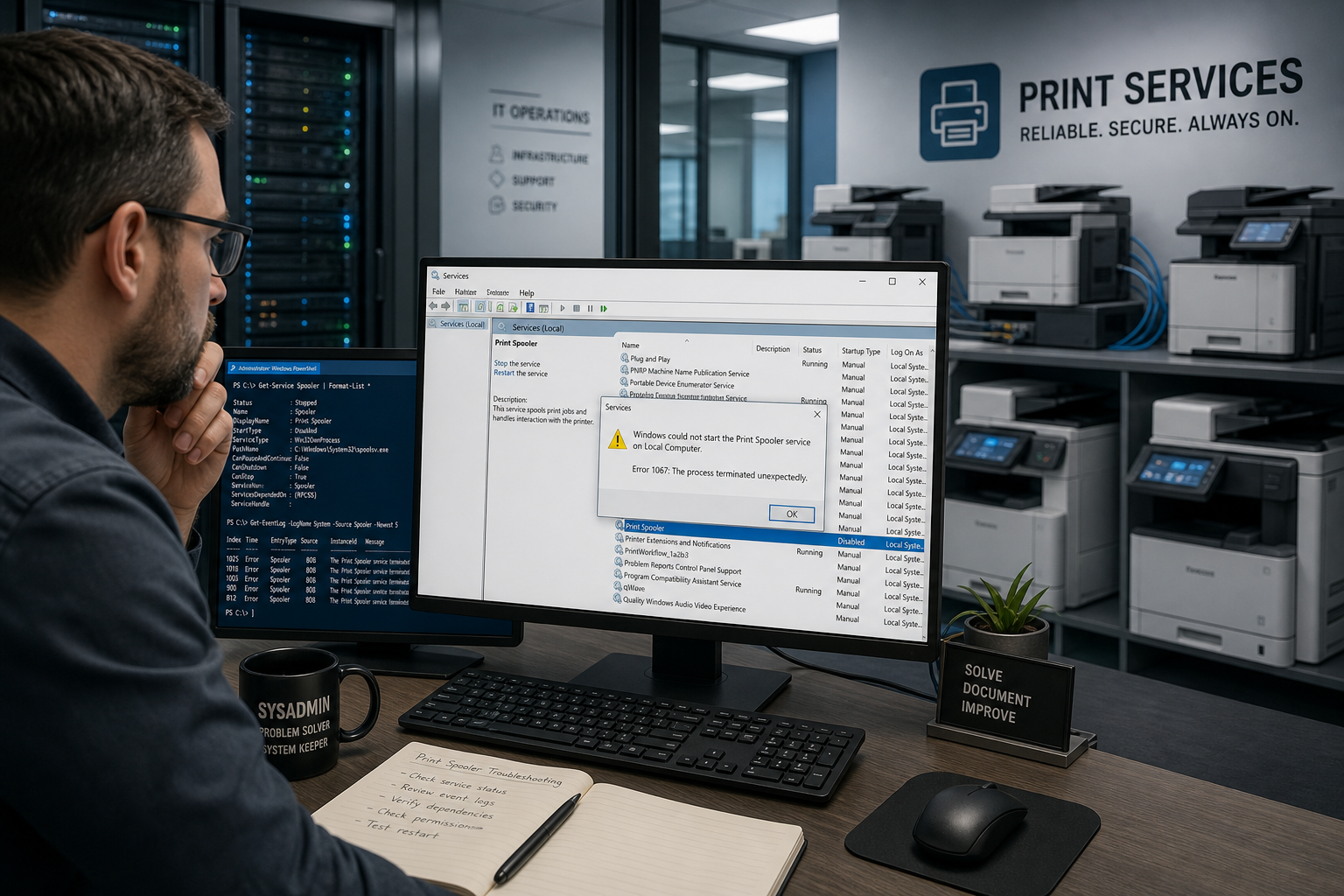
When the print spooler service keeps crashing on a Windows print server, the fastest fix is almost never a permanent one — restarting the service clears the symptom but not the cause. If print jobs vanish, the spooler stops unexpectedly, or users report “printer offline” errors that come back within hours, you’re dealing with an underlying conflict between drivers, corrupted job files, or a known vulnerability-related restriction, and each has a different permanent fix.
This guide walks sysadmins and IT teams through a structured diagnosis of recurring print spooler failures on shared Windows printers — from reading the right Event Viewer logs to isolating the bad driver, clearing stuck jobs safely, and locking down the settings that cause repeat crashes on print servers.
Why the Print Spooler Keeps Crashing
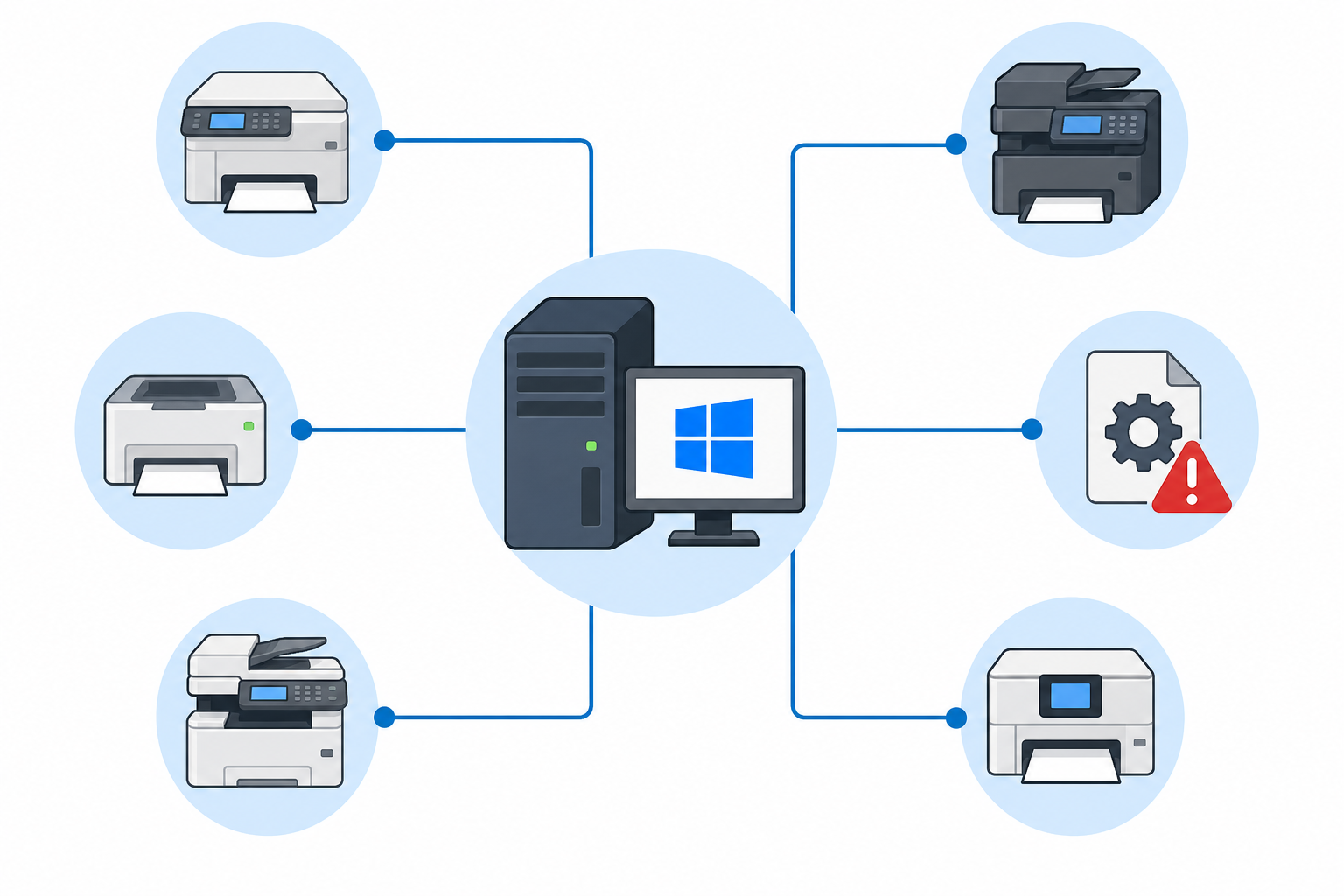
The print spooler crashes repeatedly because it’s a single Windows service (spoolsv.exe) juggling every print job, every driver, and every connected printer at once — one corrupted job or one bad driver can take the whole queue down. Unlike most background services, the spooler loads third-party driver code directly into its process space, so a poorly written or outdated driver doesn’t just fail quietly — it can crash the entire service for every printer on the server.
Common root causes include:
- Corrupted spool files left behind after an interrupted job
- Outdated or mismatched printer drivers, especially after a Windows feature update
- Conflicting print processors from multiple vendors on the same server
- Group Policy or registry restrictions applied after security patches that break legitimate driver installs
- Low disk space on the spool folder’s drive
- Third-party print management or scanning software hooking into the spooler
On shared print servers, a single faulty driver installed for one device can crash the print spooler for every user connected to that server — which is why isolating the trigger matters more than simply restarting the service.
Reading Event Viewer to Find the Real Cause
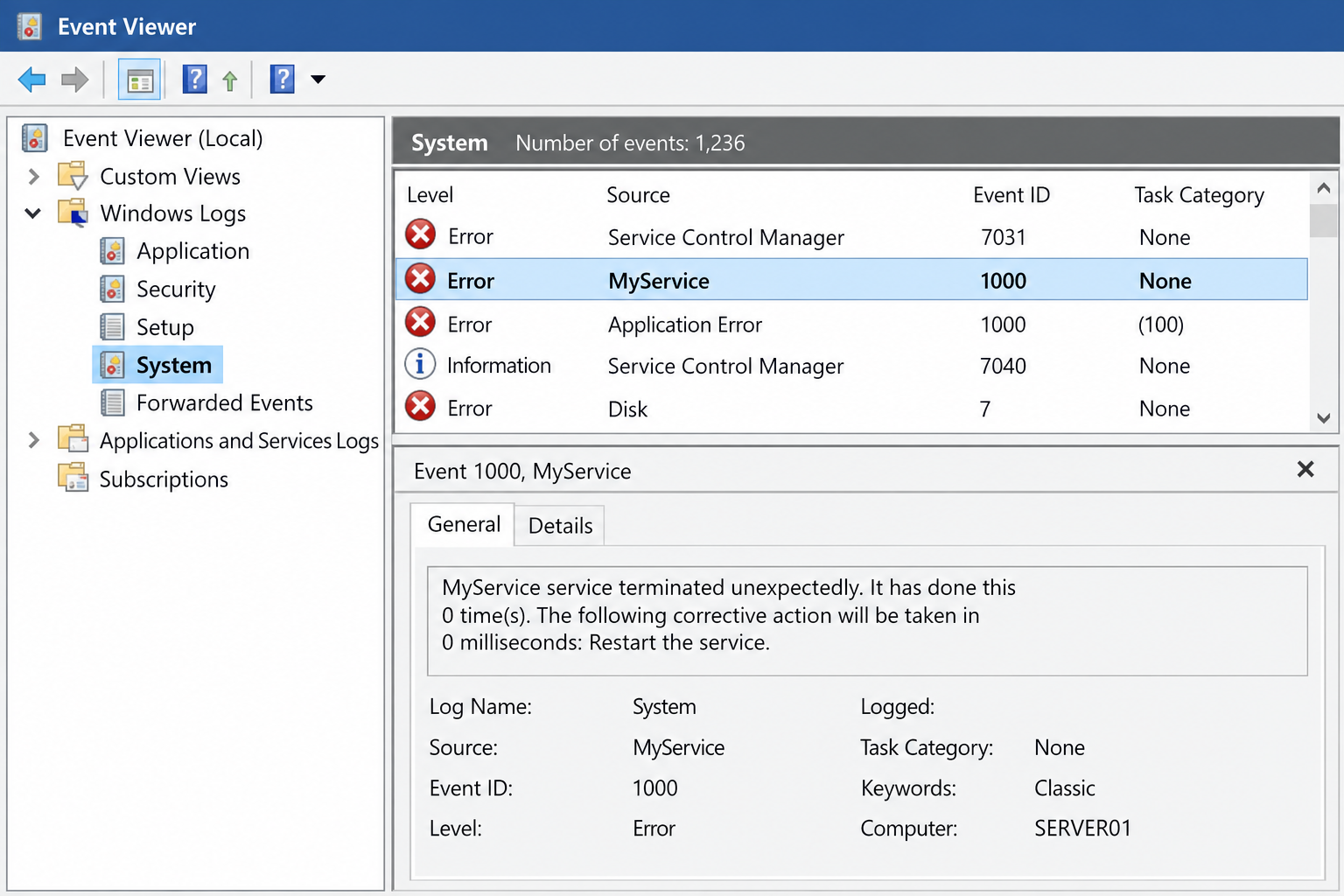
Before changing anything, check Event Viewer — it almost always names the exact driver or module responsible for the print spooler crash. Open Event Viewer and look under Windows Logs > Application for Event ID 1000 (Application Error) referencing spoolsv.exe, and under Windows Logs > System for Event ID 7031 or 7034, which indicate the service terminated unexpectedly.
What to Look For in the Print Spooler Event Logs
- Faulting module name: if it’s a driver DLL (not spoolsv.exe itself), that driver is the cause
- Event ID 372 or 808: points to a specific print processor or driver failure
- Timestamps: correlate crash times with recent print jobs, driver installs, or Windows updates
- Frequency: a spooler that fails only under specific printer models narrows the search immediately
If you manage several servers and the event log view feels unwieldy, filtering the right event IDs and setting sensible retention limits makes repeat diagnosis much faster — our guide to Event Viewer logging optimization covers which logs actually matter for troubleshooting service crashes like this one.
Step-by-Step: Clearing a Stuck Print Spooler Queue
Clearing the spool folder resolves the majority of one-off print spooler crashes where jobs are stuck rather than a driver is actively faulty. Do this before touching drivers or the registry, since a corrupted .SPL or .SHD file left in the queue can trigger repeat crashes on its own.
- Open Services (services.msc) and stop the Print Spooler service
- Navigate to
C:\Windows\System32\spool\PRINTERS - Delete all files in that folder (they are queued jobs, not drivers — safe to remove)
- Restart the Print Spooler service
- Resend a test print job to confirm the queue processes normally
If the spooler crashes again immediately after restart, the problem isn’t a stuck job — it’s an active driver or configuration conflict, and you’ll need to move to driver isolation.
Isolating a Faulty Printer Driver
A single bad driver is the most common permanent cause of recurring print spooler failures on shared printers, and the fix is to remove and cleanly reinstall it rather than patch around it. Start by removing the suspect driver entirely from the driver store, not just the installed printer, since a lingering driver package will reattach itself the next time a client connects.
Clean Driver Removal Process
- Open Print Management (printmanagement.msc) on the server
- Go to Print Servers > [server name] > Drivers
- Right-click the suspect driver and select Remove Driver Package
- Download the latest signed driver directly from the printer manufacturer’s site — never rely on a Windows Update generic driver for high-volume shared printers
- Reinstall and test with a single client before rolling out to the full print server
For mixed-vendor print environments, standardizing on the manufacturer’s Type 4 (v4) driver class where available reduces print spooler crashes significantly, since v3 drivers run more code inside the spooler process itself.
Print Spooler Crashes After a Windows Security Update
If print spooler crashes began right after installing a Windows cumulative update, you’re likely hitting a Point and Print restriction change rather than a hardware or driver fault. Microsoft tightened Point and Print driver installation behavior following the PrintNightmare vulnerability, and these changes can block non-admin users from installing or updating printer drivers — which some environments interpret as a spooler failure.
Microsoft’s own guidance confirms the fix relies on verifying specific registry values rather than disabling protections outright: Clarified Guidance for CVE-2021-34527 Windows Print Spooler Vulnerability, which explains that the NoWarningNoElevationOnInstall and UpdatePromptSettings registry values must remain at 0 or undefined to avoid reintroducing the exposure while restoring normal driver installation for standard users.
Checking Point and Print Registry Settings
- Navigate to
HKEY_LOCAL_MACHINE\SOFTWARE\Policies\Microsoft\Windows NT\Printers\PointAndPrint - Confirm RestrictDriverInstallationToAdministrators reflects your intended policy
- Avoid re-enabling NoWarningNoElevationOnInstall, since this setting is the specific configuration Microsoft identified as exploitable
- Use Group Policy to push approved drivers instead of loosening these protections server-wide
For domain-managed print servers, the Federal government’s security guidance is worth bookmarking: the CISA alert on the PrintNightmare Print Spooler vulnerability lays out mitigations for domain controllers and systems that don’t need to print at all — disabling the service entirely on machines with no printing need remains one of the simplest permanent fixes available.
Permanent Fixes for Print Spooler Service Failures on Shared Printers
A permanent fix for recurring print spooler crashes on shared printers combines driver hygiene, monitored disk space, and a scheduled restart policy as a safety net — not a replacement for root-cause work. Apply these in order:
- Standardize drivers: use one certified driver per printer model across the fleet, sourced from the vendor, not Windows Update
- Separate print servers by driver type where v3 and v4 drivers must coexist, to prevent cross-contamination of the spooler process
- Monitor spool folder disk space — a full spool drive is a frequent, overlooked crash trigger on high-volume print servers
- Set a scheduled task to restart the Print Spooler service during off-hours only as a stopgap while the root cause is being resolved — never as the only fix
- Keep Windows Server patched, since Microsoft continues to ship spooler-related reliability and security fixes in cumulative updates
If your print server is still running an edition nearing its support cutoff, pairing this troubleshooting work with a licensing refresh is worth considering — a current, properly licensed Windows 11 Pro OEM license ensures you’re still receiving the servicing updates that patch spooler vulnerabilities and reliability bugs as Microsoft releases them.
When to Disable the Print Spooler Entirely
Disabling the print spooler service is the right call on any server or workstation that never needs to print, particularly domain controllers, since the service represents attack surface with no operational benefit on those machines. To disable it safely:
- Open Services (services.msc)
- Right-click Print Spooler and select Properties
- Set Startup type to Disabled
- Click Stop, then OK
Only do this on systems confirmed to have no printing requirement — disabling the spooler on an active print server will immediately break printing for every connected client.
Preventing Repeat Print Spooler Crashes Long-Term
The best long-term defense against print spooler instability is treating print servers like any other critical infrastructure: patched on a schedule, monitored for errors, and kept on a minimal, vetted driver set. Build a lightweight maintenance routine:
- Review Event Viewer weekly for recurring spooler-related warnings before they become full outages
- Test new printer drivers in a staging environment before deploying to production print servers
- Document which driver version is approved for each printer model company-wide
- Apply Windows cumulative updates promptly, since spooler security fixes are frequently bundled into routine Patch Tuesday releases
Sysadmins managing larger fleets may also want to review how Windows handles DNS and update delivery server-side, since print server stability often intersects with broader server configuration — our piece on Windows Server DNS encryption changes covers related infrastructure considerations worth factoring into a print server refresh.
FAQ: Print Spooler Troubleshooting
How do I download the correct printer driver to stop spooler crashes?
Download the driver directly from the printer manufacturer’s official support page for your exact model and Windows version — avoid generic drivers pulled automatically through Windows Update on shared print servers, since they’re more likely to conflict with existing print processors.
How to install a printer driver without triggering Point and Print restrictions?
Install the driver locally as an administrator first, or push it through Group Policy using Print Management’s driver deployment feature, so standard users connecting to the shared printer inherit an already-trusted driver package instead of triggering an elevation prompt.
How to activate scheduled restarts for the print spooler safely?
Use Task Scheduler to run a command restarting the Print Spooler service during a low-traffic window, such as 3 a.m., rather than relying on manual restarts — but treat this as a temporary stopgap while you resolve the underlying driver or configuration issue.
Why does the print spooler crash only on one specific printer model?
This almost always points to that printer’s driver specifically, rather than a server-wide fault — check Event Viewer for the faulting module tied to that driver’s DLL and consider isolating that printer on its own print server or driver class.
How to check if the print spooler service is running?
Open Services (services.msc), locate Print Spooler in the list, and confirm the status column shows “Running.” You can also run Get-Service -Name Spooler in PowerShell for a quick scriptable check across multiple servers.
What causes the print spooler to stop and restart repeatedly?
Repeated start-stop cycles typically indicate a driver crashing the spooler process immediately after it loads a specific print job or queue — Event Viewer’s faulting module name will usually confirm which driver is responsible.
