
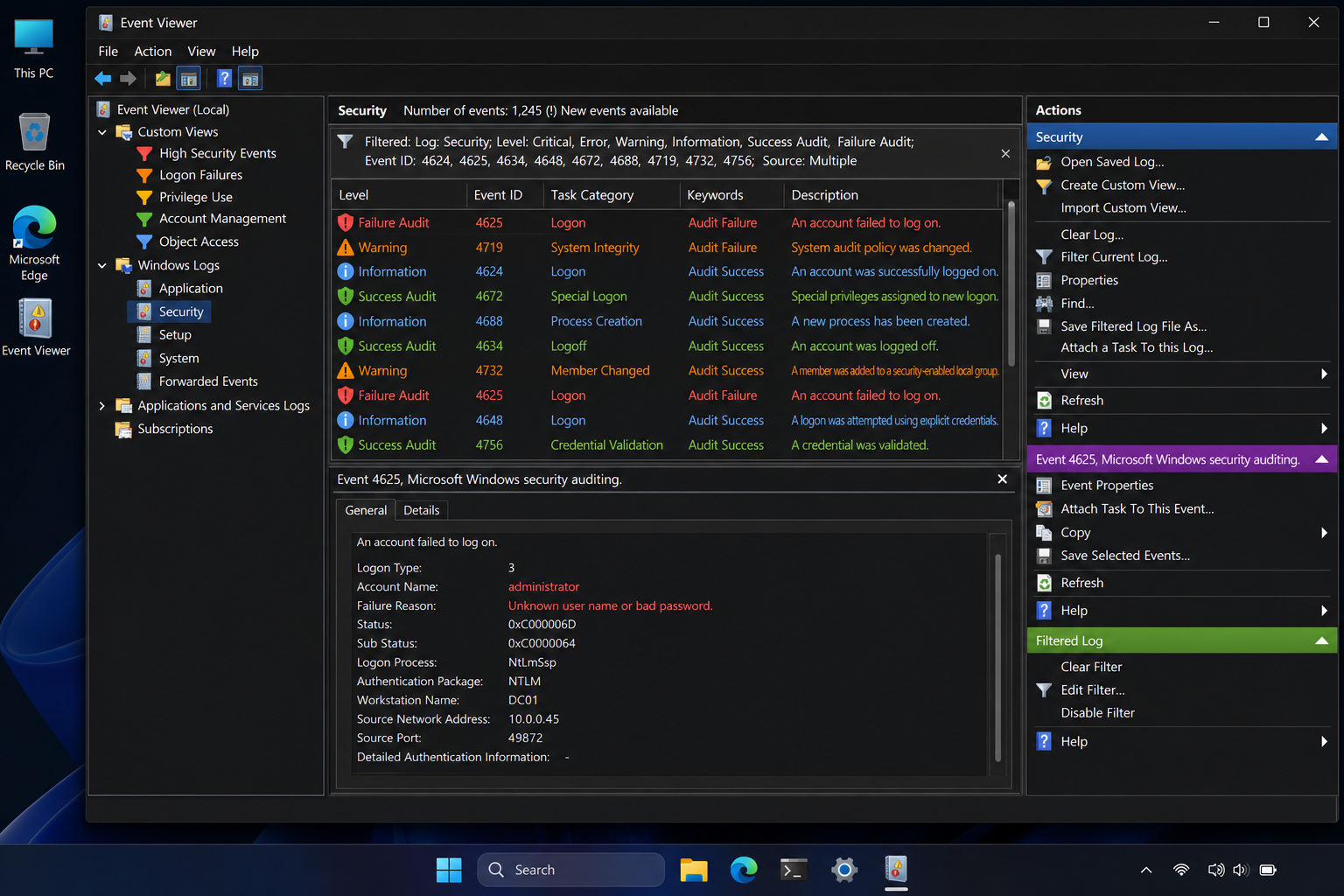
Windows event viewer logging is your first line of defence against threats hiding in plain sight — but only when it’s configured to surface signal rather than bury it in noise. By default, Windows logs tens of thousands of entries per day, and most of them are harmless background chatter. This guide shows you exactly which logs to watch, how to trim the noise, and how to keep your drives healthy.
Why Windows Event Log Configuration Gets Ignored
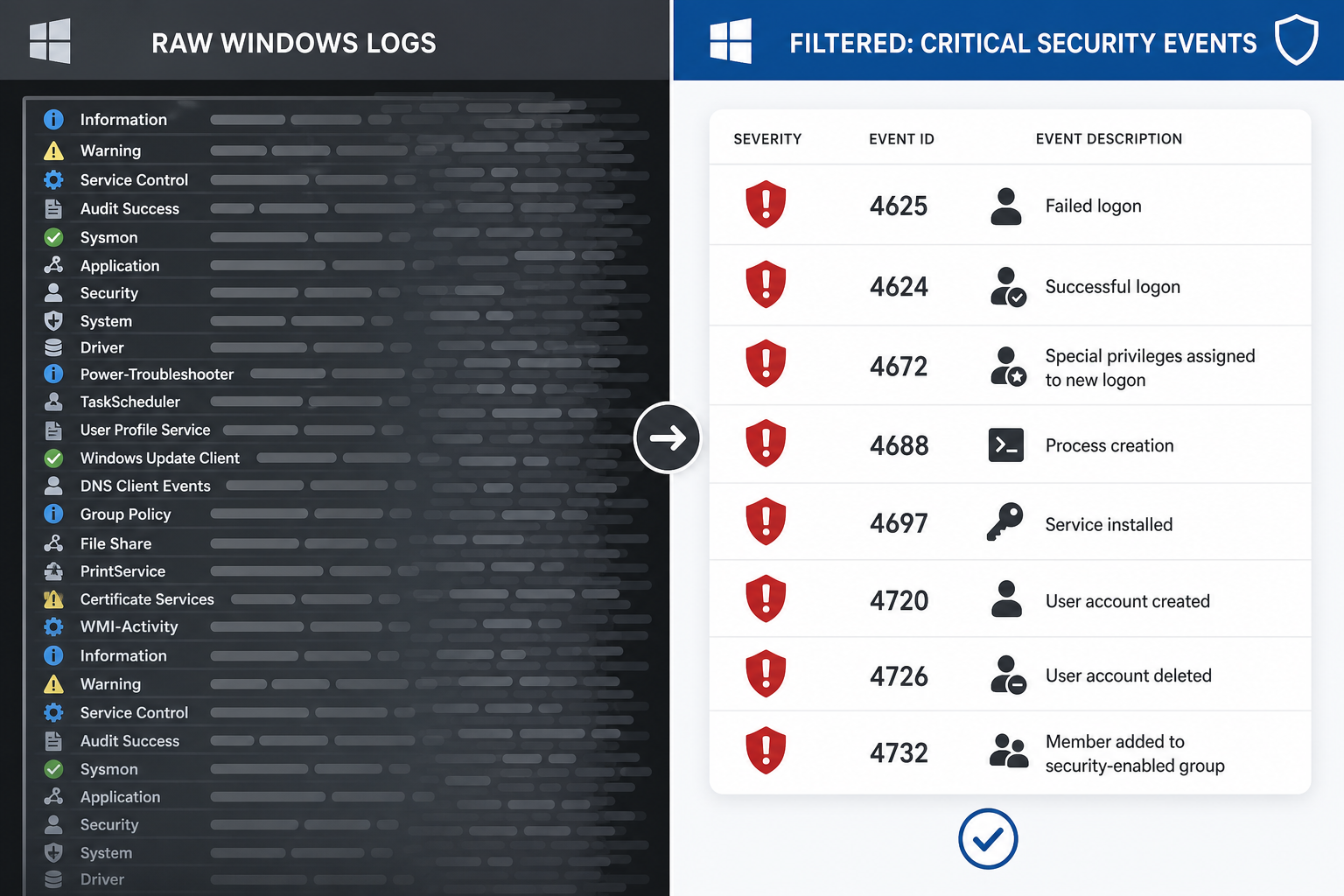
Most admins and power users open Event Viewer once after something breaks, skim through a wall of warnings, and close it again. That reaction is understandable — out of the box, Windows produces staggering volumes of entries. The Application log alone can accumulate hundreds of megabytes in days on a busy system. The result is that genuinely dangerous events get buried, drive space disappears quietly, and post-incident investigations become archaeology projects.
Proper event log configuration changes that picture entirely. With the right retention limits, targeted audit policies, and — for multi-machine environments — centralised forwarding, you spend minutes reviewing what matters instead of hours scrolling past what doesn’t.
The Four Core Windows Logs and What Each One Does
Before tuning anything, it helps to know what you’re working with. Windows maintains four primary logs under Windows Logs in Event Viewer:
- Application — Events raised by installed software. High volume, often low priority unless an app is crashing repeatedly.
- Security — Audit events: logons, policy changes, privilege use. This is where threats live. Treat it as your most critical log.
- Setup — Logged during Windows installation and update operations. Low day-to-day value but useful after patch deployments.
- System — Events from Windows components and drivers. Important for hardware and stability issues; moderate security value.
There are also Applications and Services Logs — including Microsoft/Windows/PowerShell and TaskScheduler — that are essential for detecting lateral movement and script-based attacks. These are often overlooked.
Key Event IDs for Event Log Optimization and Threat Detection
Effective windows event logs monitoring starts with knowing which event IDs carry weight. Microsoft’s own Appendix L: Events to Monitor is the definitive reference, but here’s a practical shortlist:
- 4624 — Successful logon. High volume but critical for baseline behavioural analysis.
- 4625 — Failed logon. Repeated failures against one account = brute-force attempt.
- 4688 — New process created (requires audit process creation to be enabled). Essential for detecting malicious child processes.
- 4698 / 4702 — Scheduled task created or modified. A favourite persistence mechanism for attackers.
- 4719 — Audit policy changed. Any unexpected change here demands immediate investigation.
- 4732 / 4728 — Member added to a privileged local or domain group (Administrators, Domain Admins).
- 1102 — The Security audit log was cleared. Almost always malicious.
- 7045 (System) — A new service was installed. Common malware persistence vector.
On a typical Windows 11 workstation, focusing on these 8–10 event IDs reduces the analysis surface by more than 90% while covering the vast majority of realistic attack scenarios.
Configuring Event Log Retention to Prevent Disk Bloat
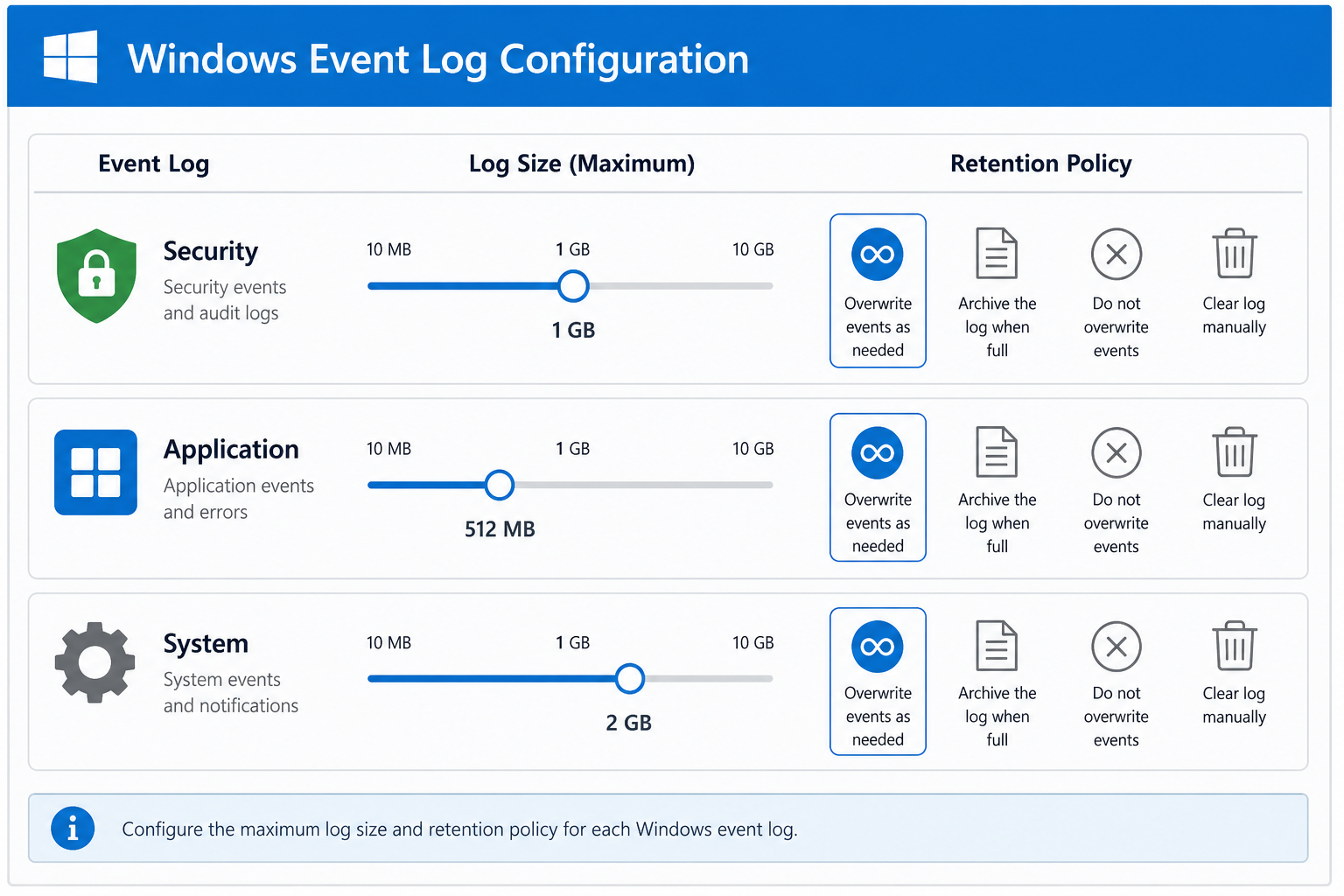
Event log configuration begins with size limits and overwrite behaviour. The defaults are modest: the Security log ships at just 20 MB maximum. For any serious monitoring, that’s far too small — a busy domain controller can fill 20 MB in under an hour.
To change log size limits in Event Viewer:
- Open Event Viewer (run
eventvwr.msc). - Right-click the log you want to resize (e.g. Security) and select Properties.
- Set Maximum log size. A reasonable starting point: Security = 512 MB, Application = 128 MB, System = 128 MB.
- Under When maximum event log size is reached, choose Overwrite events as needed (oldest events first) for most workstations, or Archive the log when full for servers where forensic continuity matters.
For Group Policy deployments across a fleet, navigate to Computer Configuration → Policies → Windows Settings → Security Settings → Event Log and set the maximum log size for each log centrally. This keeps every machine consistent without manual intervention.
Smart Audit Policy: Turning On What Matters
Windows ships with a conservative default audit policy. Enabling the right subcategories via the Advanced Audit Policy (available since Windows Vista) is how you unlock the high-value event IDs listed above without flooding logs with everything.
Run auditpol /get /category:* from an elevated command prompt to see your current state. Key subcategories to enable:
- Logon/Logoff → Logon (Success, Failure) — generates 4624 and 4625.
- Detailed Tracking → Process Creation (Success) — generates 4688.
- Account Management → Security Group Management (Success) — generates 4728, 4732.
- Policy Change → Audit Policy Change (Success) — generates 4719.
- System → Security State Change (Success, Failure) — generates 1102 and related events.
Also enable command line in process creation events (via Group Policy under Administrative Templates → System → Audit Process Creation). This adds the full command line to event 4688 — invaluable for catching PowerShell-based attacks.
Event Log Filtering: Building Custom Views That Cut Through Noise
Once audit policy is dialled in, use Event Viewer’s Custom Views to create persistent filters that show only what you care about. Custom views survive reboots and appear in the left-hand pane for one-click access.
To create a custom view:
- In Event Viewer, click Create Custom View in the right-hand Actions pane.
- Select your time range (e.g. last 7 days).
- Choose By log and select Security.
- In Event IDs, enter your watchlist (e.g.
4624,4625,4688,4698,4719,4732,1102). - Name the view Threat Watch and save it.
For even more granular control, switch to the XML tab in the filter dialog. XPath queries let you filter by specific field values — for example, restricting logon events to only Type 3 (network logons) or flagging logons outside business hours.
Windows Event Forwarding: Centralised Log Management Without Third-Party Tools
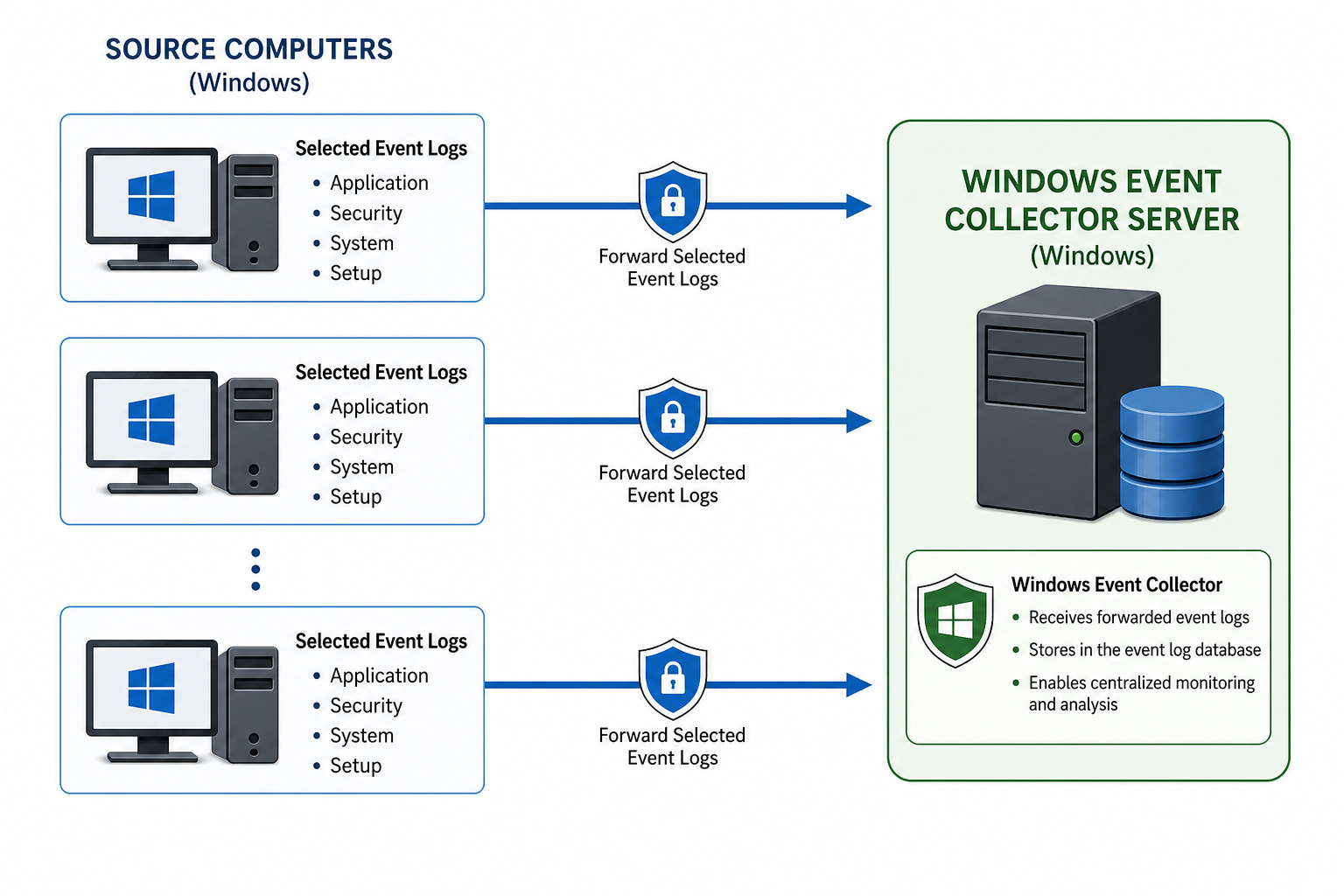
For anyone managing more than one machine, Windows Event Forwarding (WEF) is a built-in, free mechanism to ship logs from source computers to a central Windows Event Collector (WEC) server. This is the foundation of any serious event log configuration strategy for small businesses and enterprises alike.
The basic architecture:
- Source computers — run the Windows Remote Management (WinRM) service and push selected events.
- Collector server — runs the Windows Event Collector service and receives events into a dedicated Forwarded Events log.
Set up is done via Group Policy. On the collector, run wecutil qc to configure the service, then create a subscription specifying which event IDs to collect and from which machines. The Microsoft guidance on configuring EventLog forwarding performance recommends limiting subscriptions to no more than 4,000 source computers per collector for optimal throughput — a figure worth knowing before you design your topology.
If you’re running Windows Server in your environment, pairing WEF with a solid Windows Server licence is a smart move. Check out our post on Windows Server DNS encryption and what DoH in Server 2025 means for IT for more infrastructure hardening tips.
Archiving vs Overwriting: Getting the Retention Balance Right
The right retention strategy depends on your compliance needs and available storage. Here’s a quick framework:
- Workstations — Overwrite oldest events when full. Security log at 256–512 MB gives you several weeks of history for typical logon volumes.
- Servers — Archive when full, storing .evtx files to a network share or SIEM. Compliance frameworks like PCI-DSS require 12 months of log retention with 3 months immediately available.
- Domain controllers — Never overwrite without archiving first. DC Security logs are the single most valuable forensic artefact in an Active Directory environment.
If you’re forwarding to a WEC server, you can afford smaller local logs on source machines — the events are already centralised before they age out.
Windows Defender Integration with Event Logs
Windows Defender writes its own events under Applications and Services Logs → Microsoft → Windows → Windows Defender → Operational. Event ID 1116 (malware detected) and 1117 (malware action taken) are the two you cannot afford to miss. Add them to your custom view or WEF subscription.
If you’re not running a current, properly licenced version of Windows, Defender may not function at its full capability. Our Windows 11 Pro Retail licence (from €17.95) keeps your system on a supported, fully protected build with all Defender telemetry and event logging features intact.
FAQ
How do I open Event Viewer in Windows 11?
Press Windows + R, type eventvwr.msc, and press Enter. Alternatively, right-click the Start button and select Event Viewer from the power-user menu. The interface is identical across Windows 10 and Windows 11.
What is the default maximum size for the Windows Security event log?
By default, the Security log is capped at just 20 MB. For any real monitoring, raise this to at least 256 MB on workstations and 512 MB or more on servers. Apply the change via Group Policy to enforce it across your entire fleet consistently.
Can I forward Windows event logs without third-party software?
Yes. Windows Event Forwarding (WEF) is built into every modern version of Windows and Windows Server. It uses WinRM for transport and requires no additional agents. You configure a collector server and subscriptions via Group Policy or the wecutil command-line tool, and logs flow automatically to a central Forwarded Events log.
Which event IDs should I monitor for ransomware or intrusion attempts?
Prioritise event IDs 4625 (repeated failed logons), 4688 with command-line logging (suspicious process chains), 4698/4702 (new or modified scheduled tasks), 7045 (new service installed), and 1102 (Security log cleared). Event ID 1102 in particular is a near-certain indicator of an attacker covering their tracks and should trigger an immediate alert.
How does event log optimisation affect Windows performance?
Logging itself has negligible CPU impact. The main performance consideration is disk I/O when logs are written rapidly on slow storage, and disk space consumption over time. Raising log size limits slightly increases peak disk usage but is far outweighed by the forensic and security benefits. Forwarding large volumes to a remote collector shifts the I/O burden off the source machine entirely.
Do Custom Views in Event Viewer persist after a reboot?
Yes. Custom Views are saved as XML files under %ProgramData%\Microsoft\Event Viewer\Views and persist across reboots and user sessions. You can also export them and import them on other machines to deploy a consistent monitoring view across your environment.

2 Replies to “Windows Event Viewer Logging Optimization: Which Logs Matter”
Comments are closed.