

If you want to remap Copilot key on Windows 11, you have two reliable paths: the built-in Settings option under Bluetooth & devices > Keyboard, or Microsoft PowerToys for deeper, app-specific shortcuts. Both work without extra cost, and both take just a few minutes to set up.
Most laptops released in the last couple of years shipped with a dedicated Copilot key wedged somewhere near Alt, Ctrl, or the arrow keys. For a lot of small business IT teams, home power users, and sysadmins, that key just sits there — a constant reminder of an AI feature they never asked for and rarely open. This Copilot key workflow disruption is a common complaint, but the good news is that Microsoft has finally given everyone an official way to repurpose it, and power users have an even more flexible unofficial route through PowerToys.
This guide walks through both methods step by step, plus a list of genuinely useful remaps — from instant screenshots to clipboard history to muting your mic mid-call — so that dead key on your keyboard finally earns its spot.
Why Bother to Remap Copilot Key on Windows 11?
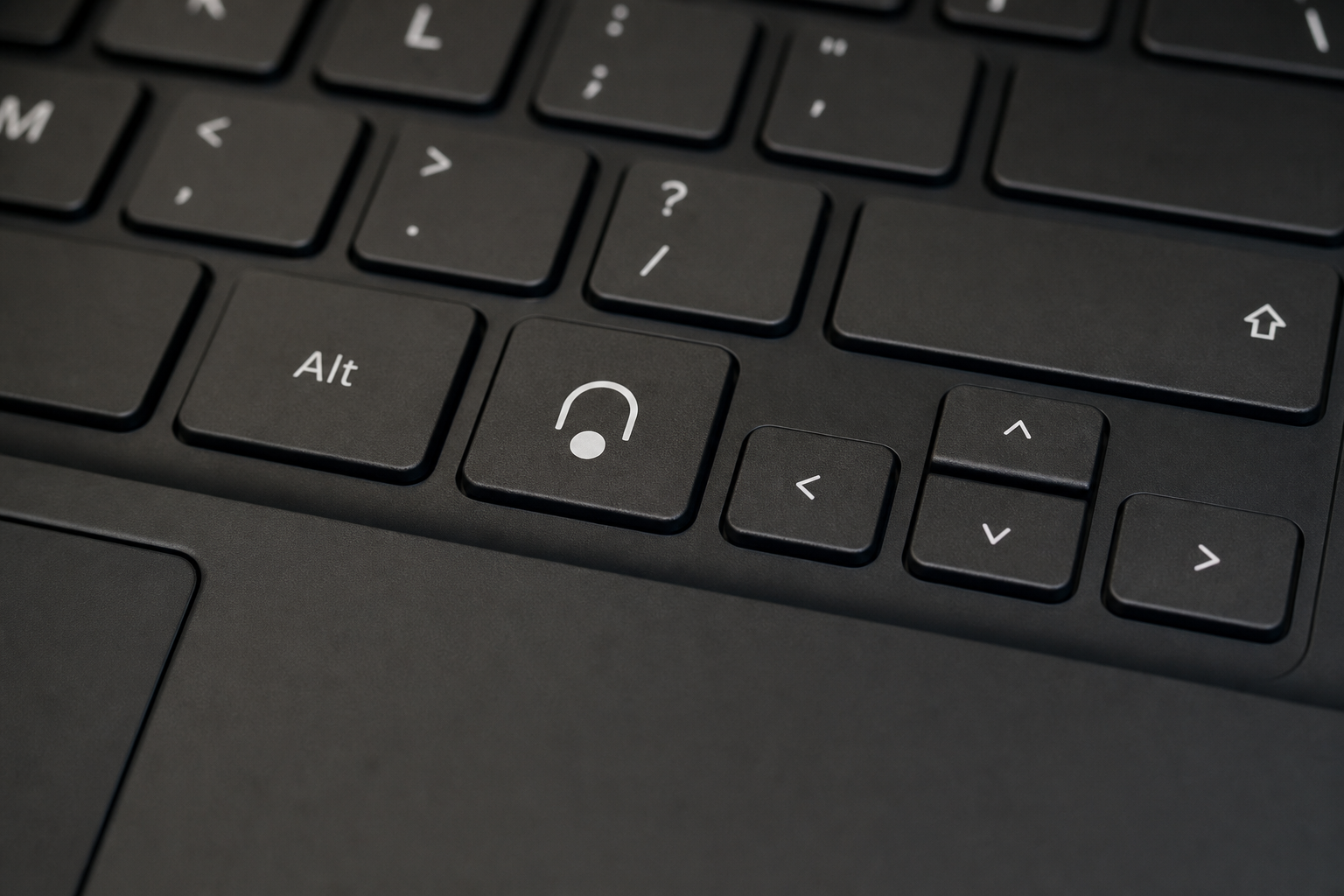
You should remap Copilot key on Windows 11 because, for most users, the stock function duplicates something you can already trigger with a click or a different shortcut, while taking up prime keyboard real estate. Many OEM keyboard layouts placed the Copilot key where the right Ctrl key or Context Menu key used to live, which is exactly the kind of change that trips up anyone who relies on muscle memory for spreadsheet navigation, text selection, or right-click actions.
Microsoft itself has acknowledged the friction. According to Microsoft’s own support documentation, a Windows 11 update was planned to let users remap the Copilot key to behave as the Context menu key or Right Ctrl key — effectively undoing the layout change for anyone who wants their old key back. Microsoft first rolled this out for testing in Windows 11 insider preview build 22635.4225, released to the beta channel. That option has since rolled out, so you’re not stuck accepting a key you never asked for.
For IT admins managing a fleet of laptops, this matters beyond personal preference: a key that behaves unpredictably across different keyboard layouts creates support tickets, not unlike the floating Copilot button design mistake Microsoft has had to address. Standardizing how the Copilot key behaves across your organization’s machines — whether that’s disabling it, mapping it to Right Ctrl, or turning it into a screenshot shortcut — is a small config change that reduces confusion for end users.
Method 1: Remap Copilot Key Using Windows 11 Settings
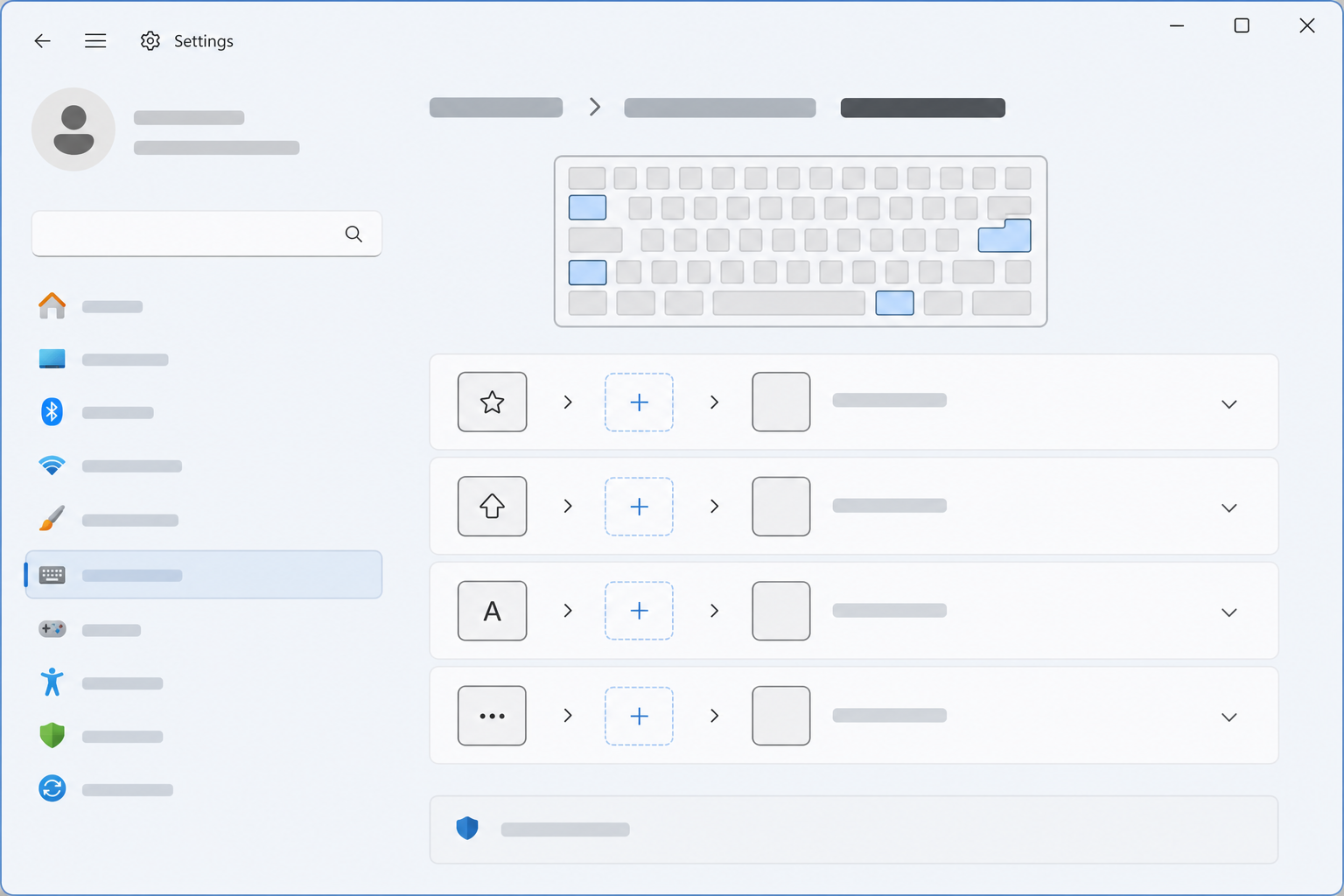
The simplest way to remap Copilot key on Windows 11 is through the built-in Settings app — no downloads required. This method is best if you want one of a handful of preset behaviors rather than a fully custom shortcut.
Step-by-Step: Built-in Copilot Key Settings
-
Open Settings and go to Bluetooth & devices > Keyboard.
-
Look for the option labeled Customize Copilot key on keyboard.
-
Choose from the available presets: launch Windows Search, act as the Right Ctrl key, act as the Context Menu key, or open one of several packaged apps installed on your device.
-
Close Settings — the change applies immediately, no restart needed.
The Right Ctrl and Context Menu options are newer additions that arrived through a Windows 11 cumulative update distributed via Windows Update, so if you don’t see them yet, check for pending updates first. Once installed, most PCs pick up the option automatically.
This built-in method covers the basics well: if all you want is your old right-click key back, or you’d rather the button open Notepad or Settings instead of Copilot, you’re done in under a minute. If you want something more specific — a keyboard shortcut combination rather than an app launch — you’ll need the next method.
Method 2: Remap Copilot Key With PowerToys Keyboard Manager
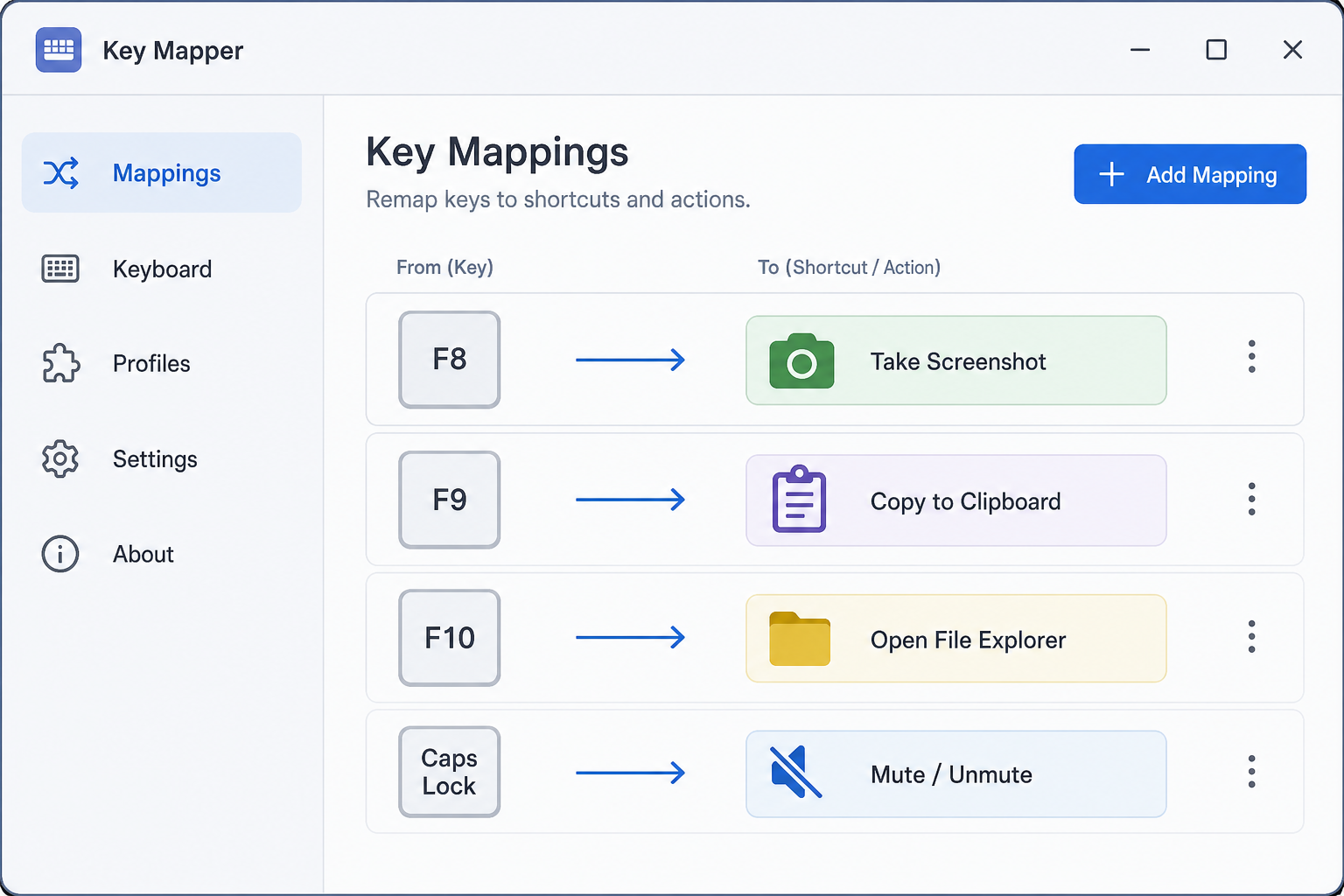
For full control, remap Copilot key functionality using Microsoft PowerToys, a free, official set of utilities from Microsoft built specifically for this kind of customization. According to Microsoft’s PowerToys documentation, the Keyboard Manager utility lets you remap individual keys or entire shortcut combinations to a different key, shortcut, app launch, or even a short burst of text — exactly what’s needed to turn a single Copilot key press into any action you want. PowerToys itself has grown well beyond a niche tool: the project now ships over 25 utilities in a single install, covering everything from window management to clipboard tools.
Installing PowerToys
-
Download PowerToys from the Microsoft Store, or get the installer directly from the official GitHub releases page.
-
Run the installer and let it finish — no restart is typically required.
-
Open PowerToys and confirm Keyboard Manager is listed and toggled On in the sidebar.
Step-by-Step: Remap a Shortcut With Keyboard Manager
-
Open PowerToys, select Keyboard Manager from the sidebar, and make sure it is switched on.
-
Click Remap a shortcut — not “Remap a key,” since the Copilot key sends a full key combination rather than a single keystroke.
-
Under Physical Shortcut, click Select and press your physical Copilot key. It should register on screen as Win + Shift + F23.
-
Under Mapped To, choose your target action: a system shortcut (like Win + Shift + S for screenshots), or Start App and browse to a program’s executable.
-
Click OK to save. The remap applies instantly — no reboot needed.
Because the Copilot key reports itself as Win + Shift + F23 rather than a dedicated key code, some third-party apps and games won’t recognize it directly as a keybind. If that happens, remap the Copilot key to a spare function key like F24 inside PowerToys first, then assign that key inside the app’s own keybind settings.
Creative Ways to Remap Copilot Key for Everyday Tasks
Once you understand the mechanics, the real value comes from picking a remap that fits how you actually work. Here are the combinations worth testing first.
-
Instant screenshots: Map the Copilot key to Win + Shift + S to open the Snipping Tool’s region-capture mode with a single press — useful if your existing Print Screen key is awkwardly placed or unlabeled.
-
Clipboard history: Set the key to Win + V so your clipboard history pops up on command. If you copy and paste frequently throughout the day, this turns a dead key into one of your most-used buttons.
-
A dedicated search launcher: Point the key at a third-party search tool like the Everything app by Voidtools for near-instant file search, instead of relying on Windows’ built-in indexing.
-
Microphone mute: Map the key to Win + Alt + K, which mutes your mic in apps that support Windows’ native call-mute shortcut, such as Microsoft Teams — handy for muting quickly without hunting for an on-screen toggle.
-
Emoji and GIF picker: Assign Win + . (or Win + 😉 to pop open the Windows emoji, GIF, and kaomoji picker instantly.
Gamers and streamers have their own use cases too. You can remap the key inside Discord to act as a Push-to-Talk button or deafen toggle, or set it to trigger Alt + F10 for Instant Replay inside the NVIDIA app, giving you a dedicated physical button to save a clip the moment something worth keeping happens on screen. Remember the Win + Shift + F23 quirk applies here as well — remap to a spare key like F24 first if the app won’t register the Copilot key directly.
Troubleshooting a Copilot Key Remap That Won’t Stick
If your remap doesn’t apply or reverts unexpectedly, start by confirming Keyboard Manager is actually toggled on inside PowerToys — it’s easy to open the app and forget this step. Next, check that you used Remap a shortcut rather than Remap a key, since the Copilot key sends a three-key combination, not a single key press, and the wrong remap type simply won’t capture it correctly.
If a specific third-party app (games, Discord, Zoom) isn’t responding to the Copilot key, that’s almost always the Win + Shift + F23 compatibility issue described above — remap to F24 as an intermediate step and bind F24 inside the app itself. Finally, if you only want the key to do nothing at all, keep an eye on Windows Update: a “Do nothing” preset for the Copilot key has been discussed for a future release, which would let you disable the key outright without needing PowerToys.
FAQ
How do I remap Copilot key without installing any software?
Open Settings > Bluetooth & devices > Keyboard and look for Customize Copilot key on keyboard. From there you can set it to Right Ctrl, Context Menu, Windows Search, or a packaged app — all without installing anything extra.
How to download PowerToys for remapping the Copilot key?
Search “PowerToys” in the Microsoft Store and install it, or download the installer from the official PowerToys GitHub releases page. Both routes give you the same Keyboard Manager utility.
How to install PowerToys Keyboard Manager specifically?
Keyboard Manager ships as part of the full PowerToys install — there’s no separate download. After installing PowerToys, open it, click Keyboard Manager in the sidebar, and toggle it on if it isn’t already.
How to activate a Copilot key remap after setting it up?
There’s no separate activation step. Once you click OK inside PowerToys’ Keyboard Manager (or select an option in Windows Settings), the remap applies immediately and stays active until you change or remove it.
Why won’t some apps respond to my remapped Copilot key?
Because the Copilot key physically sends Win + Shift + F23, some apps — including Discord and various games — don’t recognize it as a valid keybind. Remap the Copilot key to a spare key like F24 in PowerToys first, then bind F24 inside the app’s own settings.
Can I remap the Copilot key back to Copilot later?
Yes. Both the Settings method and PowerToys let you change or remove a remap at any time — just revisit the same menu and select a different option, or delete the shortcut entry in Keyboard Manager.
