
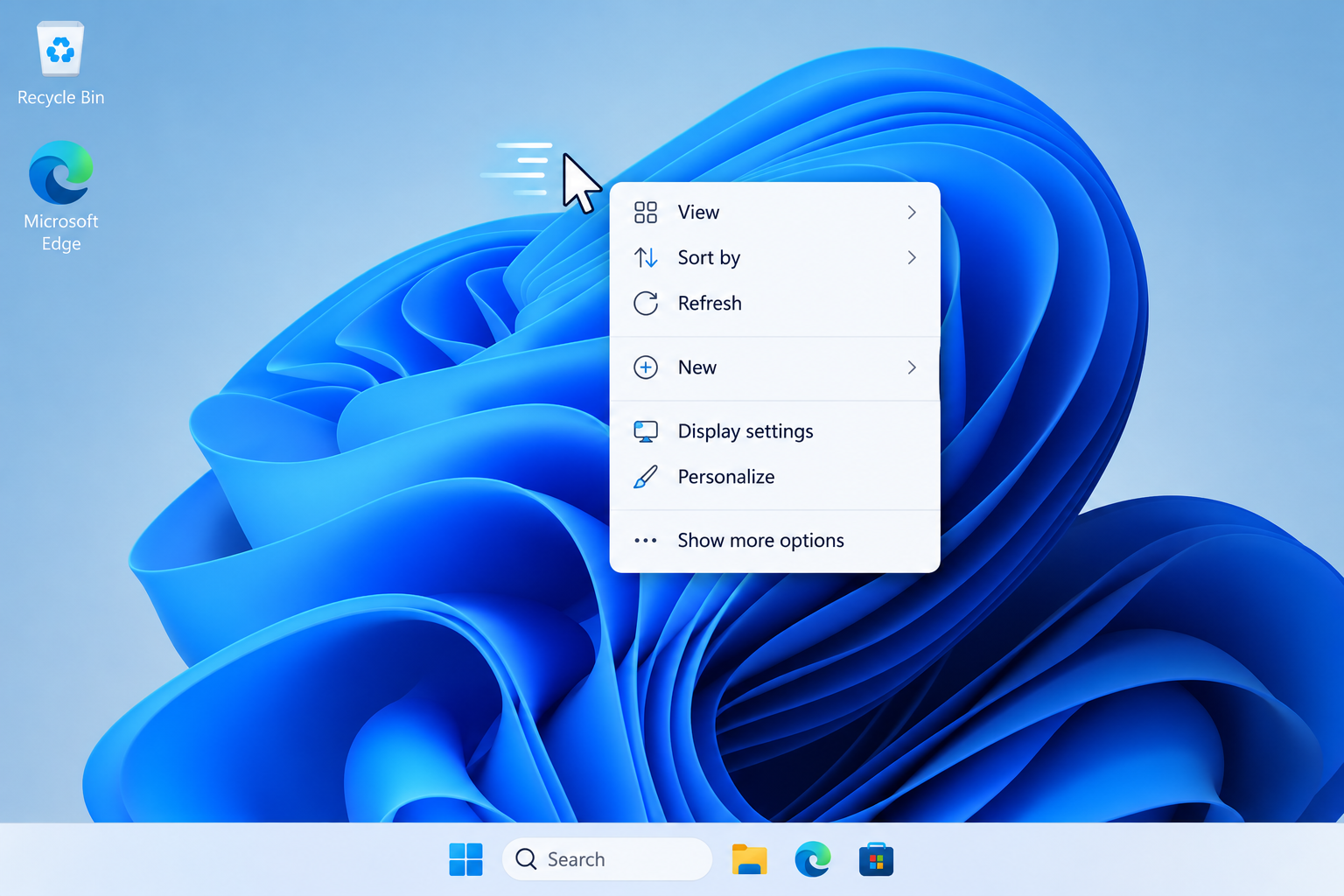
Windows 11 adds a short pause before menus open, and you can speed up Windows 11 menus by editing one registry value called MenuShowDelay. This value controls how many milliseconds Windows waits before showing cascading menus, right-click context menus, and some Start menu flyouts, and lowering it removes most of that lag without touching any other system setting.
What Is the Windows 11 Menu Show Delay?
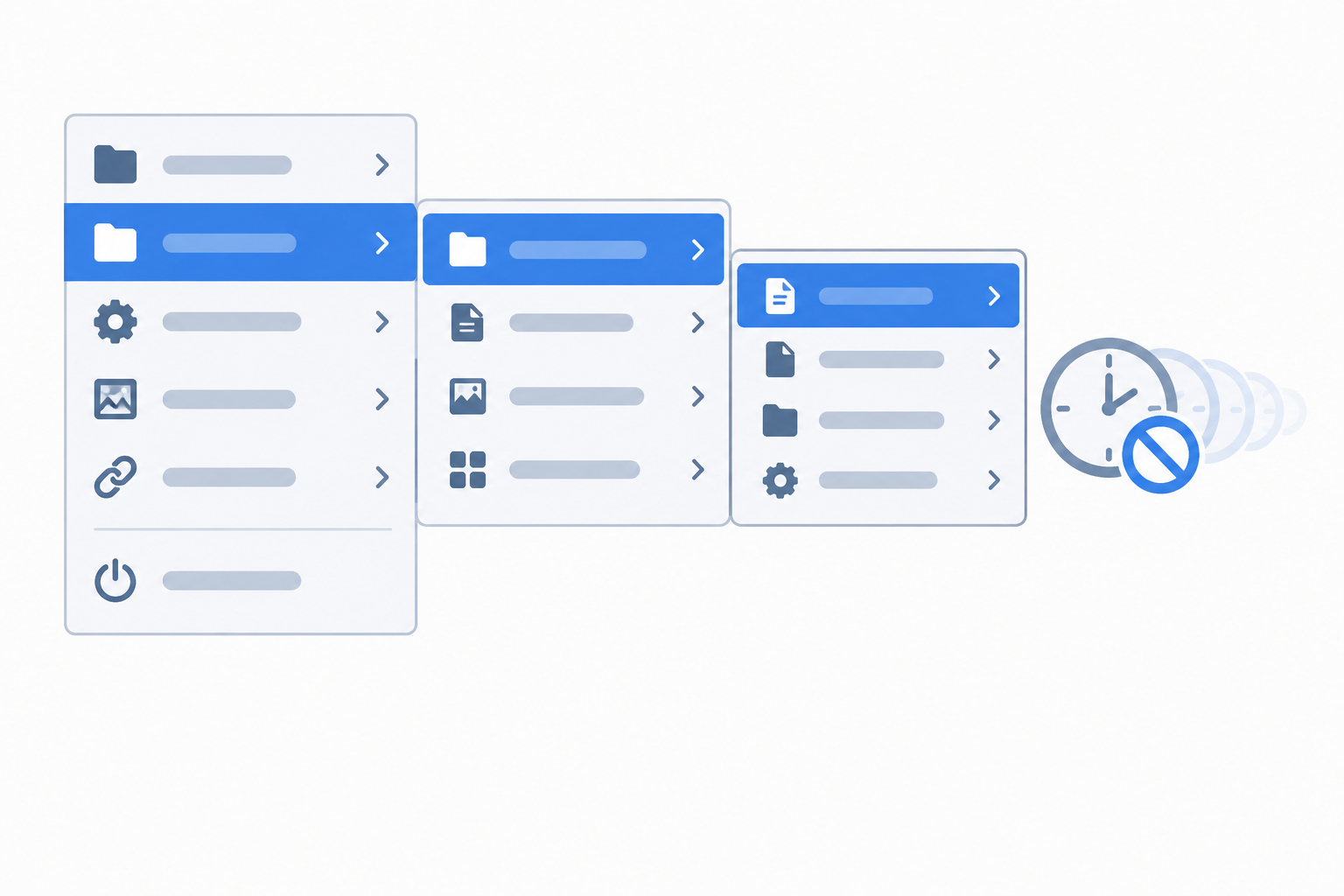
The menu show delay is a built-in timer that tells Windows how long to wait before it displays a submenu after you hover over a parent item. It was originally added so that moving your mouse quickly across a menu bar wouldn’t accidentally pop open every submenu you passed over. On a modern PC with a fast pointer and SSD storage, that protective pause just feels like lag.
According to How-To Geek’s breakdown of the setting, the default reads 400 milliseconds, and lowering it to somewhere between 0 and 100 removes nearly all of the perceptible pause. That is almost half a second of built-in delay every single time you open a cascading menu, right-click a file, or dig into a Start menu folder.
Why Speed Up Windows 11 Menus?
You should speed up Windows 11 menus if you regularly navigate nested context menus, use the classic Start menu folders, or simply notice a small hitch every time you right-click. The delay is most noticeable to power users who move quickly between apps, sysadmins managing several machines, and anyone coming from an older Windows build where menus felt instant.
-
Right-click context menus (New, Send to, Open with) feel laggy before submenus expand.
-
Cascading Start menu folders take a visible beat to open.
-
File Explorer’s nested ribbon and context options respond slower than expected.
-
Older legacy menus inherited from Win32 applications still use this same timer.
None of this is a bug — it is a deliberate default meant to avoid accidental menu triggers. But for anyone who prefers immediate feedback, reducing or removing the delay is one of the simplest free performance tweaks available on Windows 11.
How to Speed Up Windows 11 Menus with a Registry Edit
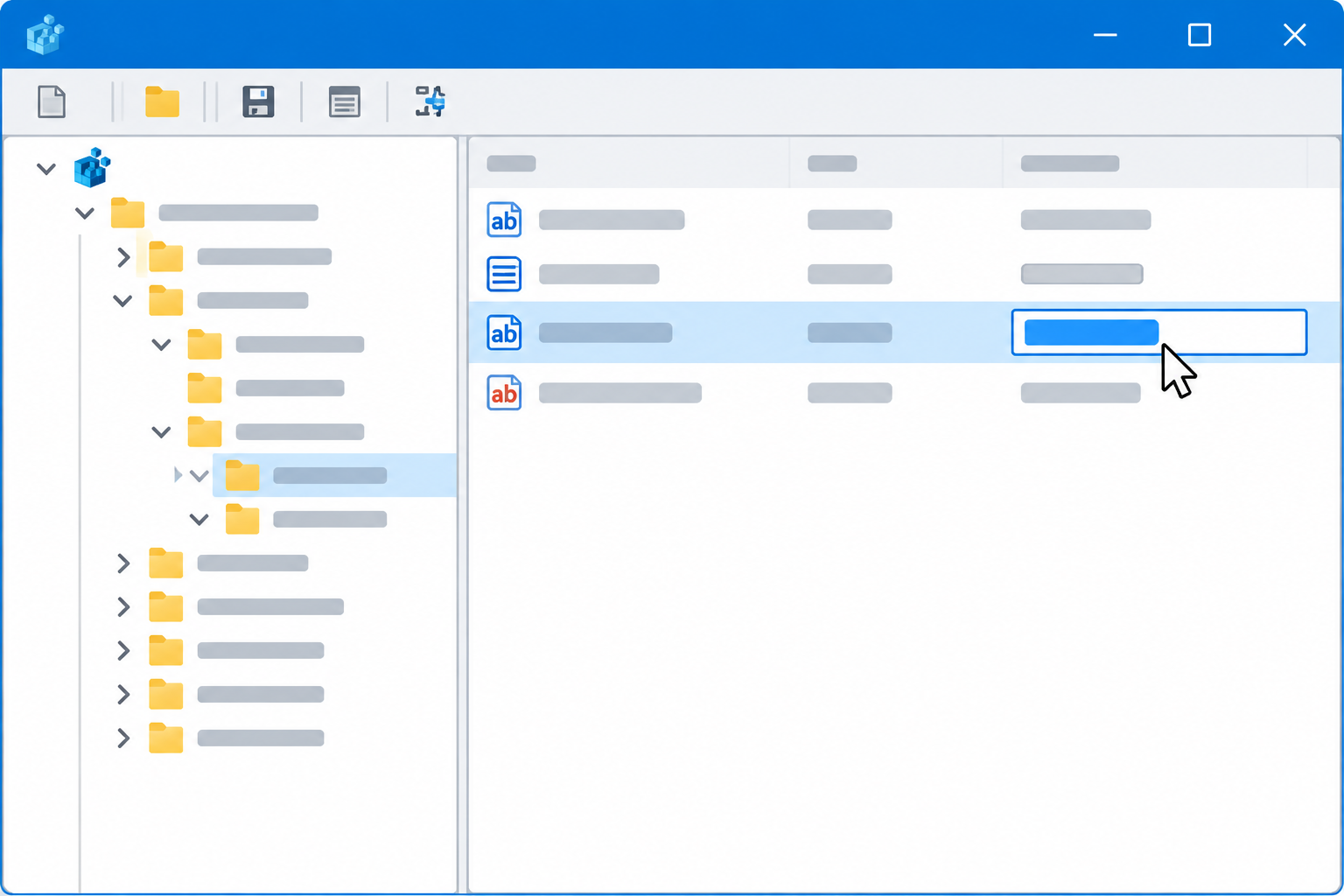
The fastest way to speed up Windows 11 menus is to change the MenuShowDelay value inside the registry, which takes about five minutes and requires no third-party software. Follow these steps carefully, since you are editing a system setting directly.
Back Up the Registry Before You Start
Always create a restore point or export the registry key before making changes. Open Registry Editor, go to File > Export, and save a full backup so you can revert instantly if anything looks wrong afterward.
Step 1: Open Registry Editor
Press Win + R, type regedit, and press Enter. Approve the User Account Control prompt if it appears.
Step 2: Navigate to the Desktop Key
In the address bar at the top of Registry Editor, paste the following path and press Enter:
-
HKEY_CURRENT_USER\Control Panel\Desktop
This folder holds the desktop-level settings for the currently logged-in user, including menu animation and delay timers.
Step 3: Edit MenuShowDelay to Speed Up Windows 11 Menus
In the right-hand pane, find the string value named MenuShowDelay. Double-click it, clear the existing number, and enter a smaller value in milliseconds.
-
Set it to 0 for an instant menu with no delay at all.
-
Set it between 50 and 100 for a short, natural-feeling pause that still prevents accidental triggers.
-
Leave it at the default 400 if you decide the change isn’t for you.
Click OK to save the new value.
Step 4: Apply and Restart Explorer
Close Registry Editor, then open Task Manager, find Windows Explorer in the Processes list, right-click it, and choose Restart. This reloads the shell without a full reboot, and your menus should respond noticeably faster right away.
Choosing the Right Delay Value for Faster Windows 11 Menus
Faster Windows 11 menus don’t always mean a value of zero is the right call for every user. A delay of 0 removes all hesitation but can make menus feel twitchy if your mouse brushes past items while scrolling. Testing a middle value first is usually the better approach.
-
0 ms — Instant menus, best for touchpad or precise mouse users who rarely overshoot targets.
-
50–100 ms — A balanced option that still feels fast but reduces accidental submenu pop-ups.
-
200+ ms — Closer to the original behavior, useful if you find lower values trigger menus too easily.
Try a value, use your PC normally for a day, and adjust if needed. This tweak is fully reversible, so there is no risk in experimenting until the feel matches your workflow.
Other Ways to Make Windows 11 Feel Snappier

MenuShowDelay is one of several interface timers Windows exposes, and combining it with a few other tweaks compounds the effect. Reducing taskbar animation, disabling unnecessary startup apps, and turning off transparency effects in Settings all reduce the small delays that add up across a session.
Microsoft itself has been actively working on UI responsiveness at a system level. The company’s official Windows Experience blog describes recent interface changes making everyday tasks up to 20% more responsive, which shows that menu and shell speed remain an active area of development even outside manual registry tweaks.
Troubleshooting After Speeding Up Windows 11 Menus
If menus don’t feel faster after restarting Explorer, confirm the registry value actually saved by reopening regedit and checking the key again — a common mistake is clicking Cancel instead of OK. If menus now open too easily by accident, raise the value back toward 100–150 milliseconds rather than reverting to 400 entirely.
Occasionally, third-party shell extensions or antivirus context-menu add-ins reintroduce their own delay regardless of the MenuShowDelay setting. If a specific right-click menu is still slow after the tweak, the extra items are likely coming from an installed application rather than Windows itself. For broader performance issues beyond menu speed, the Windows Troubleshooting hub on Shop Key Online covers related fixes for sluggish File Explorer and shell responsiveness.
Is It Safe to Change the Menu Show Delay?
Yes — MenuShowDelay is a standard, documented user-level registry value, and changing it does not affect system stability, licensing, or activation in any way. It only alters a cosmetic timing value tied to your Windows profile, and you can always restore the default of 400 by repeating the same steps. If you’re setting up a freshly licensed machine, this is a safe first tweak to apply right after installing a new Windows 11 Pro key and completing activation, alongside other initial setup steps covered in the Shop Key Online Windows 11 activation guide.
Frequently Asked Questions
How do I open Registry Editor to change the menu delay?
Press Win + R, type regedit, and press Enter, then approve the User Account Control prompt. This opens Registry Editor where you can navigate to the Desktop key under HKEY_CURRENT_USER and adjust MenuShowDelay directly.
How do I back up the registry before editing MenuShowDelay?
In Registry Editor, select File, then Export, and save the backup file somewhere easy to find, such as your desktop. If anything goes wrong after editing, double-click the exported file to restore the previous values instantly.
What is the default menu delay value in Windows 11?
The default MenuShowDelay value is 400 milliseconds, meaning Windows waits nearly half a second before expanding a submenu or cascading menu item. This default has carried over from earlier Windows versions and still applies on current builds.
How do I speed up the Windows 11 menu without using regedit?
Third-party system tweaking utilities expose the same MenuShowDelay setting through a graphical interface, which avoids editing the registry manually. However, going directly through Registry Editor remains the most reliable method since it requires no extra software and takes only a few steps.
Will changing MenuShowDelay affect other programs?
No, this value only controls the timing of menu animations at the shell and application level and does not change performance, licensing, or compatibility for installed software. Some older Win32 applications that use the same Windows menu system will also open faster as a side effect.
How do I undo the change if something breaks?
Reopen Registry Editor, navigate back to the same Desktop key, and set MenuShowDelay back to 400 to restore the original behavior. Alternatively, double-click the backup file you exported before making the change to revert everything at once.
