

A faceit anti-cheat error about missing Windows updates means FACEIT’s anti-cheat client has scanned your PC, found security patches it expects to be installed, and blocked matchmaking until they’re applied. It’s not a bug in FACEIT itself — it’s the anti-cheat refusing to trust a system that isn’t fully patched, because outdated Windows components are exactly where kernel-level cheats hide. The fix is almost always the same: update Windows, confirm a few security settings, and restart the anti-cheat service.
Why Does a Faceit Anti-Cheat Error Appear on Windows?
FACEIT’s anti-cheat driver runs at the kernel level to detect cheat software that Windows itself can’t see, and it does that by leaning on Windows security features like Secure Boot, TPM, and Virtualization-Based Security. If any of the underlying Windows security updates are missing, the anti-cheat can’t verify those protections are intact, so it throws an error rather than letting you play on an unverified system.
This is also a policy FACEIT has been tightening rather than loosening. According to FACEIT’s own announcement on its security rollout, TPM 2.0 and Secure Boot became mandatory for every player since November 25, 2025, with IOMMU and VBS requirements expanding in stages afterward. FACEIT noted that more than 95% of players already had these settings enabled before the deadline, which is why most people only see a FACEIT anti-cheat error when their Windows installation has fallen behind on updates or is running older, unsupported hardware settings.
In short, the error is a gatekeeping mechanism, not a glitch. Clearing it means bringing your Windows installation up to the standard the anti-cheat is checking against.
Step-by-Step: Fix the Faceit Anti-Cheat Error on Windows 10 and 11
Clearing a faceit anti-cheat error almost always comes down to three steps: check Windows Update, install everything pending, then restart the anti-cheat client cleanly. Work through them in order before trying anything more advanced.
Step 1: Check Windows Update Settings
- Press Windows + I to open Settings.
- Go to Windows Update (under System on Windows 11, or Update & Security on Windows 10).
- Click Check for updates and note anything listed as a security or quality update.
Step 2: Install Pending Security Updates
- Install every available update, not just the ones marked critical — FACEIT AC checks cumulative patch levels, so a skipped quality update can still trigger the error.
- If an update fails to install, don’t ignore it. Try again, or check a dedicated guide such as our walkthrough on the Windows Update stuck on pending restart issue, since a stalled update is one of the most common reasons the Windows side never actually finishes.
- Restart your PC when prompted — updates that install but never trigger a restart won’t register with the anti-cheat.
Step 3: Restart and Relaunch FACEIT AC
Once Windows reports you’re fully up to date, fully close FACEIT AC from the system tray (right-click the icon and choose Exit, don’t just close the window), then relaunch it. The anti-cheat re-checks your patch level on startup, so a fresh launch after updating is what actually clears the FACEIT AC error in most cases.
Still Getting a FACEIT Anti-Cheat Issue After Updating?
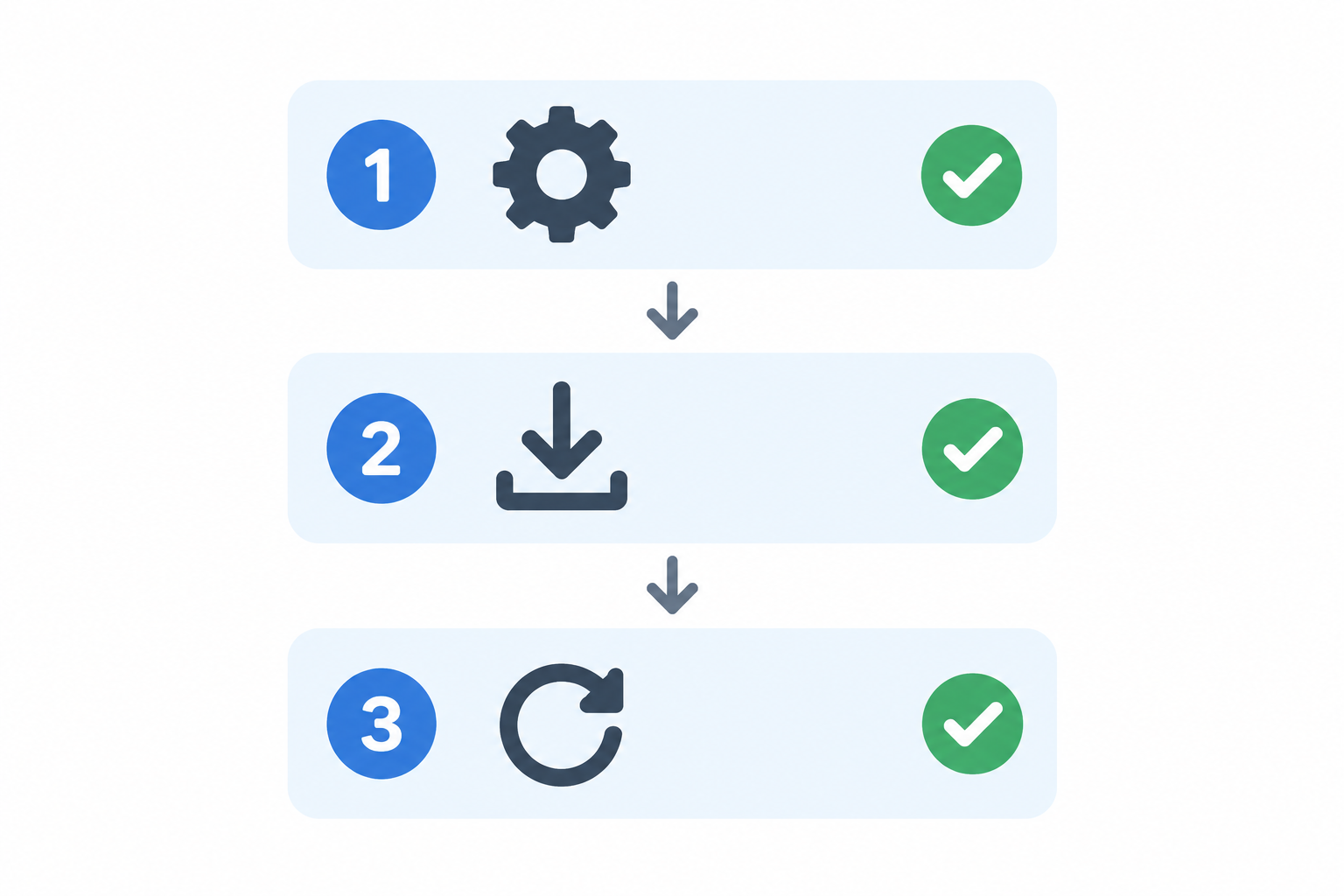
If Windows Update says you’re current but the error persists, the problem usually sits in one of three places: a stuck update that Windows reports as installed but didn’t fully apply, a security feature (TPM, Secure Boot, or VBS) that’s disabled in firmware, or a corrupted anti-cheat installation.
- Reinstall FACEIT AC. Uninstall it from Apps & Features, restart your PC, then download and reinstall the client fresh.
- Run the Windows Update troubleshooter. Found under Settings > System > Troubleshoot > Other troubleshooters, it can repair update components that silently fail.
- Check your BIOS/UEFI version. An outdated motherboard firmware can block Secure Boot or TPM from reporting correctly to Windows, which in turn trips the FACEIT anti-cheat issue even on a fully patched OS.
TPM 2.0, Secure Boot, and Other Hidden Requirements
A faceit anti-cheat error can also appear even when Windows Update shows nothing pending, because the anti-cheat is separately checking firmware-level security settings. These include:
- TPM 2.0 enabled in your BIOS/UEFI settings.
- Secure Boot turned on, not just supported.
- Virtualization-Based Security (VBS), which FACEIT is rolling out in stages alongside the other requirements.
If your motherboard supports these features but they’re switched off, you’ll need to enable them from the BIOS menu directly — Windows Update can’t turn them on for you. This is also where a mismatched Windows edition can cause friction: PCs on very old Windows 10 builds sometimes lack the drivers needed to expose TPM to Windows at all, which is one more reason FACEIT recommends staying on a current, supported release.
When Upgrading to Windows 11 Solves the FACEIT AC Error for Good
If you’re still running an older Windows 10 build and keep hitting the same FACEIT AC error cycle, a clean move to Windows 11 often resolves it permanently, since Windows 11 already requires TPM 2.0 and Secure Boot at setup, which lines up exactly with what FACEIT’s anti-cheat expects. If you decide to make that move, our Windows 11 Pro installation and activation guide walks through downloading, installing, and activating the OS step by step, and a genuine Windows 11 Pro OEM license keeps you on a properly licensed, fully update-eligible install from day one — which matters, since unlicensed or tampered copies of Windows are far more likely to have update components disabled or broken, a frequent hidden cause of a recurring FACEIT anti-cheat issue.
Preventing a Faceit Anti-Cheat Error in the Future
Once you’ve cleared the error, a few habits keep it from coming back:
- Leave Windows Update set to automatic rather than manual, so patches install as they’re released.
- Check for updates right after any Patch Tuesday cycle, especially before a scheduled match or tournament.
- Keep your motherboard BIOS updated, since firmware updates often add or fix TPM and Secure Boot support.
- Avoid disabling Windows Update services or using third-party tools that strip update components — these are a common, overlooked trigger for a faceit anti-cheat error reappearing later.
Frequently Asked Questions
How do I know if a FACEIT anti-cheat error is caused by Windows updates?
FACEIT AC typically shows a message stating your system is missing important Windows security updates, which is a direct signal tied to your patch level rather than a general anti-cheat failure. You can confirm this by checking Windows Update yourself — if updates are pending, that’s almost certainly the cause.
How do I download the missing Windows updates FACEIT is asking for?
Open Settings, go to Windows Update, and click Check for updates. Windows will automatically find and download any missing security or quality updates; you don’t need to search for specific patches yourself.
How do I install Windows updates without errors?
Install updates one at a time if several are queued, restart when prompted rather than postponing it, and make sure you have enough free disk space, since low storage is a common reason updates download but fail to install.
How do I activate Windows 11 after upgrading because of a FACEIT AC error?
Go to Settings > System > Activation, click Change product key, and enter your 25-character license key. Windows will verify and activate automatically once it confirms the key matches your installed edition.
Can I play FACEIT on Windows 10, or do I need Windows 11?
Windows 10 remains usable with FACEIT as long as your system meets the current security requirements, including TPM 2.0 and Secure Boot. FACEIT has signaled that Windows 11 will eventually become a firmer requirement, so planning an upgrade sooner rather than later avoids a last-minute scramble.
Why does the FACEIT anti-cheat issue return after I already updated once?
New Windows security updates are released regularly, and FACEIT’s checks follow them, so a system that passed last month can fall behind again. Keeping automatic updates enabled is the simplest way to stop the error from recurring.
