
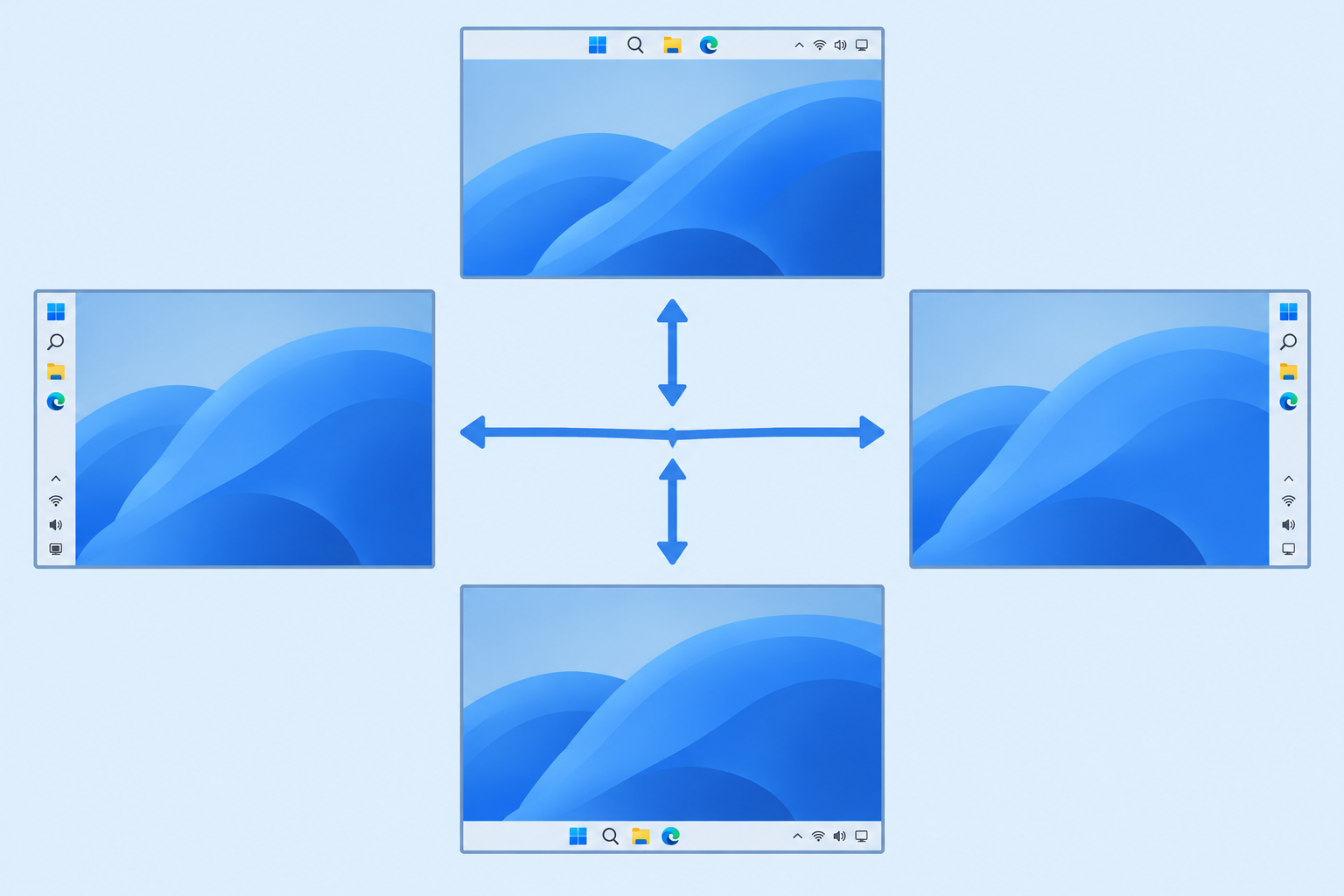
Microsoft is testing a new way to Move the Taskbar on Windows 11 without relying on drag-and-drop, which still isn’t supported. A hidden right-click menu, spotted in recent Insider builds, gives you an instant shortcut to reposition the taskbar instead of digging through Settings.
If you’ve switched from Windows 10 and missed being able to grab the taskbar and drag it to a different edge of the screen, you’re not alone — Microsoft has heard the complaints for years. This hidden menu doesn’t bring back true drag-and-drop, but it’s the closest the company has come to making taskbar placement feel effortless again.
What Is the Hidden Menu That Lets You Move the Taskbar?
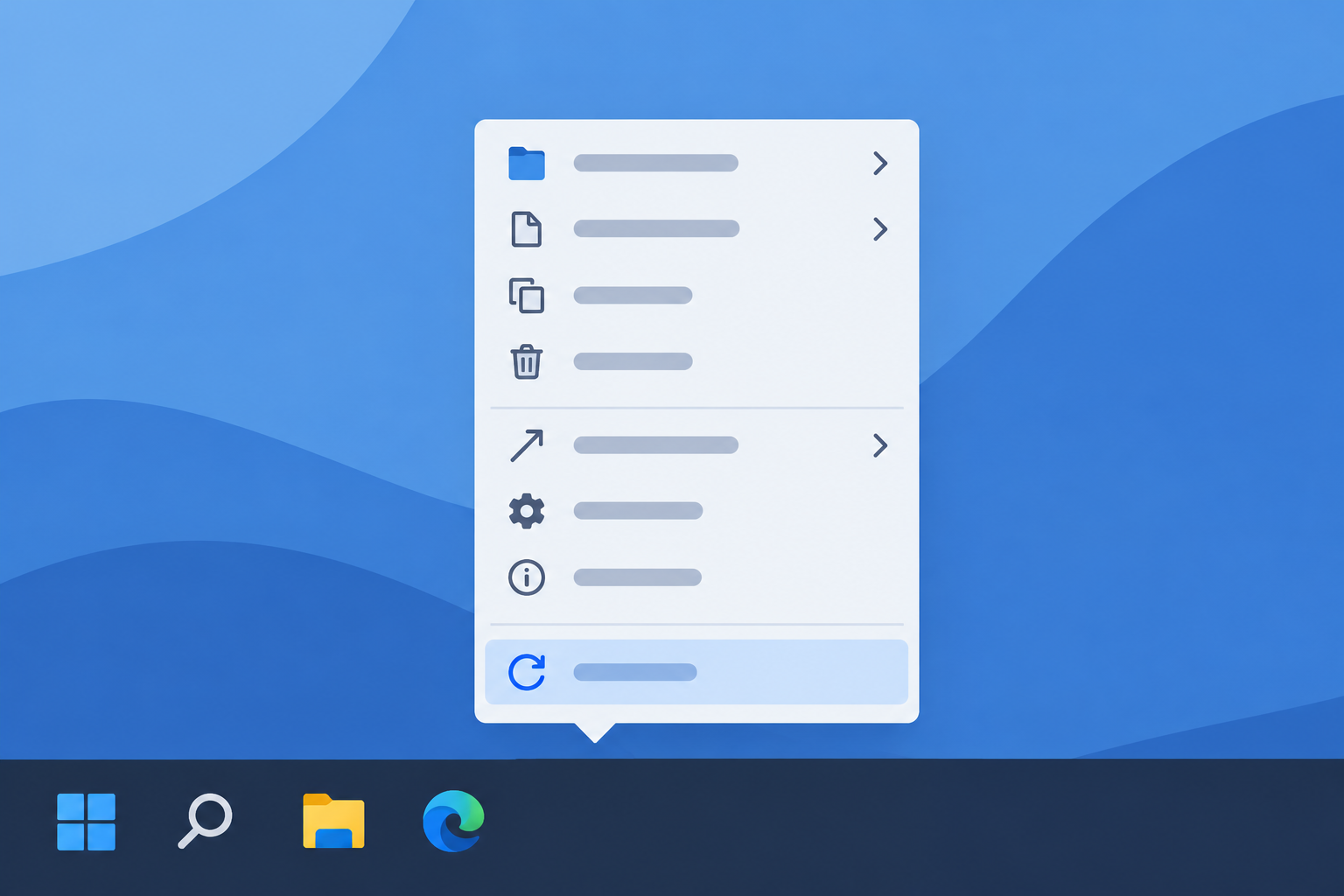
The hidden menu is an experimental right-click option that Microsoft is testing in Windows 11 Insider builds, giving testers a faster path to change where the taskbar sits on screen. Instead of opening Settings and navigating several layers deep, testers can right-click an empty area of the taskbar and find positioning choices directly in that context menu.
According to reporting from Windows Latest, the feature was found tucked inside a recent preview build and isn’t rolled out widely yet. It behaves like a quality-of-life shortcut layered on top of the existing Settings-based method, rather than a full replacement for it.
Why Windows 11 Still Doesn’t Support Drag-and-Drop for the Taskbar
Windows 11 still doesn’t let you click and drag the taskbar to a new screen edge the way Windows 10 did, and that gap is exactly why this hidden menu exists. When Windows 11 launched in 2021, Microsoft removed the ability to reposition the taskbar entirely, locking it to the bottom of the screen for every user.
That removal frustrated a large segment of long-time Windows users, especially people with ultrawide or vertical monitor setups who preferred the taskbar on the side. Microsoft has since acknowledged the demand, but rebuilding true drag gestures for the taskbar apparently isn’t a simple fix — which is likely why a menu-based workaround arrived first.
How the New Menu Helps You Move Your Taskbar

This new menu helps you move your taskbar by surfacing position choices in one click instead of several. Testers who have access to it report being able to choose from the same screen edges Windows 10 once supported:
- Bottom (the current default for all Windows 11 users)
- Top of the screen
- Left edge
- Right edge
Rather than physically dragging the bar, you select a position from the menu and the taskbar snaps there immediately. It’s a middle ground: faster than the full Settings path, but still not the free-form drag gesture many people are hoping for.
How to Try the Hidden Menu on Windows 11
You can only try this hidden menu right now if you’re enrolled in the Windows Insider Program and running a build that includes the experimental taskbar code. It is not available on general-release Windows 11 installations as of this writing.
Check Your Windows 11 Build Number
Before doing anything else, confirm which build you’re on:
- Open Settings and go to System.
- Select About.
- Look at the OS Build number under Windows specifications.
If your build number looks unfamiliar or noticeably newer than the stable release you expect, you may already be on an Insider-adjacent build, especially if your device was previously enrolled.
Join the Windows Insider Program
If you’re not already enrolled, here’s the general path:
- Go to Settings > Windows Update > Windows Insider Program.
- Link a Microsoft account and choose a channel — Beta or Dev channels are more likely to carry experimental taskbar changes.
- Restart and check for updates to pull down the latest preview build.
Keep in mind that Insider builds can include bugs, so it’s worth testing on a secondary PC or virtual machine rather than your primary work device.
Enable the Feature to Move the Taskbar via ViVeTool (If Needed)
Some experimental features ship inside a build but stay switched off by default until Microsoft flips a server-side flag or testers use a feature-flighting tool. If the hidden menu doesn’t appear automatically on a qualifying build, enthusiasts sometimes use third-party flag-enabling tools to switch on dormant features early — though this carries some risk and isn’t something Microsoft officially supports for general users.
The Official Way to Change Taskbar Position in Windows 11
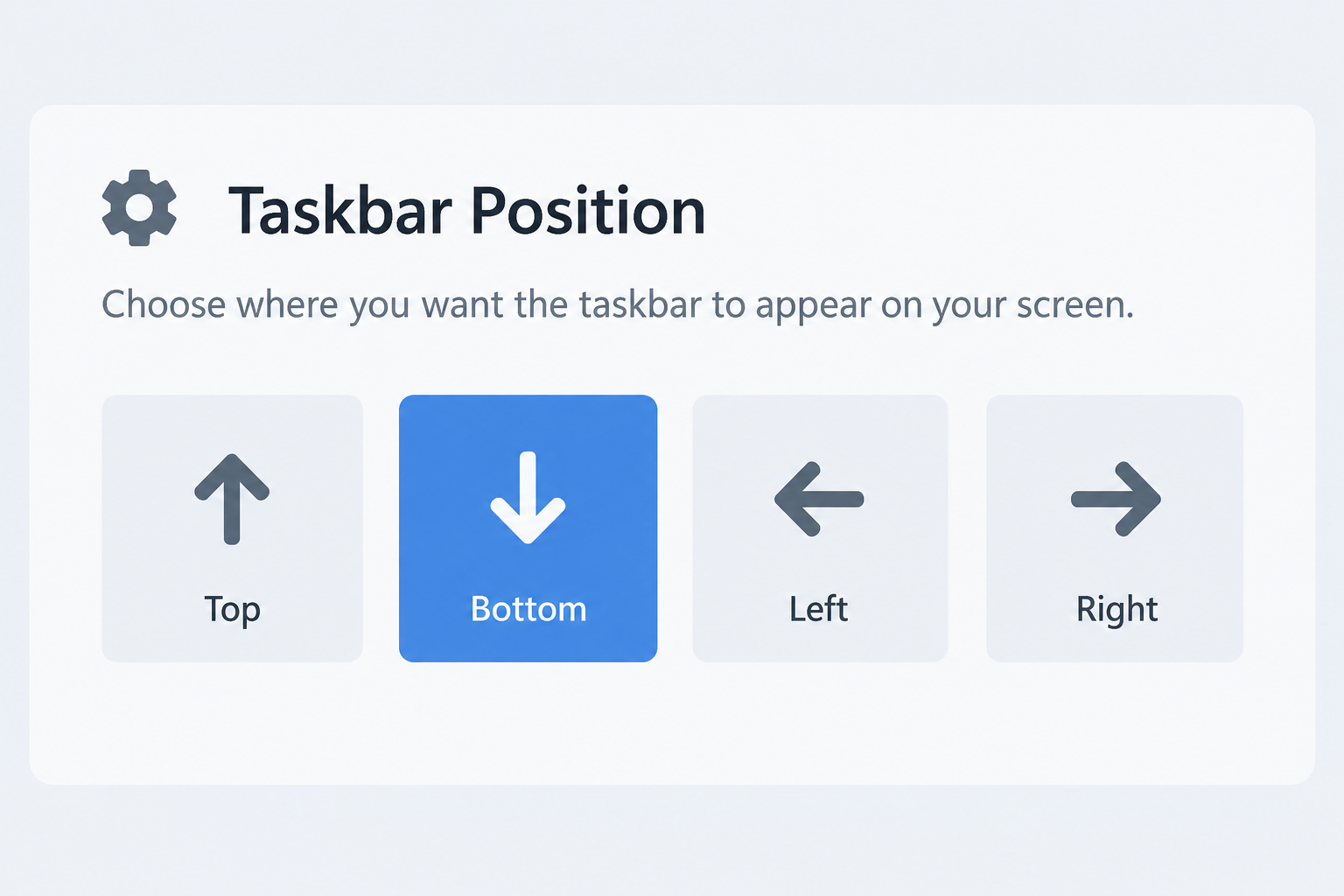
The official, Microsoft-sanctioned way to change taskbar position right now is still through Settings, and it’s also limited to Insider testers. Microsoft’s own Windows Insider Blog describes the path as Settings > Personalization > Taskbar > Taskbar behaviors, where a new taskbar position option lets testers pick bottom, top, left, or right.
This option began appearing in Insider preview builds earlier in 2026 and has continued rolling out to more testers through later builds since. A wider release to everyone running Windows 11 hasn’t been confirmed, so most people today will still find their taskbar locked to the bottom of the screen with no position option in Settings at all.
If your current PC or software license needs refreshing while you wait for these features to mature, it’s worth browsing a genuine Windows 11 Pro key so you’re running fully supported, update-eligible Windows 11 when these taskbar changes eventually reach the stable channel.
What This Means for Everyday Windows 11 Users
For most everyday users, this means taskbar flexibility is coming — just not yet, and not all at once. Windows 11 now accounts for 71.5% of worldwide desktop Windows usage, according to StatCounter, which means small interface decisions like taskbar placement now affect a much larger share of PC owners than they did a few years ago.
Until the hidden menu or the Settings-based option reaches general release, your practical choices are limited to the default bottom position unless you’re comfortable testing Insider builds. For anyone setting up a new machine or migrating from an older Windows 10 PC, it’s still worth checking our Windows 11 26H2 upgrade guide for a sense of what other interface changes are landing alongside taskbar updates, and our taskbar customisation tips for adjustments you can already make today.
Frequently Asked Questions
How do I move the taskbar on Windows 11?
On a standard Windows 11 install today, the taskbar stays fixed at the bottom of the screen with no built-in option to move it elsewhere. Microsoft is testing both a Settings-based position option and a hidden right-click menu in Insider builds, but neither has reached general release yet.
Why can’t I drag the taskbar to a new position in Windows 11?
Windows 11 removed the drag-to-reposition gesture that Windows 10 supported when it launched in 2021, locking the taskbar to the bottom edge for everyone. Rebuilding that drag behavior appears to be more complex than adding menu-based position options, which is why the menu arrived as a workaround first.
How do I join the Windows Insider Program to test this feature?
Go to Settings > Windows Update > Windows Insider Program, link a Microsoft account, and choose the Beta or Dev channel, since experimental taskbar changes tend to appear there first. After restarting and checking for updates, your PC will download the latest preview build if one is available.
Is the hidden taskbar menu available to everyone yet?
No, the hidden menu has only been spotted in select Insider preview builds and is not part of the standard Windows 11 release. Microsoft hasn’t confirmed a timeline for when, or if, it will reach every Windows 11 user.
Will Microsoft add drag-and-drop support for the taskbar?
There’s no official confirmation that full drag-and-drop repositioning is coming back. The current testing — both the Settings option and the hidden menu — suggests Microsoft is prioritizing a click-based way to move the taskbar rather than restoring the old drag gesture, at least for now.
