

Choosing between Windows 11 Home vs Pro is one of the most common purchasing dilemmas for PC buyers in 2025 — and it is easy to overpay for a set of features you will never touch. The short answer: most home users and gamers are perfectly served by Windows 11 Home, while IT professionals and business users managing multiple machines genuinely benefit from the Pro edition’s extra tools. Read on for a full breakdown of every meaningful difference.
What Windows 11 Home and Pro Have in Common
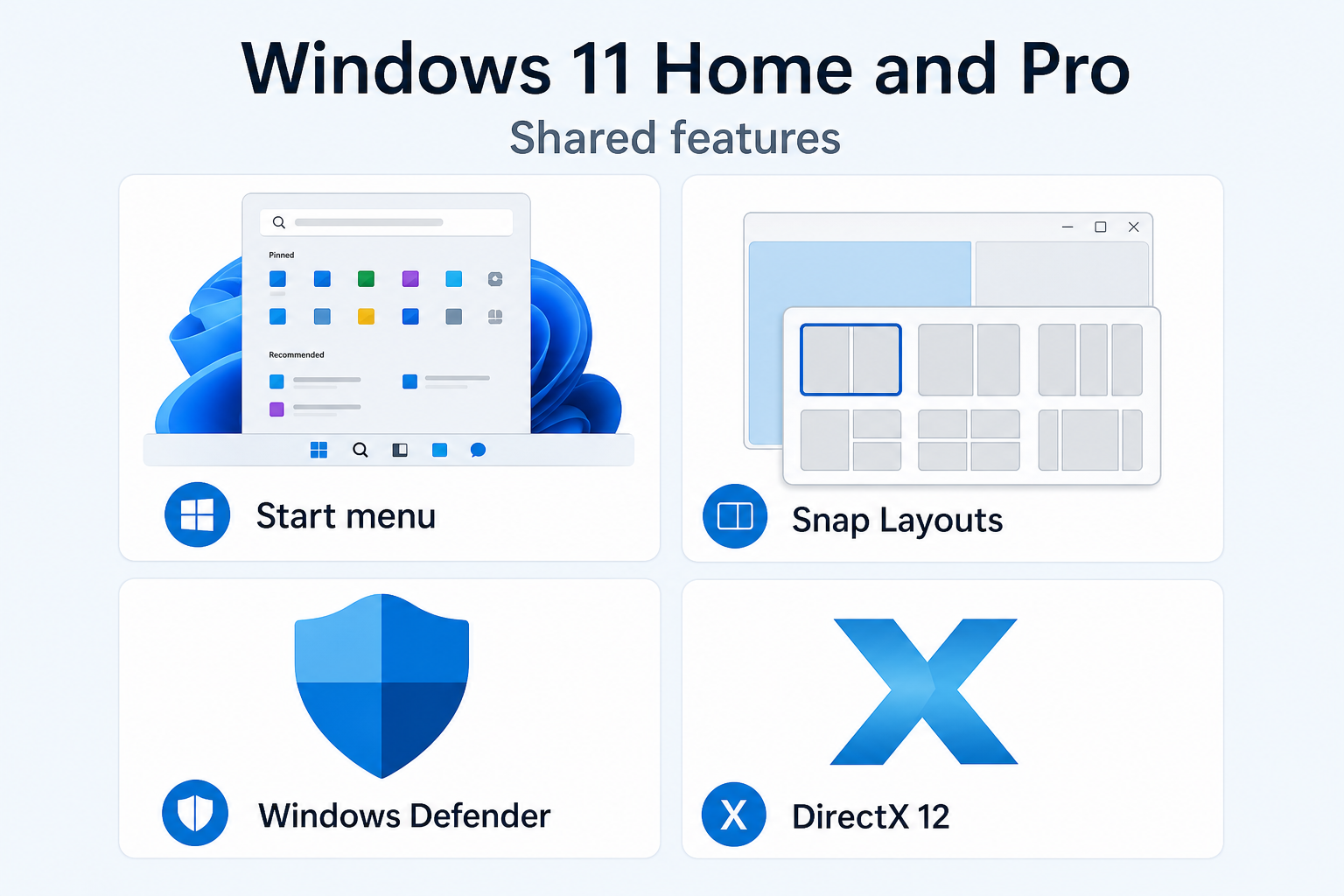
Before diving into the differences, it helps to know that both editions share the same core Windows 11 experience. Every user gets the redesigned Start menu, Snap Layouts, Microsoft Teams integration, DirectX 12 Ultimate for gaming, Windows Hello biometric sign-in, and the full suite of built-in security features such as Windows Defender Antivirus and Secure Boot. The performance of everyday tasks — browsing, streaming, gaming, and productivity — is identical across both editions. The gap only opens when you need enterprise-grade management, encryption, or virtualisation tools.
The Pro-Only Features That Actually Matter
Windows 11 Pro is a strict superset of Home — it includes everything Home offers, then adds a layer of business and IT-focused tools on top. Here are the features exclusive to Pro that carry real-world weight:
-
BitLocker Drive Encryption — Full-disk encryption that protects data if a device is lost or stolen. Home users get Device Encryption (a lighter version), but BitLocker gives IT admins granular control over recovery keys.
-
Remote Desktop (host) — Pro lets your PC act as a host so you can connect to it remotely from another machine. Home can only act as a client, connecting to a remote PC but not receiving connections.
-
Hyper-V Virtualisation — Run virtual machines natively without third-party software. Essential for developers and IT staff; irrelevant for most consumers.
-
Windows Sandbox — A disposable, isolated desktop environment for safely running untrusted applications. Useful for security testing.
-
Group Policy Editor (gpedit.msc) — Centralised configuration management for enforcing settings across an organisation. Home edition does not include this tool.
-
Active Directory & Azure AD Domain Join — Pro machines can join corporate domains and be managed centrally. Home cannot join an Active Directory domain at all.
-
Windows Information Protection (WIP) — Prevents accidental data leaks by separating corporate and personal data.
-
Assigned Access / Kiosk Mode — Lock a device down to run only one application — perfect for retail terminals or shared workstations.
Hardware Limits: Does Pro Offer Better Performance?
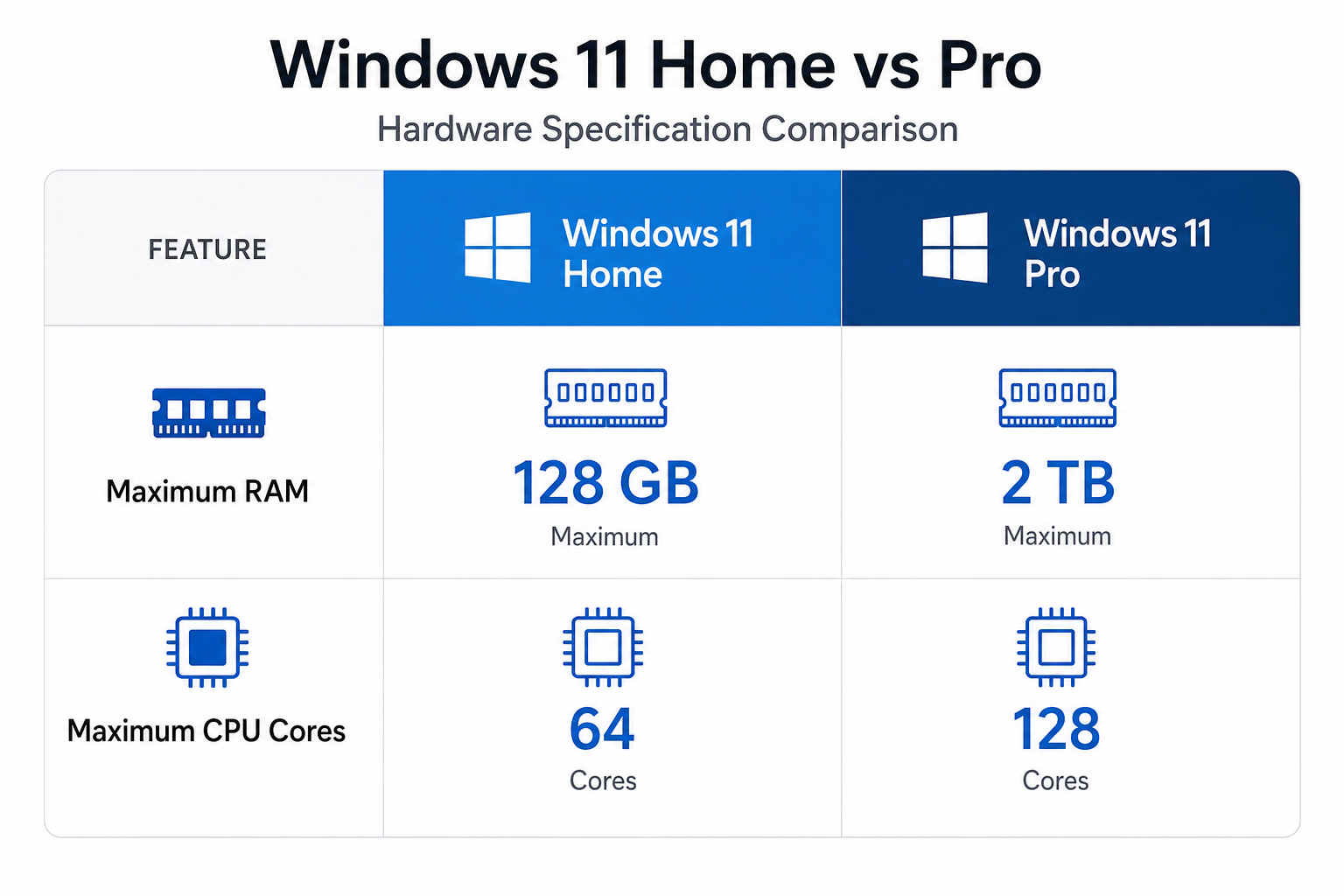
One area where Windows 11 Home vs Pro differences show up in spec sheets is hardware ceiling support. According to Microsoft’s official Windows 11 edition comparison, Home supports up to 128 GB of RAM and a single CPU with 64 cores, while Pro extends those limits to 2 TB of RAM and dual-CPU systems with up to 128 cores. For a gaming rig, a home office laptop, or a student PC, these ceilings are entirely academic — no consumer machine approaches them. They only become relevant in high-end workstations or server-adjacent deployments, where you would likely be looking at Windows 11 Pro for Workstations or Enterprise anyway.
Licensing Costs: Windows 11 Home vs Pro Price Breakdown
Microsoft’s retail pricing sets Windows 11 Home at $139 (USD) and Windows 11 Pro at $199 — a $60 premium for the Pro edition. At Shop Key Online, however, you can get a genuine Windows 11 Home OEM key from just €9.80, while a Windows 11 Pro OEM key is available from €15.95. That is a fraction of the boxed retail cost, with the same authentic activation and instant email delivery. The price gap between editions is proportionally small at these prices, which means the key question is not really about cost — it is about whether you will actually use Pro’s exclusive features.
OEM vs Retail: Another Licence Decision You Need to Make
Separate from the Home vs Pro Windows choice, you also need to decide between an OEM and a Retail licence. An OEM key is tied to the first machine it activates on and cannot be transferred to a new motherboard. A Retail key is transferable — if you build a new PC, you can move the licence with you. For a desktop you plan to upgrade, Retail is the smarter long-term investment. For a laptop or a machine you are unlikely to rebuild, OEM offers excellent value.
-
OEM: Lower cost, tied to one device permanently.
-
Retail: Slightly higher cost, fully transferable between PCs.
Who Should Choose Windows 11 Home?
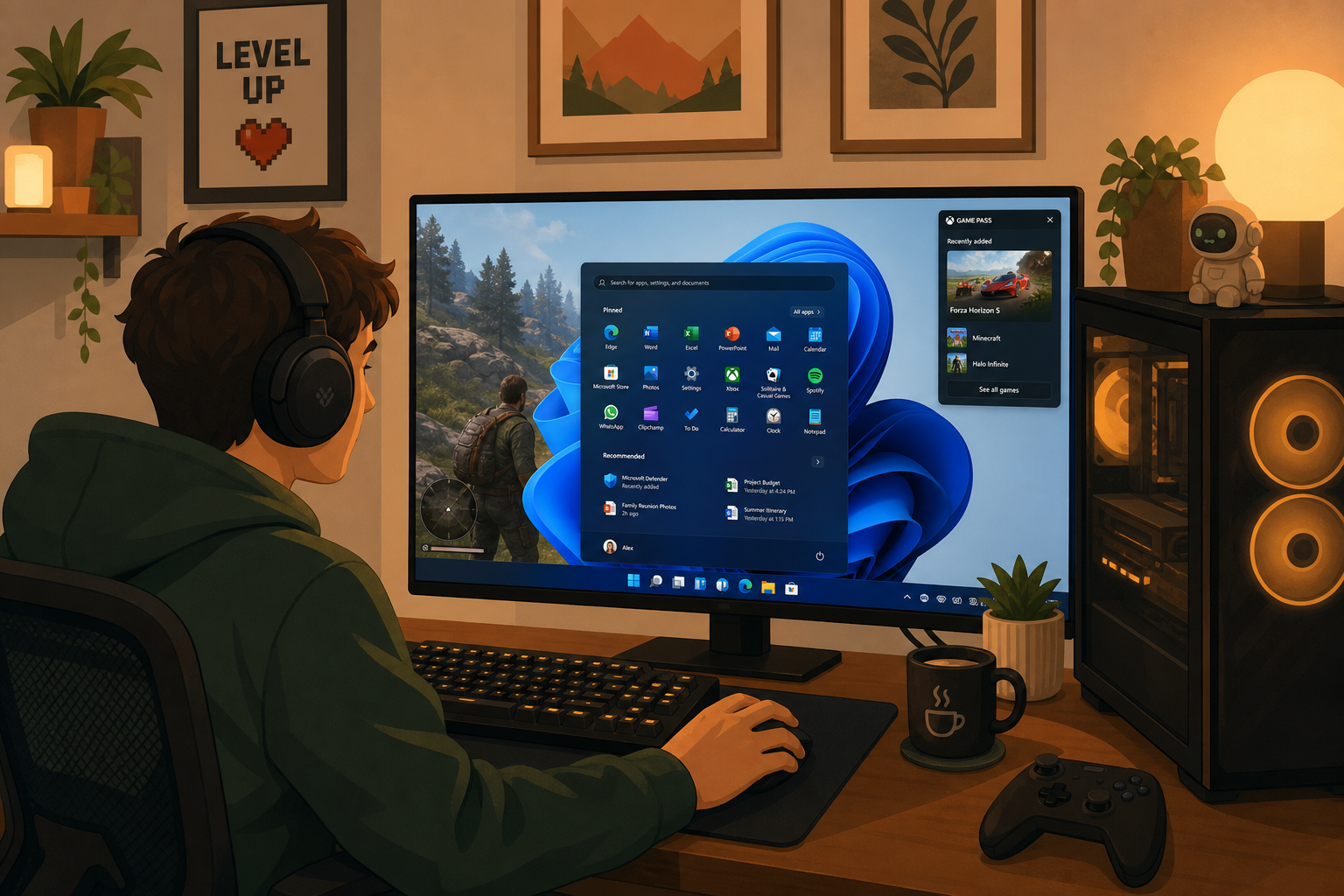
Windows 11 Home is the right pick for the vast majority of users. If your daily computing involves any combination of the following, Home covers you completely:
-
Gaming — all DirectX 12 and Xbox Game Pass features are identical on both editions.
-
General productivity: web browsing, Microsoft Office, media editing, and streaming.
-
Students and home users who do not manage a network of machines.
-
Anyone using a single personal PC that will not join a corporate domain.
-
Creative professionals who do not need virtualisation tools.
Choosing Home means you pay for exactly what you use. There is no performance downside, no missing security layer for personal use, and no reason to spend more.
Who Genuinely Needs Windows 11 Pro Features?
Windows 11 Pro features earn their keep in specific, clearly defined scenarios. Upgrade to Pro if you:
-
Work in IT and need Group Policy, domain join, or centralised device management.
-
Handle sensitive data professionally and require BitLocker’s full-disk encryption with IT-controlled recovery keys.
-
Develop or test software and regularly spin up virtual machines with Hyper-V.
-
Need Remote Desktop host access to connect to your work machine from home or while travelling.
-
Run a small business and need to join machines to an Azure Active Directory tenant for cloud management.
If even one of these applies to you regularly, Pro pays for itself quickly in saved IT management time and risk reduction.
Windows 11 Home vs Pro for Gaming: The Real Answer
Gaming performance between the two editions is identical. Both run DirectX 12 Ultimate, Auto HDR, and DirectStorage. Both support Xbox Game Pass and the full Windows gaming ecosystem. There is no frame-rate advantage to Pro, no extra GPU optimisation, and no gaming-specific feature locked behind the Pro paywall. The only gaming-adjacent reason to consider Pro is if you want to use Hyper-V alongside gaming — though mixing virtualisation with gaming on the same system can introduce overhead. For pure gaming, Home vs Pro Windows comes down firmly on the side of Home every time.
Can You Upgrade from Windows 11 Home to Pro Later?
Yes — Microsoft allows an in-place upgrade from Windows 11 Home to Pro without reinstalling Windows. You simply purchase a Pro licence key and enter it under Settings > System > Activation. All your files, apps, and settings are preserved. This means starting with Home carries no long-term risk: if your needs change and you eventually require Windows 11 Pro features, upgrading is straightforward and takes only a few minutes.
FAQ
Is Windows 11 Home safe enough for everyday use?
Absolutely. Windows 11 Home includes Windows Defender Antivirus, Windows Hello, Secure Boot, and TPM 2.0 support — all the security essentials a personal user needs. The additional security tools in Pro (like full BitLocker and WIP) are designed for enterprise environments where IT admins manage many devices, not for typical home or single-user scenarios.
Does Windows 11 Pro run faster than Home?
No — there is no performance difference for everyday tasks. Both editions share the same kernel and resource management. The higher hardware ceilings in Pro (2 TB RAM, dual CPU) only matter in server-class workstation environments, which most users will never encounter.
What is the difference between OEM and Retail Windows 11 licences?
An OEM licence is permanently tied to the first PC it activates on and cannot be moved to a new machine. A Retail licence is transferable — you can deactivate it on one machine and activate it on another. If you plan to upgrade your hardware or build a new PC in the future, Retail is the more flexible choice.
Can I join a domain with Windows 11 Home?
No. Domain join — both traditional Active Directory and Azure Active Directory — is a Pro-only feature. If your workplace or school requires your device to be enrolled in a managed domain, you must use Windows 11 Pro. Home edition does not support this functionality at all.
Is it worth paying more for Windows 11 Pro as a student?
For most students, Windows 11 Home is more than sufficient. Unless your course specifically requires Hyper-V for virtualisation, Remote Desktop hosting, or your institution mandates domain join, Pro’s extra features will sit unused. Save the difference and put it toward other software or hardware you actually need.
Can I upgrade from Windows 11 Home to Pro without reinstalling?
Yes. You can upgrade in-place via Settings > System > Activation by entering a valid Windows 11 Pro key. No reinstallation is needed, and all your files and applications remain intact. It takes only a few minutes and a system restart to complete the switch.
