
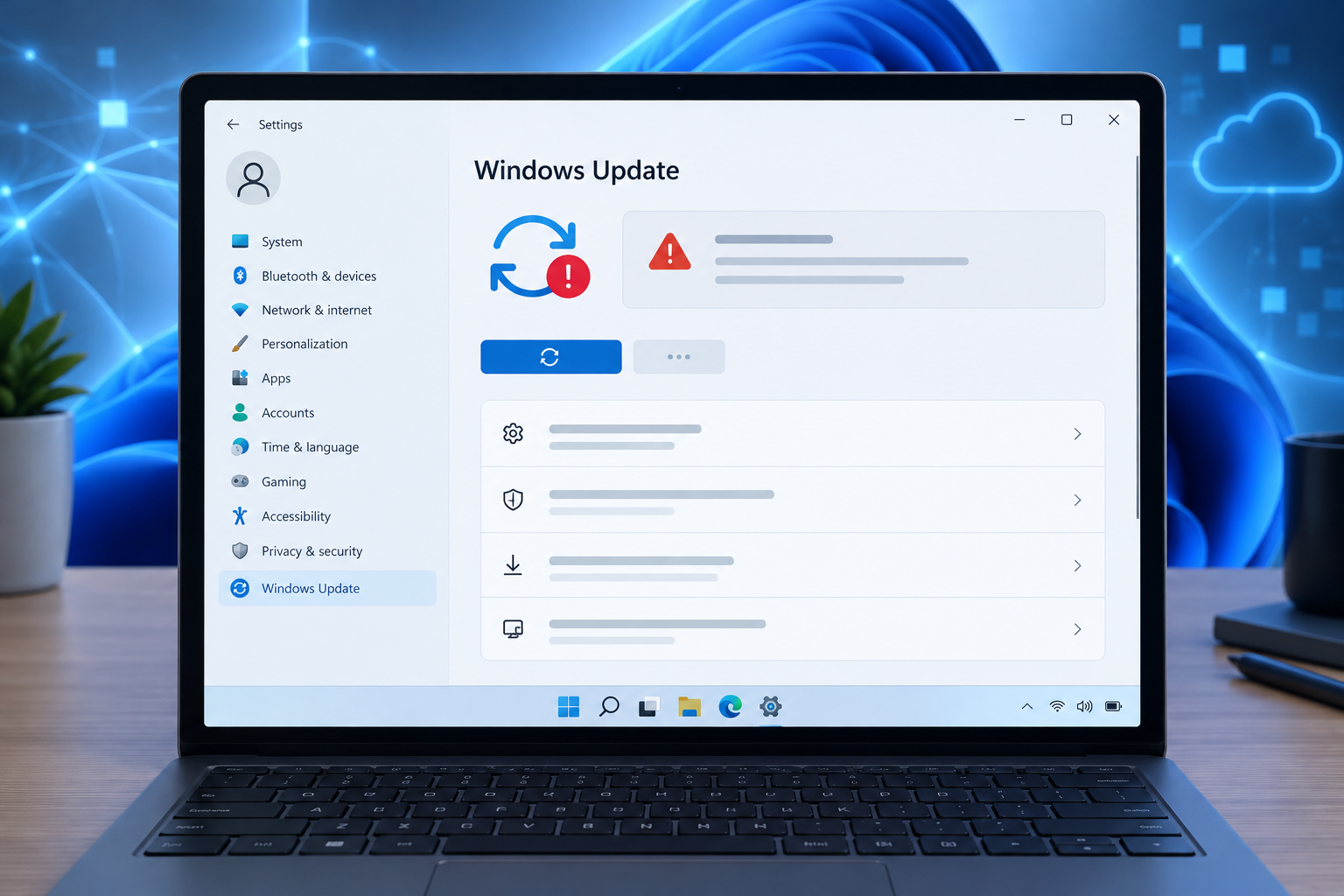
The 0x800f0845 error stops a Windows 11 cumulative update from installing, usually rolling back the update automatically and leaving the machine on an older build. It almost always points to a conflict in the update installation process itself — a corrupted component, a blocked file, or a security tool interfering with the Windows Update service — rather than a problem with your hardware. The good news is that it’s fixable in most cases without a full reinstall.
This issue has been widely reported on recent Windows 11 cumulative updates, including several Patch Tuesday releases, and it can affect both Home and Pro editions. Business environments running managed update policies through WSUS or Intune have reported the same failure, which suggests the root cause sits in how the update package itself is handled rather than in any one edition’s configuration. Below is a breakdown of what triggers it and the fixes that have worked for affected users, in the order you should try them.
What Causes the 0x800f0845 Error on Windows 11 Updates
The 0x800f0845 error is generated by the Component-Based Servicing (CBS) stack, the part of Windows that applies update packages to your system files. When CBS can’t validate or apply a package cleanly, it fails the installation and returns this code instead of completing the update.
Corrupted Update Components
The most common trigger is damage to the Windows Update cache or the system files the update needs to patch. If a previous update was interrupted, forcibly stopped, or installed over a system with existing file corruption, later cumulative updates can fail with the same error 0x800f0845 every month.
Insufficient Disk Space
Cumulative and quality updates stage files temporarily before applying them, and running low on free space can abort that process midway. Official Microsoft guidance states that quality updates typically require 2 GB – 3 GB or more of free space to install successfully, so a nearly full drive is worth ruling out early.
Conflicting Third-Party Antivirus
Some antivirus and endpoint-protection tools quarantine or lock files that Windows Update needs to modify during installation, which the CBS stack then reports as the 0x800f0845 error. This is more common after a security vendor pushes its own update close to a Patch Tuesday release.
How to Fix the 0x800f0845 Error Step by Step

Work through these fixes in order — most users resolve the issue within the first three steps without needing to touch the registry or reinstall Windows.
Run the Windows Update Troubleshooter
Open Settings > System > Troubleshoot > Other troubleshooters, then run Windows Update. It automatically resets several update-related settings and can clear minor corruption without any manual commands.
Reset Windows Update Components Manually
If the troubleshooter doesn’t resolve it, reset the update cache manually:
-
Open Command Prompt as administrator
-
Stop the services:
net stop wuauserv,net stop cryptSvc,net stop bits,net stop msiserver -
Rename the folders:
ren C:\Windows\SoftwareDistribution SoftwareDistribution.oldandren C:\Windows\System32\catroot2 catroot2.old -
Restart the services you stopped, then reboot and retry the update
Run SFC and DISM Scans
System File Checker and DISM repair the underlying files that the CBS stack relies on. Run sfc /scannow first, then DISM /Online /Cleanup-Image /RestoreHealth if issues remain. These two tools together resolve the 0x800f0845 error for a large share of affected users because they fix the exact corruption the error is reporting.
Free Up Disk Space
Use Disk Cleanup (including system files) or move large files off your main drive before retrying the update. If you were close to the storage threshold mentioned above, this alone can clear the failure.
Temporarily Disable Antivirus Software
Disable third-party antivirus temporarily, run Windows Update again, then re-enable it once the update completes. If the update installs successfully with it off, add an exclusion for the Windows Update process instead of leaving protection disabled long-term.
What to Do When Error 0x800f0845 Keeps Returning
If the fixes above don’t stick and error 0x800f0845 reappears every month, the update package itself may be the problem rather than your system configuration — this has been reported with several recent Windows 11 updates.
Install the Update Manually via Microsoft Update Catalog
Find the failing KB number in Windows Update history, search for it on the Microsoft Update Catalog, download the matching package for your system (x64 or ARM64), and install it directly. A manual install sometimes succeeds where the automatic one fails, because it bypasses the delivery optimization path that triggered the error.
Perform an In-Place Repair Upgrade
Downloading the latest Windows 11 installation media and running setup.exe to repair the existing installation keeps your files and apps while replacing every system component the update needs to touch. It’s slower than the steps above but resolves deep-seated corruption that SFC and DISM can’t reach.
How to Prevent the 0x800f0845 Update Error in the Future
Once your system is updating normally again, a few habits keep the 0x800f0845 update error from coming back:
-
Keep at least 10–15 GB of free space on your system drive at all times
-
Let cumulative updates finish completely — never force a shutdown mid-install
-
Run SFC and DISM scans periodically, not just when something breaks
-
Keep antivirus definitions current, since outdated security software is more likely to misflag update files
If repeated update failures have left your installation unstable, or you’re planning a clean install to rule out deeper corruption, make sure you’re reinstalling with a genuine license. Our guide on activating Windows 11 with a product key walks through finding, entering, and troubleshooting activation after a reinstall.
It’s also worth knowing this isn’t the only update error making the rounds on Windows 11 right now — a separate 0x800f0922 installation error has affected a different set of updates, and the fixes overlap in several places. If your update is stuck rather than failing outright, see our guide on a Windows Update stuck on pending restart for a related but different problem.
Frequently Asked Questions
What does the 0x800f0845 error mean?
It means the Component-Based Servicing stack couldn’t apply the update package to your system files, usually because of corrupted update components, a blocked file, or insufficient disk space. Windows then cancels the install and rolls back to the previous state.
Why does error 0x800f0845 keep happening on Windows 11?
Recurring failures usually mean the underlying corruption wasn’t fully repaired the first time, or that each new cumulative update is hitting the same blocked file or low-storage condition. Running SFC and DISM, then confirming free disk space, resolves most recurring cases.
Can I skip the update that’s causing the 0x800f0845 error?
You can hide a specific update temporarily using the Microsoft Show or Hide Updates troubleshooter, but this only delays the problem since future cumulative updates build on earlier ones. It’s better to resolve the underlying cause so later updates install normally.
Does resetting Windows Update components fix the 0x800f0845 update error?
Yes, in many reported cases renaming the SoftwareDistribution and catroot2 folders and restarting the Windows Update services clears the error, because it forces Windows to rebuild its update cache from scratch.
Should I reinstall Windows 11 to fix this issue?
Reinstalling should be a last resort after the troubleshooter, component reset, and SFC/DISM scans have all failed. An in-place repair upgrade is usually enough, since it replaces system files without wiping your installed apps and personal data.
