
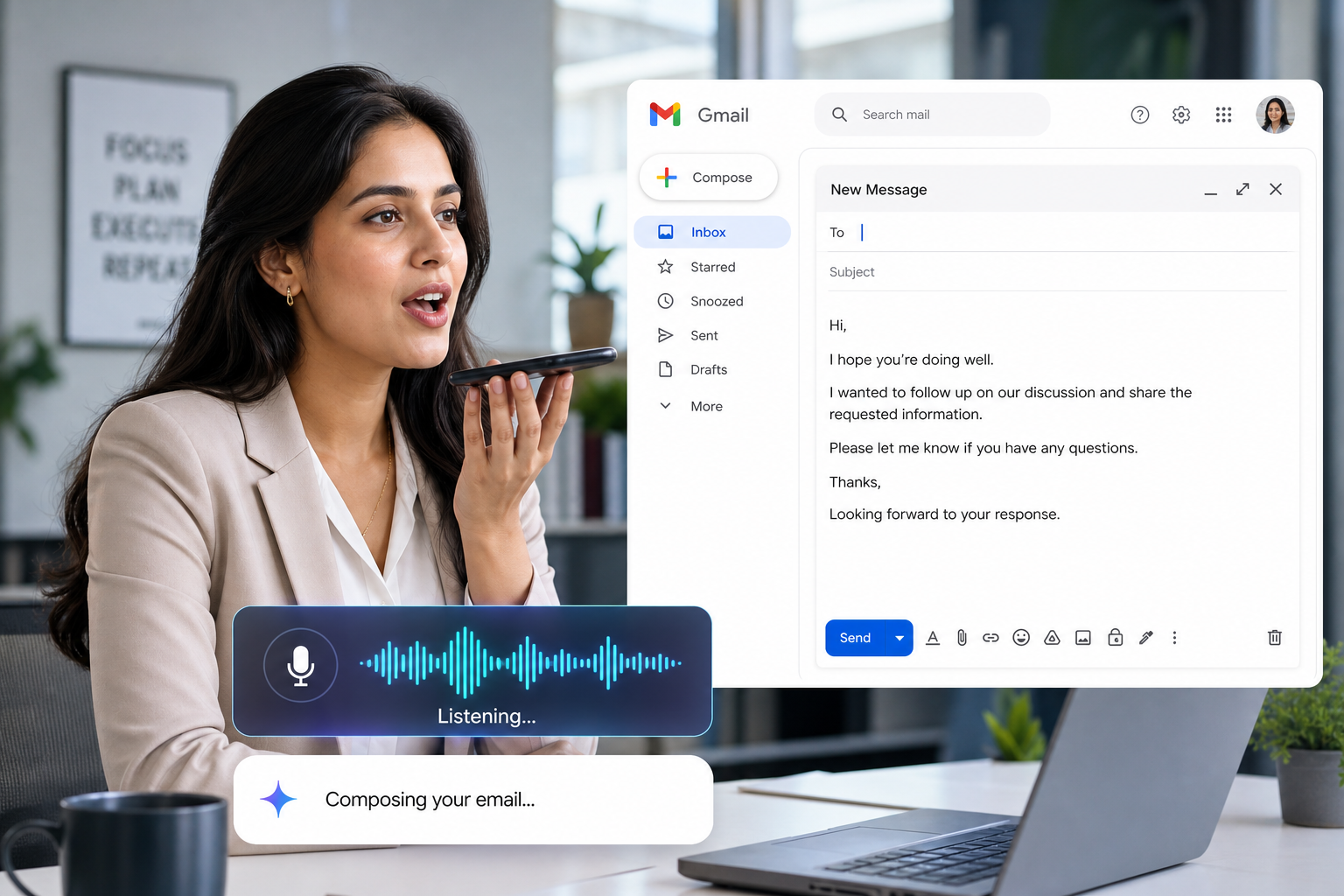
Gmail voice commands let you compose, send, and manage your inbox entirely hands-free — no keyboard required. Whether you’re commuting, cooking, or just faster at speaking than typing, Google’s expanding suite of voice features makes email dictation more practical than ever in 2026. This guide walks you through every setup step, supported devices, and real workflows so you can start saving time today.
What Are Gmail Voice Commands?
Gmail voice commands is the collective term for a set of features that let you interact with your inbox using spoken instructions. At their core, these tools combine Google’s Gboard voice typing, Google Assistant integration, and — for Workspace users — new conversational AI voice capabilities announced at Google I/O 2026. Instead of tapping or clicking, you speak to compose a new email, reply, add a subject line, search your inbox, or even archive messages.
Research consistently shows people speak roughly three times faster than they type, which explains why voice dictation tools have seen explosive adoption. Gmail’s voice features tap directly into that speed advantage, making hands-free email a genuinely practical workflow rather than a novelty.
Which Devices Support Gmail Voice Typing?
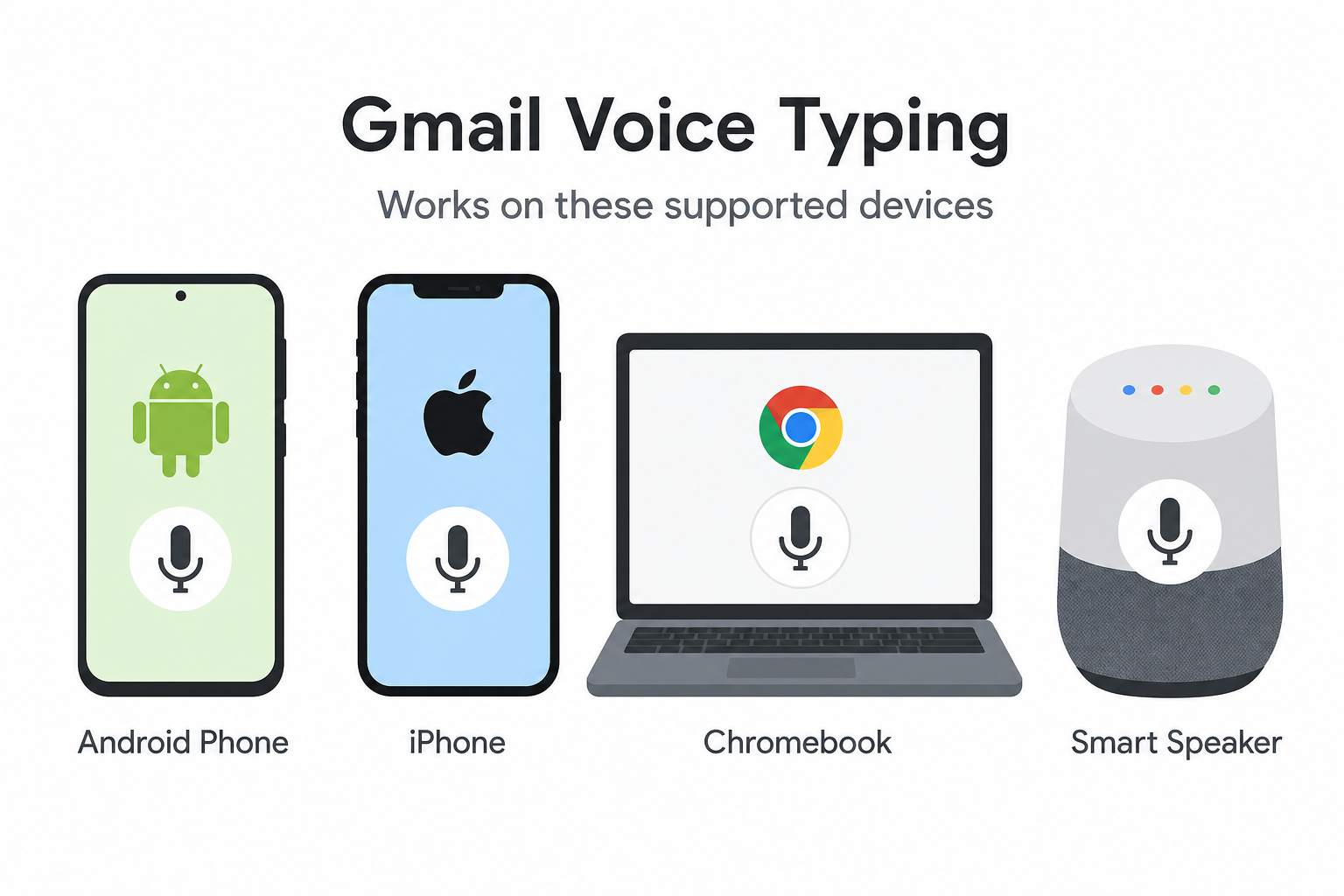
Hands-free email via Gmail works across several platforms, though the exact method varies by device:
- Android smartphones and tablets — Native Gboard voice typing is the most reliable and feature-rich route. Supports automatic punctuation and emoji dictation.
- iPhone and iPad — Use iOS’s built-in dictation (microphone key on the keyboard) inside the Gmail app, or Google Assistant via the Google app.
- Chromebook — Google’s built-in dictation tool (enabled in Accessibility settings) works directly inside Gmail on the web.
- Windows PC / Mac — Chrome browser — Use Chrome’s built-in voice typing (Ctrl + Shift + S in Google Docs, then paste) or third-party extensions. Native web Gmail voice typing is limited on desktop.
- Google Nest and smart speakers — Google Assistant can send short emails by voice, though full composition with formatting is mobile-first.
For the most complete Gmail voice commands experience in 2026, an Android device running Gboard is the recommended setup.
How to Enable Gmail Voice Commands on Android (Step-by-Step)
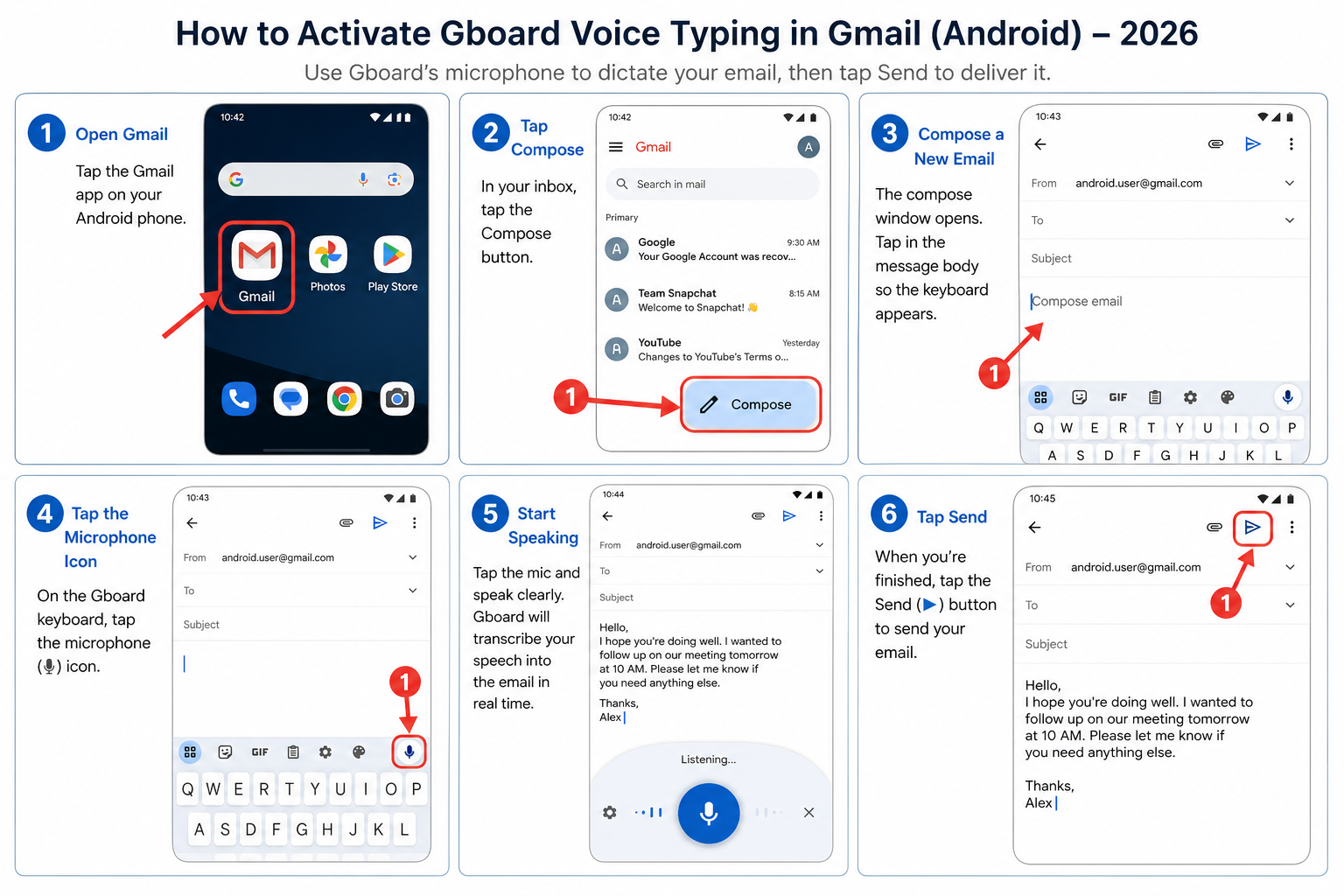
Setting up Gmail voice typing on Android takes under two minutes. Follow these steps:
- Open the Play Store and confirm Gboard is installed and set as your default keyboard. Search “Gboard” and tap Install or Open.
- Open the Gmail app and tap the Compose button (the pencil icon in the bottom-right corner).
- Tap inside the message body to bring up Gboard.
- Tap the microphone icon at the top of the Gboard keyboard. If you don’t see it, tap the three-dot menu and select Voice typing.
- Grant microphone permissions when prompted — tap Allow.
- Start speaking. Gboard transcribes in real time with automatic punctuation. Say phrases like “comma”, “full stop”, or “new paragraph” for formatting.
- To fill in the To field by voice, tap it first, then activate voice typing and speak the recipient’s name or email address.
- Tap Send when done, or say “Send” if Google Assistant is active.
You can also enable advanced voice typing features — including automatic punctuation and emoji shortcuts — by going to Gboard Settings → Voice typing → toggle on Use voice typing. According to Google’s official support documentation, Gboard voice typing is available on any app that accepts text input, including Gmail and Google Keep.
Setting Up Hands-Free Email on iPhone and iPad
Hands-free email on iOS requires a slightly different approach since Gboard’s microphone button on iPhone uses Apple’s dictation engine rather than Google’s. Here’s the fastest setup:
- Open Settings → General → Keyboard and toggle on Enable Dictation.
- Open the Gmail app and tap Compose.
- Tap the message body, then tap the microphone key on the iOS keyboard (bottom-left of the space bar row).
- Speak your email. iOS dictation supports punctuation commands: say “period”, “comma”, “question mark”, or “new line”.
- Alternatively, install the Google app on your iPhone, activate Google Assistant, and say “Send an email to [name]” for a more conversational Gmail voice commands experience.
Voice Dictation Gmail Setup on Chromebook
Chromebooks have a system-wide dictation tool that works inside Gmail on the web:
- Go to Settings → Advanced → Accessibility → Manage accessibility features.
- Under Keyboard and text input, toggle on Enable dictation (speak to type).
- A microphone icon appears in the system tray. Click it before typing in Gmail’s compose window.
- Speak naturally — Chromebook’s dictation supports punctuation commands and works in multiple languages.
Google Assistant and Hands-Free Email: Going Beyond Typing
Voice dictation in Gmail covers composing — but Google Assistant can handle full hands-free email management. With Assistant, you can do all of the following without touching your screen:
- “Hey Google, compose an email to Sarah about the project deadline.”
- “Hey Google, read my latest email.”
- “Hey Google, reply saying I’ll be there at 3pm.”
- “Hey Google, search my Gmail for the invoice from last week.”
- “Hey Google, send the email.” (after dictating)
To activate this, open the Google app → your profile icon → Settings → Google Assistant → Hey Google & Voice Match, then toggle on Hey Google. Once enabled, Gmail voice commands work as a fully hands-free loop from compose to send.
At Google I/O 2026, Google confirmed it is testing new conversational AI voice features for Gmail that go beyond simple dictation — letting users manage threads, set follow-up reminders, and draft replies using natural language, powered by Gemini AI. These features are rolling out progressively to Google Workspace accounts first.
Practical Workflows for Busy Professionals
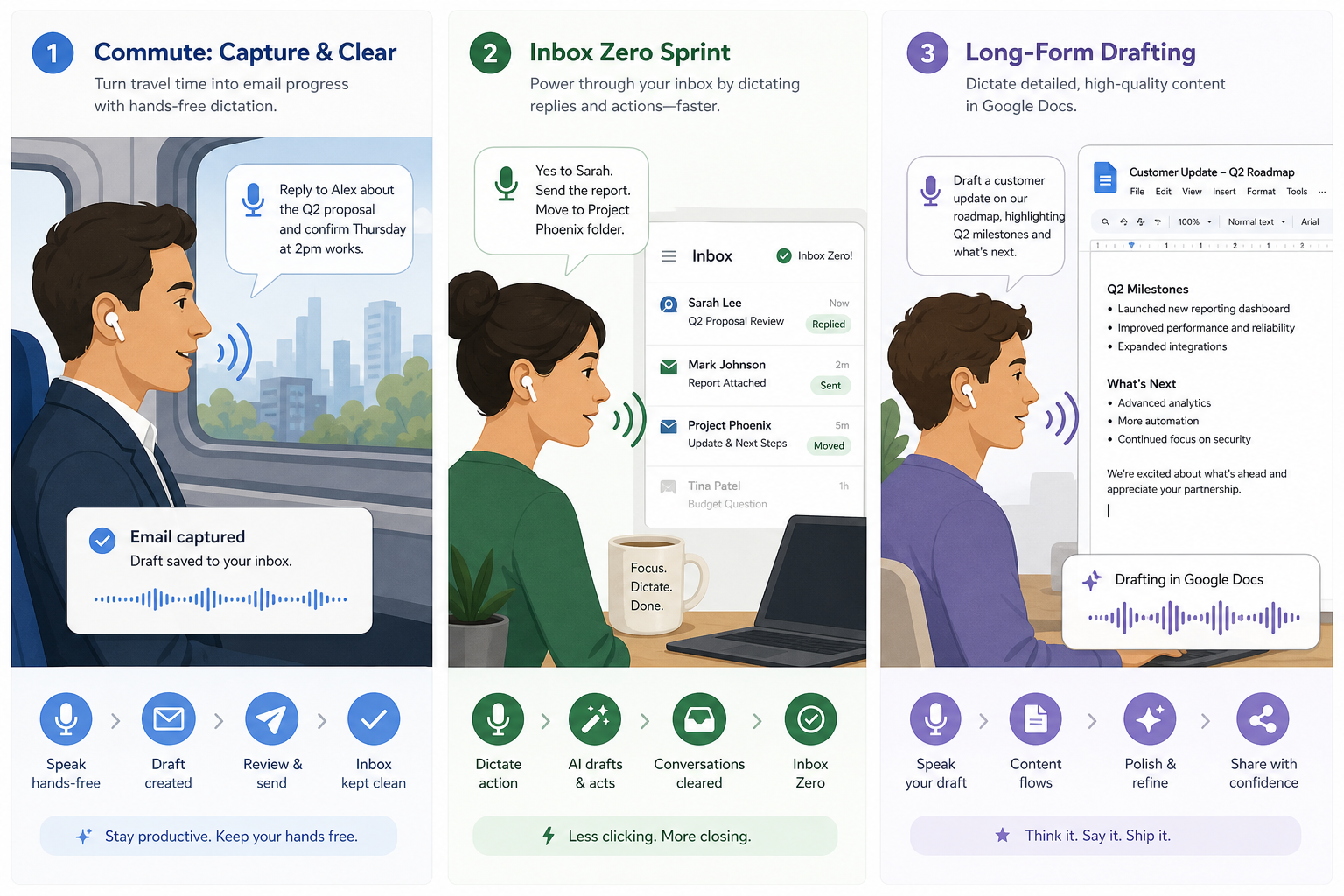
Knowing the setup is one thing; building it into your daily routine is another. Here are three voice-first email workflows that actually save time:
The Commute Workflow
Use hands-free email during your morning commute without looking at your screen. With Hey Google active and screen auto-read enabled, you can have Gmail read aloud your three most recent unread messages and dictate short replies — all while keeping your eyes on the road or on your surroundings.
The Inbox-Zero Sprint
Set a five-minute voice sprint: activate Assistant, say “Read my unread emails”, and after each one say “Reply”, “Archive”, or “Remind me tomorrow”. This is significantly faster than tapping through individual messages and works surprisingly well for clearing routine correspondence.
The Long-Form Dictation Draft
For longer emails — think client proposals or detailed project updates — open a Google Doc, use Chrome’s voice typing (Tools → Voice typing) to dictate at full speed, then copy and paste into Gmail. This approach lets you edit cleanly before sending and is a proven way to write detailed emails up to 4× faster than keyboard typing.
Troubleshooting Common Gmail Voice Commands Problems
Voice typing occasionally misbehaves. Here are the most common issues and fixes:
- Microphone icon not showing in Gboard — Go to Gboard Settings → Voice typing and confirm it’s enabled. Also check that your device language is set to a supported language.
- “No permission to enable voice typing” error — Open Android Settings → Apps → Gboard → Permissions and grant Microphone access.
- Voice typing stops mid-sentence — This usually indicates a weak internet connection. Gboard’s voice typing requires a live connection for server-side transcription.
- Hey Google not responding in Gmail — Confirm Voice Match training is complete: Google app → Settings → Google Assistant → Hey Google & Voice Match → retrain Voice Model.
- Poor punctuation accuracy — Speak punctuation explicitly (“comma”, “period”, “question mark”) rather than relying on automatic punctuation, especially in noisy environments.
Gmail Voice Commands vs. Third-Party Dictation Tools
Google’s native voice typing is free, private, and deeply integrated — but third-party tools offer extras worth knowing about:
- Gboard (Google) — Free, built-in on Android, supports 70+ languages, auto-punctuation.
- Voicy / Speeko Chrome extensions — Add a mic button directly inside Gmail on desktop Chrome; useful if you’re a desktop-first user.
- Speechify Dictation — Cross-platform, AI-enhanced punctuation, subscription-based.
- VoiceDash — Purpose-built Gmail voice-to-text workflow tool with AI editing and formatting.
For most users, Gboard on Android covers 90% of use cases at zero cost. Desktop users who spend most of their day in Chrome should consider a lightweight extension to bring voice dictation into the Gmail compose window natively.
If you’re looking to further boost your email productivity alongside tools like Gmail, a reliable office suite makes a real difference. Check out the Google & Gmail Tips section on ShopKeyOnline for more expert guides, or explore how Gmail’s AI spam filter works in 2026 to keep your inbox clean and responsive.
Frequently Asked Questions
Is Gmail voice typing free to use?
Yes — Gboard voice typing and Google Assistant email features are entirely free. They’re built into Android devices and the Google app on iOS. There’s no subscription required for the core functionality.
Can I use Gmail voice commands on a desktop computer?
Native Gmail voice commands are most robust on Android and iOS. On desktop, your best options are Chrome’s built-in voice typing in Google Docs (Tools → Voice typing), Chromebook’s system dictation, or a third-party Chrome extension like Voicy. Full Gmail voice commands on the web browser are limited by default.
Does voice typing in Gmail work offline?
Gboard’s voice typing requires an internet connection for server-side speech recognition. Basic offline dictation is available on some Pixel devices through on-device recognition, but for most Android phones, a stable data or Wi-Fi connection is needed.
What languages does Gmail voice typing support?
Gboard supports over 70 languages for voice input. You can switch the active voice typing language via Gboard Settings → Languages. Google Assistant’s email commands support a slightly narrower set — primarily English, Spanish, French, German, Japanese, Italian, and Portuguese.
Will Google’s new AI voice features come to personal Gmail accounts?
Google announced conversational AI voice features for Gmail at Google I/O 2026, with an initial rollout to Google Workspace (business) accounts. Personal Gmail account rollout is expected to follow, though Google has not announced a firm timeline. Keep an eye on your Gmail settings under “New features” for when it arrives.
How accurate is Gmail voice typing for professional emails?
Gboard’s voice recognition is highly accurate in quiet environments, often exceeding 95% accuracy for clear speech in supported languages. Background noise, strong accents, or technical jargon can reduce accuracy. Always review the dictated text before sending professional correspondence.
