
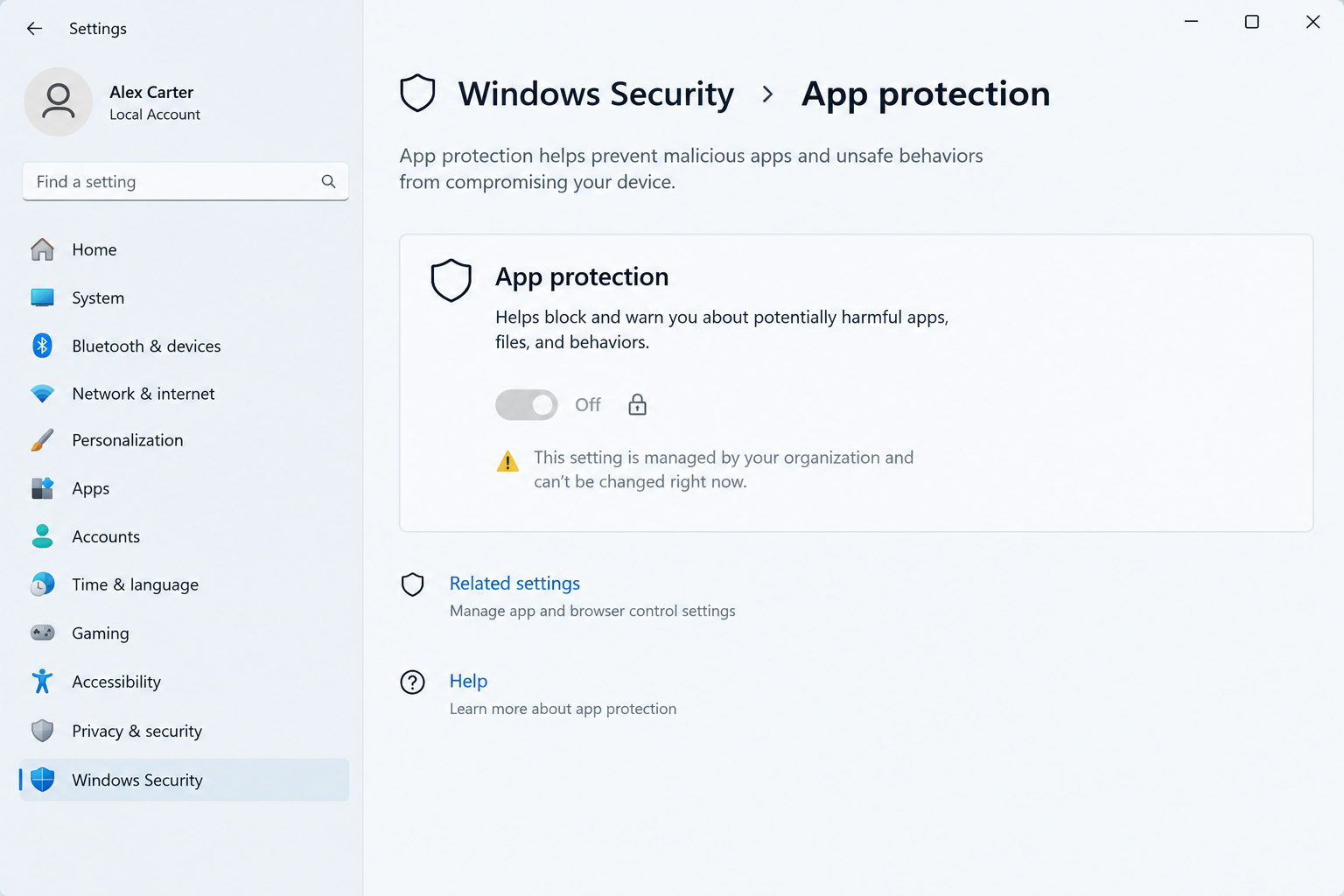
If you installed the October 2026 Windows 11 security update and can no longer turn on Smart App Control, you’re not imagining it. Microsoft has confirmed that update KB5127648 can leave the Smart App Control toggle grayed out in the Windows Security app, even on devices where it was previously enabled.
This article explains exactly what’s happening, what Microsoft has said about it, and the workarounds that are actually working for affected users right now.
What Is the KB5127648 Smart App Control Bug?
The bug prevents some Windows 11 devices from re-enabling Smart App Control after it has been turned off, with the toggle in Windows Security showing as unavailable instead of switching on. Microsoft acknowledged the issue shortly after the update began rolling out, describing it as affecting devices where Smart App Control had previously been disabled.
Smart App Control is a pre-execution security layer built into Windows 11 that blocks apps and binaries Microsoft doesn’t consider safe, going beyond traditional antivirus scanning by evaluating software before it ever runs. Because it sits so close to the core of how Windows decides what software to trust, a bug that blocks it from being switched back on is a meaningful gap for anyone who relies on it as part of their security setup.
Why KB5127648 Blocks Smart App Control From Turning On
The root cause traces back to how the October 2026 cumulative update interacts with the internal state Windows uses to track whether Smart App Control has ever been disabled on that device. Once that state is flagged, the update appears to fail to reset it correctly, leaving the control stuck even when a user tries to switch it back on through Windows Security.
Confirmed Build Numbers and Release Timing
KB5127648 shipped on October 13, 2026, as that month’s Patch Tuesday release, and it applies across multiple Windows 11 versions at once. According to Microsoft’s official KB5127648 release notes, the update advances Windows 11 24H2 to OS Build 26100.9711, 25H2 to 26200.9711, and 26H2 to 26300.9711 — confirming it as a single cumulative package spanning three active Windows 11 feature versions.
Who Is Affected by the Smart App Control Block
Not every device hits this bug. Reports so far point to a specific pattern:
- Smart App Control was previously turned off on that device at some point.
- The device has installed KB5127648 as part of the October 2026 security rollup.
- The user is attempting to switch Smart App Control back on through Windows Security > App & browser control.
- Devices that never disabled Smart App Control, or that have it enabled from a clean install, have not generally reported the same block.
This same update has also caused separate, unrelated problems — including authentication failures on WPA2-Enterprise Wi-Fi networks and the NTLM networking issue affecting VPN and Wi-Fi logins that was reported around the same release.
Microsoft’s Official Guidance on the Smart App Control Issue
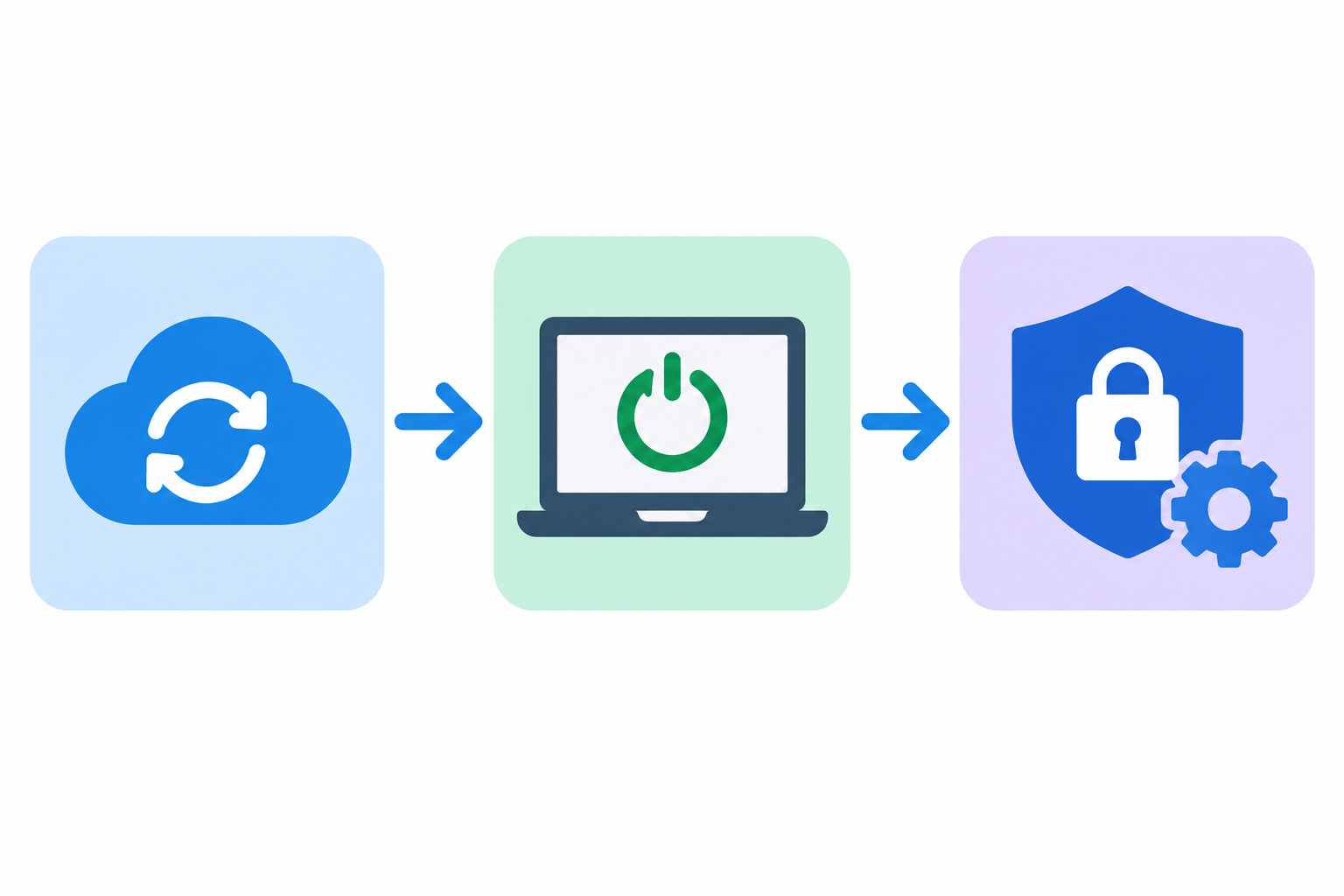
Microsoft has listed the problem as a known issue tied to KB5127648 rather than denying or downplaying it. The company’s guidance is straightforward: it is aware that some devices cannot turn Smart App Control back on after installing the update, and it is working on a resolution that will arrive in a future release rather than requiring an immediate manual fix for every user.
Importantly, Microsoft’s own support documentation already states that recent Windows updates allow Smart App Control to be re-enabled without requiring a clean installation, which is a meaningful change from how the feature originally worked. That broader capability is what makes this particular regression frustrating — the toggle is supposed to be flexible now, and KB5127648 is temporarily undoing that flexibility for some users.
Workarounds While You Wait for a Permanent Fix
There is no official permanent fix published yet, but several approaches are helping affected users regain control in the meantime.
Check for a Newer Cumulative Update First
Before trying anything more involved, check Windows Update for any newer cumulative or optional update released after KB5127648. Microsoft frequently ships out-of-band or follow-up patches for high-visibility known issues, and installing the latest available update is the simplest way to pick up a fix automatically once one ships.
Try Re-Enabling Smart App Control via Windows Security
Some users have reported that Smart App Control becomes available again after:
- Restarting the device fully (not just signing out) after the update installs.
- Running Windows Update troubleshooting from Settings to repair any pending update components.
- Re-checking the toggle in Windows Security > App & browser control > Smart App Control a day or two after the restart, since the state change doesn’t always apply instantly.
This doesn’t work for every affected device, but it costs nothing to try before resorting to anything more drastic.
The Clean Install Option (Last Resort)
Historically, a clean installation of Windows 11 was the only guaranteed way to reset Smart App Control if it got stuck, and it remains the most reliable fallback for this bug if Microsoft’s upcoming fix doesn’t resolve it on your device. If you do go this route, make sure you have a genuine, activatable license ready before you start — a product like Windows 11 Pro OEM lets you reactivate cleanly without licensing headaches on top of the Smart App Control problem you’re already troubleshooting.
Should You Still Enable Smart App Control on Windows 11?
Yes — this bug is a reason to be patient, not a reason to give up on the feature. Smart App Control adds a layer of protection that traditional antivirus tools don’t fully replicate, by blocking unsigned or untrusted binaries before they execute rather than after they’re already running. If your device isn’t currently affected, there’s no reason to disable it preemptively just because the bug exists elsewhere.
If you are affected, the safest approach is to keep Windows Defender and standard antivirus protections fully active while you wait, rather than leaving the device with reduced protection for an extended period.
Other Known Issues Bundled Into KB5127648
The Smart App Control regression isn’t the only problem tied to this update. Reports have also flagged authentication failures for WPA2-Enterprise Wi-Fi networks using 802.1X/PEAP, which Microsoft has separately acknowledged and is addressing. If your organization manages multiple Windows 11 devices, it’s worth checking your Windows Defender and security settings across the fleet after installing this update, rather than assuming only Smart App Control is impacted.
- WPA2-Enterprise (802.1X/PEAP) Wi-Fi authentication failures on some networks.
- Smart App Control toggle grayed out after being previously disabled.
- Isolated Windows Explorer issues in multi-user environments such as Azure Virtual Desktop and FSLogix, which Microsoft has already addressed in the same release.
Frequently Asked Questions
How do I check if Smart App Control is enabled?
Open Windows Security, select App & browser control, and look under the Smart App Control section. It will show as On, Off, or Evaluation, and if the toggle appears grayed out after installing KB5127648, that’s the known issue described above.
How do I turn on Smart App Control after KB5127648?
First install any update released after KB5127648 through Windows Update, then restart the device and check the toggle again in Windows Security. If it’s still grayed out, a clean installation remains the most reliable way to reset it until Microsoft ships a dedicated fix.
How do I download the latest Windows 11 update to fix this?
Go to Settings, select Windows Update, and choose Check for updates. Install any cumulative or optional update offered, since Microsoft typically resolves high-visibility known issues like this one through a follow-up release rather than a separate standalone patch.
How do I install KB5127648 without triggering the bug?
There’s currently no known way to avoid the issue during installation if your device previously had Smart App Control disabled; the bug is tied to that existing device state rather than how the update itself is installed. Keeping Windows fully updated afterward is the best preventive step.
Is it safe to disable Smart App Control until Microsoft fixes it?
If Smart App Control is currently working and enabled on your device, there’s no need to turn it off as a precaution. If it’s already stuck off because of this bug, keep your other protections, including Windows Defender, active while you wait for a resolution.
