

A computer freeze that locks your screen mid-task is one of the most frustrating Windows experiences — and one of the most misdiagnosed. The good news: almost every unresponsive PC traces back to one of three culprits — faulty RAM, a struggling storage drive, or a CPU choking on heat. This guide walks you through each diagnostic step in order, so you can stop guessing and start fixing.
Why Does a Computer Freeze and Become Unresponsive?
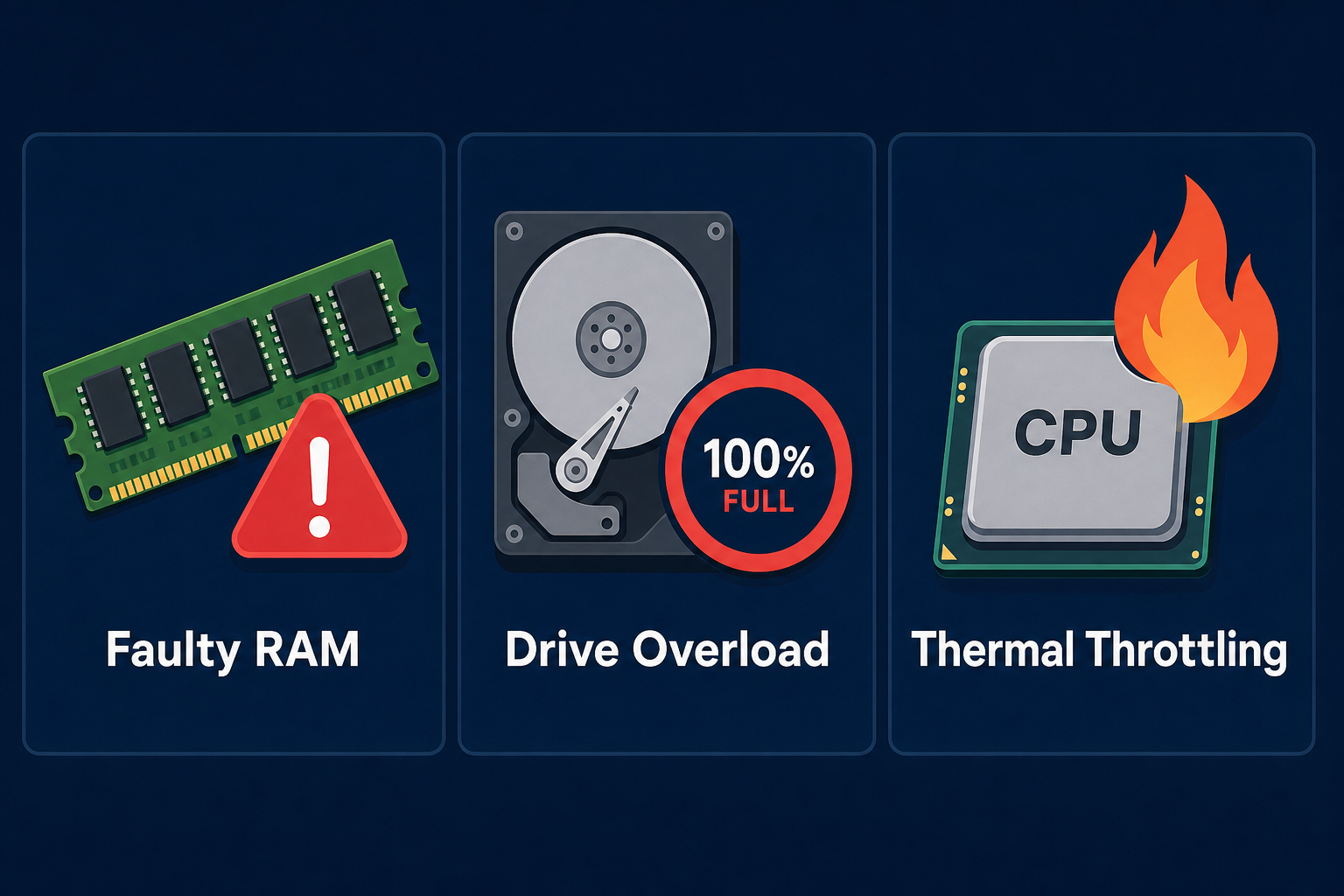
When Windows stops responding, it is usually because a critical hardware resource has been exhausted or has reported an error it cannot recover from gracefully. The operating system essentially runs out of road. Understanding which resource is at fault is the entire game — the right diagnosis leads directly to the right fix, while the wrong one wastes hours.
The three main hardware causes are:
- Faulty or insufficient RAM — corrupt memory cells cause read/write errors that crash processes silently.
- A failing or full storage drive — Windows uses the drive as virtual memory (the page file); if it stalls, everything queued behind it stalls too.
- Thermal throttling or CPU overload — a processor that exceeds its temperature limit drops its clock speed dramatically, and sustained throttling can freeze the system entirely.
Software causes — driver conflicts, malware, memory leaks — can mimic all three, so the diagnostic sequence below rules them out in parallel.
Step 1: Read the Computer Freeze Pattern Before You Touch Anything
The pattern of your freeze is the first clue. Answer these questions before running any tool:
- Does it freeze only under load (gaming, video rendering) or randomly at idle?
- Does the screen go black, or does the image lock while audio loops or cuts out?
- Does it recover after a minute, or does it require a hard power-off?
- Did it start after a Windows Update, new hardware, or a driver install?
Random freezes at idle strongly suggest RAM or a driver fault. Freezes under CPU/GPU load point to thermal throttling. Freezes that coincide with heavy file operations (large copy, antivirus scan) lean toward storage. Write down your answers — they will confirm or contradict what the tools find.
Step 2: Check Windows Event Viewer for Error Clues

Event Viewer is the fastest way to confirm a hardware or driver fault. After a freeze and forced reboot, open it immediately — logs are overwritten over time.
- Press Win + R, type
eventvwr.msc, and press Enter. - Navigate to Windows Logs → System.
- Click Filter Current Log and set the time range to the last 24 hours.
- Look for red Critical or Error events with source names like Kernel-Power (Event ID 41 — unexpected shutdown), disk (Event ID 7 or 11 — bad sectors), or whea-logger (hardware error, often RAM).
A Kernel-Power 41 error with no preceding Critical event means the system cut power unexpectedly — classic thermal shutdown or PSU failure. A Disk Event ID 11 means the storage controller is reporting errors. These two findings alone narrow your diagnosis significantly. For a deeper look at which log IDs actually matter day-to-day, see our guide on Windows Event Viewer logging optimisation.
Step 3: Run Windows Memory Diagnostic for a PC Unresponsive Fix
A PC unresponsive fix for RAM-related freezes starts with the built-in Windows Memory Diagnostic tool. It tests every sector of your installed RAM for read/write errors during a boot-time pass — before Windows loads and can mask corruption.
- Press Win + R, type
mdsched.exe, press Enter. - Choose Restart now and check for problems.
- The tool runs two passes by default. For a thorough test, press F1 at the blue screen and switch to Extended mode (this adds six more tests).
- After Windows restarts, open Event Viewer → Windows Logs → System and search for source MemoryDiagnostics-Results.
If errors are reported, try reseating your RAM sticks — remove them, clean the gold contacts gently with a dry cloth, and press them firmly back into the slot. If you have two sticks, test one at a time to isolate the faulty module. A single bad 8 GB stick in a 16 GB system can cause freezes that appear completely random. According to Microsoft’s official Windows freeze troubleshooting documentation, confirming that free disk space exceeds total physical RAM and enabling memory diagnostics are among the first recommended steps for any freeze investigation.
Step 4: Diagnose Your Storage Drive

A drive that is nearly full or developing bad sectors will cause Windows to stall whenever it needs the page file or writes temporary data — which is constantly. Two tools cover this fast.
Check Drive Health with SMART Data to Fix Frozen PC Issues
Download CrystalDiskInfo (free, from the official site) and open it. Each drive shows a colour-coded health status. Look for any Caution or Bad attributes — particularly:
- Reallocated Sectors Count — sectors the drive has silently moved away from because they were failing.
- Current Pending Sector Count — sectors awaiting reallocation, actively unreliable right now.
- Uncorrectable Sector Count — data that could not be read or recovered.
Any non-zero value on Pending or Uncorrectable Sectors means your drive is failing and data loss is imminent. Back up immediately.
Run CHKDSK to Repair File System Errors
Open Command Prompt as Administrator and run:
chkdsk C: /f /r /x
The /f flag fixes file system errors, /r locates bad sectors and recovers readable data, and /x dismounts the volume first if needed. You will be prompted to schedule the scan on next reboot — do it. CHKDSK can take 30–90 minutes on a large HDD, and it is worth every minute.
Also ensure your drive has at least 10–15% free space. Windows needs headroom for the page file, temporary files, and update staging. A drive at 95% capacity will cause a fix frozen PC scenario every single time Windows tries to write a large file.
Step 5: Computer Freeze from Thermal Throttling and CPU Overload
Thermal throttling is the processor protecting itself from heat damage by dropping its clock speed — sometimes by 50% or more. Sustained throttling can make the entire system appear frozen, especially under sustained workloads like video encoding or gaming.
Monitor CPU Temperature in Real Time
Use HWiNFO64 or Core Temp (both free) to watch CPU temperatures under load. General thresholds to know:
- Under 70°C — healthy, no throttling expected.
- 70°C–85°C — warm but acceptable for many modern CPUs under full load.
- Above 90°C sustained — throttling is almost certainly occurring; action required.
- At or above TJMax (usually 100°C) — thermal shutdown territory.
If your CPU is hitting 90°C+ during normal tasks, the two most common causes are accumulated dust blocking airflow and degraded thermal paste between the CPU and its cooler. Compressed air cleaning costs nothing. Replacing thermal paste (Noctua NT-H1 or Arctic MX-6) costs under €10 and takes 20 minutes — and can drop temperatures by 15–20°C on older systems.
Check Task Manager for CPU and RAM Saturation
Press Ctrl + Shift + Esc to open Task Manager. Switch to the Performance tab. If your CPU is pinned at 100% or your RAM usage is at or near its maximum, the system is resource-starved, not hardware-faulty. Sort processes by CPU or memory on the Processes tab to find the offender. Common culprits include antivirus full-scans, Windows Search indexing, and background app updates all firing simultaneously.
Step 6: Fix Frozen PC Issues Caused by Drivers and Software
Once hardware is cleared (or confirmed as the cause), address software. Driver faults are responsible for a significant share of PC freezing diagnosis cases that look like hardware at first glance.
- Update GPU drivers — go directly to Nvidia, AMD, or Intel’s official sites, not Windows Update, for the latest graphics drivers. Stale GPU drivers cause hard freezes during rendering.
- Run SFC and DISM — open Admin Command Prompt and run
sfc /scannowfollowed byDISM /Online /Cleanup-Image /RestoreHealth. These repair corrupted Windows system files that can cause random lockups. - Check for malware — a cryptominer running in the background will max out your CPU and look exactly like a thermal throttling issue.
- Review startup programs — too many apps launching at startup eat RAM before you have even opened a browser. Disable non-essential ones in Task Manager → Startup Apps.
If bloatware is contributing to system slowdowns, our guide on Windows 11 bloatware removal covers safe PowerShell and Settings-based methods to reclaim resources without breaking your system.
Step 7: When a Computer Freeze Means You Should Reinstall Windows
If you have cleared hardware faults (RAM tests clean, drive SMART is healthy, temperatures are normal) but the computer freeze persists, a corrupted Windows installation is likely the remaining cause. A clean reinstall resolves OS-level corruption that SFC and DISM cannot reach.
Before reinstalling, back up your data. Then use the Reset this PC option in Settings → System → Recovery → Reset this PC → Remove everything, which wipes and reinstalls Windows without requiring external media. If you need a fresh, fully licensed copy of Windows 11 from scratch, ShopKeyOnline carries Microsoft Windows 11 Pro OEM at €15.95 — instant email delivery with an official download link included.
PC Freezing Diagnosis: Quick-Reference Summary
Use this checklist to track your progress through the diagnostic sequence:
- Note the freeze pattern (idle vs. load, frequency, recovery).
- Check Event Viewer for Kernel-Power 41 or Disk Event ID 11 errors.
- Run Windows Memory Diagnostic (mdsched.exe) in Extended mode.
- Check drive SMART data with CrystalDiskInfo; run CHKDSK if needed.
- Monitor CPU temperatures under load with HWiNFO64.
- Clean dust, replace thermal paste if temperatures exceed 90°C.
- Update GPU drivers, run SFC and DISM, scan for malware.
- Reinstall Windows if all hardware checks out but freezes continue.
FAQ
How do I fix a computer freeze without losing my work?
If the screen is fully locked but you can still move the mouse, try pressing Ctrl + Alt + Delete and opening Task Manager to force-quit the problem application. If the system is completely unresponsive, hold the power button for 5–10 seconds to force shutdown — this is safe in emergencies. Enable AutoSave in applications like Word and Excel, and consider Windows File History so documents are backed up continuously.
Can a full hard drive cause Windows to freeze?
Yes, absolutely. Windows uses free disk space to expand the virtual memory page file and to stage temporary files. When drive space drops below roughly 5–10%, the operating system begins stalling whenever it needs to write data. The fix is simple: delete temporary files via %temp%, uninstall unused applications, and move large files to an external drive or cloud storage. Aim to keep at least 15% of your drive free at all times.
How do I know if my RAM is causing PC freezes?
The clearest signs of RAM-related freezes are: random lockups with no consistent trigger, blue screens citing memory errors (IRQL_NOT_LESS_OR_EQUAL, MEMORY_MANAGEMENT), and freezes that occur equally at idle and under load. Run mdsched.exe in Extended mode overnight to get a thorough result. If errors are found, test each RAM stick individually by removing all but one and repeating the test.
What temperature causes a CPU to freeze the PC?
Most modern CPUs begin thermal throttling between 90°C and 100°C (their TJMax). At TJMax — typically 100°C for Intel Core and AMD Ryzen processors — the CPU will either throttle aggressively to near-zero performance or trigger an emergency shutdown. Either outcome manifests as a complete freeze or sudden restart. Under normal desktop workloads, you should never exceed 85°C; if you do, clean the cooler and replace the thermal paste.
Should I update Windows to fix random freezes?
Sometimes yes, sometimes no. A pending Windows Update can cause freezes as the system tries to stage files in the background — install the update and the freezes stop. However, a bad update can also introduce driver conflicts that cause freezes that were not there before. Check Event Viewer first: if you see errors beginning exactly when a recent update was applied, use Settings → Windows Update → Update History → Uninstall Updates to roll it back.
Is a PC freeze always a hardware problem?
No — a significant proportion of freeze cases are software-related: corrupted Windows system files, outdated or conflicting GPU drivers, malware consuming CPU resources, or a memory leak in a specific application. Run SFC (sfc /scannow) and update your GPU drivers before assuming hardware is at fault. Hardware faults become more likely when the freeze is accompanied by Event Viewer hardware errors, abnormal temperatures, or SMART drive warnings.
