
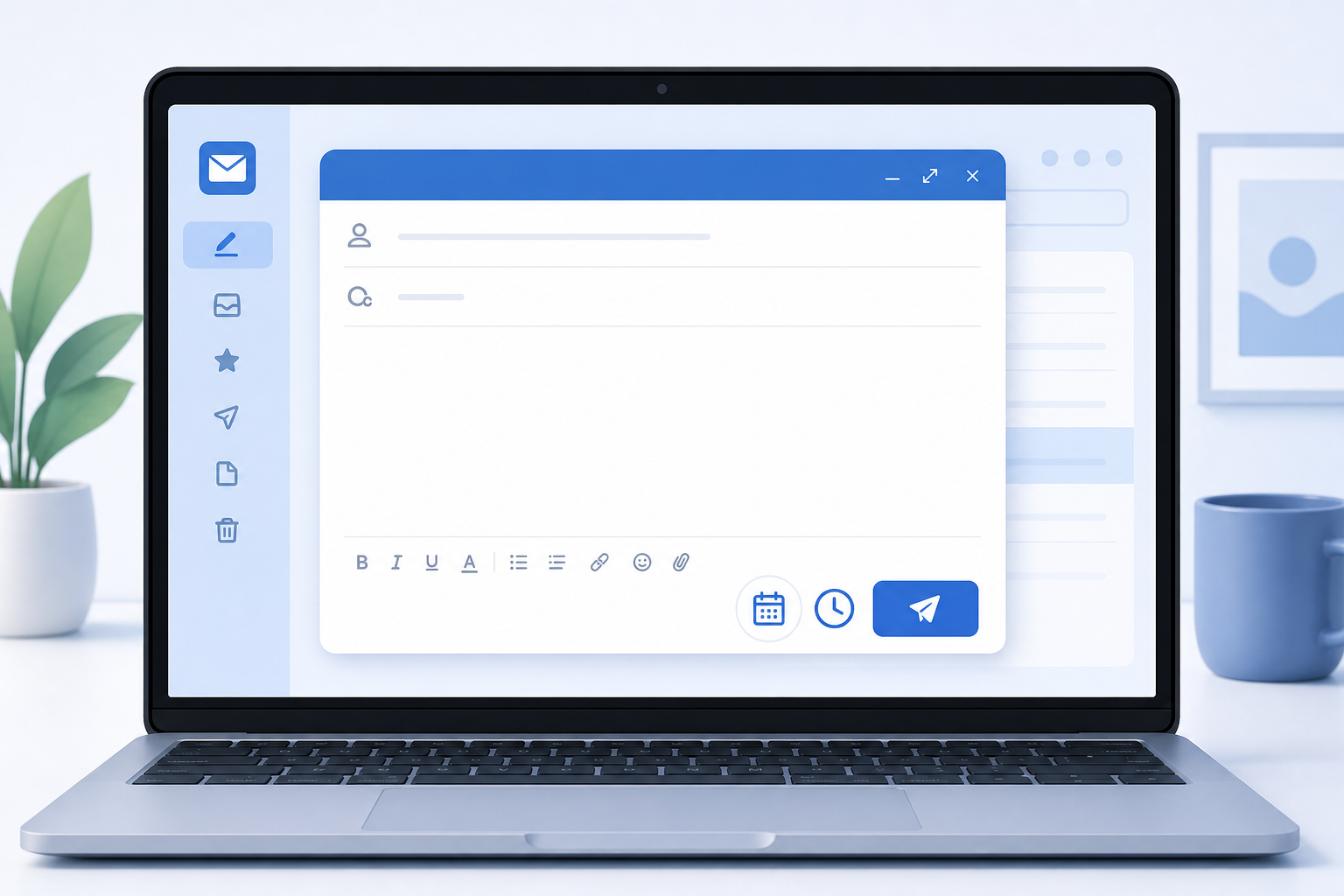
To schedule email in Gmail, write your message as usual, then click the small arrow next to the Send button and choose a date and time instead of sending immediately. Gmail holds the message in a separate Scheduled folder and delivers it automatically at the time you pick, whether you’re on desktop or the mobile app.
This single feature solves a surprisingly common problem: you finish writing an email at 11pm but don’t want it landing in someone’s inbox outside work hours, or you’re coordinating with a contact three timezones away and want your message waiting for them first thing in their morning. Below is exactly how to compose and schedule messages for later delivery, how to edit or cancel a scheduled send before it goes out, and practical ways to use scheduled sending for smarter, timezone-friendly outreach.
How to Schedule Email in Gmail on Desktop
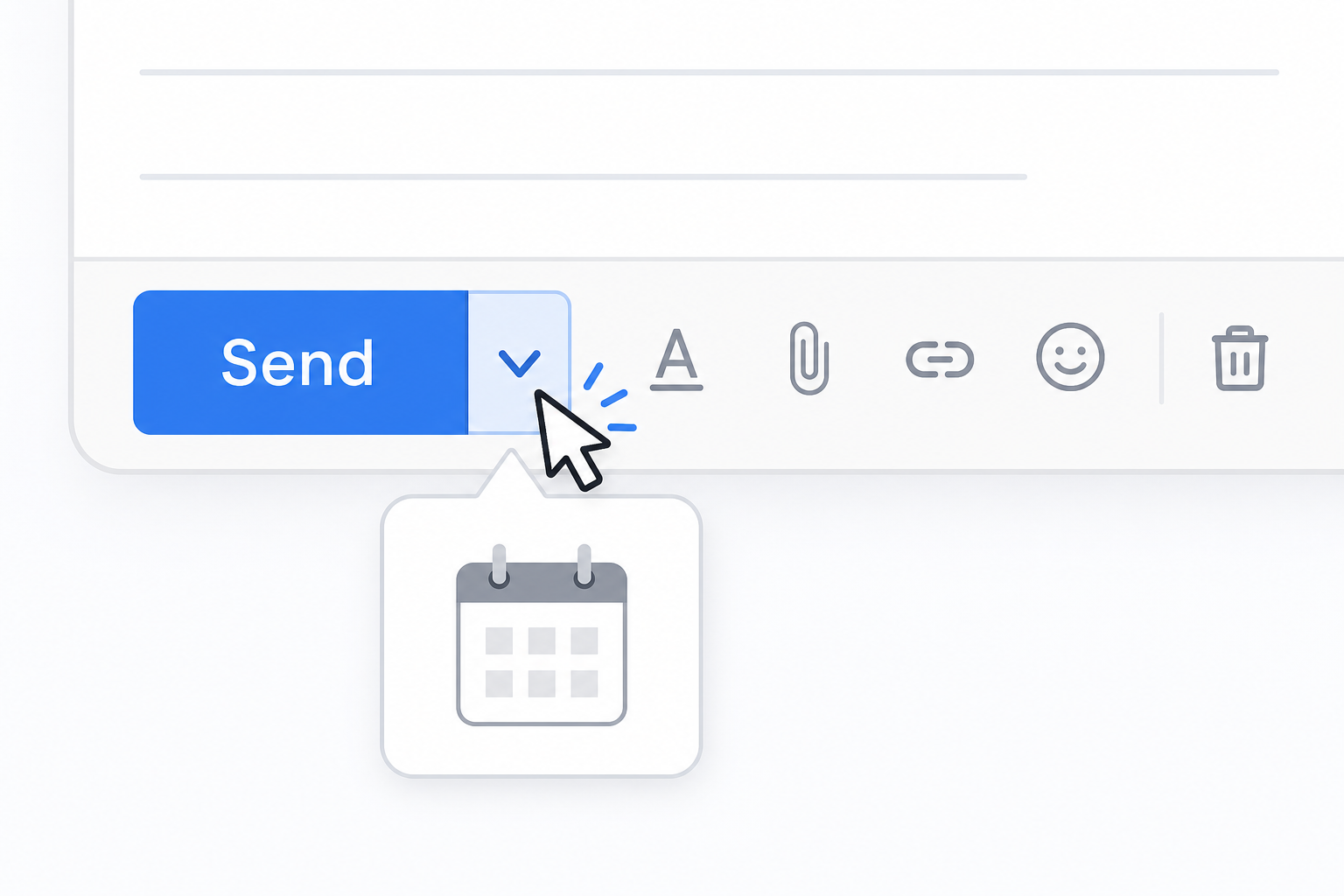
On a computer, scheduling an email in Gmail takes three clicks once your message is written. Open Gmail, click Compose, and write your email exactly as you normally would — subject line, recipients, body text, and any attachments.
-
Click the downward arrow next to the blue Send button (not Send itself).
-
Select “Schedule send” from the menu that appears.
-
Pick one of Gmail’s suggested times, or choose “Pick date & time” to set an exact moment.
-
Click “Schedule send” to confirm.
Gmail moves the message out of your Drafts and into a new label called “Scheduled,” visible in the left-hand panel. Nothing happens to the email until the scheduled moment arrives — it isn’t sent in the background or held on a server you can’t see; it simply waits in your account until the time you set.
How to Schedule an Email in Gmail on Mobile
The mobile process mirrors desktop closely, with one small difference in where the option sits. In the Gmail app for Android or iOS, compose your message as usual, then tap the three-dot menu icon next to the send arrow instead of tapping Send directly.
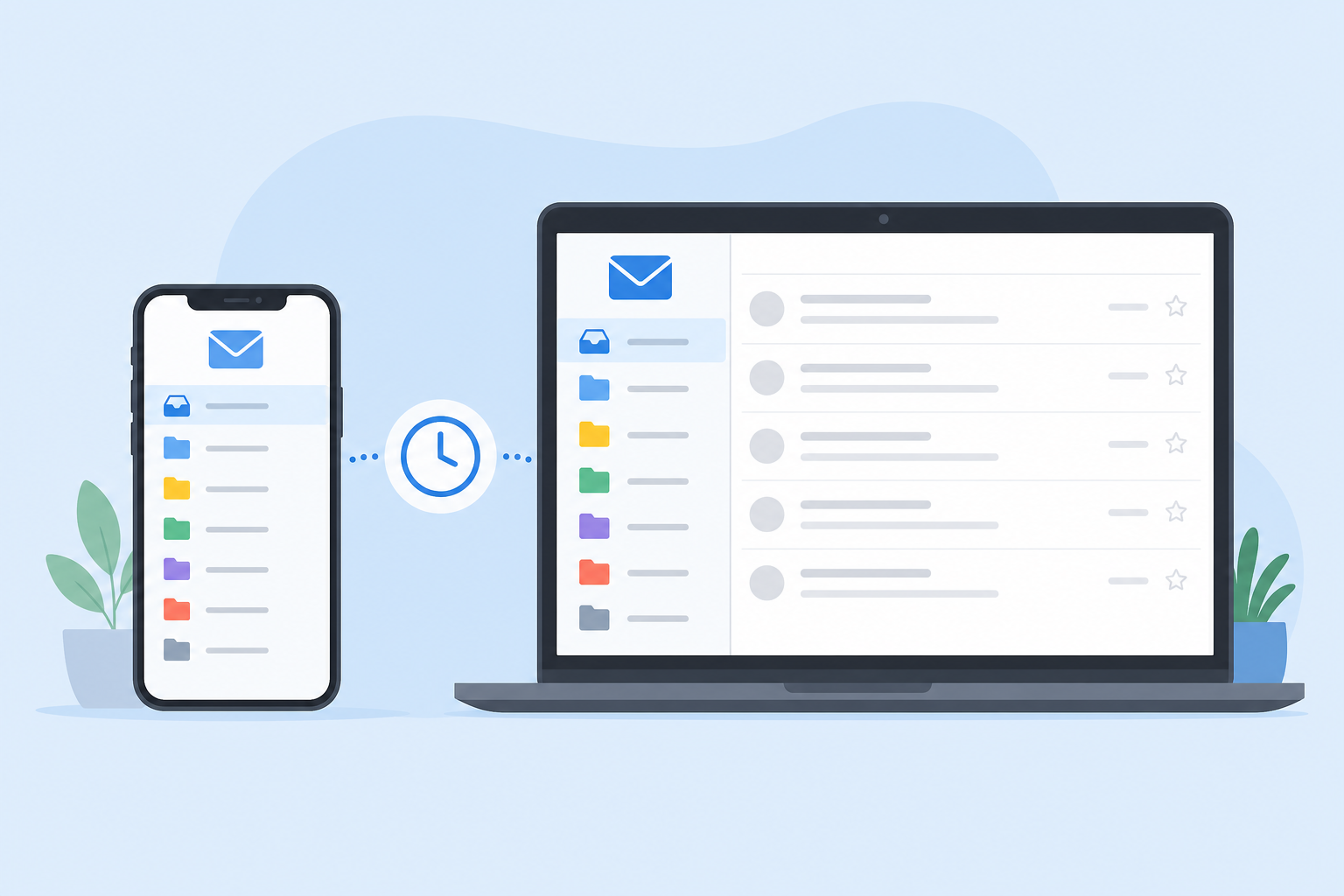
From that menu, tap “Schedule send,” choose a suggested time or set a custom date and time, and confirm. The scheduled message appears under the Scheduled label in the app’s sidebar menu, identical to the desktop version. This consistency matters if you regularly switch between your phone and laptop — whichever device you schedule from, you can review, edit, or cancel the send from either one, since it’s tied to your Google account rather than the device.
How to Edit a Scheduled Email in Gmail
You can’t directly edit a scheduled message while it’s waiting to send — Gmail requires you to cancel the scheduled send first, which returns the email to Drafts for editing. Here’s the exact sequence:
-
Go to the Scheduled label in the left panel.
-
Open the email you want to change.
-
Click “Cancel send” at the top of the message (or at the bottom on mobile).
-
The email returns to your Drafts folder, fully editable.
-
Make your changes, then repeat the schedule send process to set a new time.
This extra step is intentional: it prevents accidental edits to a message that’s already queued and gives you a clear, deliberate moment to confirm the new timing before it goes out again.
How to Cancel a Scheduled Send in Gmail
Canceling is the same first step as editing — open the Scheduled folder, select the message, and click “Cancel send.” The email instantly moves back to Drafts and will not be delivered unless you manually send it or reschedule it.
There’s no time limit on when you can cancel, as long as the scheduled time hasn’t already passed. Once the scheduled moment arrives and Gmail sends the message, it behaves like any normal sent email — at that point, your only option is Gmail’s separate Undo Send window, which gives you a few seconds to pull back a message immediately after it’s actually dispatched.
Why Schedule Email in Gmail for Timezone-Friendly Outreach
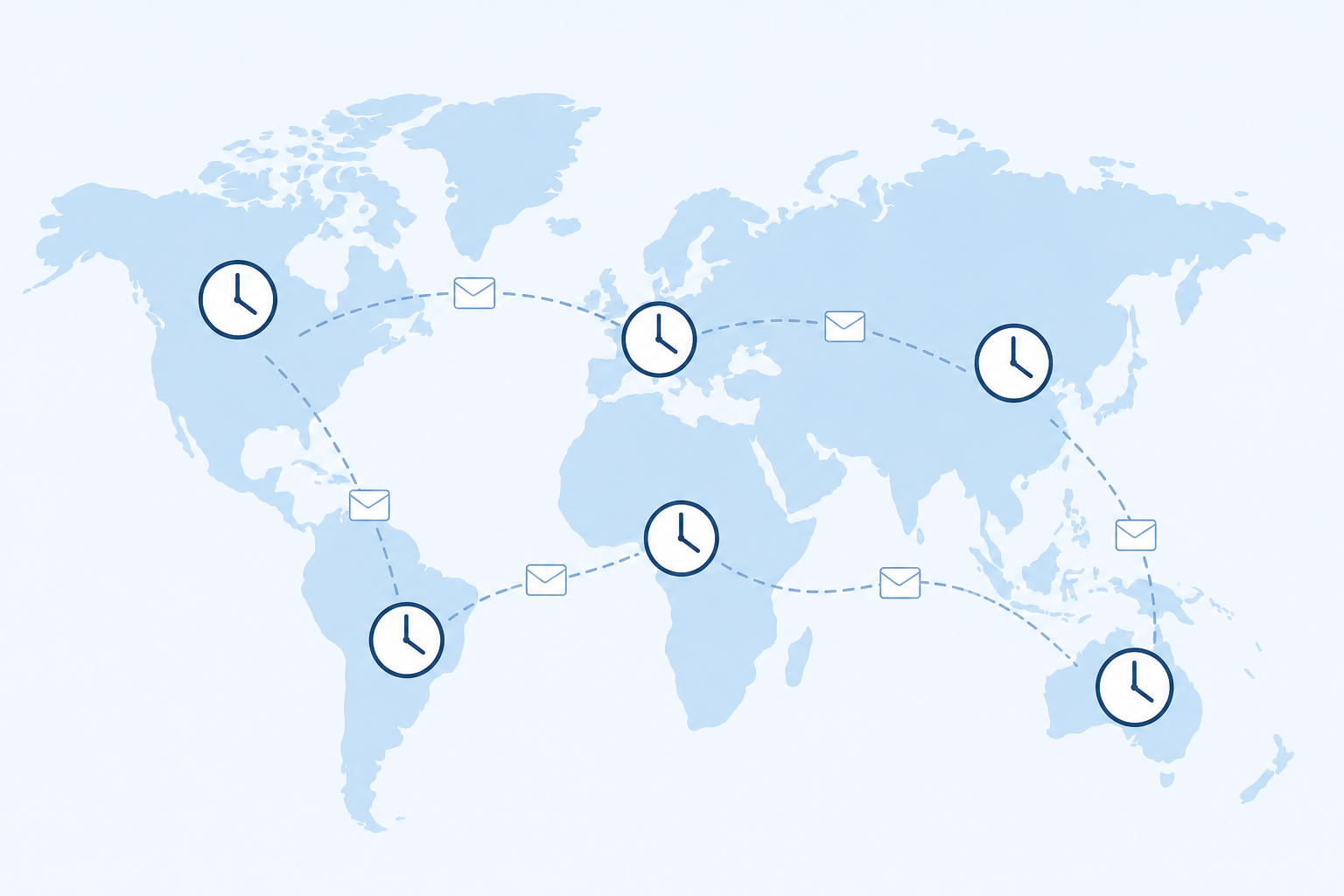
Scheduled sending solves a real coordination problem for anyone emailing across regions: your 9am is someone else’s midnight. Instead of sending a message when it’s convenient for you and hoping the recipient doesn’t see it at an awkward hour, you can time it to land during their normal working day.
Common Scheduling Scenarios
-
Client outreach across timezones: Draft a pitch or follow-up any time you’re free, then schedule it to arrive at 8am in the recipient’s local time.
-
Avoiding after-hours pressure: Managers writing emails late at night can schedule delivery for the next business morning so staff aren’t pinged outside work hours.
-
Sales and follow-up cadences: Space out a sequence of follow-up emails to arrive on specific days without having to remember to send each one manually.
-
Newsletter-style sends: Prepare a weekly update in advance and schedule it to go out at the same time every week.
Google’s own documentation on scheduled sending confirms this is a native Gmail feature available to all users, not a paid add-on, which makes it one of the easiest habits to build into a daily email routine.
Scheduling Limits and Things to Check Before You Rely On It
Gmail’s scheduling tool is reliable, but a few practical details are worth knowing before you build a workflow around it. Scheduled emails depend on your device or browser having been connected to your Google account at some point for the schedule to register correctly, and the send still requires Gmail’s servers to be reachable at the scheduled time — an extremely rare point of failure, but one some users have reported in community forums when network issues coincide with a scheduled moment.
Checklist Before Scheduling Important Messages
-
Double-check the recipient’s timezone, not just the time you want to send.
-
Confirm attachments are fully uploaded before scheduling — a half-uploaded file can cause the scheduled send to fail.
-
Review the subject line and greeting one more time; once scheduled, remember you’ll need to cancel and re-edit rather than adjust in place.
-
If the email is time-critical, check the Scheduled folder shortly before the send time to confirm it’s still queued.
For teams managing a lot of scheduled outreach, pairing Gmail’s native scheduling with good inbox organization makes the whole workflow easier to track — label systems and rules help you see at a glance what’s queued, sent, or awaiting a reply.
Schedule Email in Gmail vs. Third-Party Scheduling Tools
Gmail’s built-in scheduler covers the vast majority of everyday needs, but some third-party extensions add features Gmail doesn’t offer natively, such as recurring schedules, send-time optimization based on recipient open-rate data, or team-wide scheduling dashboards. For most individual users and small teams, though, the native tool is simpler, requires no extra permissions on your inbox, and keeps your scheduled drafts entirely within your own Google account rather than routed through a third-party server.
If you’re managing Gmail alongside Microsoft Office tools for daily work — switching between email, documents, and spreadsheets — it’s worth having a genuine, properly licensed Microsoft Office 2021 Pro Plus install so your scheduled emails and the documents you attach to them stay in sync across devices without compatibility issues.
FAQ
How do I schedule email in Gmail from my phone?
Open the Gmail app, compose your message, then tap the three-dot menu next to the send arrow instead of tapping Send. Choose “Schedule send,” pick a date and time, and confirm — the message is held under the Scheduled label until that time.
How do I download the Gmail app to schedule emails on mobile?
Gmail for Android is available on the Google Play Store, and Gmail for iOS is available on the Apple App Store; search “Gmail” and install the official Google app. Scheduled send is built into the app once installed — no extra download or plugin is required.
How do I activate scheduled send if I don’t see the option?
Scheduled send is a standard Gmail feature and doesn’t need separate activation, but it only appears once you click the arrow next to Send rather than Send itself. If it’s missing entirely, update the Gmail app or clear your browser cache, since outdated versions sometimes hide newer compose menu options.
Can I schedule more than one email at a time in Gmail?
Yes. There’s a fixed limit published by Google on how many emails you can have waiting in the Scheduled folder simultaneously and the number is up to 100 scheduled emails at once, so you can queue up several messages for different recipients or times without sending any of them early.
What happens if I’m signed out when a scheduled email is due to send?
Scheduled emails are stored and triggered on Google’s servers once set, not by your local device staying open, so they still send even if you’re signed out or your computer is off at the scheduled time.
Can I schedule a reply to an existing email thread, not just a new message?
Yes. The same arrow-next-to-Send option appears when you’re replying to or forwarding an existing thread, so you can schedule replies exactly the same way you schedule a brand-new email.
