
The Gmail undo send feature is one of the most underused safety nets in modern email — and if you haven’t switched it on yet, you’re one accidental reply-all away from wishing you had. In a matter of seconds, Gmail gives you the power to pull back a sent message before it ever reaches the recipient’s inbox, saving you from typos, wrong attachments, or emails sent in the heat of the moment. This guide walks you through exactly how to enable it, how to push that window to its maximum 30 seconds, and what your options are if the deadline slips by.
What Is Gmail’s Undo Send Feature?
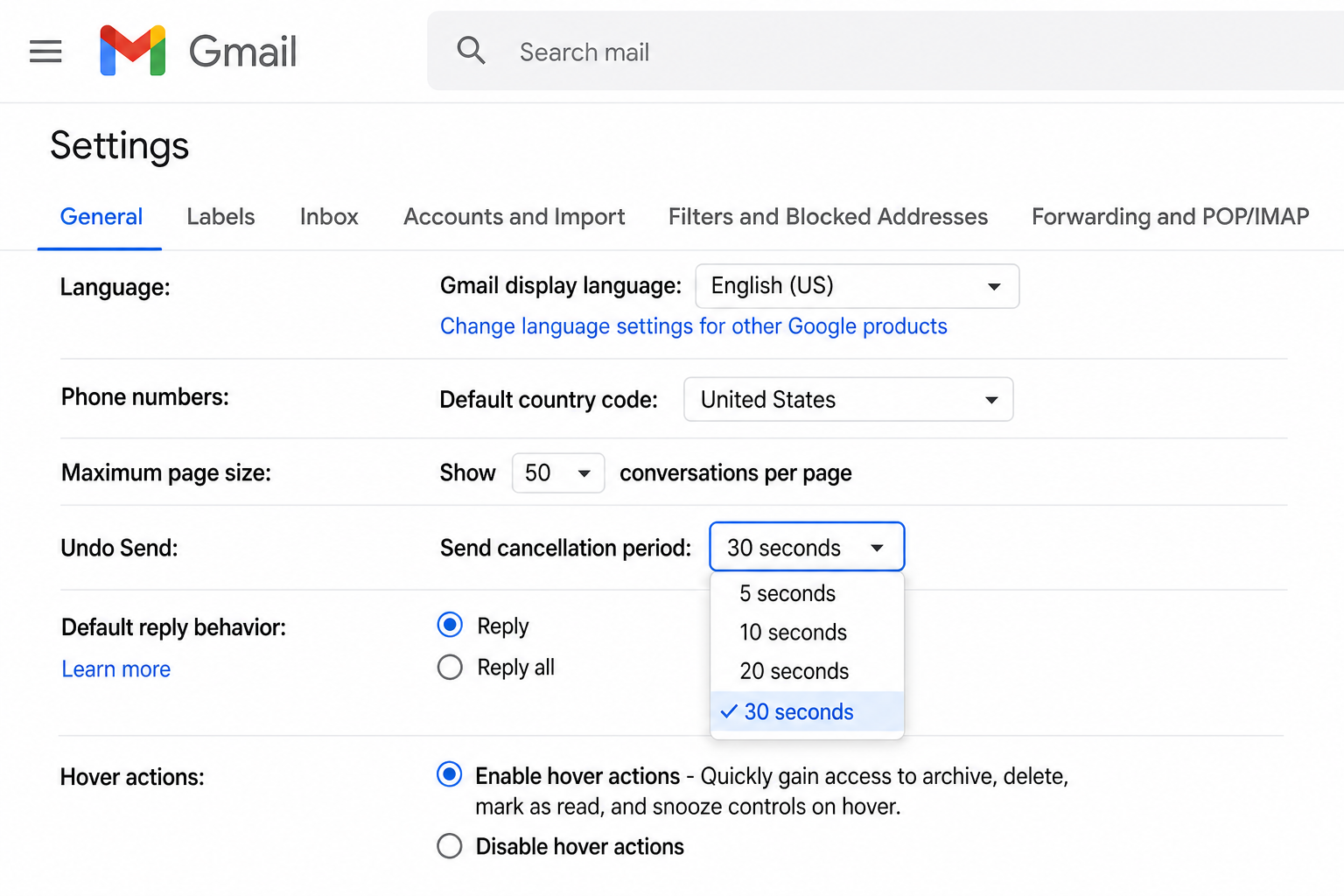
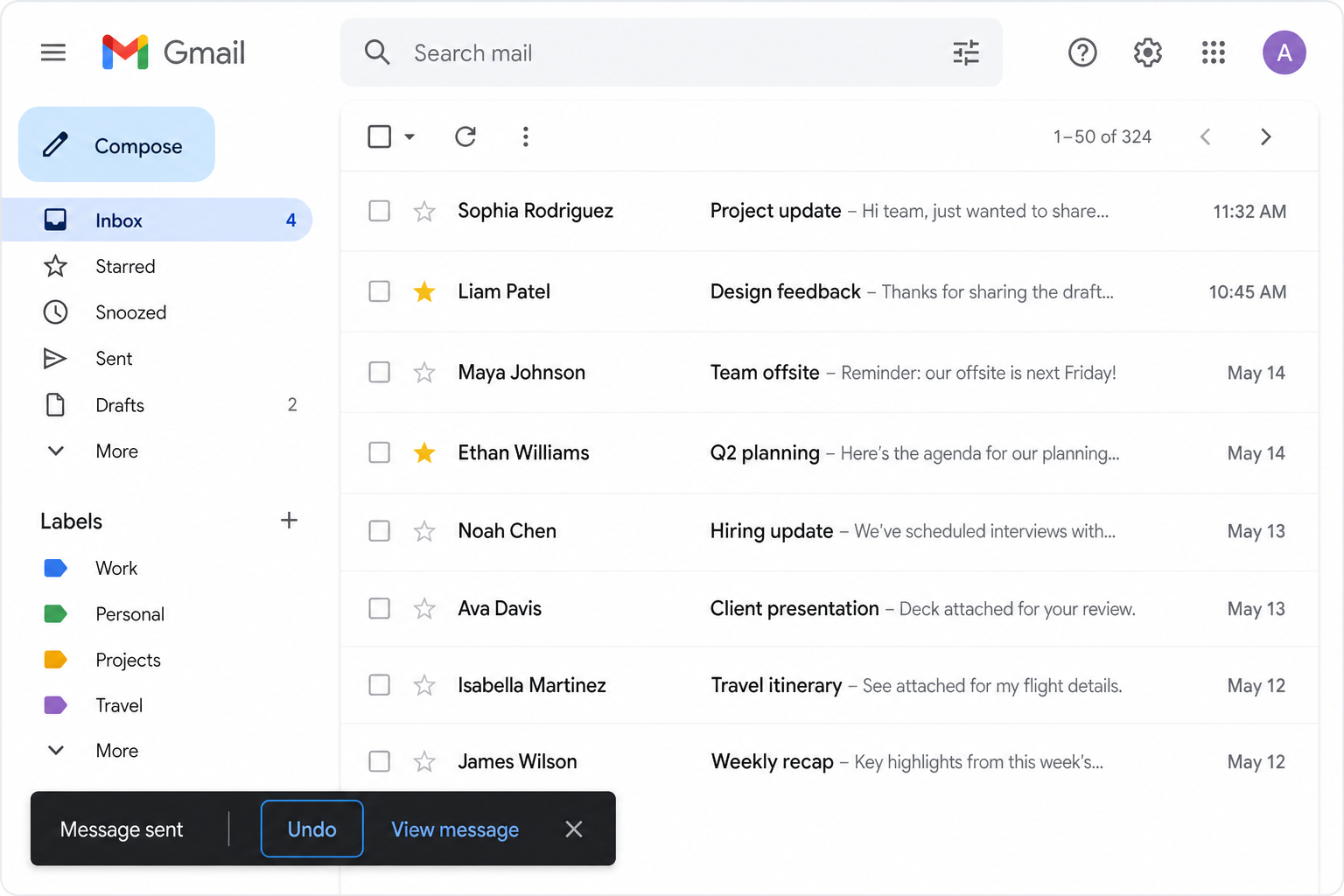
Gmail undo send works by introducing a deliberate delay between the moment you click Send and the moment the message actually leaves Google’s servers. During that delay — which you can set between 5 and 30 seconds — a small notification bar appears at the bottom of your screen with an Undo button. Click it in time and the email is cancelled entirely, returning to your Drafts folder so you can edit or delete it. Miss the window and the message is gone, delivered as normal.
It is worth being clear about what this feature is not: it is not a true email recall. Once the cancellation window closes, Gmail cannot retrieve a message from a recipient’s inbox the way some enterprise mail systems can. The delay is simply built into Gmail’s sending pipeline — making that 30-second ceiling all the more valuable.
How to Enable Gmail Undo Send on Desktop
Enabling Gmail cancel send on a computer takes under a minute and the setting persists across sessions. Here’s how:
- Open Gmail in your browser and sign in.
- Click the Settings cog (⚙️) in the top-right corner.
- Select See all settings.
- Stay on the General tab and scroll to the Undo Send section.
- Open the dropdown next to Send cancellation period and choose 30 seconds.
- Scroll to the bottom and click Save Changes.
That’s it. From now on, every email you send will be held for 30 seconds before it actually dispatches. The Undo option will appear in a black bar at the bottom-left of your screen each time.
How to Enable Gmail Undo Send on Mobile
The Gmail mobile app handles Gmail unsend email slightly differently. The cancellation period is shorter — approximately 5 to 7 seconds on Android and iOS — and there is no dedicated settings menu to extend it within the app itself. Instead:
- After tapping Send, watch the bottom of your screen for the Undo prompt.
- Tap Undo immediately if you want to cancel the send.
- To get the full 30-second window on mobile, log in to Gmail via a desktop browser and set the cancellation period there — this setting applies account-wide, including mobile web.
If you primarily use your phone for email, it’s still well worth setting the 30-second window via desktop, because the Gmail mobile web experience in a browser does honour the longer delay.
Extending the Gmail Undo Send Window to Its Maximum
The four cancellation periods Gmail offers are 5, 10, 20, and 30 seconds. According to Google’s official Gmail support documentation, 30 seconds is the maximum delay available for personal Gmail and Google Workspace accounts. There is no native way to extend beyond 30 seconds through Gmail’s own settings.
If 30 seconds still feels too short, a few workarounds can help:
- Use Gmail’s Scheduled Send: Schedule the email to send 10–15 minutes in the future, giving yourself time to cancel it from the Scheduled folder at any point before it sends.
- Draft review habit: Before hitting Send on important messages, save as a draft and re-read with fresh eyes.
- Third-party delay tools: Browser extensions exist that can layer an additional delay on top of Gmail’s own, though these vary in reliability and require careful vetting before granting email permissions.
What Happens When You Click Undo Send
When you use the undo send Gmail function successfully, here is exactly what happens behind the scenes:
- Gmail cancels the delayed dispatch and does not transmit the message to the recipient’s mail server.
- The email moves back to your Drafts folder in its original state, complete with recipients, subject line, and body text.
- The recipient sees nothing — no partial message, no notification, no trace.
- You can then edit, delete, or resend the draft at your leisure.
This is what makes Gmail cancel send so effective compared to a post-delivery recall: because the message never left Google’s servers during the delay window, there is genuinely nothing for the recipient to intercept.
What Happens If You Miss the Undo Send Window
If the 30-second window closes before you click Undo, the email has been delivered and Gmail offers no built-in method to retract it. At that point your options are limited but not zero:
- Google Workspace admins only: If your organisation runs Google Workspace, administrators have access to Vault and, in some configurations, message hold or recall tools not available to standard users.
- Contact the recipient directly: For genuinely sensitive situations, a quick call or follow-up message asking the recipient to disregard or delete the email is often the most practical course of action.
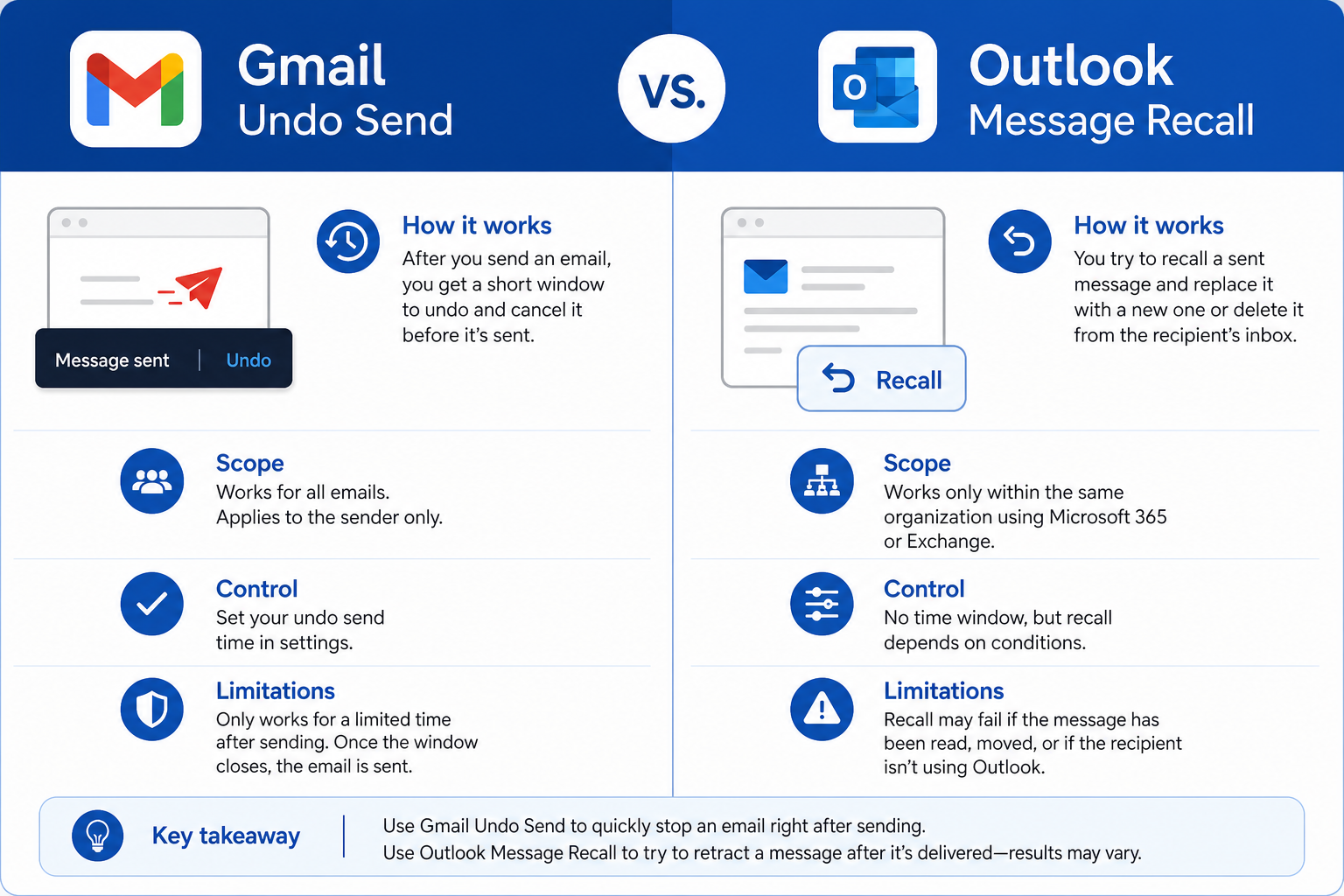
- Outlook’s Recall feature: If your organisation uses Microsoft Outlook with an Exchange or Microsoft 365 back-end, the Message Recall feature can sometimes retrieve emails — but only if both sender and recipient are on the same Exchange server and the recipient hasn’t opened it yet. Gmail does not support cross-platform recall.
There is no third-party tool that can reliably recall a Gmail message after it has been delivered. Anyone claiming otherwise should be treated with scepticism.
Gmail Undo Send vs. Outlook Message Recall
A common question is how Gmail unsend email compares to Outlook’s recall feature. The honest answer: they work on fundamentally different principles.
| Feature | Gmail Undo Send | Outlook Message Recall |
|---|---|---|
| Works by | Delaying dispatch (pre-delivery) | Attempting post-delivery retrieval |
| Success rate | 100% if clicked in time | Variable — fails if already opened |
| Max time window | 30 seconds | Varies (typically minutes to hours) |
| Cross-platform | No — Gmail only | No — Exchange/M365 only |
| Recipient notified | Never | Sometimes |
Gmail’s approach wins on reliability precisely because it acts before delivery. Outlook’s recall can be useful in controlled enterprise environments, but it frequently fails in the wild — and can tip off the recipient that a recall was attempted, which is often worse than leaving the original message alone.
If your team relies heavily on Microsoft productivity tools alongside Gmail, it’s also worth knowing that Shop Key Online stocks a wide range of genuine Microsoft Office 2021 Professional Plus licences and Microsoft Office 2024 Pro Plus keys, delivered instantly by email — so your team always has the right tools at hand.
Pro Tips for Getting the Most Out of Gmail Undo Send
Beyond simply enabling the feature, a handful of habits will make Gmail undo send genuinely protective rather than just theoretically available:
- Always set it to 30 seconds. The 5-second default is almost useless — by the time you realise you’ve made a mistake, the window is closed. Go straight to 30.
- Watch the bottom of your screen. The Undo prompt is easy to miss if you navigate away immediately after sending. Train yourself to glance at it before clicking elsewhere.
- Don’t rely on it for confidential data. Undo Send is a last resort, not a first line of defence. Sensitive information should be reviewed carefully before you even compose the email.
- Pair it with Scheduled Send for high-stakes messages. Scheduling a message to send in 15 minutes gives you far more breathing room than 30 seconds for anything truly important.
- Check the setting after account changes. If you switch Google accounts or use Gmail in a new browser profile, always verify the cancellation period is still set to 30 seconds.
How to Use Gmail Undo Send in Google Workspace
For Google Workspace users — whether on Business Starter, Business Standard, or Enterprise plans — the Gmail cancel send setting works identically to personal Gmail. Individual users control their own cancellation period through the same General settings tab. Workspace administrators cannot force a specific delay across all users, though they can guide employees to configure it as part of an IT onboarding checklist.
One nuance for Workspace: if your organisation has configured any custom email routing or compliance holds, those may interact with the sending pipeline in ways that affect how the delay is perceived. In most standard setups, however, the feature behaves exactly as described above.
Frequently Asked Questions
Does Gmail undo send actually work every time?
Yes — as long as you click Undo before the cancellation window closes, it works with 100% reliability. Because Gmail holds the message on its servers during the delay period rather than dispatching it immediately, the cancellation is absolute. The email is simply never sent to the recipient’s mail server.
Can I undo send in Gmail after 30 seconds?
No. Once the cancellation window — up to 30 seconds — has passed, the message has been delivered and Gmail provides no native way to recall it. Your only options at that point are to contact the recipient directly or, in a Google Workspace environment, speak to your IT administrator about any available admin-level tools.
Why doesn’t Gmail offer a longer undo send window?
Gmail’s undo send works by delaying the actual sending of a message, which means recipients experience a short wait after you click Send. Extending this to several minutes would make the sending experience feel sluggish and unresponsive. If you need more time, Gmail’s Scheduled Send feature is a better tool — it lets you queue a message to send at a specific time, and you can cancel it anytime before that point.
Does the undo send setting sync across devices?
The cancellation period you set on desktop applies to your Google account across all desktop browser sessions. However, the Gmail mobile app has its own shorter window (approximately 5–7 seconds) regardless of your desktop setting. For the full 30-second experience on a mobile device, use Gmail via a mobile browser rather than the native app.
Is Gmail undo send available on Google Workspace accounts?
Yes. The Gmail undo send feature is available on all Google Workspace tiers — Business Starter, Business Standard, Business Plus, and Enterprise — as well as personal Gmail accounts. The setup process is identical, and the maximum cancellation period is the same 30 seconds.
What if I need to recall an email in Outlook, not Gmail?
Outlook’s Message Recall feature works differently: it attempts to retrieve an already-delivered email from the recipient’s inbox, and it only works within the same Exchange or Microsoft 365 organisation. Success is not guaranteed, especially if the recipient has already opened the message. For reliable pre-delivery cancellation similar to Gmail’s, Outlook users should explore its Delay Delivery rule, which holds outgoing messages for a set period before sending.
