
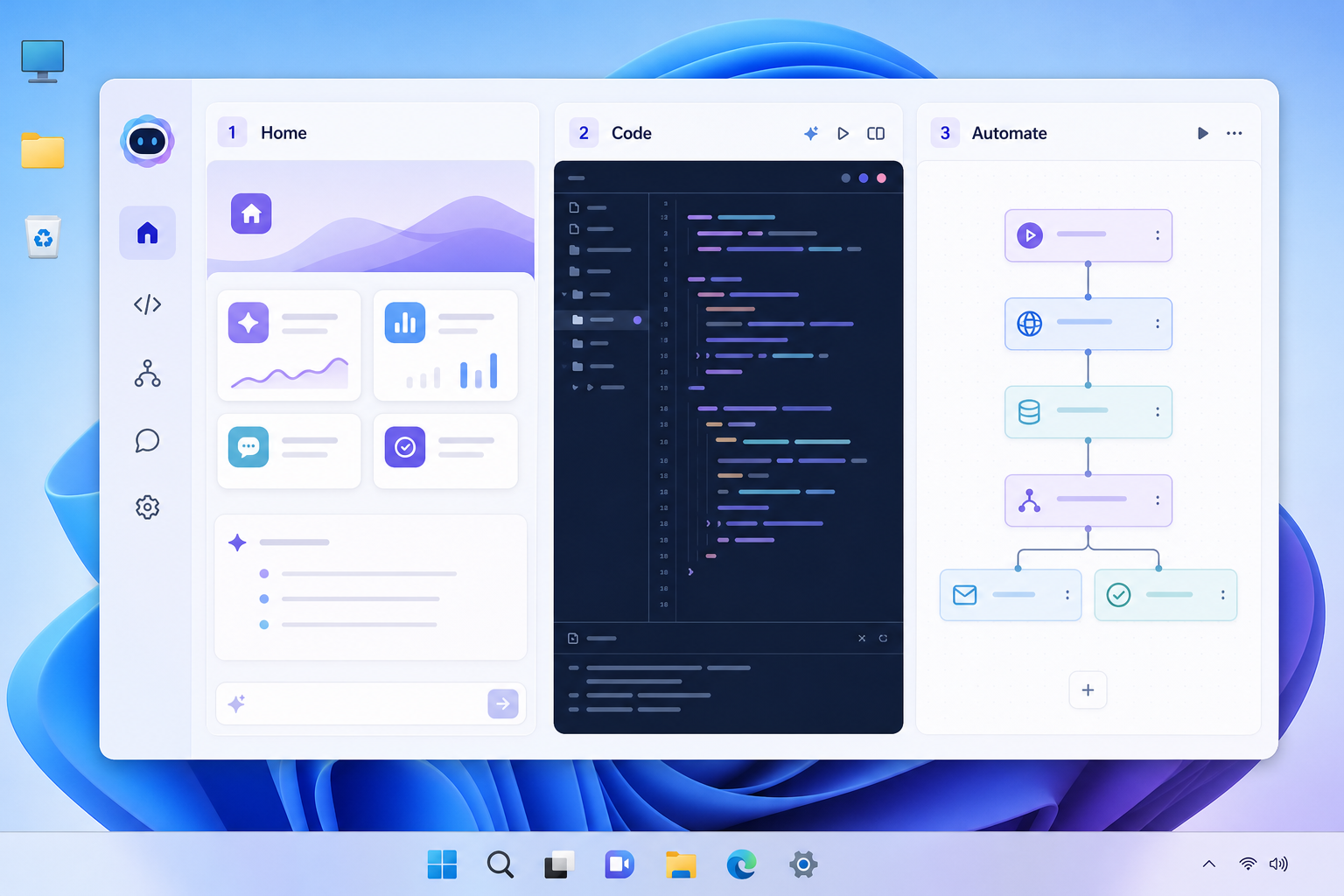
The new Copilot reorganizes Microsoft’s AI assistant into three distinct modes — Home, Code, and Autopilot — so that instead of one chat box trying to do everything, you get a workspace built for whatever task is in front of you. Home handles everyday questions and creative work, Code focuses on software development, and Autopilot runs tasks in the background on its own.
If you’ve used Copilot before and found it useful but unfocused, this redesign is Microsoft’s answer. It separates the assistant into purpose-built modes rather than asking one chat window to switch between writing an email, debugging a script, and managing a project. Below is a breakdown of what each mode actually does, who benefits most from it, and how to decide where to start.
What Is the New Copilot, Really?
The new Copilot is a restructured version of Microsoft’s AI assistant that organizes its capabilities into three dedicated modes instead of one general-purpose chat interface. According to Microsoft’s official announcement, the goal is to turn Copilot from a conversational tool into something closer to a daily work companion — one that can hold context across a session, write and review code, and act on tasks without constant prompting.
Each mode is built around a different kind of work:
- Home — general assistance, research, writing, and everyday questions.
- Code — a development-focused environment for writing, explaining, and debugging code.
- Autopilot — a persistent agent that can carry out multi-step tasks with less supervision.
This isn’t just a visual refresh. The underlying idea is that a chatbot optimized for casual conversation isn’t necessarily good at long coding sessions, and an agent built for background automation needs different guardrails than one meant for quick Q&A. Splitting the experience lets Microsoft tune each mode separately.
Home Mode: Your Everyday AI Workspace
Home mode is the closest thing to the Copilot most people already know — a conversational assistant for writing, research, planning, and quick answers. It’s designed to be the default starting point for non-technical tasks.
In practice, Home mode works well for:
- Drafting emails, summaries, or short reports
- Answering general knowledge or how-to questions
- Brainstorming ideas or outlining a document
- Getting quick explanations without opening a search engine
If you’re a Windows user who’s only interacted with Copilot through the taskbar or the Copilot key on your keyboard, Home mode will feel familiar — it’s the same type of interaction, just with a cleaner focus now that coding and automation have been moved elsewhere.
Code Mode: Building and Debugging with AI Help
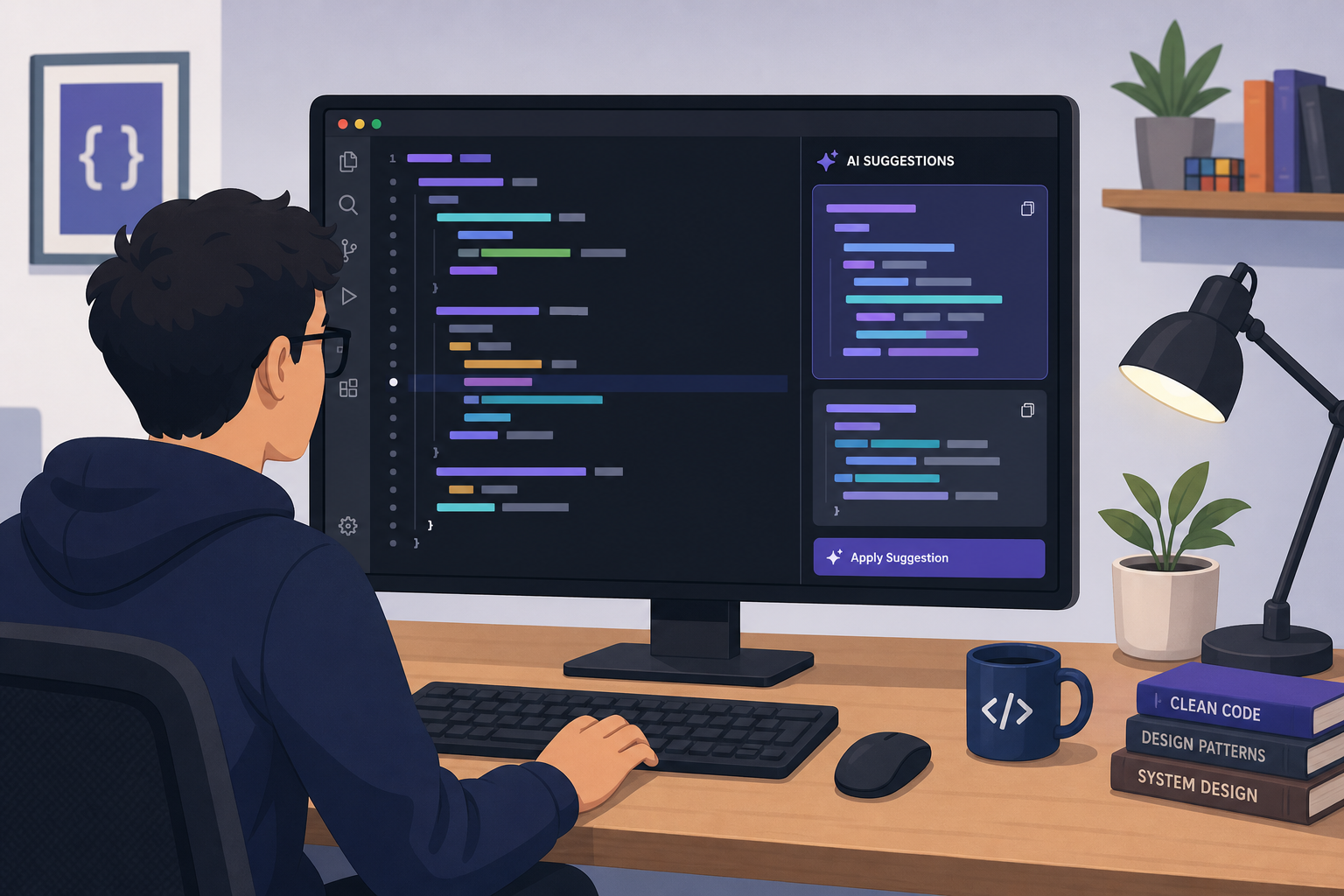
Code mode is a dedicated environment for writing, reviewing, and debugging software, separated from the general chat experience so developers aren’t competing with casual queries for context. It’s meant to handle longer, more technical sessions where the assistant needs to track an entire project rather than a single message.
Typical use cases include:
- Generating code snippets or full functions from a description
- Explaining unfamiliar code in an existing project
- Finding and fixing bugs across multiple files
- Writing tests or documentation alongside the code itself
How Code Mode Compares to GitHub Copilot
It’s worth being clear about the difference: GitHub Copilot is Microsoft’s long-established AI pair programmer built directly into IDEs like Visual Studio Code and Eclipse. Code mode inside the new Copilot is a broader assistant experience that happens to include coding capability, rather than a replacement for an IDE extension. Developers who already rely on GitHub Copilot in their editor will likely keep using it for in-line suggestions, while turning to Code mode for higher-level planning, explanations, or working across a project outside the IDE.
Autopilot: The Proactive Agent Inside the New Copilot
Autopilot is the most significant change in the new Copilot — a persistent, proactive agent designed to work on tasks with minimal supervision rather than waiting for a prompt each time. Instead of a back-and-forth conversation, you give it a goal, and it works toward that goal across multiple steps, checking in only when it needs input or a decision.
This is the mode that moves Copilot from “answering questions” to “getting things done.” Examples of what an agent like this is built for include:
- Monitoring inboxes or files for specific conditions and acting on them
- Running recurring research or reporting tasks automatically
- Coordinating multi-step workflows that would otherwise need manual follow-up
Because it runs with less direct oversight, Autopilot is also the mode that demands the most trust — and likely the most caution during its early rollout. It’s reasonable to start by letting it handle lower-stakes, repetitive tasks before relying on it for anything sensitive.
Who Should Try Each Mode First?

Not every user needs every mode on day one. Where you start depends on what kind of work takes up most of your day.
Home Mode Fits Everyday Productivity Users
If most of your work involves writing, research, or quick lookups, start with Home mode. It requires no setup beyond what you’re likely already using, and it’s the lowest-friction way to get a feel for the new Copilot before exploring the other two.
Code Mode Fits Developers and IT Teams
Developers, data analysts, and IT professionals who spend significant time in code will get the most immediate value from Code mode, especially for project-level work that goes beyond what an in-editor assistant typically handles.
Autopilot Fits Power Users and Small Teams
Autopilot makes the most sense for people managing repetitive, rules-based tasks — think small business owners juggling admin work, or team leads who need recurring reports generated without manual effort each time.
System Requirements for the Redesigned Copilot
The redesigned Copilot runs on the same baseline as recent Copilot releases: a current, licensed version of Windows, a Microsoft account signed in, and an active internet connection, since most of the processing happens in the cloud rather than on-device. Business professionals using Copilot through work accounts will also need the appropriate Microsoft 365 or Copilot license tier, since feature availability can vary by plan.
If you’re setting up a PC from scratch or upgrading an older machine to make the most of Copilot’s features, a genuine Windows 11 Pro license ensures you’re running a fully supported, activation-ready operating system rather than troubleshooting compatibility issues before you’ve even opened the assistant.
Is the New Copilot Worth Switching To?
For most Windows users and business professionals, yes — the new Copilot is worth trying, because splitting the experience into Home, Code, and Autopilot solves the real problem of a single chat window trying to serve every kind of task. Adoption numbers back up how central Copilot has already become in professional settings: Microsoft reported that nearly 90% of the Fortune 500 now use Microsoft 365 Copilot in some form, which suggests this kind of AI assistant is quickly becoming standard business infrastructure rather than a novelty.
That scale doesn’t mean every mode is equally mature yet. Autopilot in particular is the newest and least proven of the three, so it’s worth testing it on tasks where a mistake is inconvenient rather than costly. Home and Code modes, by contrast, build on capabilities Copilot has offered for a while, so they’re a safer starting point for most people exploring the updated Copilot experience for the first time.
Frequently Asked Questions
How do I access the new Copilot on Windows 11?
Open the Copilot app or sidebar from the taskbar, or visit Copilot through your browser while signed into your Microsoft account. The interface will present Home, Code, and Autopilot as separate sections or tabs once the redesign has rolled out to your account.
How do I turn on Autopilot in the new Copilot?
Autopilot appears as a dedicated mode inside the Copilot app once it’s available on your account. You typically select it, define the task or goal you want handled, and grant it permission to access the relevant files, inbox, or service it needs to complete the work.
What’s the difference between Code mode and GitHub Copilot?
Code mode is a broader assistant experience for planning, explaining, and writing code outside a specific editor, while GitHub Copilot is an in-IDE extension focused on real-time code suggestions as you type. Many developers use both together rather than choosing one over the other.
Does the updated Copilot experience cost extra?
Pricing and feature availability depend on your existing Microsoft 365 or Copilot subscription tier, and some advanced Autopilot capabilities may be limited to paid plans. Check your current subscription details in your Microsoft account to confirm what’s included.
Can I use the new Copilot without a Microsoft 365 subscription?
Basic Home mode functionality is generally available with a free Microsoft account, but Code mode and the more advanced Autopilot features typically require a Copilot Pro or Microsoft 365 Copilot license for full access. Availability can vary as the rollout continues.
Do I need Windows 11 to use the new Copilot?
Copilot is accessible through the web and on Windows 10 in a limited form, but the most integrated experience — including taskbar access and the dedicated Copilot key — is built around Windows 11. Running a currently supported Windows version also ensures you get ongoing feature updates as Copilot evolves.
