

If your games have been freezing, throwing EXCEPTION_ACCESS_VIOLATION errors, or rebooting your PC without warning since installing the August 2026 Windows 11 update, your RGB lighting hardware is almost certainly to blame. Microsoft has officially confirmed that KB5121003 — the August 2026 cumulative update — introduced a conflict with the inpoutx64 driver used by a wide range of RGB lighting controllers, and the company has published a registry-based workaround that stops the crashes immediately.
What Caused the Windows 11 RGB Lighting Crashes?
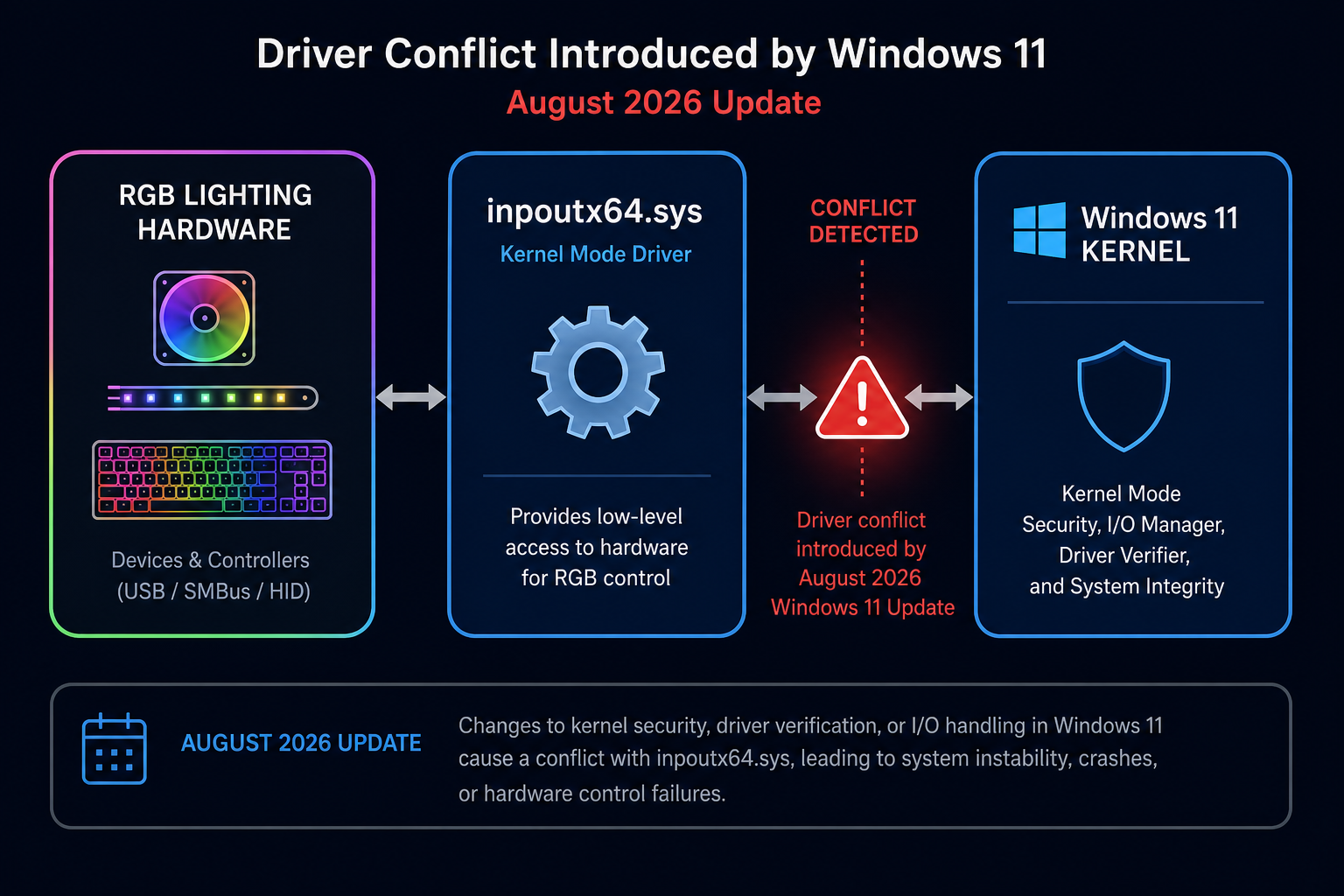
The root cause of the Windows 11 RGB lighting crashes is a low-level kernel driver called inpoutx64.sys. This driver is installed silently by dozens of popular RGB lighting utilities — including software bundled with motherboards, keyboards, mice, and LED strip controllers from brands like ASUS Armoury Crate, MSI Mystic Light, Corsair iCUE, and similar tools.
Before KB5121003, Windows 11 tolerated this driver without issue. The August 2026 update tightened kernel-mode driver validation rules as part of Microsoft’s ongoing Kernel Data Protection rollout. The stricter validation exposed a memory-access fault deep inside inpoutx64.sys, causing the driver to trigger an access violation the moment a game allocates a large block of GPU memory. The result: an instant crash, blue screen, or unexpected restart — consistently reproducible on any system where the driver is installed and active.
According to BleepingComputer’s reporting on Microsoft’s investigation, the issue affects Windows 11 versions 24H2 and 25H2, and Microsoft confirmed it in the official Windows Release Health dashboard. The inpoutx64 driver has been in wide circulation for years and predates modern kernel security standards — making it a latent time bomb that the August update finally detonated.
Is Your PC Affected by the RGB Driver Conflict?
Your system is likely affected if all three of the following apply:
- You installed KB5121003 (released August 2026 Patch Tuesday)
- You have RGB lighting hardware with a companion software utility installed
- Games crash, freeze, or restart your PC — particularly within the first few minutes of a GPU-intensive scene
To confirm the driver is present, open Device Manager, click View > Show hidden devices, and expand Non-Plug and Play Drivers. If inpoutx64 appears in the list, you have the affected driver. You can also open an elevated PowerShell prompt and run sc query inpoutx64 — a result of RUNNING confirms it is active.
Affected RGB software commonly identified by Microsoft and the community includes utilities installed by:
- ASUS Armoury Crate / Aura Sync
- MSI Mystic Light / MSI Center
- Razer Synapse (older versions)
- Various generic RGB strip controllers bundled with motherboard accessories
- The game The Finals (Embark Studios) — which shipped its own inpoutx64 installation as part of an anti-cheat component
The Confirmed Registry Fix for Windows 11 RGB Crashes

Microsoft’s officially confirmed workaround is to disable the inpoutx64 driver via the Windows Registry, setting its Start value to 4 (Disabled). This prevents the driver from loading at boot without uninstalling your RGB software or rolling back the Windows update. Follow these steps carefully — always back up your registry before making changes.
- Press Windows + R, type
regedit, and press Enter. Accept the UAC prompt. - In the Registry Editor address bar, paste the following path and press Enter:
HKEY_LOCAL_MACHINE\SYSTEM\CurrentControlSet\Services\inpoutx64 - In the right-hand pane, double-click the Start DWORD value.
- Change the value data from
1(System/Boot) to4(Disabled). - Click OK and close Registry Editor.
- Restart your PC.
After the restart, your games should launch and run without crashing. Your RGB lighting software will still open but the hardware lighting may stop responding — that is expected, since the driver it relies on is now disabled. When Microsoft releases a permanent fix (either a patched driver from the RGB software vendor or a Windows update that resolves the conflict), you can return this value to 1 to re-enable it.
Important: if the inpoutx64 key does not exist in your registry, your system does not have the affected driver and this workaround does not apply to you.
Windows 11 RGB Fix: Alternative Removal Method
If you prefer a more complete solution — particularly if you do not rely heavily on RGB lighting — you can remove the inpoutx64 driver entirely rather than just disabling it. Game developer Embark Studios (creators of The Finals) published a multi-step workaround for their player base that goes further than the registry tweak alone:
- Open an elevated Command Prompt (Run as Administrator).
- Run:
sc stop inpoutx64 - Run:
sc delete inpoutx64 - Navigate to
C:\Windows\System32\drivers\and delete the fileinpoutx64.sys(you may need to take ownership of the file first). - Restart your PC.
This method fully removes the driver from the system. Re-installing your RGB software suite will reinstall it, so only do this if you are comfortable managing that tradeoff.
Should You Roll Back KB5121003 Instead?
Rolling back the August 2026 cumulative update is an option, but Microsoft advises against it as a long-term solution. KB5121003 includes 34 security patches — several rated Critical — including fixes for two actively exploited zero-day vulnerabilities. Removing it leaves your system exposed to those threats. If you have already applied the registry fix above, there is no good reason to roll back. Save the rollback approach for situations where the registry workaround fails and you need gaming functionality restored urgently. You can find a safe walkthrough of that process in our guide on Windows Update rollback and patch removal.
Microsoft’s Permanent Windows 11 RGB Fix: What’s Coming
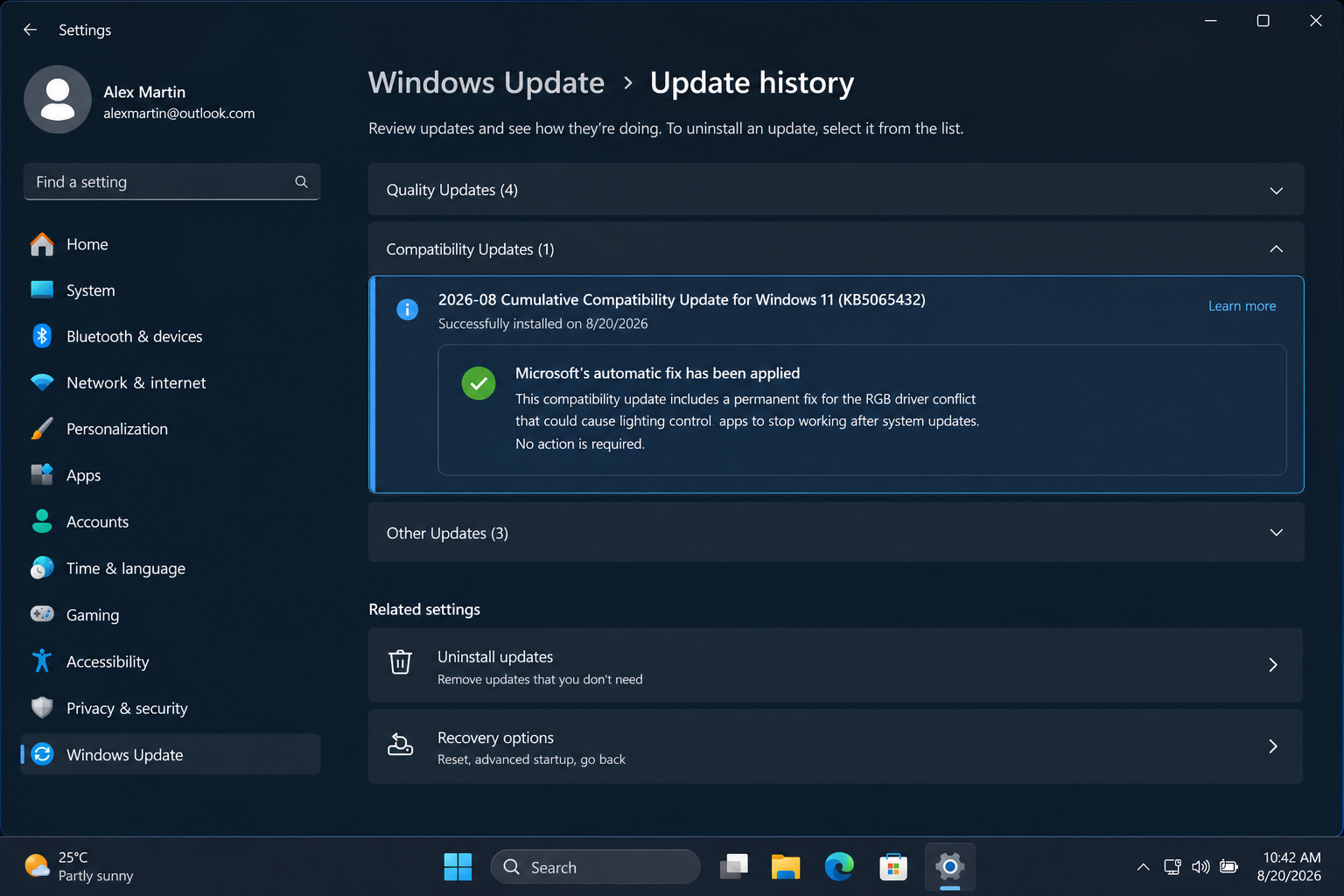
Microsoft has confirmed a permanent resolution is in progress on two fronts. First, the company is working with RGB hardware vendors to release updated versions of inpoutx64.sys that comply with the tightened kernel validation standards introduced in KB5121003. Second, Microsoft stated it will push an automatic compatibility block via Windows Update — meaning affected systems will have the driver automatically blocked from loading until a patched version is available, removing the need for the manual registry edit.
As of the article date (August 2026), the automatic block had already started rolling out to Windows 11 25H2 systems, with 24H2 to follow shortly. Check Settings > Windows Update > Update history — if you see an entry labelled Compatibility update for Windows 11 dated after 12 August 2026, the automatic fix has been applied to your device and the manual registry change is no longer necessary (though leaving it in place causes no harm).
Keep Your Windows 11 Licence Secure Through Update Issues
Driver conflicts and update bugs are a normal part of Windows maintenance — but they should never be a reason to avoid security patches altogether. If you are running Windows 11 without a genuine, activated licence, update-related issues become far harder to troubleshoot: Microsoft’s Windows Update diagnostics and the Windows Release Health dashboard require an activated OS to surface all remediation options correctly.
If you need a clean, genuine Windows 11 licence at a sensible price — so you can confidently apply every security update without activation concerns — take a look at Microsoft Windows 11 Pro OEM (from €15.95 at Shop Key Online, delivered by email within minutes). Running a genuine key also ensures your system qualifies for every driver compatibility block and automatic remediation update Microsoft pushes — including the permanent inpoutx64 fix.
FAQ: Windows 11 Gaming Crashes and the RGB Driver Fix
Does this affect all Windows 11 versions or just one?
The Windows 11 RGB lighting crashes affect both Windows 11 24H2 and 25H2 after installing the August 2026 Patch Tuesday cumulative update KB5121003. Earlier versions (23H2 and below) are not on the same update track and have not been confirmed as affected. If you are still on 23H2, consider upgrading — Microsoft’s support for older branches is narrowing.
Will disabling the inpoutx64 driver break my RGB lighting permanently?
No. Disabling the driver via the registry (setting Start to 4) is fully reversible. Your RGB software will still open, but hardware lighting will stop responding until the driver is re-enabled. Once your RGB software vendor releases a patched driver, you simply change the value back to 1, restart, and everything returns to normal. No hardware is damaged in the process.
How do I know if my PC has already received Microsoft’s automatic fix?
Go to Settings > Windows Update > Update history. Look for a Compatibility update entry dated after 12 August 2026. Alternatively, open Device Manager, show hidden devices, and check Non-Plug and Play Drivers — if inpoutx64 no longer appears, the automatic block has been applied. You can also run sc query inpoutx64 in PowerShell; a FAILED 1060 response means the service no longer exists on your system.
My RGB software is not listed — can it still cause Windows 11 gaming crashes?
Yes. Any RGB utility that installs the inpoutx64.sys kernel driver can trigger the crash, regardless of brand. The driver is distributed by a wide range of third-party tools, including some that do not prominently advertise using it. If your games started crashing after KB5121003 and you have any RGB control software installed, treat it as a likely cause and apply the registry fix.
Is it safe to edit the Windows Registry to fix this?
Yes — provided you follow the exact path and value specified and back up your registry first. To back up, open Registry Editor, right-click Computer at the top of the tree, and choose Export. Save the .reg file somewhere accessible. Changing a single DWORD value from 1 to 4 is a low-risk operation that has been verified by Microsoft and widely confirmed by the community as safe and effective for this specific issue.
