
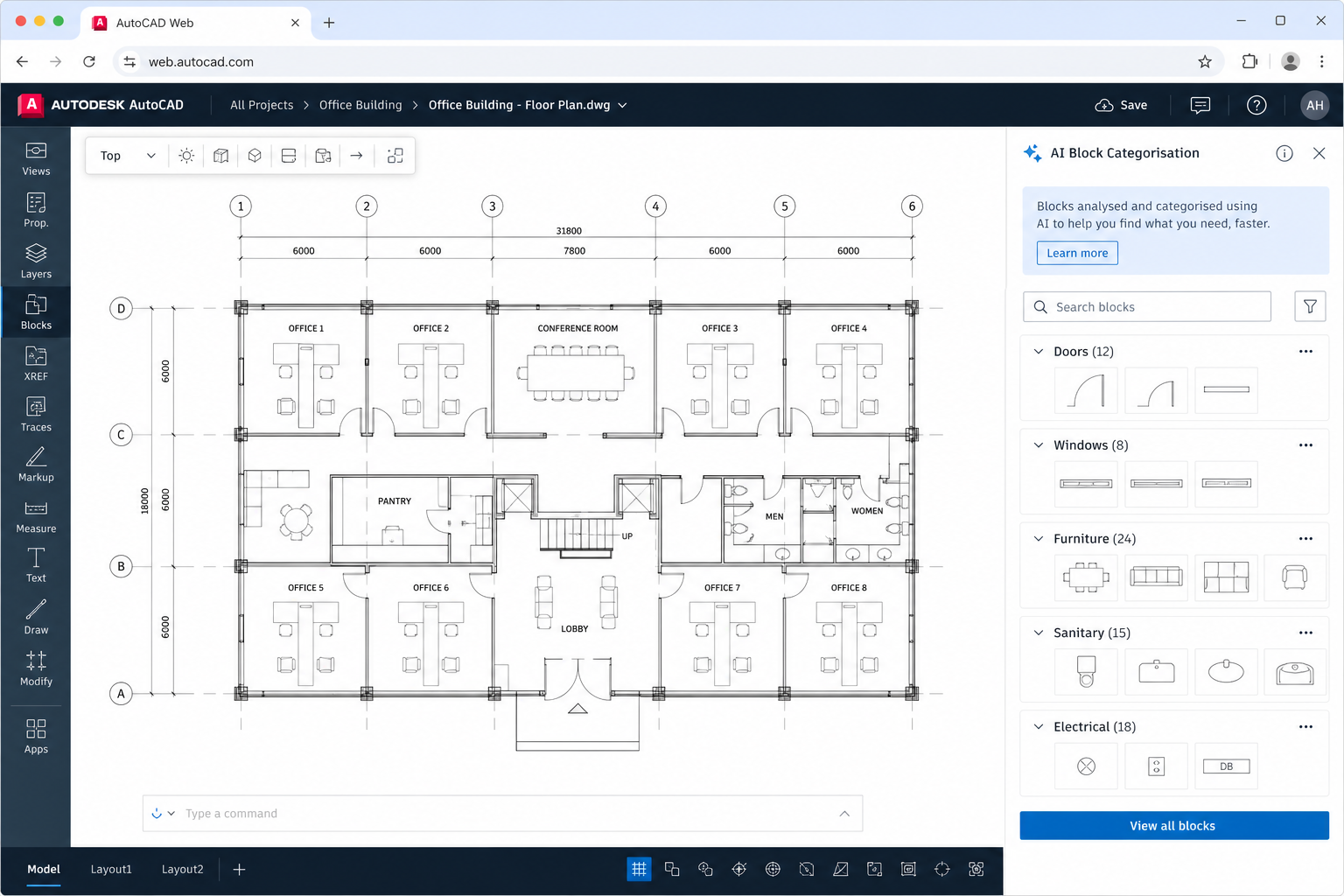
AutoCAD web AI features have taken a significant leap forward in 2026, with Autodesk rolling out block auto-categorisation and intelligent search as a tech preview for the browser-based version of AutoCAD. For architects, engineers, and designers who spend too much time hunting through bloated block libraries, this update is a genuine productivity breakthrough — not a gimmick.
What Is AutoCAD Block Auto-Categorisation?

Block auto-categorisation uses Autodesk AI to analyse the geometry of every block in your drawing and automatically organise them into meaningful, searchable categories — without you manually tagging a single element. Previously, keeping a tidy block library meant painstaking manual labelling. Now the AI does the heavy lifting, scanning shapes and spatial relationships to group similar components together intelligently.
The feature is part of Autodesk’s broader push to embed AI across its design suite, and it arrives first in the web app rather than the desktop client — signalling that Autodesk sees the browser as the right environment for rapid AI feature iteration.
How AutoCAD AI Tools Work in the Browser
Enabling the feature is straightforward. Inside AutoCAD on the web, you open the Blocks panel, switch on Tech Preview in settings, then click Categorize blocks with AI. The engine analyses your drawing’s block geometry and returns organised categories within seconds. From there, the integrated AI block search bar lets you find any component by typing a descriptive term — even if you never named the block yourself.
- Geometry analysis: the AI reads shapes, lines, and spatial patterns to infer what a block represents.
- Smart grouping: similar elements — doors, windows, fixtures — are clustered automatically.
- Natural-language search: type “door” or “electrical outlet” and matching blocks surface instantly.
- Zero manual tagging: no need to rename or label blocks before categorisation runs.
- Tech Preview flag: the feature must be enabled explicitly, keeping it opt-in while Autodesk refines accuracy.
Why This Matters for Architects and Engineers
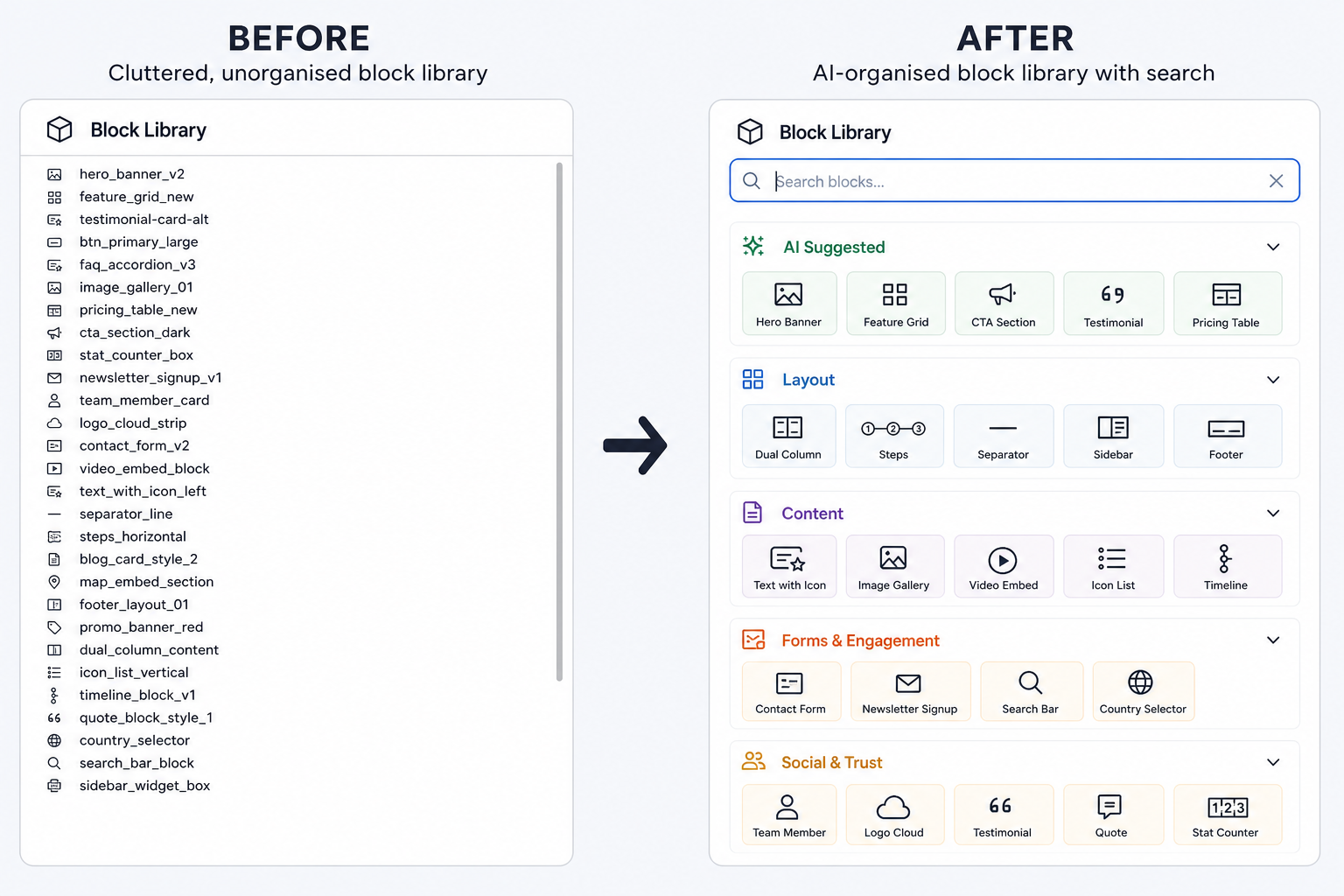
Large architectural or engineering drawings can contain hundreds — sometimes thousands — of blocks. Manual library management has historically consumed significant project time, particularly when drawings are inherited from other teams or sourced from third-party manufacturers. AutoCAD automation at this level means designers can redirect that time toward actual design decisions.
According to Autodesk’s official announcement, the AI analyses block geometry to organise elements into meaningful categories and make them easier to search — a capability that addresses one of the most persistent friction points in day-to-day CAD work. The 2026 AutoCAD desktop release also introduced Smart Blocks Detect and Convert, achieving up to 11× faster file opens compared to previous versions, underlining just how aggressively Autodesk is pursuing performance and intelligence improvements this cycle.
AutoCAD AI Tools vs Manual Block Management: A Real Comparison
To appreciate the shift, consider a typical workflow before AI block search existed. A drafter receives a drawing from a consultant. It contains 400 unnamed blocks. Finding the right window symbol for a revision means scrolling through a flat list, hovering over each block to preview it, and guessing at naming conventions. That process might take 15–20 minutes for a moderately complex drawing.
With block auto-categorisation enabled, the same task takes under a minute: the AI scans the drawing, groups the blocks by type, and a keyword search surfaces the correct element immediately. Across a project with dozens of revision cycles, that compounds into hours saved per team member per week.
AutoCAD Automation: Part of a Bigger AI Strategy
Block categorisation does not stand alone. Autodesk has been systematically layering AI across AutoCAD — both in the desktop application and the web app. The 2026 desktop release brought Smart Blocks Detect and Convert, which identifies geometry in a drawing that ought to be a block and offers to convert it automatically. Activity Insights gives project managers visibility into how files are being edited and by whom. The Autodesk Assistant (an AI agent) is being piloted for command suggestions and workflow guidance.
What makes the web app’s block auto-categorisation notable is that it targets a different pain point: not creating blocks, but finding and managing them at scale. This is squarely aimed at teams working across large, complex projects where block libraries grow organically and become difficult to navigate without structure.
If you regularly use AutoCAD scripting to manage repetitive tasks, it’s worth reading our guide on AutoCAD macros and scripts for automating drafting — many of the manual block-management workflows that AI is now replacing can also be streamlined with LISP or Python in the meantime.
Who Can Access These AutoCAD Web AI Features?

The block auto-categorisation tech preview is available to users of AutoCAD on the web — accessible via any modern browser without a local install. You need an active Autodesk subscription that includes web app access. The tech preview status means the feature is functional but still being refined; Autodesk collects feedback before promoting it to a full release.
Desktop AutoCAD 2026 subscribers also get access to the web app as part of their subscription, so if you are already on a current licence, there is nothing extra to purchase to try the preview. If you are looking to get onto a current AutoCAD licence, you can browse our Autodesk AutoCAD licences — including the Autodesk AutoCAD 2026 1-Year licence for Windows, available from €76.90 — to get on the latest version and access every 2026 AI feature from day one.
Practical Tips for Getting the Most from AI Block Search
Even in tech preview form, there are habits that help the AI perform better and make your workflow more efficient:
- Run categorisation on cleaned drawings: purge unused blocks before running the AI scan. Fewer redundant elements mean tighter, more accurate categories.
- Use descriptive search terms: the natural-language search works best with straightforward nouns — “stair”, “valve”, “column” — rather than internal project codes.
- Review suggested categories: the AI groups blocks by geometry, but you can rename categories after the fact to match your practice’s conventions.
- Combine with AutoCAD automation scripts: for very large drawing sets, run a LISP script to standardise block names first, then let the AI categorise — the combination produces the cleanest results.
- Provide feedback: because this is a tech preview, submitting feedback directly in the app helps Autodesk improve categorisation accuracy for the geometry types common in your discipline.
What to Expect as AutoCAD AI Tools Mature
Tech previews in AutoCAD have historically graduated to full features within one to two release cycles when they receive positive uptake. Given that block management is a universal pain point — relevant to every discipline that uses AutoCAD — it is reasonable to expect AI block search to become a core, always-on capability in both the web and desktop apps by 2027.
Autodesk has also signalled that agentic AI — systems that can take multi-step actions on a designer’s behalf — is the next frontier. Future versions of AutoCAD automation may allow users to describe a design intent in plain language and have the AI locate, place, and configure the appropriate blocks automatically. The 2026 block categorisation feature is the foundation that makes that kind of deeper automation possible.
FAQ
Is AutoCAD block auto-categorisation available in the desktop app?
Currently, the block auto-categorisation and AI block search feature is exclusive to AutoCAD on the web as a tech preview. The desktop AutoCAD 2026 release includes a related but distinct feature — Smart Blocks Detect and Convert — which identifies ungrouped geometry and suggests converting it to blocks. The web-specific AI categorisation may be extended to the desktop in a future release.
Do I need a special subscription to use the AutoCAD web AI features?
You need an active AutoCAD subscription that includes web app access. Most current AutoCAD 2025 and AutoCAD 2026 subscriptions include the web app. The tech preview must be enabled manually inside the app — it is not switched on by default. No additional licence or add-on purchase is required to try it.
How accurate is the AI block categorisation?
Accuracy depends on the complexity and consistency of the geometry in your drawing. Clearly defined, well-structured blocks — such as standard architectural symbols or manufacturer-supplied components — categorise very reliably. Irregular or custom geometry may produce broader categories that benefit from manual renaming. Because this is a tech preview, accuracy is expected to improve with each update as Autodesk incorporates user feedback.
Can I use AI block search on drawings created in older AutoCAD versions?
Yes. AutoCAD on the web can open DWG files regardless of which version of AutoCAD created them. The AI analyses the block geometry in the file itself, so even legacy drawings with unnamed or poorly organised blocks can be processed. Running a purge first to remove redundant block definitions will improve the quality of the categorisation output.
Will AutoCAD automation eventually replace manual drafting tasks entirely?
AI tools in AutoCAD are designed to handle repetitive, data-heavy tasks — categorisation, detection, conversion — not creative design decisions. The realistic near-term future is a workflow where designers spend far less time on library management and administrative drawing tasks, and more time on design intent. Full replacement of manual drafting is not on the roadmap; augmentation and acceleration are.
