
Why Windows Update Rollback Matters

Windows update rollback is the fastest way to undo the damage when a patch goes wrong. Microsoft ships hundreds of cumulative updates every year, and while the vast majority install without incident, a single bad patch can disable Wi-Fi drivers, break audio, crash third-party software, or — worst of all — trap your PC in a boot loop. Knowing the exact steps to remove a Windows patch before the situation escalates can save hours of frustration and, in a work context, real money.
The good news: Windows 10 and Windows 11 both have built-in rollback tools that require no third-party software. The bad news: those tools have time limits and some quirks you need to know about in advance.
Before You Roll Back: Identify the Culprit Patch
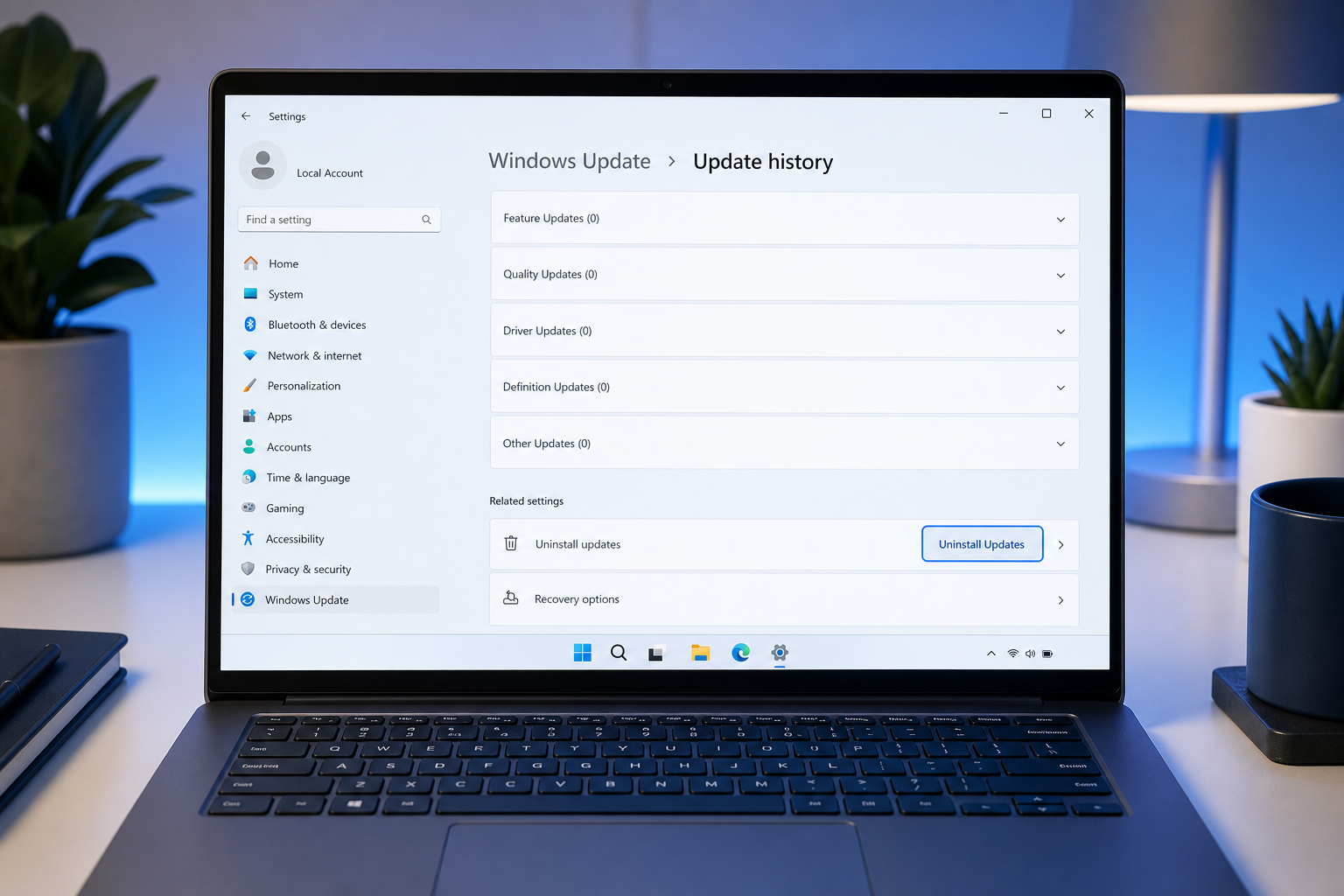
Pin down the exact update that caused the problem before you remove anything. Open Settings → Windows Update → Update history. You’ll see every update installed on your machine, listed by KB number (e.g. KB5034763) and installation date. Cross-reference the date a problem started with the date an update installed — in most cases the two will line up within hours.
- Cumulative updates (labelled “Cumulative Update for Windows”) contain both security fixes and feature changes — these are the most common culprits.
- Driver updates delivered via Windows Update can break graphics cards, USB controllers, or audio devices.
- Definition updates for Windows Defender are tiny, update daily, and almost never cause issues.
- .NET Framework updates can occasionally conflict with older enterprise applications.
If your PC won’t boot at all, skip to the Windows Recovery Environment section below.
Method 1: Uninstall Windows Update via Settings (Easiest)

This is the quickest uninstall Windows update route for a PC that still boots normally.
- Open Settings (Win + I) and go to Windows Update → Update history.
- Scroll to the bottom and click Uninstall updates.
- Find the KB number you identified earlier, click it, and select Uninstall.
- Restart your PC when prompted.
Windows 11 24H2 simplified this further — the Uninstall updates page now appears directly inside the modern Settings panel rather than redirecting you to the legacy Control Panel.
Time limit warning: Microsoft limits how long a cumulative update can be uninstalled via Settings. For most quality updates, the uninstall option disappears after approximately 30 days. If the option is greyed out or missing, move to Method 2.
Method 2: Remove Windows Patch via Command Prompt (WUSA)
The Windows Update Stand-Alone Installer (WUSA) lets you remove a Windows patch directly from an elevated command prompt — useful when the Settings uninstall button is missing or greyed out.
- Press Win + S, type cmd, right-click Command Prompt, and choose Run as administrator.
- Type the following command, replacing KB5034763 with your actual KB number:
wusa /uninstall /kb:5034763 /quiet /norestart - Wait for the process to complete (it runs silently), then restart manually.
You can also use DISM to list all installed packages and confirm the patch is gone:
dism /online /get-packages | findstr KB5034763
If DISM returns no output, the patch has been successfully removed.
Method 3: Windows Update Rollback from Recovery Environment

When a patch causes a boot loop or black screen, you can’t reach Settings — but Windows Recovery Environment (WinRE) is still accessible. This is where the Windows update rollback process gets a little more involved, but it’s reliable.
- Force-restart your PC three times in a row (hold the power button until it shuts off, repeat). After the third restart, Windows automatically launches WinRE.
- Go to Troubleshoot → Advanced Options → Uninstall Updates.
- Choose Uninstall latest quality update (for monthly patches) or Uninstall latest feature update (for version upgrades like 22H2 → 23H2).
- Confirm and let the process run — the PC will restart once complete.
This method bypasses the 30-day Settings limit in most cases, making it invaluable when a patch has been silently causing instability for weeks before you noticed.
If you’ve recently encountered the frustrating Windows 11 update 0x800f0922 error on KB5089549, the WinRE rollback approach is often the cleanest resolution before attempting a fresh install.
How to Pause Windows Updates to Stop a Bad Patch Returning
Removing a patch is only half the job — if you don’t pause windows updates, the same update will reinstall automatically, sometimes within hours. Here’s how to hold it back without leaving your PC unprotected indefinitely.
Pause via Settings (Windows 10 & 11)
Go to Settings → Windows Update → Pause updates. Windows 10 allows a maximum pause of 35 days; Windows 11 24H2 extended this to up to 5 weeks per pause window, which you can reset once. This gives you breathing room while Microsoft issues a fix.
Defer Feature Updates (Windows 11 Pro / Enterprise)
Pro and Enterprise users can defer feature updates by up to 365 days and quality updates by up to 30 days via Settings → Windows Update → Advanced options → Choose when updates are installed. This means you only receive updates after they’ve been tested in the wild for weeks — a significant stability improvement for business machines.
Block a Specific Update with the Microsoft Show/Hide Tool
Microsoft provides a dedicated troubleshooter called wushowhide.diagcab that lets you hide a specific KB update so Windows Update skips it entirely. Download it directly from Microsoft, run it, select Hide updates, and tick the problematic KB. The update will remain hidden until you unhide it — at which point Windows will treat it as new and offer to install it again. This is the safest long-term solution when a specific driver or patch is confirmed to conflict with your hardware.
For a full technical overview of deferral policies and how Windows Update for Business works, the Microsoft Learn guide on configuring Windows Update client policies is the authoritative reference.
Staying Secure After a Windows Update Rollback
The most common concern after a rollback is exposure to security vulnerabilities. Rolling back a cumulative update does remove the security patches bundled with it — that’s unavoidable. Here’s how to minimise the risk during the gap:
- Keep Windows Defender definitions current. Definition updates are separate from cumulative updates and update daily. Even after rolling back a quality update, Defender continues to receive the latest threat intelligence. If Defender has been slowing your system down, check our guide on why Windows Defender slows downloads and how to fix it without disabling protection.
- Limit exposure. Avoid unfamiliar websites and USB devices while the security patch is absent. Consider enabling Windows Firewall’s strictest profile on public networks.
- Set a reminder to reinstall. Microsoft typically issues a revised cumulative update within 2–4 weeks of a problematic patch being reported widely. Subscribe to the Windows Update tag on this blog to stay notified of issues and fixes as they emerge.
- Check the Windows Health Dashboard. Microsoft maintains a public Known Issues tracker for each Windows version — check it before deciding whether to pause or just wait for a revised patch.
When Rollback Isn’t Enough: Fresh Start Options
Occasionally a patch causes deep corruption that a simple uninstall won’t fix — corrupt system files, broken registry keys, or a damaged WinSxS store. In these cases, a few escalation options exist:
- DISM /RestoreHealth — repairs the Windows component store using Windows Update as its source:
dism /online /cleanup-image /restorehealth - SFC /scannow — scans and repairs protected system files:
sfc /scannow - Reset this PC (Keep my files) — reinstalls Windows while preserving personal data, found under Settings → System → Recovery.
- Clean install — the nuclear option. If you need a fresh Windows 11 Pro licence after a clean install, Microsoft Windows 11 Pro Retail keys are available from ShopKeyOnline starting from €17.95, delivered by email within minutes.
A clean install gives you a genuinely fresh slate — no legacy driver conflicts, no accumulated update cruft, and a system that installs future patches from a known-good baseline.
Quick Reference: Windows Update Rollback by Scenario
- PC boots normally, patch installed recently: Settings → Update history → Uninstall updates.
- PC boots normally, patch installed 30+ days ago: WUSA command-line uninstall.
- PC won’t boot / black screen / boot loop: WinRE → Troubleshoot → Uninstall Updates.
- Want to stop the same patch reinstalling: Pause updates or use the Microsoft Show/Hide troubleshooter.
- System files corrupted beyond a rollback fix: DISM + SFC, or Reset/Clean install.
Frequently Asked Questions
How long do I have to roll back a Windows update?
For cumulative quality updates, the uninstall option in Settings is typically available for around 30 days after installation. After that, the Settings button disappears, but you can still uninstall via WUSA command line or, in severe cases, from the Windows Recovery Environment, which bypasses the standard time limit.
Will removing a Windows patch delete my files?
No. Uninstalling a Windows update reverts system and OS files to their previous state but does not touch your personal documents, photos, or installed applications. The only exception is a feature update rollback (e.g. reverting from Windows 11 23H2 to 22H2), which has a 10-day window and similarly does not affect personal files.
Is it safe to pause windows updates for a long time?
Short pauses of 2–5 weeks are generally safe, especially if Windows Defender definitions continue updating and you’re not on a high-risk network. Extended pauses of several months expose you to unpatched security vulnerabilities. The recommended approach is to pause just long enough for Microsoft to release a revised cumulative update, then allow updates to resume normally.
Can I hide a specific Windows update permanently?
Not permanently, but indefinitely. Microsoft’s wushowhide.diagcab tool hides a specific KB so Windows Update skips it on every scan. The update reappears as available only if you run the tool again and unhide it. This is the preferred method for confirmed driver or software conflicts that have no fix yet.
What if the Uninstall button is greyed out for a Windows update?
Some updates — particularly servicing stack updates and certain security-only patches — are marked as non-removable by Microsoft because uninstalling them could destabilise the update pipeline. If the button is greyed out and WUSA also fails, your best option is to use DISM and SFC to repair any damage, or perform a Reset (keeping your files) from Settings → System → Recovery.

2 Replies to “Windows Update Rollback: How to Remove a Patch Safely”
Comments are closed.