
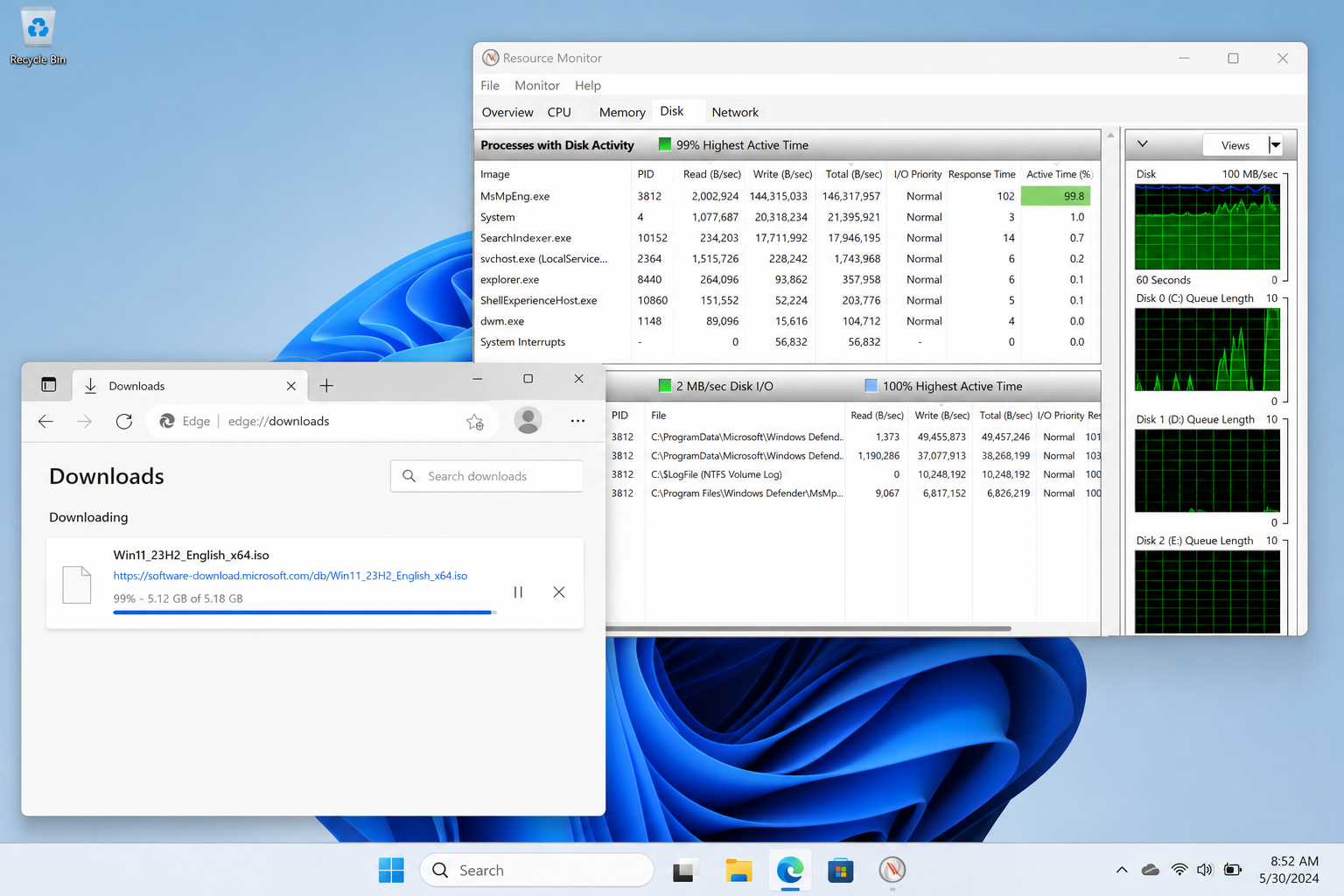
If your Windows Defender slow downloads problem has you staring at a progress bar frozen at 99%, you are not alone — and your browser, your Wi-Fi, and your internet provider are almost certainly innocent. The real culprit is a hidden background process built directly into Windows, and once you understand what it is doing, the fix takes less than two minutes.
Why Large File Downloads Get Stuck While Small Ones Sail Through

The confusing part of this problem is that it is not consistent. A 20 MB PDF or a short video clip downloads without a hiccup. But a multi-gigabyte ISO image, a large ZIP archive, or an EXE installer above a few hundred megabytes triggers dramatic speed drops, freezes, and that maddening final 1% that refuses to complete.
The reason comes down to how browsers actually write data to your drive. They do not wait for an entire file to arrive before saving it. Instead, they write incoming data in chunks directly to disk as it streams in. That means a 4 GB file will be written to your storage drive in hundreds of small pieces over the course of the download — and every single one of those pieces gets noticed by Windows Defender.
Windows Defender Real-Time Scanning: The Hidden Bottleneck
Microsoft Defender’s real-time protection monitors file activity on your system continuously. Every time a new chunk of data lands on your drive during a download, Defender intercepts it, runs a scan, and only then releases it. For a small file this overhead is negligible. For a multi-gigabyte download being written in thousands of increments, Defender is essentially fighting a tug-of-war with your browser over disk access — and the browser is losing.
The process responsible is called Antimalware Service Executable, which runs as MsMpEng.exe. It is the engine behind Defender’s real-time protection and scheduled scanning. During a large download it can push your drive’s Active Time to nearly 100%, which is why the transfer appears to stall even though your network connection is perfectly healthy.
This bottleneck is noticeably worse on certain hardware configurations:
- Mechanical hard drives (HDD) — spinning platters cannot handle simultaneous read and write operations efficiently, so MsMpEng.exe queuing up scan requests causes severe slowdowns.
- Slower SATA SSDs — still far faster than HDDs, but budget SATA drives can saturate under the combined load of large sequential writes and Defender’s random-read scan operations.
- Laptops on Balanced power mode — Windows throttles CPU and storage performance to conserve battery, which makes every Defender scan comparatively more expensive.
- PCs with limited RAM — when the system is memory-constrained, MsMpEng.exe competes for both RAM and disk cache, compounding the slowdown.
Why Task Manager Misses the Problem

Most people open Task Manager when a download stalls and see nothing alarming. CPU usage looks normal. Network throughput looks fine. The culprit stays hidden because Task Manager’s default view does not surface disk I/O detail clearly enough.
The tool you actually need is Resource Monitor (press Win + R, type resmon, and press Enter). Open the Disk tab and trigger a large download. Watch what happens: the moment your download speed dips, MsMpEng.exe will climb to the top of the disk activity list and the Active Time column for your drive will spike toward 100%. That single data point confirms that Defender slowing downloads is your real issue, not your ISP or browser.
The MsMpEng Slow Download Problem Is Worst at 99%
There is a specific reason why the download stuck at 99 phenomenon is so common. When a file is nearly complete, the browser finalises it — renaming the temporary .crdownload or .part file to its real name and marking it ready for use. At exactly that moment, Defender queues a full file scan of the completed download before it is handed off to you.
On Microsoft Edge, there is a second layer called SmartScreen. SmartScreen checks the reputation of downloaded executables and files from less common sources before the download is marked complete. When SmartScreen’s reputation check and Defender’s full-file scan happen simultaneously — which they frequently do — that last 1% can take several minutes even on a fast connection. Users understandably blame the browser. The browser is just waiting for Windows to give it the all-clear.
The Safe Fix: Add a Dedicated Downloads Exclusion in Windows Security

Disabling Windows Defender entirely is not a sensible solution. Real-time protection guards your system against malware, ransomware, and other active threats — removing it entirely leaves you exposed. The correct approach is to create a dedicated folder for trusted large downloads and tell Defender to skip it. You keep full protection everywhere else on your system.
According to Microsoft’s official Defender exclusion documentation, you can define per-folder exclusions that apply to real-time protection, scheduled scans, and on-demand scans simultaneously — making this a comprehensive fix, not just a partial workaround.
Here is how to set it up step by step:
- Create a new folder — for example,
C:\LargeDownloadsorD:\BigFiles. Do not use your main Downloads folder for this exclusion. - Open Windows Security — press Win + S, type Windows Security, and open it.
- Go to Virus & threat protection — click it in the left panel.
- Open Manage settings — scroll down to the Virus & threat protection settings section and click Manage settings.
- Find Exclusions — scroll to the bottom of the page and click Add or remove exclusions.
- Add your folder — click Add an exclusion, select Folder, then browse to and select the dedicated folder you created in step 1.
- Set your browser’s download location — in Chrome, Edge, Firefox, or Brave, change the default download directory to that same exclusion folder for large files.
After this change, large files saved to that folder will not trigger real-time scanning as each chunk is written. Defender will still protect every other location on your system normally. In testing, download speeds for multi-gigabyte files return to the maximum your connection can deliver, and that frozen 99% becomes a thing of the past.
Important Safety Notes When Using Exclusions
Adding a Defender exclusion is a surgical fix — but it requires a small amount of discipline:
- Never exclude your main Downloads folder — you receive files from all kinds of sources there, and many of them should be scanned.
- Never exclude an entire drive — this would remove protection from a massive surface area of your system.
- Only save files you trust to the exclusion folder — think official software ISOs from Microsoft, Adobe, or other verified vendors; large game installers from Steam or Epic; or licensed software you have purchased from a trusted retailer.
- Scan manually after if in doubt — right-click any file in the exclusion folder and choose Scan with Microsoft Defender to run an on-demand check.
Other Performance Tweaks That Help With Defender Overhead
The exclusion fix is the most impactful single change, but if you regularly download large files and want to reduce Defender’s overall system impact, a few additional adjustments are worth knowing:
- Schedule scans for off-hours — Defender’s full scheduled scan compounds disk pressure if it coincidentally runs during a download. Open Task Scheduler, find the Windows Defender task, and set it to run at 2 AM or another time when you are not actively using the machine.
- Switch to a High Performance power plan — this prevents Windows from throttling storage performance mid-download, which is especially relevant on laptops.
- Upgrade to an NVMe SSD — the sequential write speeds of a modern NVMe drive are fast enough that even with MsMpEng.exe scanning chunks, the drive rarely saturates. Users upgrading from HDD to NVMe often find the Defender slowing downloads problem disappears entirely without any exclusion changes.
- Keep Defender definitions up to date — outdated definitions can cause Defender to perform deeper, slower heuristic scans on files it does not recognise. Current definitions mean faster, more confident scan decisions.
If you are running Windows 11 and find that Defender-related slowdowns extend beyond downloads to general system sluggishness, our guide to common Windows error codes and system fixes covers a broader set of performance issues worth investigating. And if you are still on Windows 10 and experiencing degraded performance, it is also worth noting that Windows troubleshooting resources can help you resolve a range of platform-specific issues before the October 2026 end-of-support deadline.
The Bottom Line: Blame Windows, Not Your Browser
When a download freezes at 99% or your transfer speed collapses partway through a large file, the instinct is to restart the browser, reboot the router, or call your ISP. In the vast majority of cases, none of those actions will help — because the problem is not the network. It is MsMpEng.exe doing its job so thoroughly that it starves your browser of disk access.
The solution is not to fight Defender or disable it. It is to give it a clearly defined zone to ignore for trusted large downloads, while keeping the rest of your system fully protected. Five minutes of setup delivers permanently faster large-file downloads without sacrificing any meaningful security. Windows was just working too hard — now you know exactly how to tell it to ease off in the right place.
Frequently Asked Questions
Does Windows Defender cause slow downloads on Windows 11?
Yes. Windows Defender’s real-time scanning is active on both Windows 10 and Windows 11 and behaves identically on both platforms. The MsMpEng.exe process scans each data chunk as it is written to disk, which can push drive Active Time to 100% during large downloads and dramatically reduce transfer speeds on either OS.
Why does my download get stuck at 99% specifically?
At 99%, the browser is finalising the file — renaming the temporary download file and triggering a full-file scan by Defender. On Microsoft Edge, SmartScreen also runs a reputation check at this point. When both processes run simultaneously, the final completion step can stall for several minutes even on a fast connection.
Is it safe to add a folder exclusion in Windows Defender?
Yes, if you are disciplined about what you save there. Create a dedicated folder specifically for large, trusted downloads — official software ISOs, licensed installer files, and similar content. Never exclude your general Downloads folder or an entire drive, as that would leave a much wider area of your system unprotected.
Will switching to a different browser fix Windows Defender slow downloads?
No. The slowdown happens at the operating system level, not the browser level. Chrome, Firefox, Brave, and Edge all trigger the same Defender scanning behaviour when writing large files to disk. Edge also adds SmartScreen checks, which can make it slightly worse at the 99% mark, but switching browsers does not bypass MsMpEng.exe activity.
How can I confirm MsMpEng.exe is causing my slow download?
Open Resource Monitor (Win + R, type resmon, press Enter) and click the Disk tab. Start a large download and watch the Disk Activity list. If MsMpEng.exe rises to the top of the list and the Active Time percentage for your drive approaches 100% every time your download speed drops, Defender’s real-time scanning is confirmed as the cause.
