
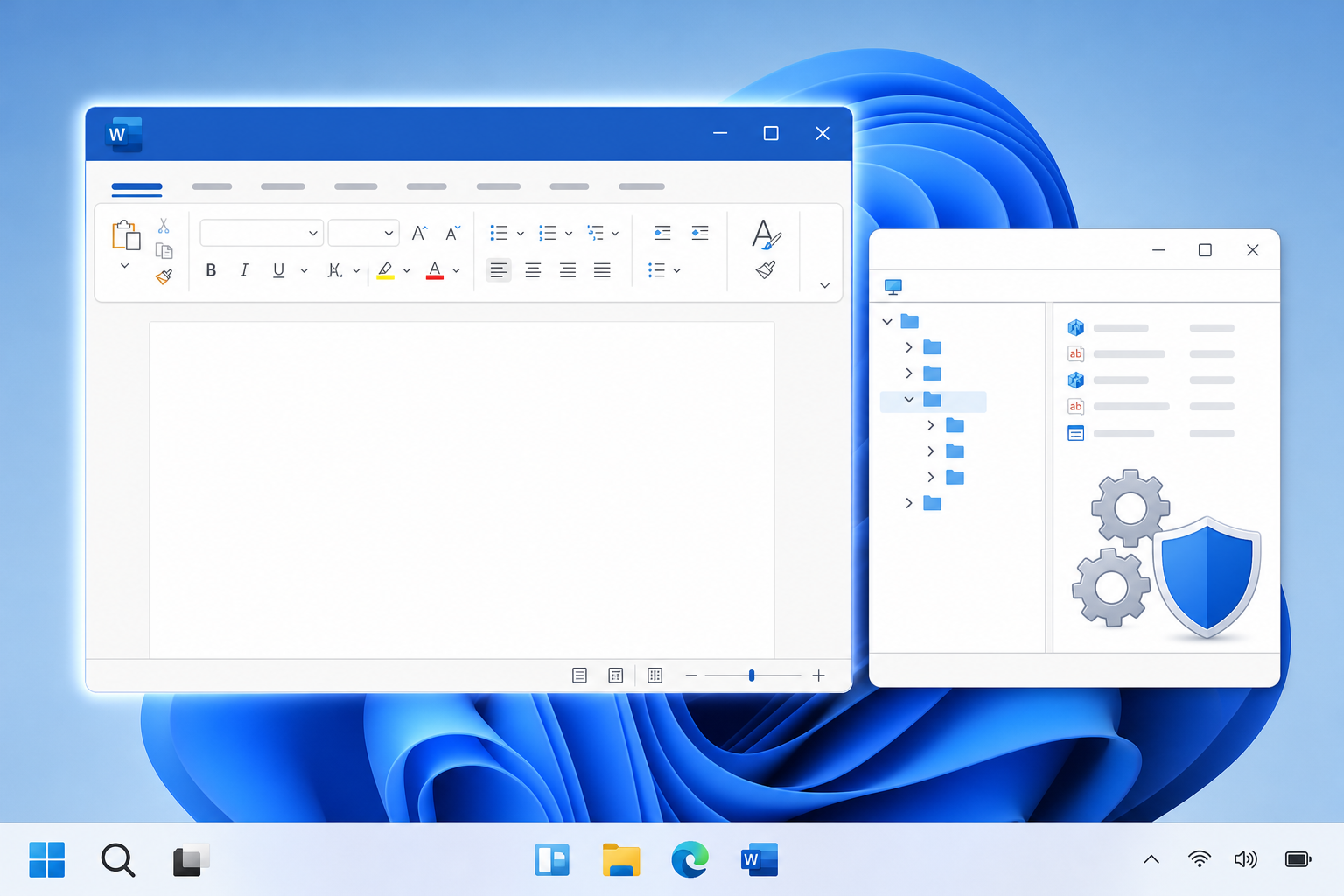
The office 2024 upgrade prompt that shows up in the title bar of Word, Excel, and Outlook on a perpetual-license install can be hidden with a single registry value, and it does not require touching your product key, your activation status, or your subscription. This guide walks through the fix, the risks worth knowing before you try it, and exactly how to undo it if something looks wrong afterward.
If you bought a one-time license like Office 2024 Pro Plus, you already paid for the software outright. Seeing a persistent button nudging you toward a subscription plan is understandably annoying, and it has become one of the most common complaints among perpetual-license users since the button started appearing. The registry method below is a community-documented workaround, not an official Microsoft setting, so treat it with the same caution you’d use for any manual registry change.
What Triggers the Office 2024 Upgrade Prompt on a Perpetual License

The prompt appears because Office apps check a shared cloud-services configuration regardless of which license type activated them, and that configuration includes promotional UI elements aimed at driving subscription upgrades. Perpetual licenses like Office 2024 Pro Plus, Office Home 2024, and Office Home & Business 2024 are fully activated products, but the title-bar UI is controlled separately from the activation engine, which is why a paid, genuinely licensed install can still display an upsell button.
Microsoft’s own investor disclosures help explain the business incentive behind prompts like this: in its most recent quarterly results, Microsoft 365 Commercial products and cloud services revenue increased 16%, a figure that reflects just how much the company’s productivity business now depends on subscription growth rather than one-time license sales. That context does not make the prompt less irritating on a perpetual install, but it does explain why it exists.
Is It Safe to Remove the Office 2024 Upgrade Notification?
Removing the button through the registry is low-risk when you back up first, but it is still an unsupported change. The fix adds or edits a single value under your user profile’s Office registry hive and does not touch activation data, so it will not deactivate your license or corrupt your documents when done carefully. The main risks are typos in the registry path, editing the wrong hive (machine-wide instead of per-user), or forgetting to export a backup before you start.
- It does not remove or alter your product key or activation status.
- It only affects the current Windows user profile, not other accounts on the same PC.
- A future Office update could silently reset or ignore the value, so the fix is not guaranteed to be permanent.
- Because it is community-sourced rather than a documented Microsoft setting, support staff will not be able to troubleshoot it for you.
Before You Edit the Registry: A Safety Checklist
Spend five minutes on preparation before opening Registry Editor, because a rushed edit is the most common reason this kind of fix goes wrong. Work through this checklist first:
- Close every Office application completely, including background processes in Task Manager.
- Create a system restore point so you have a full fallback beyond the registry export.
- Export the specific key you plan to edit, not just note it down, so rollback is a simple double-click.
- Confirm you are signed into the correct Windows user account, since the fix is per-profile.
- Have your Office 2024 product key or purchase confirmation handy in case you need to reactivate anything afterward.
If you manage registry changes often, our Windows troubleshooting resources cover backup and restore-point habits in more depth, and the same caution applies to most registry-based fixes, including unrelated ones like our registry fix for RGB lighting crashes on Windows 11.
Step-by-Step: Removing the Upgrade Prompt for Office 2024
Back Up the Registry First
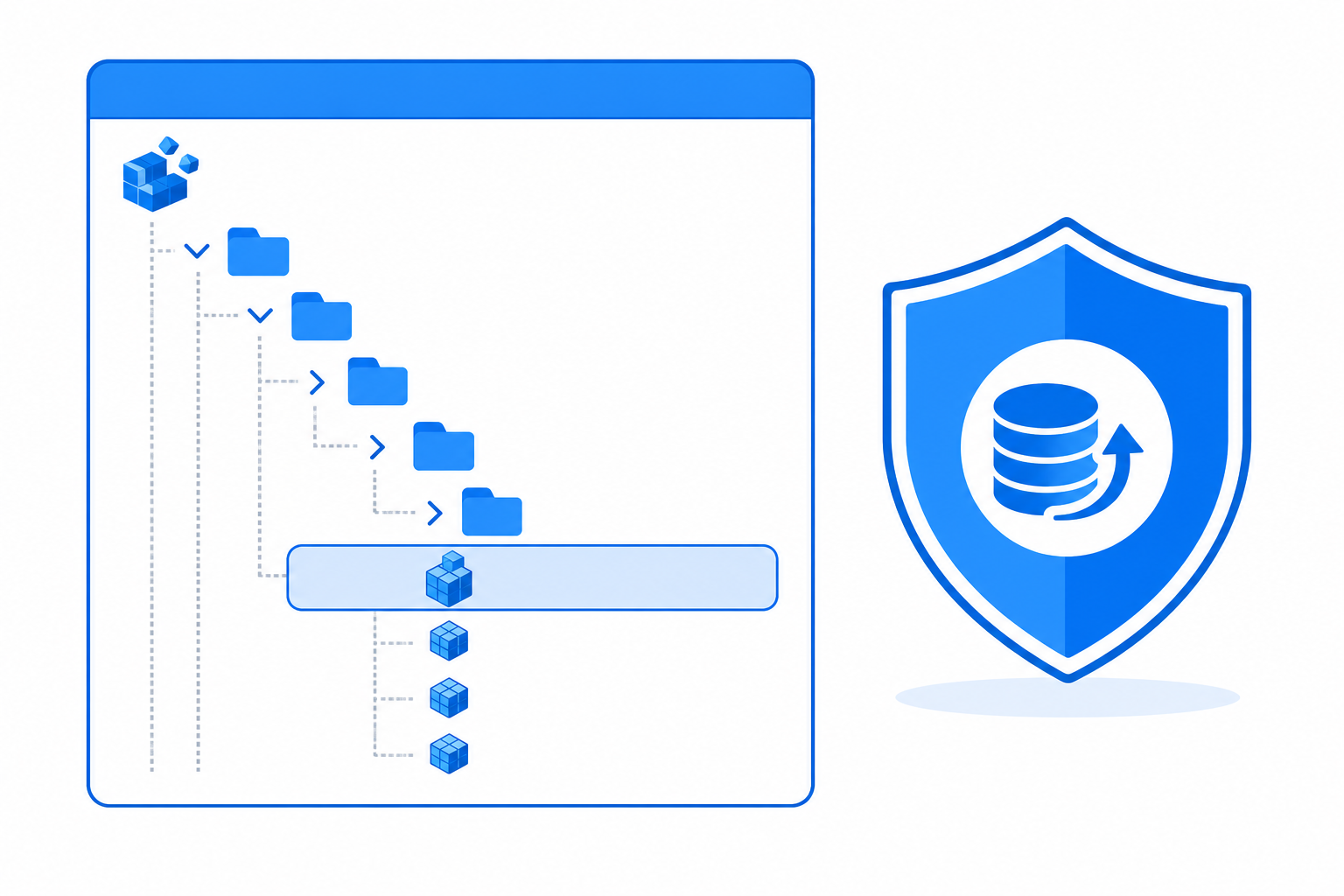
Press Windows key, type regedit, and run it as administrator. Once open, navigate to the Office key for your user profile, right-click it, choose Export, and save the .reg file somewhere memorable. This single file is your entire rollback plan, so do not skip it.
Locate the Office Common Registry Key
Office 2024, like every version built on the Office 16.0 engine, stores its shared user-interface settings under HKEY_CURRENT_USER\Software\Microsoft\Office\16.0\Common. This is the general area where Office keeps feature toggles that apply across Word, Excel, Outlook, and the rest of the suite, and it is the key most community fixes for the office 2024 upgrade prompt point to.
Add the Value That Hides the Button
Inside the Common key, create a new DWORD (32-bit) Value if one is not already named for the upgrade button feature flag, and set it to 1 to suppress the prompt. Close Registry Editor, then restart any Office application to confirm the change took effect. Because the exact value name shared across community threads has varied slightly between Office builds, confirm the name against the specific guide or thread you are following before creating it, rather than guessing.
Confirm the Upgrade Your Plan Button Is Gone
Open Word or Excel and check the title bar. If the button is gone and the app otherwise behaves normally, including correct activation status under File > Account, the fix worked. If the button is still visible, double-check you edited the per-user hive and not a system-wide one, and that you restarted the app rather than just closing a document window.
Rollback: Restoring the Office 2024 Upgrade Prompt
Reversing the change is just as simple as applying it, which is one reason this fix is considered low-risk. You have two options:
- Delete the DWORD value you created, under Software\Microsoft\Office\16.0\Common, then restart Office apps.
- Double-click the .reg backup file you exported earlier to restore the entire key to its original state in one step.
Either method brings the upgrade prompt for Office 2024 back exactly as it was. If you used a system restore point instead of or alongside a registry export, rolling back Windows to that point will also undo the change, though that is a heavier option than simply deleting one value.
Troubleshooting: What to Do If the Fix Doesn’t Work
Most failures come down to one of a handful of causes. Work through these before assuming the method does not apply to your installation:
- Wrong hive: Confirm you edited HKEY_CURRENT_USER, not HKEY_LOCAL_MACHINE, unless your specific guide explicitly calls for the machine hive.
- Office apps still running: Background processes like Click-to-Run can keep cached UI settings loaded; fully quit Office via Task Manager and reopen.
- A recent Office update reset the value: Some updates rewrite Common key settings during patching, which means the fix may need to be reapplied periodically.
- Wrong Office version number: All currently supported Office desktop releases use the 16.0 registry branch, but confirm you are not accidentally editing a leftover key from an older uninstalled version.
If none of that resolves it, the safest next step is restoring your registry backup and leaving the button in place rather than continuing to guess at value names.
A More Permanent Alternative to Registry Tweaks for the Office 2024 Upgrade Prompt
If the upsell messaging bothers you enough that you’d rather avoid it at the source, moving to a genuine, one-time-activation release is a cleaner long-term fix than reapplying a registry tweak after every update. Office 2024 Pro Plus for Windows is a perpetual, one-time activation license with no recurring subscription, and the LTSC build in particular is designed for stability with only essential security updates rather than frequent feature churn, which also means fewer opportunities for an update to silently reintroduce promotional UI. Our Office 2024 Pro Plus installation and activation guide walks through setup end to end if you are starting from scratch or reinstalling after a system change.
Frequently Asked Questions
How do I remove the Office 2024 upgrade prompt from the title bar?
Back up the relevant registry key, then add a DWORD value under HKEY_CURRENT_USER\Software\Microsoft\Office\16.0\Common and restart your Office apps. The change is per-user, reversible, and does not affect your activation.
Will this registry fix affect my Office 2024 license or activation?
No. The fix only changes a user-interface feature flag; it does not touch your product key, activation server communication, or licensing files. You can confirm this by checking File > Account after applying the change.
How can I roll back the fix if Office updates break it?
Delete the DWORD value you added, or double-click the .reg backup file you exported before making the change. Both restore the original behavior immediately after restarting Office.
Does the fix work on Office LTSC as well as retail perpetual installs?
The Office 16.0 Common registry branch is shared across retail, volume-licensed, and LTSC builds of Office 2024, so the same general location applies, though you should always verify the exact value name against a current, specific source before applying it.
Why does Office 2024 show an Upgrade your plan button at all?
The button is a shared cloud-services promotional element that appears regardless of license type, aimed at nudging perpetual users toward a Microsoft 365 subscription. It is a UI feature, not a reflection of your license being invalid or expiring.
Is there a safer way to stop the Office 2024 upgrade notification without editing the registry?
Beyond the registry method, the only guaranteed long-term route is choosing a build and license designed to minimize UI changes between updates, since any registry-level fix can be overwritten by a future patch. There is no officially published Microsoft setting to permanently disable the button at the time of writing.
