
You can check exactly what has Gmail access by opening your Google Account’s security settings and reviewing the “Third-party apps & services” list — any app you no longer recognize or use should be removed immediately. A recent MakeUseOf investigation highlighted just how easy it is to forget you granted an app this level of access, sometimes years after you last used it, and how much damage a forgotten connection can quietly cause.
Most people connect a new app to their Google account without thinking twice — signing into a shopping site, linking a scheduling tool, or trying a productivity extension. Each of those connections can carry permissions that let the app read, send, or delete emails on your behalf. Over months or years, that list grows, and few people ever go back to prune it. This guide walks through exactly how to audit your Gmail access permissions, understand what each permission level actually means, and lock down your account before a forgotten app becomes a real problem.
Why Gmail Access Permissions Matter More Than Most Users Realize
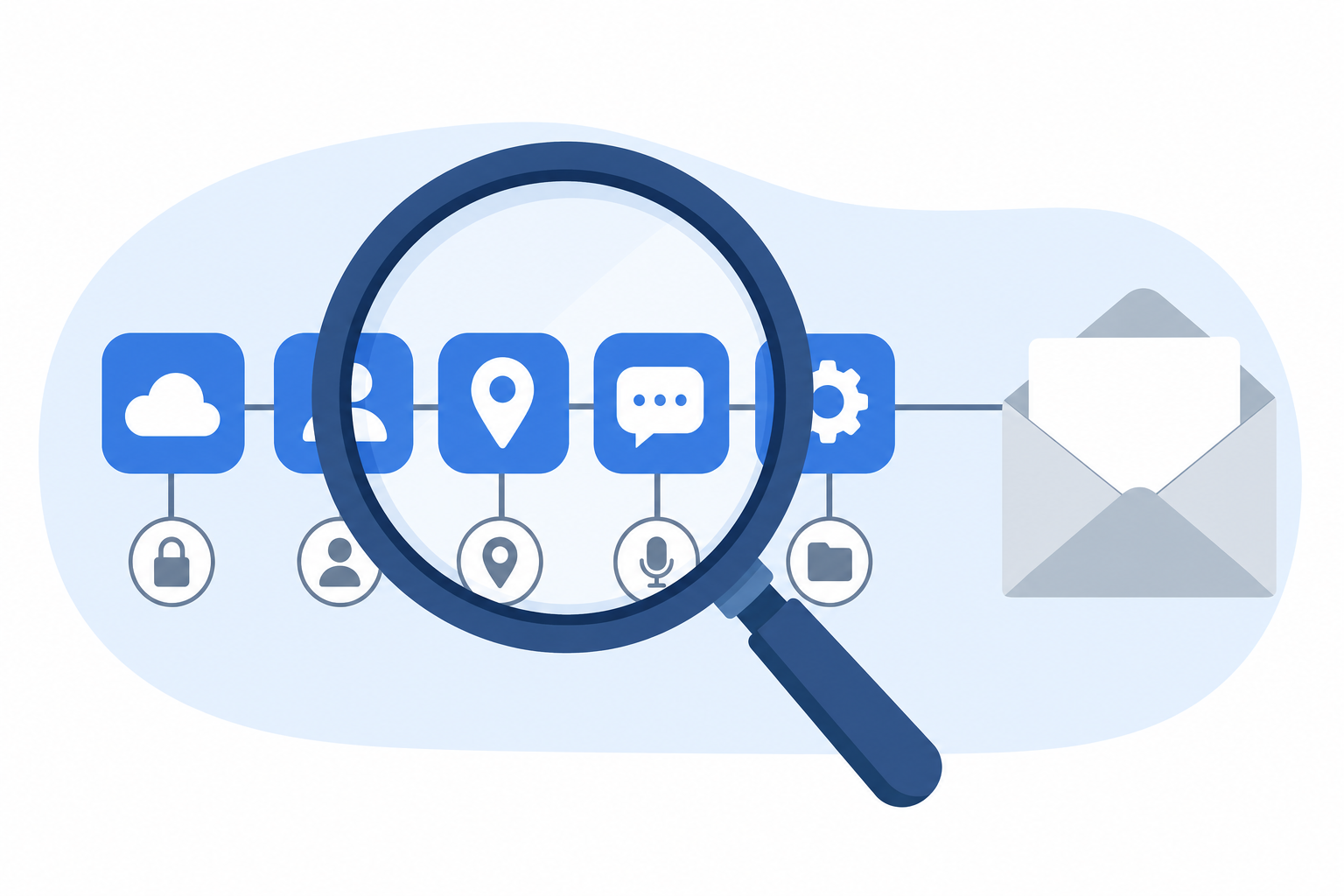
Gmail access permissions determine how much of your inbox a third-party app can see, use, or modify — and many apps request far more than they need. When you sign in to a website or app using “Continue with Google,” you’re not just confirming your identity; you’re often granting a standing connection that persists until you manually revoke it.
The risk isn’t hypothetical. Apps get sold, abandoned, or hacked. A scheduling tool that once needed read-only calendar access might get acquired by a company with weaker security practices, and your Gmail access grant carries over silently. If that company suffers a breach, whoever attackers get hold of the token that connects to your inbox — no password required.
The Difference Between Sign-In and Full Access
Not every Google sign-in is equal. Some apps only use your Google account to verify who you are — a basic profile check. Others request scopes that let them:
- Read, compose, send, and permanently delete emails
- View and manage your Google Contacts
- Access Google Drive files and folders
- See your Google Calendar events and details
- Manage your Gmail settings and filters
Google labels these permission levels clearly when an app requests them, but most users click “Allow” quickly without reading the fine print — which is exactly how unwanted Gmail access accumulates over time.
How to Check Which Apps Currently Have Gmail Access
You can see every app connected to your account in under two minutes through Google’s own security dashboard. This is the single most important step in the audit, and it takes almost no technical skill.
Step-by-Step: Reviewing Connected Apps
- Go to your Google Account and open the Security tab.
- Scroll to “Your connections to third-party apps & services” (sometimes labeled “Third-party apps with account access”).
- Click on it to see the full list of every app or service that currently has some level of Gmail access.
- Select any app to view exactly what data it can reach — email, contacts, calendar, Drive, and so on.
- If you don’t recognize the app, haven’t used it in over a year, or it requests more access than it should need, click Remove Access.
Google’s own support documentation walks through this same process and explains what each permission scope actually allows an app to do — it’s worth reading once so you know what you’re looking at when you review your own list.
What to Look For in the List
Pay close attention to a few red flags while reviewing:
- Apps you don’t remember installing or signing up for
- Browser extensions with broad Gmail access instead of limited scopes
- Old employer or school-related apps still connected after you left
- Apps requesting “full account access” when they only need to verify your email
- Duplicate entries for the same service, which can indicate re-authorization after a data reset
Removing an app’s Gmail access doesn’t delete your account with that service — it simply cuts the connection. If you use the app again later, you’ll be prompted to reconnect and can decide fresh whether to grant access.
Running a Full Gmail Access Security Checkup
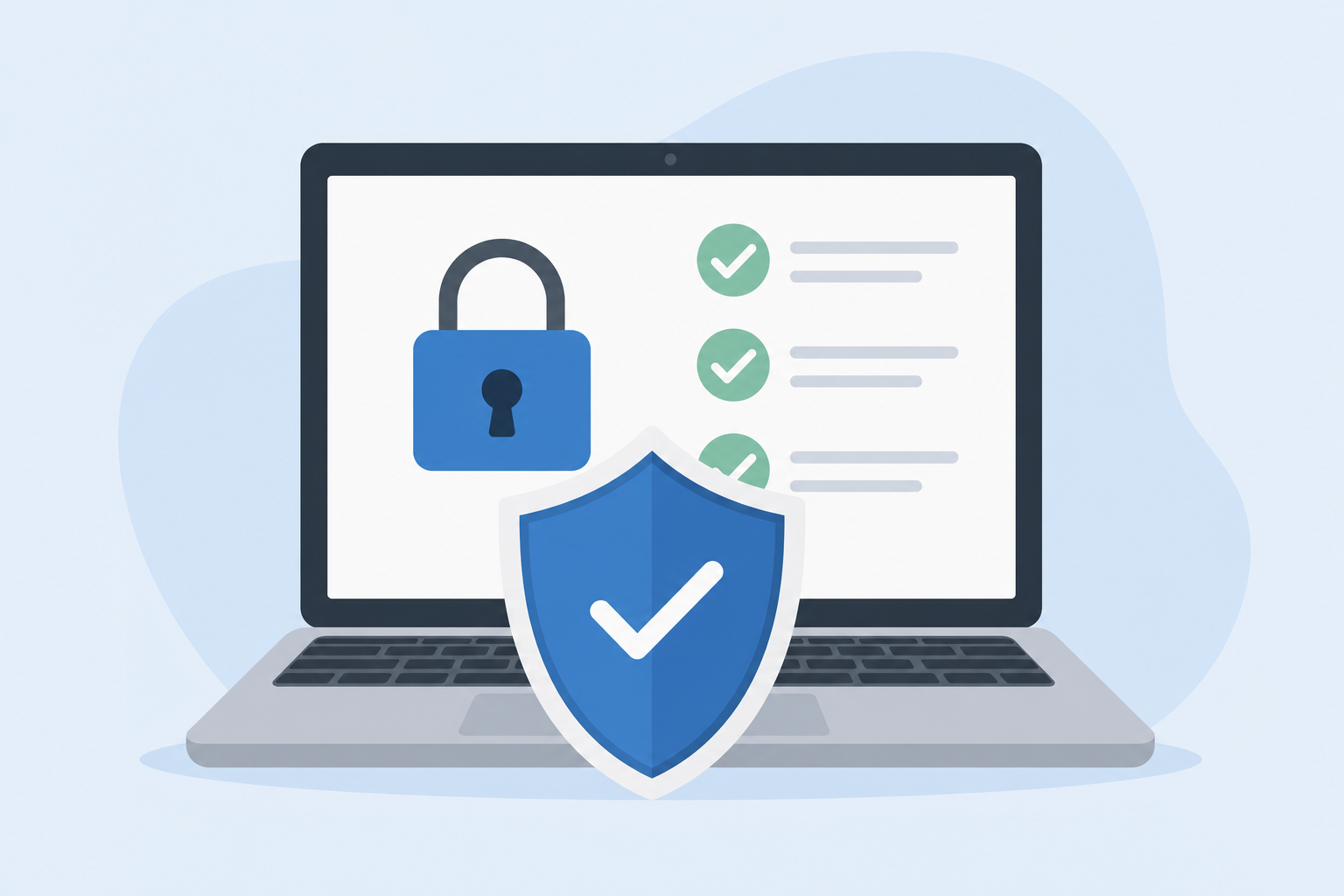
Beyond the connected apps list, Google’s Security Checkup tool gives you a broader view of everything tied to your account’s access and login activity. It groups recent security events, signed-in devices, recovery options, and third-party permissions into one dashboard so you can review everything in a single pass rather than hunting through separate settings pages.
Devices and Sessions
Check the list of devices currently signed in to your account. If you see a device or location you don’t recognize, sign it out immediately and change your password. A session you don’t recognize is often the first visible sign that someone else has gained Gmail access without your knowledge.
App Passwords
If you’ve ever set up an older app that doesn’t support modern sign-in (some desktop mail clients or printers, for example), you may have generated an app password. These bypass two-factor authentication entirely, so any app password you don’t recognize or no longer use should be revoked right away.
Strengthening Gmail Access Security Going Forward
A one-time cleanup helps, but ongoing habits keep your Gmail access under control long term. Treat this like a recurring maintenance task rather than a one-off fix.
Practical Habits That Reduce Risk
- Review connected apps every three to six months, not just after a scare
- Use “Sign in with Google” only for services you trust and plan to keep using
- Turn on two-step verification so a stolen password alone isn’t enough to gain access
- Read permission requests before clicking Allow — look at exactly what data is being requested
- Remove access for any app immediately after you stop using it, rather than waiting
Two-step verification in particular closes one of the most common paths attackers use. Even if a password leaks in a data breach elsewhere, a second verification step keeps your Gmail access protected unless the attacker also has your phone or authenticator app.
Keep Your Devices Clean Too
Account-level permissions are only part of the picture. A compromised or malware-infected device can leak session cookies or credentials regardless of how carefully you manage app permissions. Running a reliable, up-to-date antivirus solution such as Avast Pro Antivirus or McAfee AntiVirus adds another layer of protection against the malware and phishing attempts that often lead to unauthorized Gmail access in the first place.
What to Do If You Find Unauthorized Gmail Access
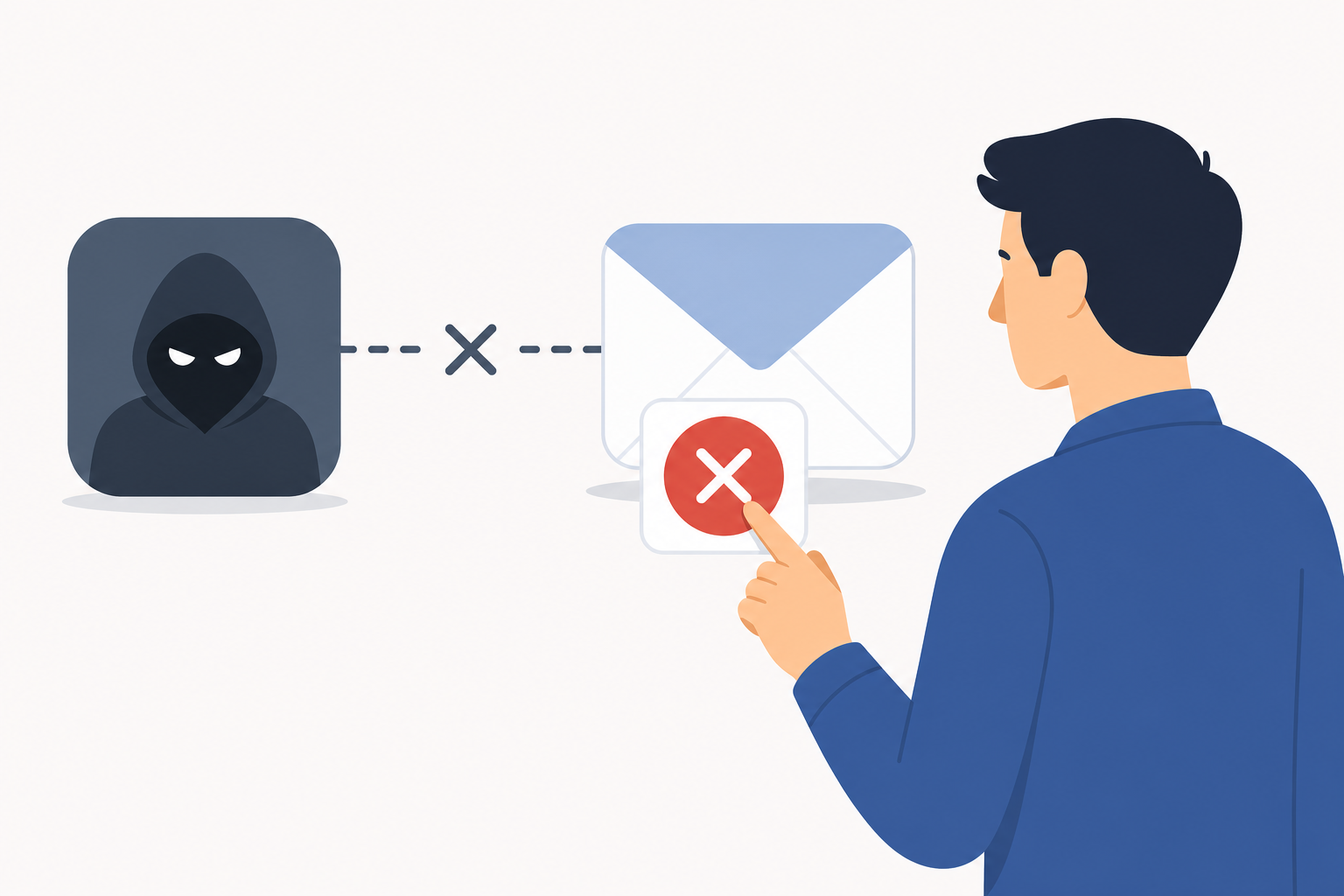
If you discover an app or device with access you didn’t grant, act in this order: revoke the access, change your password, and check your recent account activity for anything unusual. Don’t skip any of these three steps even if the removal seems to have solved the immediate problem.
- Remove the suspicious app or session from your account immediately.
- Change your Google account password to something you haven’t used elsewhere.
- Review your Gmail filters and forwarding rules — attackers sometimes set up silent auto-forwarding to keep reading your mail even after losing direct access.
- Check your recovery email and phone number to confirm they haven’t been changed.
- Enable two-step verification if it isn’t already active.
Gmail’s own filter and forwarding settings are worth checking specifically, since a hidden forwarding rule is one of the sneakiest ways someone can maintain Gmail access long after you think you’ve locked them out. If you’ve had ongoing issues with legitimate mail also getting mis-filtered, it’s worth a broader look at your Gmail spam filter settings at the same time, since filter rules and forwarding often get tangled together during an account compromise.
FAQ
How do I check who has Gmail access to my account?
Open your Google Account, go to the Security tab, and look for “Third-party apps & services.” This shows every app currently connected to your account along with the specific permissions each one holds, including whether it can read or send email.
How to download a list of my connected apps?
Google doesn’t offer a direct export button for this list, but you can screenshot the Security Checkup page or manually note each app and its permission level for your own records before making changes.
How to install stronger protection against unauthorized Gmail access?
Turn on two-step verification in your Google Account settings, and consider installing a reputable antivirus program on the devices you use to sign in, since malware is a common way credentials get stolen in the first place.
How to activate two-step verification for Gmail?
In your Google Account, go to Security, then “2-Step Verification,” and follow the prompts to link a phone number or authenticator app. Once active, signing in from a new device requires both your password and the second verification step.
How do I remove an app I no longer recognize?
Select the app from your third-party access list and click “Remove Access.” This immediately revokes its connection; if it’s a legitimate app you use rarely, you can always reconnect and re-approve it later.
Can removing app access delete my data?
No. Revoking Gmail access only cuts the connection between the app and your Google account. It does not delete your emails, files, or any data already stored within the third-party app itself.
How often should I review Gmail access permissions?
A check every three to six months is a reasonable habit for most users, with an immediate review any time you notice unusual account activity, receive a security alert, or hear about a data breach affecting an app you’ve used.
