
If your games have started freezing, crashing to desktop, or triggering full system reboots since mid-August 2026, the cause is very likely KB5121003, a Windows 11 security update that Microsoft has now confirmed is conflicting with a driver used by a wide range of RGB lighting and peripheral software. This guide explains exactly what’s going wrong, what Microsoft has done about it, and how to fix or roll back the update safely on your own PC.
What Is KB5121003 and Why Is It Breaking Games?
KB5121003 is a cumulative security update released for Windows 11 (OS Builds 26200.9168 and related builds) covering versions 24H2 and 25H2. It shipped with the usual batch of security fixes, but it also introduced a conflict with inpoutx64.sys, a low-level driver bundled inside many RGB lighting utilities, fan-control tools, and macro software from brands like Corsair, Razer, and others.
When Windows loads this driver alongside the new security changes in KB5121003, the result on affected machines is:
- Games freezing mid-session with no error message
- Crashes to desktop with an
EXCEPTION_ACCESS_VIOLATIONerror - Full, unexpected system reboots during gameplay
- Occasional blue screens (BSOD) tied to the same driver conflict
Titles including The Finals, ARC Raiders, and several other live-service games have been named specifically by players and by the game studios themselves as being affected, though the underlying issue isn’t tied to any single game — it’s a system-level driver problem that surfaces most often under sustained GPU and CPU load, which is exactly what games produce.
Is KB5121003 the Confirmed Cause?
Yes. Microsoft’s own release health documentation for this update lists “reports of certain games becoming unresponsive” as a known issue directly tied to KB5121003, describing the symptom as an inability to interact with some games after the update installs. This is not speculation from forums — it’s an acknowledged, documented issue on Microsoft’s support pages.
The practical detail worth understanding is that KB5121003 doesn’t damage the driver itself. Instead, changes introduced by the update expose an existing compatibility problem with software many gamers already had installed, often without realizing a low-level kernel driver was running in the background the whole time.
Which Software Ships the Problem Driver?
The inpoutx64.sys driver is not unique to one product. It’s a generic component reused across dozens of consumer applications for direct hardware I/O access, most commonly:
- RGB lighting control suites for keyboards, mice, and case fans
- Fan-curve and motherboard utility software
- Some overclocking and hardware-monitoring tools
- Certain older peripheral macro managers
If you have any RGB software running at startup, it’s worth checking whether it uses this driver before you assume your GPU or game files are at fault.
Microsoft’s Official Fix for KB5121003
Microsoft’s temporary answer to the KB5121003 problem is a targeted compatibility block rather than a full patch. According to Microsoft’s release health notes, the fix works by preventing the affected inpoutx64 driver from loading on devices where it’s detected, rather than removing or replacing the update itself. This block rolls out automatically through Windows Update and does not require you to uninstall the security update.
In practice this means:
- You keep all the security protections KB5121003 delivers
- The specific driver behavior causing crashes gets disabled
- RGB lighting or fan-control features tied to that driver may temporarily stop working until the vendor ships an updated driver
If your RGB software or lighting profiles stop functioning after this fix applies, that’s expected — it’s the trade-off for stability, and you should watch for a vendor update to your lighting software rather than trying to force the old driver back on.
How Long Until a Permanent Fix?
Microsoft has not published a specific timeline for a permanent driver-level resolution beyond the automatic block. Hardware vendors whose software bundles inpoutx64.sys are expected to release updated versions of their own tools, so keeping your RGB and utility software current is worth doing alongside any Windows-side fix.
How to Check if the KB5121003 Fix Has Applied to Your PC
Start by confirming which update your PC is actually running, since the compatibility block ships as a background change rather than a new visible patch number.
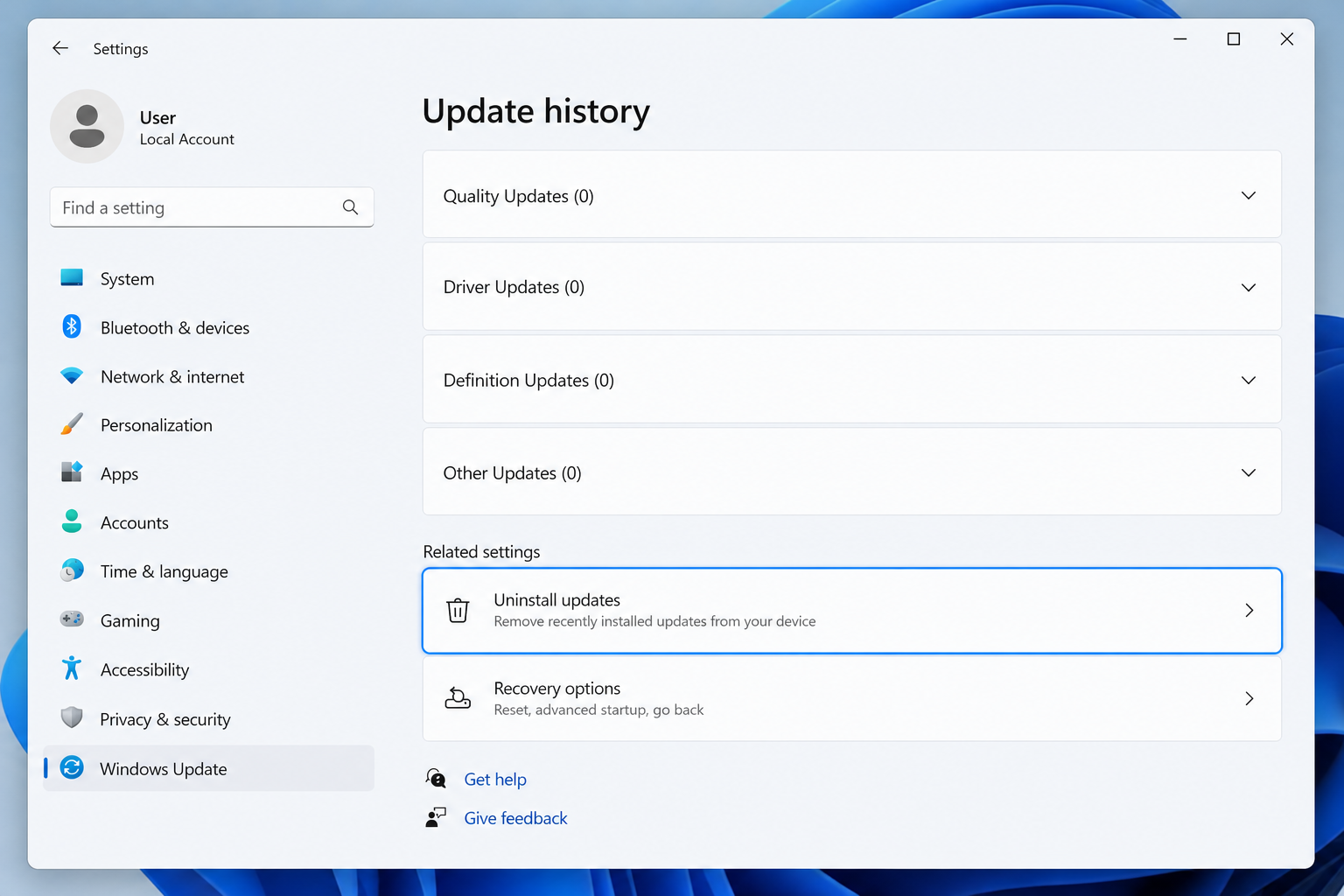
- Open Settings > Windows Update > Update history
- Confirm KB5121003 is listed as installed
- Check whether your RGB software or lighting profiles have stopped responding — this is a sign the block has taken effect
- Restart your PC fully (not sleep/hibernate) so the block can take effect if it hasn’t already
If games are still crashing after confirming the block should be active, the driver conflict may not be the only cause on your system — worn GPU drivers, an unstable overclock, or unrelated background software can produce similar symptoms.
How to Roll Back KB5121003 Safely
If you need gaming stability back immediately and can’t wait for the automatic compatibility block or a vendor driver update, uninstalling KB5121003 is a safe, reversible option — Windows Update lets you remove individual cumulative updates without a full system reset.
- Go to Settings > Windows Update > Update history
- Scroll down and select Uninstall updates
- Find KB5121003 in the list
- Click Uninstall and restart when prompted
After rolling back, pause updates for a few days from Settings > Windows Update > Pause updates so Windows doesn’t immediately reinstall the same patch overnight. This buys time until Microsoft or your hardware vendor ships a fix you’re confident won’t reintroduce the same crash.
Keep in mind that rolling back a security update does temporarily reduce your protection against whatever vulnerabilities KB5121003 patched, so this should be a short-term workaround, not a permanent setting.
Alternative: Disable the Driver Instead of Uninstalling
Rather than removing the whole update, some users have had success disabling the specific driver service through the registry, which avoids losing the security fixes in KB5121003 entirely. This is a more advanced step and carries more risk if done incorrectly, so it’s best attempted only if you’re comfortable editing the registry and have created a restore point first.
Preventing Future Windows Update Problems
KB5121003 is a reminder that even routine security patches can interact badly with everyday hardware software most people never think about. A few habits reduce how much these updates disrupt your system:
- Create a system restore point before installing any major cumulative update
- Keep peripheral and RGB software updated, not just Windows itself
- Check Microsoft’s release health page for your Windows build before troubleshooting blind
- Avoid installing brand-new patches on a production or work machine the same day they release — wait a few days when possible
If you’re setting up a new PC or reinstalling Windows entirely to get a clean slate after update problems, using a genuine, properly licensed copy of Windows 11 Pro Retail ensures you’re starting from an activated, fully supported installation rather than troubleshooting on top of an already-compromised system. For home users who don’t need Pro-specific features, a Windows 11 Home license covers the essentials at a lower cost.
For more background on how Windows Update problems like this one get introduced and resolved, Microsoft’s own release health documentation is the most reliable source, and it’s worth bookmarking if you manage multiple machines: Microsoft’s KB5121003 update page.
Frequently Asked Questions About KB5121003
What exactly does KB5121003 fix or change?
KB5121003 is a Windows 11 cumulative security update covering builds 26200.9168 and related versions for 24H2 and 25H2. It addresses several security vulnerabilities but has also introduced a compatibility conflict with the inpoutx64.sys driver used in RGB and peripheral software, which is the cause of the game crashes reported since its release.
Should I uninstall KB5121003 if my games keep crashing?
If Microsoft’s automatic compatibility block hasn’t resolved your crashes and you need immediate stability, uninstalling KB5121003 through Windows Update is a safe, reversible fix. Just remember to pause updates afterward so the patch doesn’t silently reinstall before a permanent fix is available.
How do I download and check my current Windows 11 build?
Open Settings > System > About to see your current OS build number, or check Settings > Windows Update > Update history to confirm whether KB5121003 has been installed on your device.
How to install a clean version of Windows 11 without update conflicts?
Download the official Windows 11 media creation tool or ISO from Microsoft, then activate using a genuine license key. Doing a clean install rather than an in-place upgrade avoids carrying over conflicting drivers or legacy software that can trigger issues like the one KB5121003 caused.
How to activate Windows 11 after a rollback or reinstall?
Go to Settings > System > Activation, enter your license key, and follow the on-screen prompts. If you’re reinstalling from scratch, a valid retail or OEM key will reactivate automatically once you’re connected to the internet.
Will disabling RGB software permanently fix the crashes?
Disabling or updating the RGB software that uses inpoutx64.sys resolves the immediate crash trigger, but it’s a workaround rather than Microsoft’s permanent fix. The lasting solution depends on hardware vendors updating their driver code to be compatible with the security changes introduced in KB5121003.
Is KB5121003 affecting Windows 10 as well?
Reports and Microsoft’s own documentation tie this issue specifically to Windows 11 builds. If you’re running Windows 10, the same driver conflict hasn’t been documented in the same way, though it’s always worth checking your specific update history if you experience similar symptoms.
