
If your Gmail storage is full, the fastest fix is to find your biggest space hogs first — usually large attachments, forgotten Drive files, or years of unread promotional email — and delete or archive those before you touch anything important. You don’t need to buy more space right away, and you definitely don’t need to mass-delete your inbox to fix it.
Gmail, Google Drive, and Google Photos all share one storage pool tied to your Google Account. That means a stack of old vacation photos in Photos, a folder of video files in Drive, or a decade of email attachments in Gmail can all quietly push you toward the same limit. The good news is that most people can recover several gigabytes without deleting a single conversation that actually matters — it just takes a bit of targeted searching instead of scrolling.
Why Is My Gmail Storage Full?
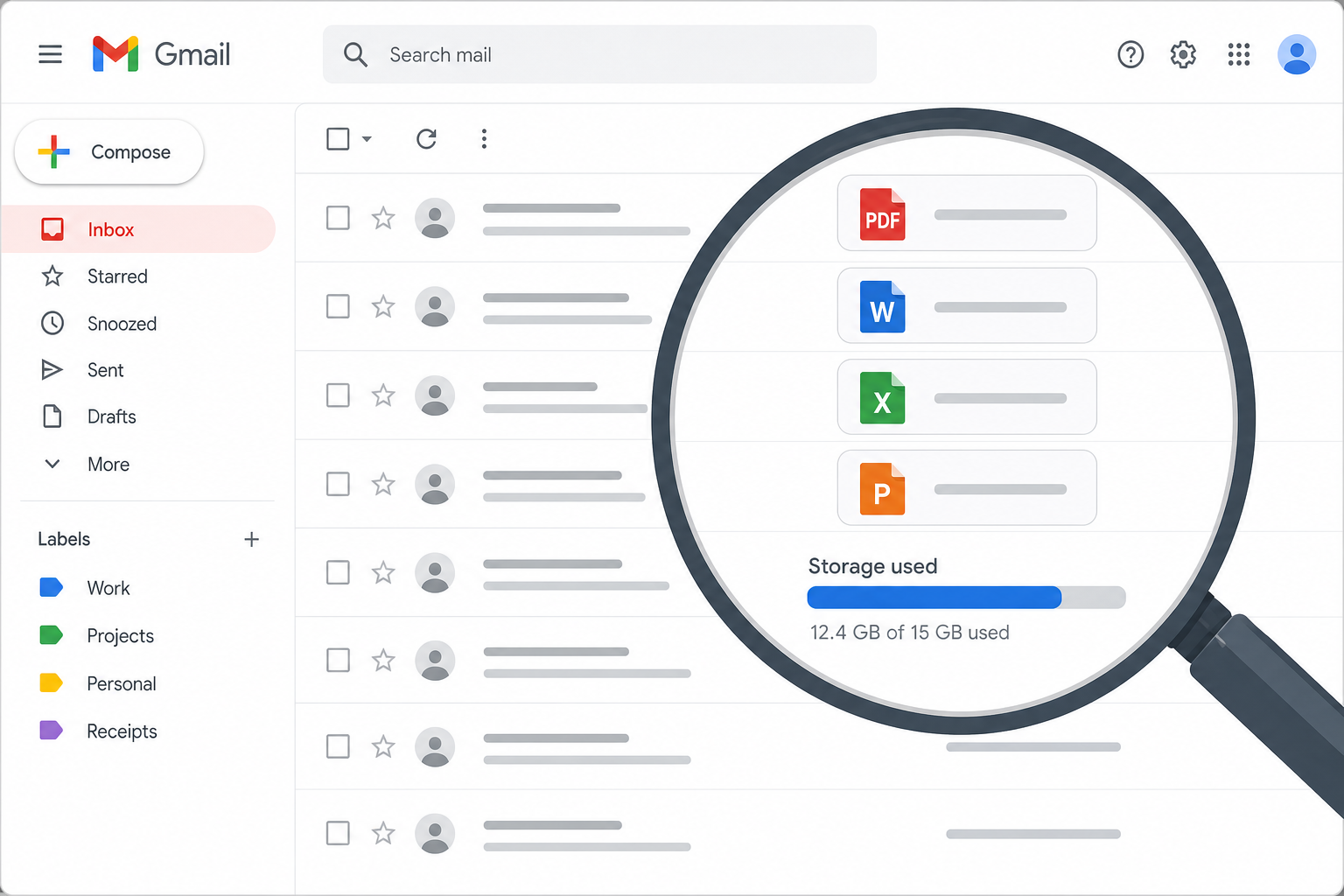
Your Gmail storage fills up because Google gives every free account a single shared pool — typically up to 15 GB — split across Gmail, Drive, and Photos combined, not 15 GB for each service separately. That single detail catches a lot of people off guard, because they assume Gmail itself is the problem when it’s often old Drive files or synced photos doing the damage.
Common culprits include:
- Large email attachments (PDFs, videos, zip files) that were never downloaded and deleted from the message
- A cluttered Drive full of duplicate documents, old project files, or downloaded install files
- Google Photos backups set to “Original quality,” which counts fully against your storage
- Years of newsletters, receipts, and promotional email sitting untouched
- Chat and Meet recordings saved automatically to Drive
How to Check What’s Using Your Gmail Storage
Google gives you a direct breakdown of storage by service, so you don’t have to guess. Go to the Google One storage manager to see exactly how much space Gmail, Drive, and Photos are each using, along with a list of your largest individual files. This is the single most useful step before you start deleting anything — it tells you where the real problem lives instead of leaving you guessing.
Finding What’s Really Eating Your Gmail Storage
The quickest way to reclaim gmail storage is to search for your largest messages directly, rather than scrolling through your inbox by date. Gmail’s search operators let you filter by attachment size, sender, and age all at once, so you can target the worst offenders in a couple of clicks.
Use Search Operators to Find Large Emails
Type these directly into the Gmail search bar:
has:attachment larger:10M— finds every email with an attachment over 10 MBsize:25000000— finds messages larger than roughly 25 MBolder_than:2y has:attachment— surfaces old attachments you probably forgot aboutfrom:noreplycombined witholder_than:1y— clears out automated notifications and newsletters
Sort the results by size, open a handful to confirm you don’t need them, then delete or archive. Because Gmail’s trash empties automatically, anything you delete is only truly gone after it clears the bin — so this is a safe way to test before committing.
Clean Up Google Chat and Old Conversations
Old Google Chat history and Hangouts conversations can also count against your shared storage, especially if they include shared files or images. Reviewing chat storage separately in the Google One dashboard shows you if this is a meaningful chunk of your usage, which is common for anyone who used Hangouts heavily before it was folded into Chat.
Clearing Drive and Photos Without Touching Gmail
Since Gmail storage is shared with Drive and Photos, cleaning those two often frees up more space than deleting email ever will. Start with Drive’s built-in storage view, which sorts your files from largest to smallest — a single forgotten video export or ISO file can easily be worth more than hundreds of old emails combined.
Drive Cleanup Checklist
- Sort Drive by storage used (not by date) to spot the biggest files first
- Empty the Drive trash — deleted files still count until the trash is cleared
- Remove duplicate copies of the same document or backup
- Check “Shared with me” for large files you don’t actually need stored in your own account
Photos Cleanup
If you back up photos and videos at “Original quality,” they count fully against your storage, unlike the older free “Storage saver” compression option Google previously offered. Reviewing and removing blurry duplicates, screenshots, and old burst shots in Google Photos can free up a surprising amount of space without losing anything you’d actually miss.
Google One Upgrade vs. Manual Gmail Storage Cleanup
The right call depends on how close you are to the limit and how often you expect to need more space going forward — cleanup is free and often enough for occasional overflow, while a Google One upgrade makes more sense if you’re regularly hitting the ceiling. If a quick search turns up a handful of large files you don’t need, cleanup alone will usually buy you months or years of headroom.
When Manual Cleanup Is Enough
If you’ve never done a proper cleanup, there’s a good chance you’re sitting on several gigabytes of deletable attachments and duplicate Drive files. For most everyday users, a one-time cleanup session resolves the “storage full” warning completely, especially if you also unsubscribe from newsletters and clean out your Promotions tab, which tends to accumulate large images and attachments over time.
When a Google One Upgrade Makes Sense
If you actively use Drive for work files, back up a phone full of photos and videos, or share storage with family members, an upgrade is often the more practical long-term fix. Google’s own plans currently start at 100 GB on the entry-level Basic tier, with higher tiers offering 200 GB and beyond, shared across your entire Google Account. It’s worth checking current Google One pricing directly, since these tiers and rates do change from time to time.
A Middle Ground: Clean Up First, Then Decide
Doing a cleanup pass before upgrading almost always makes the decision easier, because you’ll actually know your real usage pattern instead of guessing. If you clean out several gigabytes and you’re still near the limit within a few months, that’s a much clearer signal that an upgrade — not another cleanup session — is the right move.
Protecting Your Email Setup While You Clean Up
Whether you stick with the free tier or upgrade, it’s worth having a properly licensed, well-maintained productivity setup around your inbox so email cleanup doesn’t turn into a bigger workflow headache. If you also rely on desktop apps like Outlook or Word alongside Gmail, keeping that software licensed and current avoids compatibility issues when you’re managing large attachments or exporting files from Drive. Browse Microsoft Office licenses if you need a genuine, activatable copy for your desktop alongside your Gmail account.
Avoiding Future Gmail Storage Problems
Preventing gmail storage issues from recurring is mostly about a few small habits, not a one-time fix. Building these into your routine keeps your account well below the limit long-term:
- Unsubscribe from newsletters and promotional senders you don’t read
- Set Google Photos backup to a lower quality setting if originals aren’t essential
- Empty Gmail and Drive trash regularly instead of letting it sit
- Review large attachments every few months using the same search operators above
- Download and remove large files from Drive once a project is finished
Gmail’s spam and filtering behavior can also affect how much clutter piles up in your inbox over time. If you’ve noticed legitimate messages landing in the wrong folder or spam building up faster than usual, our guide on fixing Gmail spam filter issues covers the whitelist and filter fixes worth checking.
FAQ
How do I check how much Gmail storage I’m using?
Open the Google One storage manager while signed into your Google Account to see a breakdown of space used across Gmail, Drive, and Photos. This view also lists your largest files, making it easy to spot what to delete first.
How do I download large attachments before deleting them?
Open the email, click the download icon on the attachment, and save it to your computer or an external drive. Once you’ve confirmed the file saved correctly, you can safely delete the original email to reclaim space.
How do I install a Gmail storage cleanup routine that sticks?
There’s nothing to install — cleanup is done entirely within Gmail, Drive, and Photos using search filters and the storage manager. The key is scheduling a recurring reminder every few months rather than waiting until you get a storage-full warning.
How do I activate more storage through Google One?
Visit the Google One plans page, choose a tier, and complete the upgrade through your Google Account billing settings. The additional storage activates immediately and applies across Gmail, Drive, and Photos without any migration needed.
Will deleting old emails affect my Gmail storage immediately?
Deleted emails move to Trash first and are permanently removed after the retention period, which is when the space is actually freed. Emptying the Trash folder manually speeds this up if you need the space back right away.
Does Google Chat count against my Gmail storage?
Yes, Google Chat conversations and any files or images shared within them count against your shared Google Account storage. Reviewing chat history in the Google One storage manager will show if this is a significant portion of your usage.
