
Windows 11 recovery without USB is now possible thanks to a built-in feature called Quick Machine Recovery, which lets a PC that won’t boot connect to Windows Update and fix itself automatically. No bootable flash drive, no installation media, and no manual troubleshooting steps are required for the PC to get back online.
For years, the only reliable way to rescue a Windows PC stuck in a boot loop was to create a bootable USB drive on a working computer, plug it into the broken one, and run Startup Repair or a clean reinstall from there. That workflow still exists, but it’s no longer the only option. Microsoft has built a self-healing path directly into Windows 11 itself, and it’s designed to work even when the operating system can’t start normally.
What Windows 11 Recovery Without USB Actually Means
In practice, it means the Windows Recovery Environment (WinRE) can now reach out to Windows Update over an internet connection and pull down a fix, instead of relying on a technician or a USB installer. This capability is called Quick Machine Recovery (QMR), and it’s part of Microsoft’s broader Windows Resiliency Initiative, a set of tools aimed at reducing downtime after widespread boot failures.
The feature is most useful in two scenarios: a bad driver or update that sends a fleet of machines into a boot loop, or a single home PC that suddenly refuses to start after a failed update. In both cases, QMR tries to identify what’s broken and apply a remediation automatically, rather than leaving the user to guess.
How Windows 11 Recovery Without USB Works, Step by Step
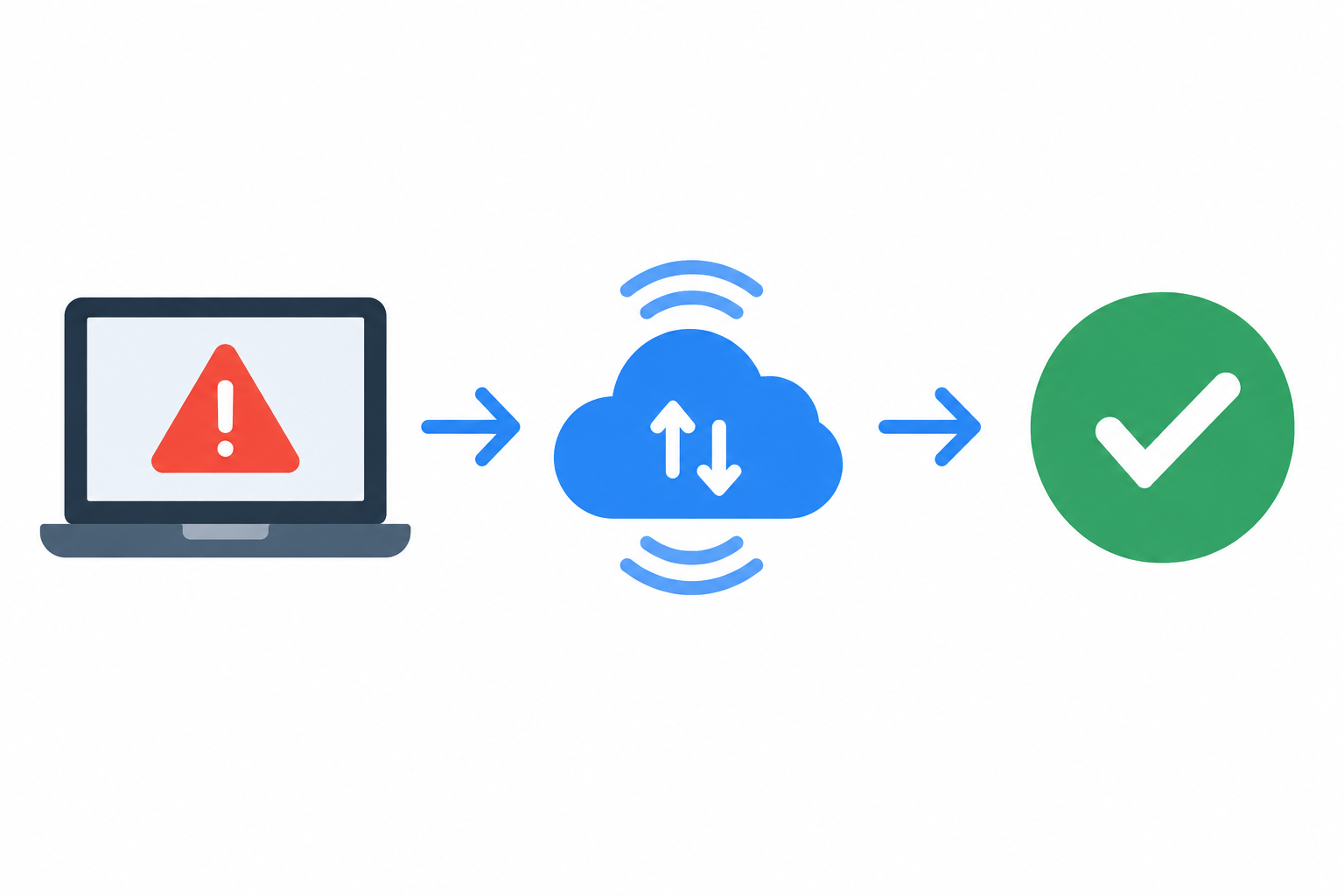
The process runs almost entirely in the background once a PC fails to boot several times in a row. Here’s what happens, in order.
Step 1: Windows Detects It Can’t Boot
After repeated failed boot attempts, Windows automatically drops into the Windows Recovery Environment, the same diagnostic layer that’s always powered Startup Repair. From here, WinRE checks whether an internet connection is available, either through Ethernet or a saved Wi-Fi network.
Step 2: Your PC Connects to Windows Update for a Fix
If a connection is found, the device reaches out to Microsoft’s servers and reports basic diagnostic data about the failure. Microsoft then checks whether a known remediation already exists for that specific pattern of crash, since widespread issues are often traced back to a single faulty driver or update package.
Step 3: The Remediation Installs and Your PC Restarts
If a fix is available, it’s downloaded and applied directly through WinRE, without ever loading the full desktop. The PC then restarts and attempts to boot normally. If no known fix exists yet, Windows falls back to the older recovery options, including Startup Repair or System Restore, so the user isn’t left stuck either way.
- No bootable USB drive or installation media is required at any point
- The entire process happens through the existing Windows Recovery Environment
- A working internet connection is the only external requirement
- If no fix is available yet, standard built-in recovery tools still work as a fallback
Microsoft has reported encouraging early results from this approach. According to early telemetry covering Windows 11 24H2 devices, unexpected restart failures dropped by 24% compared with Windows 10 22H2, a meaningful reduction for a problem that used to require manual intervention every time.
Which Builds Support Windows 11 Recovery Without USB
Quick Machine Recovery is tied to Windows 11, version 24H2, and requires an up-to-date Windows Recovery Environment to function correctly. Microsoft has been rolling the feature out gradually through Windows Update rather than making it available to every device at once, so not every 24H2 installation will see it immediately.
If your PC is still on an older feature update, such as Windows 11 23H2 or any build of Windows 10, this particular self-repair path won’t be available, and a traditional Safe Mode or Startup Repair approach is still the way to go. Checking for the latest available updates through Settings is the simplest way to confirm whether a device is eligible.
Windows 11 Recovery Without USB vs Traditional Recovery Methods
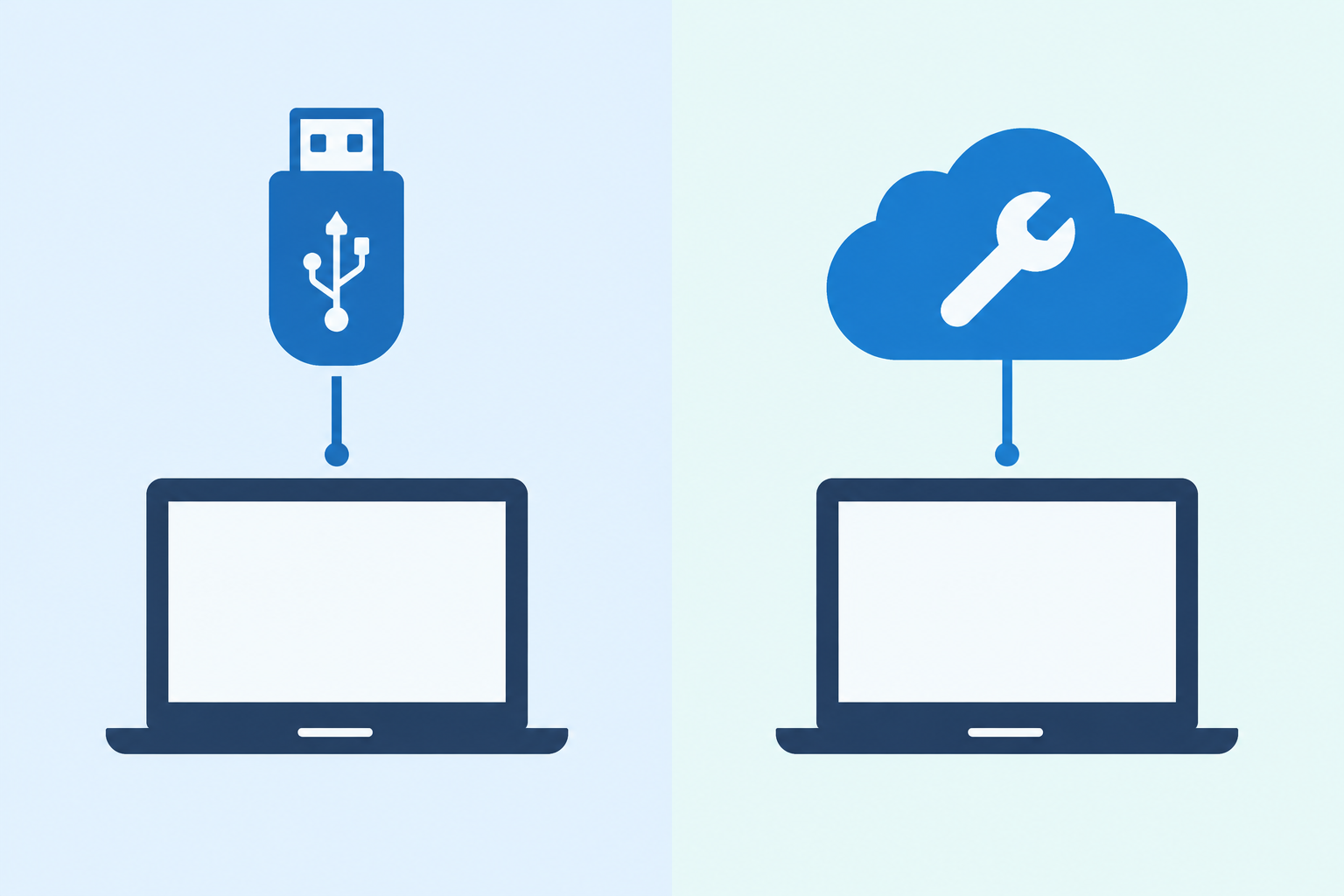
The short answer: Quick Machine Recovery doesn’t replace older recovery tools, it adds another layer in front of them. Traditional methods still have their place, especially when there’s no internet connection or when the problem is hardware-related rather than software.
- Bootable USB recovery: Still the most reliable option for clean installs, offline repairs, or PCs without a saved network connection.
- System Restore: Rolls the system back to an earlier restore point and remains available as a fallback inside WinRE.
- Quick Machine Recovery: Automatic, requires no media or technical steps, but depends on Microsoft already having a known fix for the specific failure.
For a deeper look at how Microsoft’s cloud-based reinstall option compares, this guide to rebuilding a PC without local media covers a related feature that reinstalls the full operating system over the internet, which is a separate but complementary tool for more serious failures.
How to Turn On Windows 11 Recovery Without a USB Drive

Quick Machine Recovery can be checked and configured from inside Windows before trouble ever strikes. Go to Settings, then System, then Recovery, and look for the Quick Machine Recovery option. If the setting appears, it’s supported on that device and build.
- Open Settings and select System
- Select Recovery from the list
- Look for Quick Machine Recovery under recovery options
- Make sure the toggle is turned on so the PC can reach out automatically if it ever fails to boot
On Windows 11 Home editions, cloud-based remediation through this feature is generally enabled by default, while Pro and enterprise devices may have more granular controls available through management tools like Intune.
What to Do If USB-Free Windows 11 Recovery Doesn’t Work
If the automatic process doesn’t resolve the issue, the fallback options built into WinRE are still available, and a bootable USB drive remains a dependable backup plan. Startup Repair, System Restore, and a full reinstall from installation media are all still accessible from the same recovery menu.
It’s also worth checking whether the failure might be tied to a specific known issue, such as the kind of stop code errors covered in this troubleshooting guide, since some crashes are caused by hardware or driver conflicts that an automatic update-based fix won’t resolve on its own. In those cases, a clean reinstall using genuine installation media and a valid license is usually the most dependable path forward.
Frequently Asked Questions
How do I activate Windows 11 recovery without USB?
You don’t need to manually activate anything beyond making sure the device is on a supported build and connected to the internet. If Quick Machine Recovery is available, it appears under Settings, System, Recovery, and can be left switched on so it’s ready if the PC ever fails to boot.
How do I know if my PC supports quick machine recovery?
Check whether the Quick Machine Recovery toggle appears in Settings under System and Recovery. If it’s missing, the device is likely on an older feature update or hasn’t yet received the relevant Windows Update rollout.
Does this feature work without an internet connection?
No. Because the fix is downloaded from Windows Update, an active internet connection through Wi-Fi or Ethernet is required. Without one, Windows falls back to standard recovery tools like Startup Repair or System Restore.
Will Windows 11 recovery without USB erase my files?
The feature applies a targeted remediation for the specific boot failure it detects, rather than performing a full reset. It’s designed to get the PC booting again without touching personal files, though a backup is always good practice before any recovery process.
What should I do if quick machine recovery fails?
If no known fix is available yet, Windows automatically offers the older recovery options already built into WinRE, including Startup Repair and System Restore. A bootable USB drive created on another PC remains a reliable last resort for a clean reinstall.
Does this replace the need for a Windows installation USB entirely?
Not completely. It’s best thought of as an added safety net for common boot failures rather than a full replacement. Clean installs, offline repairs, and certain hardware-related issues still benefit from having installation media on hand.
