
Windows Safe Mode is the fastest, most reliable way to diagnose and perform a Windows error fix when your PC refuses to start normally or behaves unpredictably. By loading only the bare minimum drivers and services, Safe Mode isolates the root cause of almost any system problem — whether it is a rogue driver, a corrupted update, or persistent malware. This guide walks you through every method to trigger a safe mode boot on both Windows 10 and Windows 11, explains what Safe Mode actually does under the hood, and shows you how to run System Restore from within it for full boot error recovery.
What Is Windows Safe Mode and Why Does It Work?

Safe Mode starts Windows with a minimal set of drivers — keyboard, mouse, basic display, and essential storage — while blocking every third-party application, startup program, and non-essential service. Because the environment is stripped back, any instability caused by add-on software or a bad driver simply cannot appear. If your PC runs fine in Safe Mode but crashes in normal mode, you have already narrowed the culprit down to something that loads at startup.
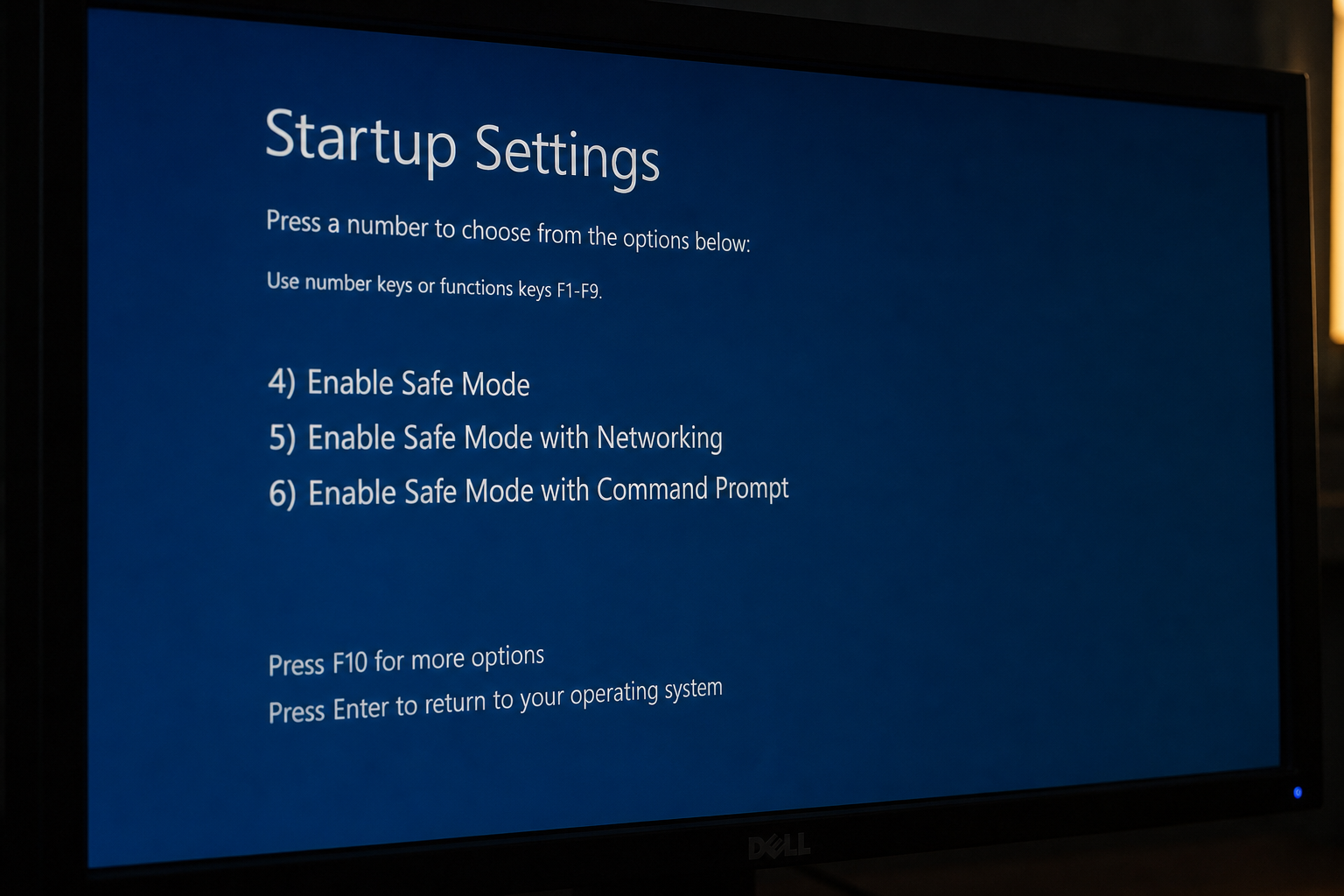
Microsoft officially defines three Safe Mode variants (documented in Windows Startup Settings — Microsoft Support):
-
Safe Mode — minimal drivers, no networking.
-
Safe Mode with Networking — adds the network stack so you can download drivers or run online scans.
-
Safe Mode with Command Prompt — replaces the graphical shell with cmd.exe for advanced command-line repairs.
Choosing the right variant matters. For malware removal or driver repair, plain Safe Mode is usually enough. For downloading a replacement driver or running an online antivirus scanner, pick Safe Mode with Networking.
How to Boot Into Windows Safe Mode on Windows 10
There are three reliable safe mode boot paths on Windows 10, depending on whether your PC can still start to the login screen.
Method 1: From the Settings App (PC Boots Normally)
-
Open Settings > Update & Security > Recovery.
-
Under Advanced startup, click Restart now.
-
Your PC reboots into the Windows Recovery Environment (WinRE).
-
Go to Troubleshoot > Advanced options > Startup Settings > Restart.
-
Press 4 for Safe Mode, 5 for Safe Mode with Networking, or 6 for Safe Mode with Command Prompt.
Method 2: Using System Configuration (msconfig)
-
Press Win + R, type
msconfig, and hit Enter. -
Click the Boot tab.
-
Under Boot options, tick Safe boot and choose Minimal, Network, or Alternate shell.
-
Click OK and restart. Windows will always boot into Safe Mode until you uncheck the box.
Important: Remember to uncheck Safe boot in msconfig after finishing your repairs, or the PC will keep restarting into Safe Mode indefinitely.
Method 3: Interrupting the Boot Three Times (PC Won’t Start)
If Windows cannot reach the login screen, force a boot error recovery manually:
-
Power on the PC, then hold the power button for 10 seconds to force it off as soon as the Windows logo appears.
-
Repeat this three times. On the fourth attempt, Windows automatically enters Automatic Repair mode.
-
Click Advanced options > Troubleshoot > Advanced options > Startup Settings > Restart.
-
Choose your Safe Mode variant with the number keys.
How to Boot Into Windows Safe Mode on Windows 11

Windows 11 uses the same WinRE pathway, but the Settings route is slightly different — a handy detail that trips up many users making the upgrade.
From Windows 11 Settings
-
Open Settings > System > Recovery.
-
Next to Advanced startup, click Restart now.
-
Navigate to Troubleshoot > Advanced options > Startup Settings > Restart.
-
Press 4, 5, or 6 to pick your Safe Mode variant.
From the Sign-In Screen
Hold Shift and click Power > Restart at the bottom-right of the login screen. This drops you straight into WinRE without needing to log in first — useful when you can reach the sign-in screen but cannot enter the desktop.
Using msconfig on Windows 11
The msconfig method from Windows 10 Method 2 above works identically on Windows 11. Press Win + R, type msconfig, go to the Boot tab, tick Safe boot, and restart.
What Windows Safe Mode Disables — and Why It Matters
Understanding what Safe Mode turns off helps you interpret your results and plan the right Windows error fix.
-
Third-party drivers — graphics cards, sound cards, and peripheral drivers are replaced with generic Microsoft alternatives.
-
Startup programs — every app set to launch at login is blocked, including antivirus suites (except Windows Defender’s core components).
-
Non-essential Windows services — services marked as automatic-delayed or triggered are not started.
-
High-resolution display drivers — the screen defaults to 800×600 or 1024×768 with basic colour depth.
-
Network stack (in plain Safe Mode) — the network adapter is inactive unless you chose Safe Mode with Networking.
The result is a lean, stable baseline. If a problem disappears here, it is software-related. If the problem persists, suspect hardware — RAM, storage, or the motherboard itself.
Which Errors Can Safe Mode Fix?

Safe Mode is not a magic wand, but it is the right first tool for a surprisingly wide range of Windows error scenarios.
Driver Conflicts and Bad Updates
A faulty display or chipset driver is one of the most common causes of a crash loop on startup. In Safe Mode, only the generic Microsoft driver loads, so you can open Device Manager, roll back or uninstall the problematic driver, and restart normally. According to Microsoft’s own support data, driver issues account for a substantial proportion of Windows Stop errors (blue screens of death).
Malware and Virus Removal
Many types of malware rely on startup entries or running services to protect themselves from removal. In Safe Mode those processes never start, making it far easier to run a full scan with Windows Defender or a portable third-party scanner. Boot error recovery from malware is often faster and more thorough when done from Safe Mode than from a running live system.
Broken or Conflicting Software
If a recently installed application has corrupted a system file or registered a broken shell extension, it will not load in Safe Mode. You can safely uninstall it through Settings > Apps or Control Panel without the application interfering with its own removal.
Windows Update Failures
Certain cumulative updates get stuck in a reboot loop if a prerequisite service or file is corrupted. Booting into Safe Mode with Networking lets you access Windows Update troubleshooter or run sfc /scannow and DISM /Online /Cleanup-Image /RestoreHealth from an elevated Command Prompt — two of the most effective built-in Windows error fix commands available.
Startup Program Loops
A corrupt startup entry can prevent Windows from ever reaching the desktop. In Safe Mode, open Task Manager (Ctrl + Shift + Esc), click the Startup tab, and disable entries one by one to identify the culprit.
Running System Restore in Windows Safe Mode
System Restore is one of the most powerful boot error recovery tools available in Windows, and it is significantly more reliable when run from within Safe Mode — particularly if the system is unstable in normal operation.
How to Launch System Restore from Windows Safe Mode
-
Boot into Safe Mode using any method above.
-
Press Win + R, type
rstrui.exe, and press Enter. -
The System Restore wizard opens. Click Next.
-
Select a restore point dated before the problem started. Tick Show more restore points if needed.
-
Click Scan for affected programs to see which apps and drivers will be removed.
-
Click Next > Finish. The PC restarts and rolls back system files, registry entries, and installed drivers to the chosen date.
System Restore does not affect your personal files — documents, photos, and downloads are untouched. It only reverses system-level changes made after the restore point was created.
What If No Restore Points Exist?
If System Restore shows no restore points, it likely means the feature was disabled or storage space ran out. In this case, try running sfc /scannow from an elevated Command Prompt in Safe Mode, or consider a Windows repair reinstall using the official installation media. If your Windows licence was purchased digitally, the key is tied to your Microsoft account and survives a reinstall — a key reason why a genuine, properly licensed copy of Windows matters at moments like this.
Windows Safe Mode Keyboard Shortcuts and Quick Reference
-
Win + R → msconfig → Boot tab — configure persistent safe mode boot.
-
Shift + Restart from login screen — instant access to WinRE.
-
F4 / 4 at Startup Settings — Safe Mode.
-
F5 / 5 at Startup Settings — Safe Mode with Networking.
-
F6 / 6 at Startup Settings — Safe Mode with Command Prompt.
-
Win + R → rstrui.exe — open System Restore from within Safe Mode.
-
sfc /scannow — scan and repair protected system files (run as Administrator).
-
DISM /Online /Cleanup-Image /RestoreHealth — repair the Windows image when sfc cannot fix all errors.
When Windows Safe Mode Isn’t Enough: Your Next Steps
Safe mode boot handles the majority of software-related failures, but there are times when it cannot resolve the issue on its own. If your PC still crashes or will not load even in Safe Mode, consider these escalation paths:
-
Startup Repair — available from WinRE under Advanced options; automatically fixes bootloader and BCD errors.
-
Reset This PC — reinstalls Windows while optionally keeping your files; found under Settings > Recovery.
-
Bootable USB reinstall — download the Windows 10 or Windows 11 Media Creation Tool from Microsoft and perform a clean install.
-
Hardware diagnostics — run a memory test (Windows Memory Diagnostic) and a drive health check (CrystalDiskInfo or the built-in chkdsk command) to rule out failing hardware.
If a clean reinstall is on the horizon, make sure you have a valid Windows licence ready. Shop Key Online offers genuine Windows 11 Pro Retail keys from €17.95 and Windows 10 licences across all editions — delivered by email within minutes so you can get your reinstall underway without delay. Every key is 100% genuine, activates directly with Microsoft’s servers, and comes with free lifetime activation support.
Frequently Asked Questions
Can I access Safe Mode if Windows won’t boot at all?
Yes. Use the three-interruption method: force the PC off three times during the Windows logo sequence. On the fourth attempt, Windows automatically launches Automatic Repair, from which you can navigate to Startup Settings and choose your safe mode boot variant. Alternatively, boot from a Windows installation USB and select Repair your computer.
Does Safe Mode remove viruses permanently?
Safe Mode prevents most malware from loading, making removal scans more effective — but the scan itself still needs to be run. Use Windows Defender (which retains basic functionality in Safe Mode) or a portable scanner run from a USB drive. After removing the threat, restart normally and run a second scan to confirm the Windows error fix was successful.
Will Safe Mode delete my files?
No. Safe Mode is a diagnostic environment that changes nothing in your user data. Your documents, photos, and downloads are completely unaffected. Even System Restore, when run from Safe Mode, leaves personal files intact — it only reverses system-level changes.
Why is my screen resolution so low in Safe Mode?
Safe Mode uses a generic Microsoft display driver instead of your GPU’s manufacturer driver. This is intentional — it prevents a faulty graphics driver from causing the same crash in Safe Mode that it causes in normal mode. Resolution and colour depth are limited, but the desktop is fully functional for troubleshooting.
How do I exit Safe Mode and return to normal Windows?
If you used the Startup Settings method, simply restart the PC and Windows will boot normally. If you used msconfig to set Safe boot, open msconfig again (Win + R → msconfig → Boot tab), uncheck Safe boot, click OK, and restart. Forgetting this step is the most common reason users find themselves stuck in Safe Mode after repairs.
Is boot error recovery possible without a Microsoft account?
Absolutely. All Safe Mode methods, System Restore, sfc, and DISM work on local accounts as well as Microsoft accounts. The only scenario where a Microsoft account helps is if your Windows digital licence is linked to it — meaning a licence bought through a store like Shop Key Online under a Microsoft account can be automatically reactivated after a hardware change or clean reinstall.
