

Office 365 collaboration features transform the way distributed teams create, review, and ship documents — letting multiple people edit the same Word file, Excel workbook, or PowerPoint deck simultaneously, right down to seeing each other’s cursors move in real time. Whether your team is split across continents or just mixing office and home days, Microsoft 365’s real-time co-authoring, threaded comments, and deep Teams integration remove the friction that used to make remote work feel second-best.
What Is Real-Time Co-Authoring in Microsoft 365?

Real-time co-authoring is the foundation of Office 365 collaboration. When a file is stored in OneDrive or SharePoint, up to many users can open it at the same time and see one another’s edits appear within seconds. Each author’s cursor is highlighted in a unique colour so you always know who is changing what. This works across Word, Excel, and PowerPoint — in the browser, the desktop app, and the mobile app.
For co-authoring to work correctly, three conditions must be met:
-
The file must be stored in OneDrive for work or school or a SharePoint document library — local files do not support live sync.
-
AutoSave must be enabled (toggled on in the top-left of the desktop app).
-
All co-authors must have at least Edit permission on the file or the library containing it.
According to Microsoft’s official SharePoint documentation, co-authoring is available for Word, Excel, PowerPoint, and OneNote files stored in OneDrive or SharePoint, and the feature works seamlessly across mixed Office versions in the same organisation.
Setting Permissions for Office Collaboration Tools
Getting permissions right is the single most important step before rolling out real-time co-authoring to a team. Incorrect sharing settings are the most common reason collaboration breaks down.
Share a file or folder
Open any Office file in OneDrive or SharePoint, click Share, and choose one of three access levels:
-
Anyone with the link — the broadest option; useful for external reviewers but carries the most risk.
-
People in your organisation — the safest default for internal Microsoft 365 collaboration; enforces your Azure AD directory.
-
Specific people — ideal for sensitive documents; only named individuals can open the file.
Edit vs. View vs. Review
Within each sharing level you can restrict further. Set recipients to Can edit for full co-authoring, Can review (Word only) to allow tracked changes without direct edits, or Can view for read-only access. Combining these settings gives hybrid teams fine-grained control over who can alter a document at any stage of its lifecycle.
Co-Authoring in Word, Excel, and PowerPoint
Each application handles real-time co-authoring slightly differently, and knowing the nuances saves headaches when multiple authors are working at the same time.
Word
Word locks the paragraph you are actively editing so another author cannot overwrite your in-progress sentence, then releases it on save. Tracked Changes still works during co-authoring — useful when a team leader wants oversight of every edit. The Show Changes pane (Review tab) displays a chronological stream of who changed what.
Excel
Excel co-authoring is cell-level: two people can work in the same sheet as long as they are not editing the same cell at the same time. If a conflict does arise — both users type in the same cell before the cloud sync resolves — Excel flags the discrepancy and lets you choose which value to keep. Note that some older features (such as shared workbooks in legacy mode) must be disabled before AutoSave co-authoring activates.
PowerPoint
PowerPoint co-authoring is the most permissive: multiple authors can edit different slides simultaneously with no locking. Changes merge automatically when each person saves. This makes PowerPoint an excellent canvas for large-group brainstorming sessions — each team member can build out their own slide while a designer refines the template on slide 1.
Threaded Comments and @Mentions
Office collaboration tools go beyond live editing — threaded comments let teams have structured, contextual conversations directly inside documents without polluting a separate chat thread or email chain.
How to use threaded comments
\p>
-
Select the text, cell, or slide element you want to discuss.
-
Go to Insert → Comment (or press Ctrl+Alt+M in Word).
-
Type your comment. Use @Name to notify a specific colleague — they receive an email and a Teams notification instantly.
-
Colleagues reply in-line, keeping the conversation anchored to the exact piece of content it relates to.
-
Once resolved, mark the thread as Resolved to collapse it without deleting the record.
In Excel, comments and Notes serve different purposes: Notes are static annotations (the old yellow sticky-note style), while Comments support threaded replies. Always use Comments when you need a conversation; use Notes for permanent reference annotations.
Microsoft Teams Integration with Office 365 Collaboration
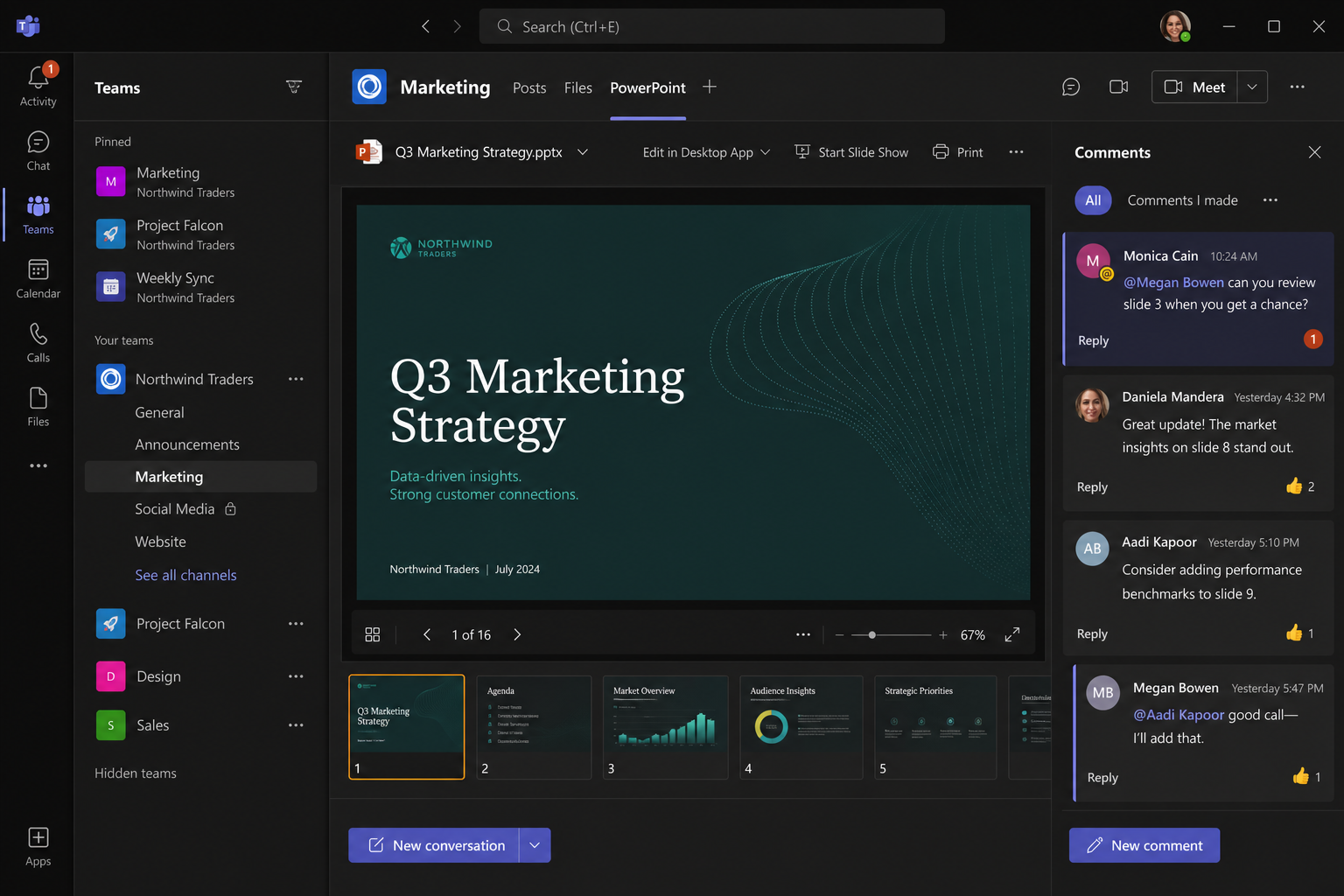
Microsoft Teams is where Office 365 collaboration features come together into a single workspace. Rather than switching between an app, a browser, and an email client, teams can open, co-author, and discuss documents without leaving Teams.
Opening files directly in Teams
Every file shared in a Teams channel or chat is automatically stored in the corresponding SharePoint document library. Click any Office file attachment and it opens in the Teams built-in viewer — which is a full Office for the web editor. Hit Open in Desktop App to switch to the full-featured desktop version while keeping the same cloud session, so co-authoring continues uninterrupted.
Collaborating on files in a Teams meeting
During a Teams video meeting, participants can share a Word, Excel, or PowerPoint file as a collaborative annotation — every attendee can annotate slides or cells in real time while the presenter speaks. This closes the gap between “showing” and “doing” that plagued older screen-share workflows.
Tabs for persistent document access
Pin frequently edited files as a tab inside a Teams channel. The file stays live — always the latest version, always co-authorable — without anyone having to search SharePoint or their email for the right link. This one habit alone dramatically cuts the number of duplicate or out-of-date files floating around a project.
Conflict Resolution and Version History
Even with the best real-time co-authoring, occasional conflicts happen — especially when someone works offline and syncs later. Microsoft 365 collaboration handles this with automatic version history.
How version history works
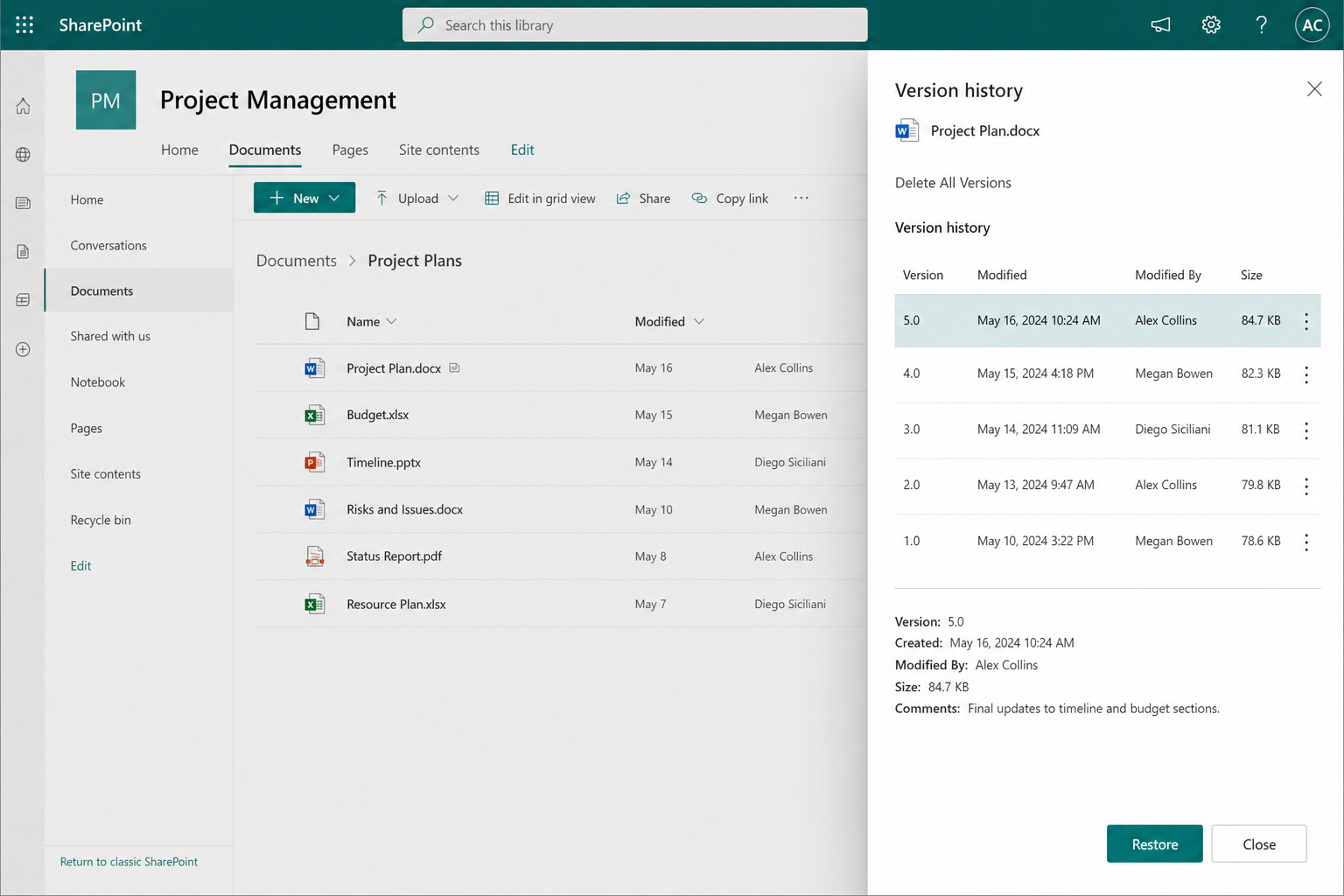
SharePoint and OneDrive automatically save a new version of a file every time it is saved or AutoSaved. By default, SharePoint can store up to 500 major versions per file (administrators can set this anywhere from 100 to 50,000). To browse versions, right-click the file in SharePoint or OneDrive and choose Version History; you can preview, restore, or download any previous version in seconds.
Resolving sync conflicts
When a conflict is detected — for example, two offline edits that clash on sync — OneDrive presents an Open to Resolve option that opens both versions side-by-side in a co-author view. You choose which changes to keep, merge manually, or discard. For Word specifically, the conflicting edits appear as tracked changes so nothing is silently lost.
Best Practices for Hybrid Teams Using Office Collaboration Tools
Technology only works as well as the habits built around it. These practices help hybrid teams get the most out of Microsoft 365 collaboration without creating chaos.
-
Always store files in SharePoint or OneDrive — never email attachments or save to a local drive when a team project is underway.
-
Name files clearly and use folder structure — version numbers in filenames (Report_v3_FINAL.docx) are a sign that version history isn’t being used. Let SharePoint handle versioning and keep filenames clean.
-
Use @mentions instead of emails — tagging a colleague in a comment triggers a notification in Teams and keeps the conversation in context.
-
Agree on a comments-resolution workflow — decide who has the authority to mark threads as Resolved (usually the document owner) and stick to it.
-
Pin live documents as Teams tabs — reduces “where’s the latest file?” messages to near zero.
-
Enable sensitivity labels for confidential files — Microsoft Purview labels can restrict editing, prevent forwarding, and enforce encryption automatically, even when files are shared externally.
-
Schedule a weekly version-history review for critical documents — restoring a clean version is much easier before a document has accumulated weeks of conflicting edits.
Which Office Licence Do You Need for These Collaboration Tools?
Real-time co-authoring, threaded comments, and Teams integration are Microsoft 365 subscription features at their fullest — they require cloud storage via OneDrive or SharePoint. However, the desktop Office applications (Word, Excel, PowerPoint) that connect to those cloud services are also sold as perpetual licences. If your team is already on a Microsoft 365 plan and just needs the desktop apps activated, a perpetual licence key from Microsoft Office 2021 Professional Plus (available from €19.15) gives full desktop access and connects seamlessly to your existing OneDrive or SharePoint environment. Teams with more demanding workflows — advanced co-authoring, Copilot AI features, and extended cloud storage — will benefit most from pairing the desktop apps with an active Microsoft 365 subscription.
For teams that want the very latest Office apps with improved collaboration rendering and PDF editing, Microsoft Office 2024 Pro Plus is also available from €24.50 and supports the same real-time co-authoring infrastructure.
Frequently Asked Questions
Do I need a Microsoft 365 subscription to use co-authoring?
Co-authoring requires files to be stored in OneDrive or SharePoint, which are cloud services tied to a Microsoft 365 subscription. However, you can use a perpetual Office licence (such as Office 2021 or 2024) for the desktop app and still participate in co-authoring sessions as long as your organisation has a Microsoft 365 plan that provides the cloud storage.
How many people can co-author a document at the same time?
Microsoft does not publish a hard cap for Word, Excel, or PowerPoint co-authoring. In practice, teams of up to 10–20 simultaneous editors work smoothly. Very large groups (50+) can introduce latency, and for those scenarios it is better to split the document into sections or use a structured review workflow with tracked changes.
What happens to my changes if I lose internet connection?
Office desktop apps continue working offline. Your changes are saved locally and automatically synced the next time you reconnect. If a conflict arises because another author edited the same content while you were offline, OneDrive will flag the conflict and prompt you to resolve it using the built-in side-by-side comparison view.
Can external collaborators (outside my organisation) use co-authoring?
Yes. Share the file using the “Anyone with the link” or “Specific people” option and set the permission to “Can edit.” External users can co-author in Office for the web without needing a Microsoft 365 licence of their own, though they cannot use the desktop app unless they have one. For sensitive files, restrict sharing to named individuals and set an expiry date on the link.
How do I stop someone from accidentally overwriting my work?
Use the Review → Track Changes or Restrict Editing options in Word to limit what other authors can change. In SharePoint, you can also enable Check Out, which locks a file to a single editor at a time — though this disables real-time co-authoring, so it is best reserved for documents where strict version control outweighs collaboration speed.
