
If you need a Publisher alternative for newsletters, the short answer is Microsoft Word, Canva, or Affinity — depending on how much design control and print accuracy your newsletter requires. Each one replaces a different part of what Publisher used to do, and most office teams end up combining two rather than finding a single drop-in replacement.
That gap exists because Microsoft has already closed the door on Publisher. Support for the perpetual version ended on October 13, 2026, the same date Office LTSC 2021 and Consumer Office 2021 reached end of support. Since October 13, 2026, there have been no patches, no security updates, and no new installs available for perpetual Publisher — existing copies keep running, but admins who plan ahead are already testing what covers day-to-day newsletter work going forward.
Why Office Teams Need a Publisher Alternative for Newsletters Now

Office teams need a working Publisher alternative for newsletters because Microsoft 365 subscribers can no longer open Publisher at all, and perpetual licenses have stopped receiving fixes or security patches. In a discussion thread among office admins comparing notes on what replaced their newsletter workflow, the same few tools kept coming up: Word, LibreOffice, Affinity, and Canva — each suited to a different kind of newsletter.
Small businesses, school offices, HR departments, and nonprofits mostly used Publisher the same way: drag text boxes onto a page, drop in a photo, print or export to PDF, done. None of the modern design tools replicate that exact workflow out of the box, which is why most teams pick based on what they value most — print precision, speed, or familiarity with what’s already installed.
What Made Publisher Good for Newsletter Work in the First Place
Publisher’s real advantage was never raw design power — it was precise, beginner-friendly page layout built for people who weren’t trained designers. Text boxes, picture frames, and guides snapped into place without the learning curve of professional desktop-publishing software, which is exactly what a newsletter produced by an office admin or volunteer needed.
-
Fixed-size page layout with true print margins and bleed settings
-
Drag-and-drop text and picture frames instead of flowing document text
-
Built-in newsletter templates with columns, pull quotes, and mastheads
-
Easy PDF export tuned for both desktop and commercial printing
Any Publisher alternative for newsletters needs to cover at least two or three of these points to feel like a real replacement rather than a compromise.
Microsoft Word as a Publisher Alternative for Newsletters
Microsoft Word is the most practical Publisher alternative for newsletters for teams that don’t want to learn new software. It already sits on most office machines, supports columns, text boxes, and picture wrapping, and exports clean, print-ready PDFs straight from the Save As menu. Email remains a strong return-on-investment channel overall, with most reports placing email ROI between $36 and $42 for every dollar spent, according to Designmodo’s 2026 roundup of newsletter statistics.
Word won’t replicate Publisher’s frame-based layout exactly — text still flows inside a document structure rather than floating freely on a fixed page — but for a one- or two-page newsletter with a masthead, a couple of columns, and a photo or two, it holds up well. Pair it with a reusable newsletter template and most of the layout decisions are made once, not every issue.
Teams that need a licensed, fully supported copy can get one through Office 2021 Pro Plus or the newer Office 2024 Pro Plus, both of which include Word without a subscription. If Word is genuinely the only app your team uses daily, Word 2024 for Windows is also sold as a standalone license.
Canva and Cloud Design Tools for Faster Newsletter Builds

Canva and similar browser-based tools work best for newsletters distributed as email or shared digitally rather than professionally printed. Drag-and-drop blocks, large libraries of newsletter templates, and one-click resizing make it fast for non-designers to produce something polished in under an hour.
The trade-off is print accuracy. Cloud tools are built around screen layouts first, so bleed, exact margins, and color matching for a commercial printer aren’t always reliable. For an internal digital newsletter or an email send, that rarely matters. For anything going to a print shop on a schedule, it’s worth running a test print before committing to the format.
Affinity and Scribus for Print-Ready Layouts
Affinity and Scribus are the closest matches to Publisher’s actual design philosophy: fixed pages, frame-based layout, and full control over print settings. Both support master pages, proper bleed and crop marks, and CMYK export, which makes them the stronger pick for a newsletter that goes to a professional printer every issue.
Scribus is free and open source, which makes it attractive for budget-conscious teams, though its interface has a steeper learning curve than Publisher ever did. Scribus is designed specifically for layout, typesetting, and page design work, so the controls will feel familiar once past the initial setup. Affinity, now folded into Canva’s product line, has also moved away from a one-time purchase model for its core apps, so pricing is worth checking directly before planning a team-wide switch.
Picking the Best Alternative to Publisher for Newsletters for Your Team
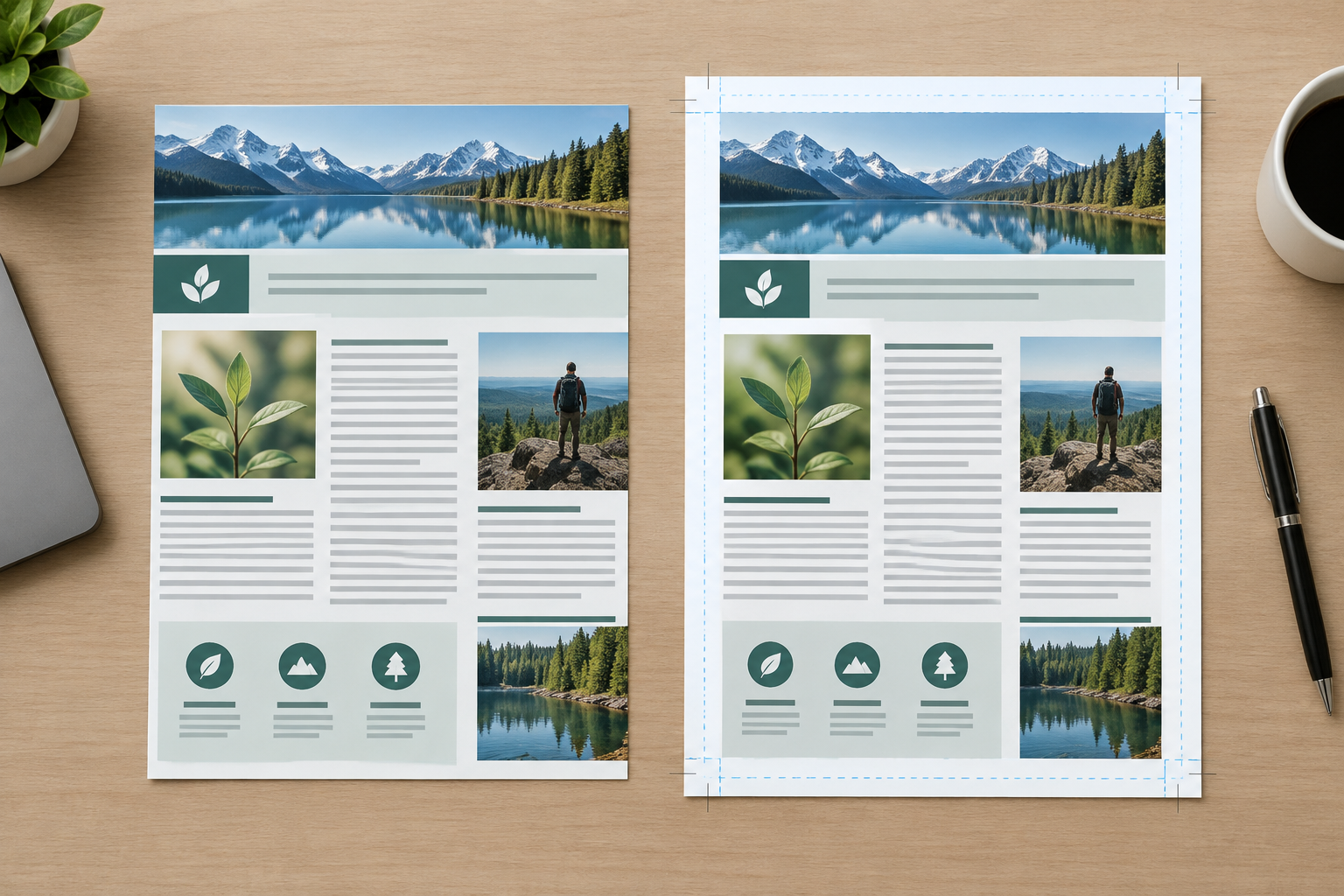
The right alternative to Publisher for newsletters depends on three questions: who is building the newsletter, how it gets distributed, and whether it goes to print. A single admin producing a quick internal update can stay inside Word. A communications team producing a printed, mailed newsletter on a monthly schedule gets more value from Affinity or Scribus’s print controls.
-
Internal, email-only newsletter, built by non-designers → Word or Canva
-
Printed newsletter with a tight, consistent brand look → Affinity or Scribus
-
No budget for new software, some design time available → Scribus or LibreOffice
-
Team already owns Office and wants the smallest change → Word
Switching Templates Without Losing Your Newsletter Layout
Moving an existing Publisher newsletter to a new tool goes faster when you rebuild the layout once rather than trying to convert the .pub file directly, since none of these alternatives open Publisher files natively. Start by exporting the current newsletter to PDF so you have a locked reference of fonts, spacing, and photo placement, then rebuild the masthead and column structure in the new tool as a reusable template.
-
Export the last Publisher issue to PDF as a layout reference
-
Rebuild the masthead, columns, and placeholder text boxes once in the new tool
-
Save that file as a proper template, not a regular document
-
Swap in new headlines and photos for each future issue
Once that template exists, future issues are just a content swap — new headline, new photos, same layout. Saving it as a template in Word, or as a master page set in Affinity or Scribus, keeps every issue consistent without redoing layout work each month.
Frequently Asked Questions
What is the best Publisher alternative for newsletters?
For most office teams, Microsoft Word is the easiest switch because it’s already installed and exports print-ready PDFs without extra setup. Teams that need exact print control, like bleed and color matching, usually get more consistent results from Affinity or Scribus instead.
How do I download Microsoft Word for newsletter design?
After buying a Word or Office license, go to setup.office.com, sign in with a Microsoft account, enter the 25-character product key, choose your language and version, then click Download to get the installer. The file runs automatically once opened.
How do I install Office after buying a license key?
Run the downloaded .exe file and follow the on-screen installer, which completes on its own on a Windows PC that meets the minimum system requirements. No further input is usually needed once the install starts.
How do I activate Word or Office after installing it?
Open any Office app, go to File, then Account, then Activate Product, select “I have a product key,” enter the 25-character key, and click Activate. A “Product Activated” message confirms the license is live.
Can I still use Microsoft Publisher after October 2026?
Existing installs keep working, but Microsoft has confirmed there are no further updates, security patches, or new installs available for perpetual Publisher since support ended on October 13, 2026. That’s why teams are testing Publisher alternatives for newsletters now rather than waiting for the app to stop functioning entirely.
Are Publisher alternatives for newsletters free?
Some are — Scribus and LibreOffice are both free and open source — while Word and Canva’s paid tiers charge either a one-time license fee or a subscription, depending on the plan you choose.
