
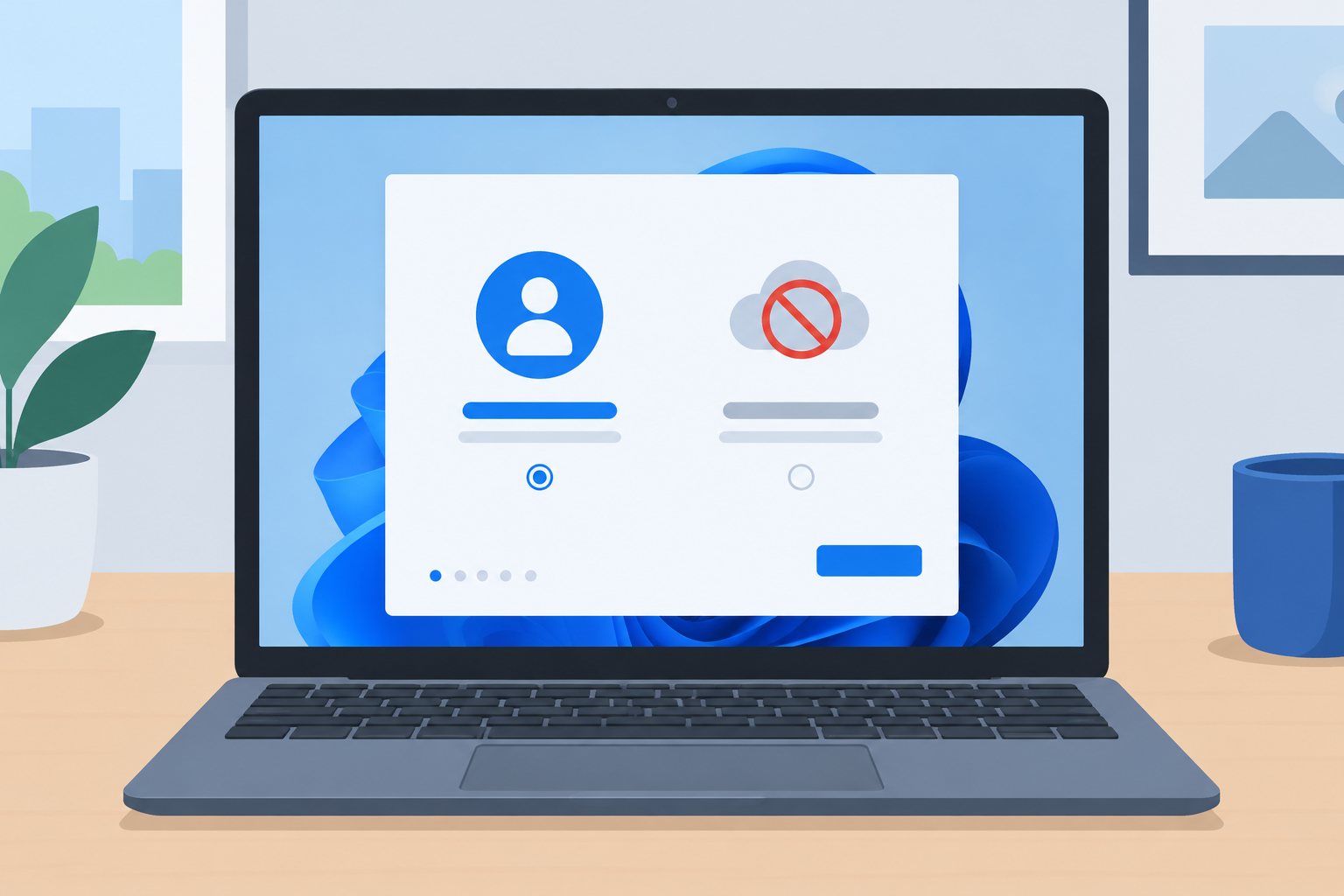
Microsoft has quietly closed the last easy way to bypass Microsoft account Windows 11 setup, patching the small ‘Learn more’ link that let Windows 11 Home users create a local account without signing in or connecting to the internet during the Out-of-Box Experience (OOBE). If you relied on this trick to set up a new PC offline, it no longer works, and IT teams should assume every simple shortcut is now gone.
What Was the Trick to Bypass Microsoft Account Windows 11 Setup?
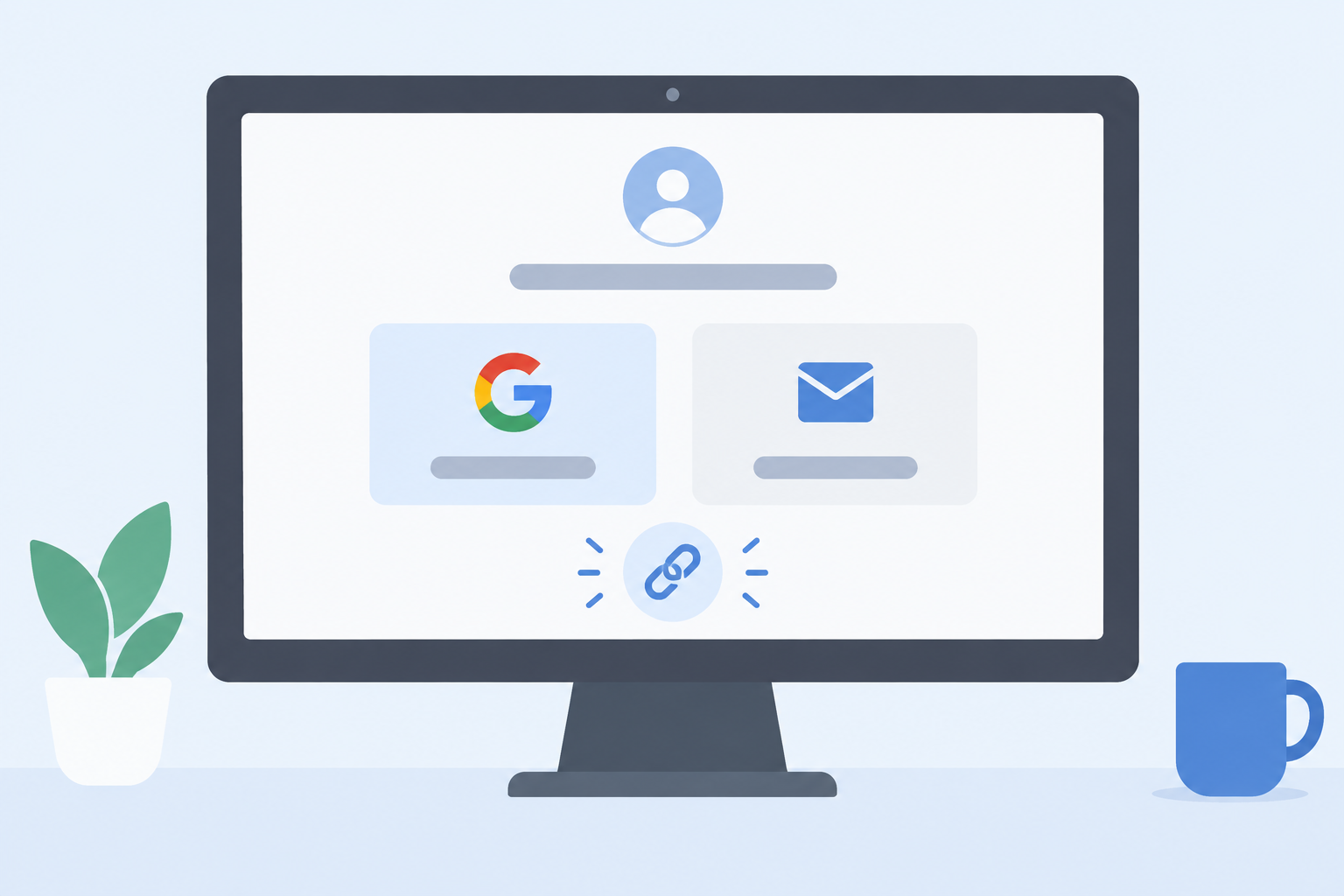
The method was almost absurdly simple. During the account sign-in step of OOBE on Windows 11 Home, a small ‘Learn more’ hyperlink sat under the sign-in options. Clicking it skipped the Microsoft account requirement entirely and dropped the installer straight into local account setup, no fake email address, no registry edit, and no command prompt required. Reports of the trick circulated widely because it worked without any internet connection at all, making it the easiest of the many workarounds that had appeared since Microsoft began enforcing the account requirement.
That ease is exactly why it attracted attention. Unlike the OOBE\BYPASSNRO command, which required opening a command prompt with Shift+F10 and typing a specific string, the ‘Learn more’ link needed nothing more than a mouse click. It only applied to the Home edition, since Pro editions have historically offered more flexibility around domain join and local account setup.
Why Microsoft Shut Down This Shortcut in Windows 11 26H2
Microsoft closed the loophole as part of its ongoing effort to make a Microsoft account effectively mandatory for new Windows 11 Home installations. The fix appears to have been applied server-side rather than through a specific cumulative update, meaning it can affect existing installation media and in-progress rollouts without a new ISO being required. This arrives during the broader rollout window of Windows 11 26H2, the current annual feature update, which reached general availability in late September 2026 and is being delivered to eligible devices as a lightweight enablement package.
Microsoft’s public explanation for requiring an account during setup centers on syncing settings, enabling cloud backup, and tying activation and recovery options to a Microsoft account. Critics, including many small business IT admins, argue the real effect is pushing every new device toward a Microsoft account regardless of whether the user wants cloud services at all.
A Pattern: Microsoft Keeps Closing Ways to Bypass the Microsoft Account Requirement in Windows 11
This is not an isolated incident. Microsoft has repeatedly closed off ways to bypass the Microsoft account requirement in Windows 11 over the past several release cycles:
- The original
OOBE\BYPASSNROcommand, accessible via Shift+F10, was removed from newer builds after years of being the standard workaround. - Fake or invalid email addresses typed into the account field, once accepted as a way to fall through to local setup, stopped working.
- Registry-based toggles that some third-party guides recommended also lost their effect once Microsoft tightened server-side validation during setup.
- Now the ‘Learn more’ link, the newest and simplest of these shortcuts, has been patched as well.
Each closure forces the community to find a new angle, and each new angle tends to survive for a shorter window before Microsoft addresses it. For IT teams managing dozens or hundreds of devices, this pattern means any documented workaround should be treated as temporary, not as a permanent part of a deployment process.
What This Patch Means for IT Teams and Power Users
If your organization relies on local accounts for kiosk machines, lab PCs, or offline workstations, this closure matters immediately. Any imaging process or documentation that referenced the ‘Learn more’ click needs to be updated now, since it will no longer produce the expected result during OOBE.
For home power users and small business owners who simply prefer not to tie a personal device to a cloud identity, the practical options have narrowed to installation-time methods rather than in-OOBE clicks. That shift matters because Windows 11 now represents the overwhelming majority of active Windows desktops, with Windows 11 holding 71.5% of the worldwide desktop Windows market over the twelve months ending September 2026, so changes to its setup flow affect a very large installed base.
Still Need a Local Account? What Still Works
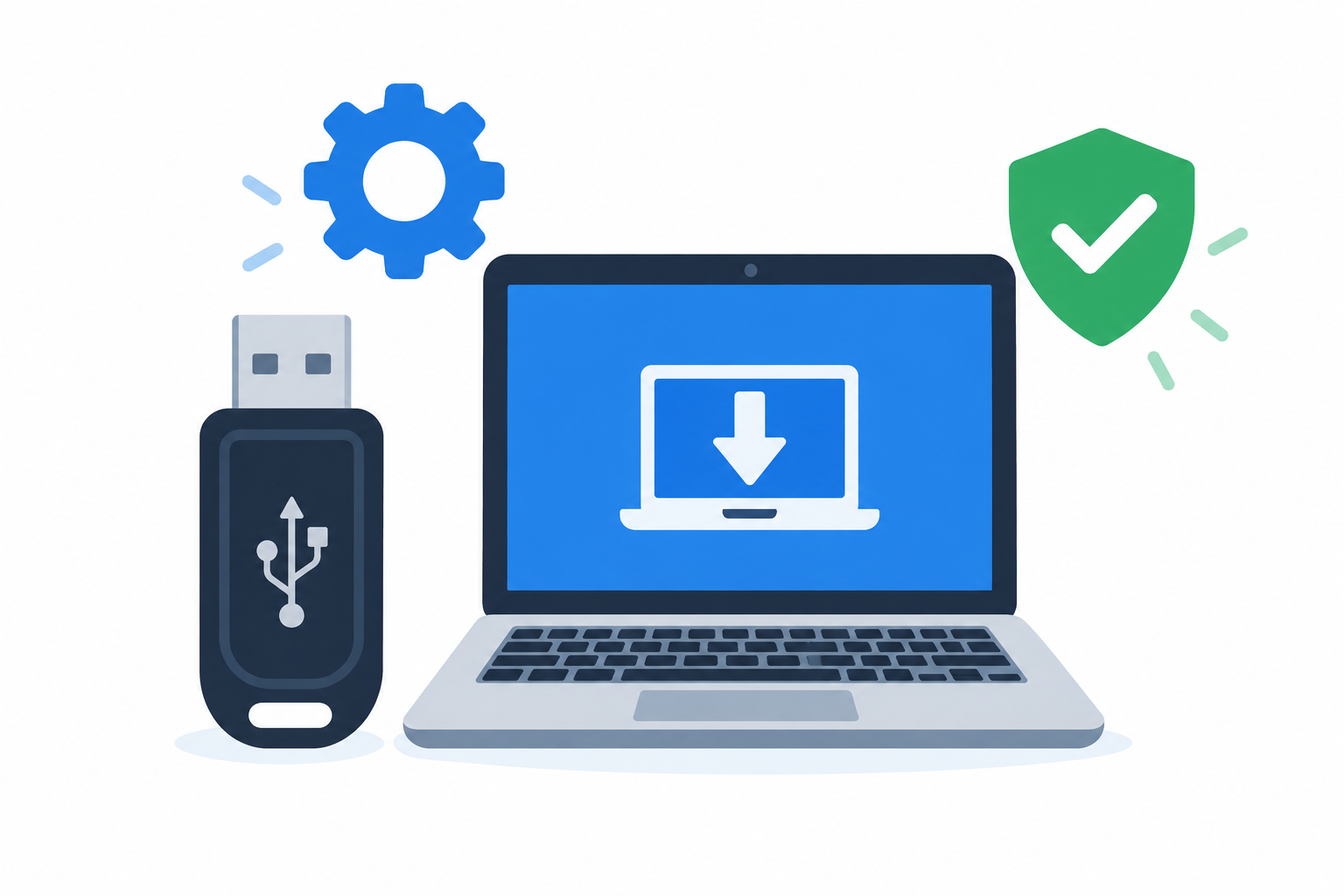
Even with the OOBE-based tricks closed, there are legitimate ways to control how Windows 11 gets installed and set up. These methods work at the installation-media level rather than relying on a click during setup, which makes them more resilient to server-side patches.
Using the Media Creation Tool (MCT)
Microsoft’s own Media Creation Tool remains a straightforward way to build installation media. It does not bypass the account requirement on its own, but it gives you a clean, verified ISO or bootable USB to work from, which is the first step before applying any local-account setup method during installation.
Rufus and Ventoy: Bootable USB Alternatives for Bypassing a Microsoft Account on Windows 11
Rufus has become the go-to tool for IT admins who need more control over the install process. When creating Windows 11 installation media, Rufus can apply registry tweaks during image creation that address hardware checks and the online account requirement at setup time, before OOBE even runs. Our Rufus Windows 11 installation guide walks through the current process step by step. Ventoy offers a similar advantage for admins who keep multiple ISOs on one USB drive, letting you boot straight into the installer without separately re-flashing media for every deployment. Neither tool guarantees a permanent solution, since Microsoft can adjust setup validation independently of how the media was created, but both remain functional options for now.
- Media Creation Tool: official, simplest, no account bypass built in.
- Rufus: advanced option flags for hardware and account requirement handling during media creation.
- Ventoy: multi-ISO bootable drive, useful for repeated or mixed-OS deployments.
Choosing a Genuine Windows 11 License Instead of Fighting Setup Screens
Whichever installation route you take, you still need a legitimate product key to activate Windows 11 once setup is complete. A local account bypass has nothing to do with licensing, so skipping the Microsoft account sign-in does not skip activation. If you are setting up new machines, it’s worth comparing Windows 11 Home vs Pro before deciding which edition fits your deployment, and pairing your installation method with a genuine key rather than an unlicensed copy. Our Windows 11 Home download, installation, and activation instructions cover the activation step in detail once your media is ready.
Frequently Asked Questions
Does OOBE\bypassnro still work on Windows 11?
No. The command has been removed from newer Windows 11 builds, and even where the command still exists on older media, Microsoft’s server-side validation during setup can block its effect. Admins who still see guides referencing it should treat them as outdated unless confirmed against the current build.
Can I still bypass Microsoft account Windows 11 setup today?
The simplest in-OOBE methods, including the ‘Learn more’ link and fake email tricks, have all been patched. The remaining options work at the installation-media level, using tools like Rufus during USB creation rather than clicking through the setup screens themselves.
How do I install Windows 11 without an internet connection?
Installing offline is still possible using media created with the Media Creation Tool or Rufus, since the base installation process does not require connectivity. The challenge is specifically the account sign-in step, which is where Microsoft has tightened enforcement.
Is it safe to use a local account on Windows 11?
Yes, a local account is a standard Windows feature and is not inherently less secure. You lose automatic settings sync, cloud backup of some credentials, and a few account-linked features, but core security tools like Windows Defender and Windows Hello still function normally with a local account.
Does Rufus still bypass TPM and Secure Boot checks on Windows 11?
Rufus has continued to offer options for handling TPM, Secure Boot, and RAM checks during media creation, in addition to account-requirement handling. Because Microsoft periodically changes setup validation, it’s worth using a current version of Rufus and checking release notes before building new media.
Do Windows 11 Home and Pro differ when you try to bypass Microsoft account Windows 11 setup?
Historically, Pro editions offered more built-in flexibility around domain join and local account creation during setup than Home. The patched ‘Learn more’ trick specifically applied to Home, since Pro setup flows already had alternate paths for business environments.
The bigger picture is simple: Microsoft is steadily narrowing the gap between what Windows 11 Home technically allows and what it wants users to do. Each closed shortcut buys time rather than ending the conversation, and sysadmins who plan around installation media, rather than in-OOBE clicks, will spend less time rebuilding their deployment documentation every time a new build ships.
