
You can remove Windows 11 bloatware permanently using built-in Settings tools, targeted PowerShell commands, or a trusted third-party uninstaller — no registry hacks or clean reinstall required in most cases. This guide walks through all three methods in order of risk, starting with the safest option and ending with when a full reinstall actually makes more sense.
Why You Should Remove Windows 11 Bloatware First
Removing Windows 11 bloatware clears out preinstalled apps that consume storage, run background processes, and clutter your Start menu — all without needing a full reinstall. Every new Windows 11 PC ships with a mix of Microsoft apps, OEM utilities, and promotional tiles for third-party services that most business users and power users never open. Left alone, these apps still check for updates, sync telemetry, and occupy drive space on every machine you manage.
For IT teams imaging dozens of laptops, that adds up fast. For home power users and sysadmins fine-tuning a single workstation, it’s the difference between a lean, fast desktop and one that feels sluggish from day one. Microsoft’s own specifications state that Windows 11 needs a 64 GB or larger storage device just to install the OS — on budget laptops with 128 GB or 256 GB drives, every gigabyte that bloatware occupies matters.
The good news: you don’t need special software to get started. Windows 11 includes enough built-in tools to remove most bloatware safely, and PowerShell can finish the job on apps that resist a normal uninstall.
Common Windows 11 Apps Worth Removing
Most of the apps worth removing fall into a few predictable categories. Knowing what’s safe to remove before you start saves time and avoids accidentally breaking a dependency.
- Promotional tiles for third-party services pinned to the Start menu on first boot
- Entertainment apps like the Solitaire Collection or Xbox companion apps you don’t use
- Productivity extras such as Clipchamp, To Do, or Journal if they duplicate tools you already own
- Communication apps like Phone Link or Teams Chat on PCs that don’t need them
- Informational widgets such as News and Weather if you get updates elsewhere
Avoid removing anything tied to core Windows functionality — the Microsoft Store app itself, Widgets Board dependencies, and Settings-related packages are not safe to strip out entirely, even though some removal scripts list them.
Before You Start: Back Up and Check Compatibility
Confirm you’re not about to delete something another program depends on before removing anything. A handful of Windows 11 components look like bloatware but aren’t safe to remove completely, so a few minutes of preparation prevents most problems.
- Create a system restore point so you can roll back if a removal breaks something unexpected
- Note your Windows edition and build number under Settings > System > About — removal commands can behave differently between Home, Pro, and Enterprise
- Back up any files stored inside an app you’re removing, such as notes saved in Sticky Notes, since uninstalling a UWP app can delete its local data
- If you manage multiple PCs, test your removal list on one machine before rolling it out fleet-wide
Once you’ve covered those basics, you’re ready for the three practical ways to remove Windows 11 bloatware.
Method 1: Remove Windows 11 Bloatware Using Windows Settings
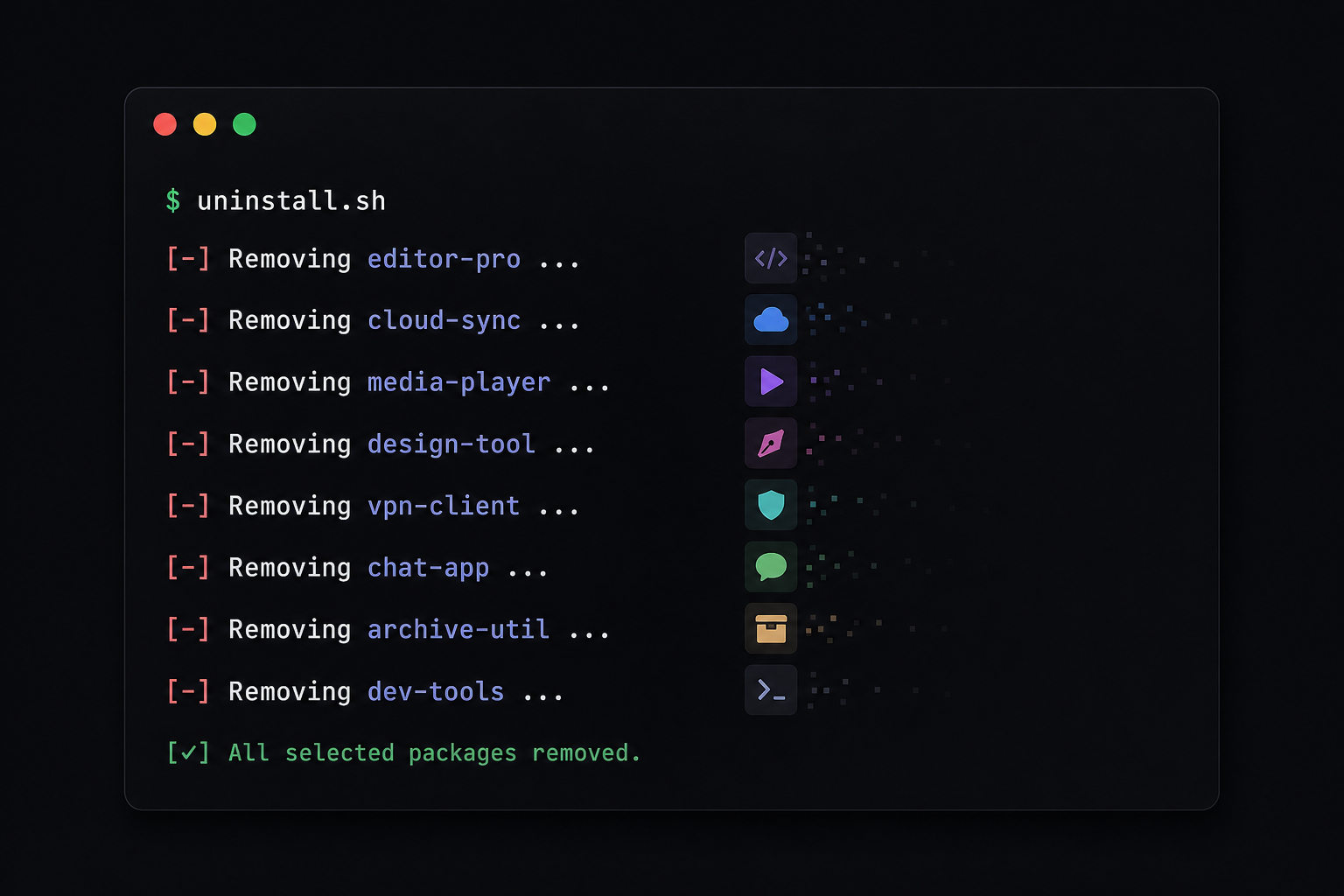
The simplest way to remove Windows 11 bloatware is through the Settings app, and it’s the safest starting point if you’re not comfortable with PowerShell. Most Microsoft Store apps — Solitaire Collection, Xbox-related apps, News, Weather, and similar titles — can be uninstalled this way in seconds.
- Open Settings > Apps > Installed apps
- Use the search box to find the app you want to remove
- Click the three-dot menu next to it and select Uninstall
- Confirm the prompt, then repeat for each unwanted app
You can also right-click most tiles directly from the Start menu and choose Uninstall without opening Settings at all. This method works well for user-facing apps but won’t remove apps that are provisioned for every new account on the device — for those, and for the handful of apps with no visible Uninstall option, you’ll need PowerShell.
Method 2: Uninstall Windows 11 Bloatware with PowerShell
PowerShell lets you uninstall Windows 11 bloatware that doesn’t offer a visible Uninstall button, including apps provisioned for every user account on the machine. This is also the method most sysadmins use when preparing a reference image, because it removes the app’s provisioning so it won’t reinstall for new user profiles.
Finding App Package Names with PowerShell
Before removing anything, list the packages installed on the machine so you know the exact name to target.
- Open PowerShell as Administrator
- Run
Get-AppxPackage | Select Name, PackageFullNameto list apps for the current user - Run
Get-AppxProvisionedPackage -Online | Select DisplayName, PackageNameto list apps provisioned for all users - Copy the exact package name of the app you want to remove
To remove an app for the current user, run Remove-AppxPackage -Package "<PackageFullName>". To stop it from installing for any new account on the device, run Remove-AppxProvisionedPackage -Online -PackageName "<PackageName>". Microsoft documents the full command syntax, including bulk-removal parameters, in its Remove-AppxProvisionedPackage reference.
Run both commands together if you want the app gone permanently rather than just removed from your current profile — provisioning is what causes some bloatware to quietly reappear after a feature update. If you’re dealing with an app that keeps sneaking back in, our guide to stopping OneDrive Photos from auto-installing covers that exact scenario in more detail.
Method 3: Third-Party Tools for Windows 11 Bloatware Removal
Third-party debloat tools can speed up Windows 11 bloatware removal when you’re managing many machines or want a single checklist instead of typing individual commands. These tools typically wrap the same Appx and provisioning commands behind a simple interface, letting you select dozens of apps and remove them in one pass.
Choosing a Safe Debloat Tool
Not every bloatware remover is equally safe. Before installing one, confirm that it:
- Shows exactly which packages it will remove before you confirm anything
- Lets you create a restore point from within the tool, or clearly recommends doing so first
- Is actively maintained, with updates that match current Windows 11 builds
- Comes from a known, reviewable source rather than an unsigned executable from an unfamiliar site
Avoid tools that also promise to “optimize,” “clean,” or “boost” your registry alongside app removal — those extra features are rarely necessary on Windows 11 and are a common source of instability. Stick to tools that do one job well: remove preinstalled apps and leave the rest of the system alone. For a deeper look at Settings-based and scripted methods side by side, see our Windows 11 bloatware removal guide.
Stopping Bloatware From Returning After Updates
Bloatware can reappear after a major Windows 11 feature update even if you removed it correctly, because feature updates sometimes re-provision default apps for every account. This is one of the most common frustrations IT admins report after an update cycle.
- Always use
Remove-AppxProvisionedPackage, not justRemove-AppxPackage, so the app isn’t re-added for new profiles - Reapply your removal script after installing a major feature update, since a new annual release can restore the default app set
- If you manage several devices, turn your PowerShell commands into a reusable script rather than repeating manual steps each time
There’s currently no built-in Windows 11 setting that permanently blocks every default app from ever reinstalling, so treat removing Windows 11 bloatware as routine maintenance rather than a one-time task.
When a Clean Install Beats Removing Windows 11 Bloatware
A clean install is worth considering when a machine has accumulated years of software clutter on top of its bloatware, or when you’re setting up a new PC and want a known-clean baseline. Removing bloatware app by app is efficient on a healthy system, but it won’t fix driver conflicts, fragmented settings, or leftover files from previous software installs.
If you’re planning a clean install, you’ll need a valid license to activate the fresh copy of Windows. Shop Key Online carries genuine Windows 11 Pro license keys for exactly this scenario, and our guide to activating Windows 11 with a product key covers the activation step in full once setup finishes.
After a clean install, Windows 11 still ships with its default app set, so you’ll want to repeat the removal steps above once the system is set up and activated.
Frequently Asked Questions
How do I remove Windows 11 bloatware without breaking the system?
Stick to Settings and the Appx PowerShell cmdlets for apps you don’t recognize, and avoid removing anything tied to core Windows components like the Microsoft Store or Widgets. Create a restore point first so you can undo a mistake, and test your removal list on one machine before applying it broadly across a fleet.
How do I download a tool to help remove Windows 11 bloatware?
Download third-party debloat tools only from the developer’s official site or a reputable, actively maintained repository — never from a random download aggregator. Check the tool’s documentation for the exact list of apps it targets before running it, since some scripts remove more than expected by default.
How do I install third-party debloat software safely?
Run the installer or script with Administrator privileges, and read each confirmation prompt instead of clicking through quickly. Most reputable tools show a preview of the apps queued for removal, so review that list carefully before confirming anything.
How do I activate Windows 11 after a clean install?
Open Settings > System > Activation, select Change product key, enter your 25-character license key, then click Next to let Windows verify and activate automatically. If activation fails, confirm you installed the edition — Home or Pro — that matches your key, and disable any VPN before retrying.
Does removing Windows 11 bloatware affect my license or warranty?
No — uninstalling preinstalled apps doesn’t affect your Windows license or hardware warranty, since you’re removing software, not modifying firmware or system files tied to activation. OEM hardware support policies are unrelated to which apps are installed on the machine.
Will Windows 11 reinstall bloatware after an update?
It can, particularly after a major feature update, because Microsoft sometimes re-provisions default apps for all users during that process. Using Remove-AppxProvisionedPackage instead of a user-level uninstall reduces this risk, but re-running your removal script after big updates is still good practice.
