
Rufus Windows 11 installation has become the go-to method for IT professionals and everyday users who need to get Windows 11 running on hardware that Microsoft’s own setup wizard refuses to touch. Whether your machine lacks TPM 2.0, falls short on Secure Boot support, or runs an older CPU, Rufus 4.6 can create a bootable USB drive that quietly sidesteps every one of those checks — cleanly, legally, and in under ten minutes.
What Is Rufus and Why Does It Matter for Windows 11?
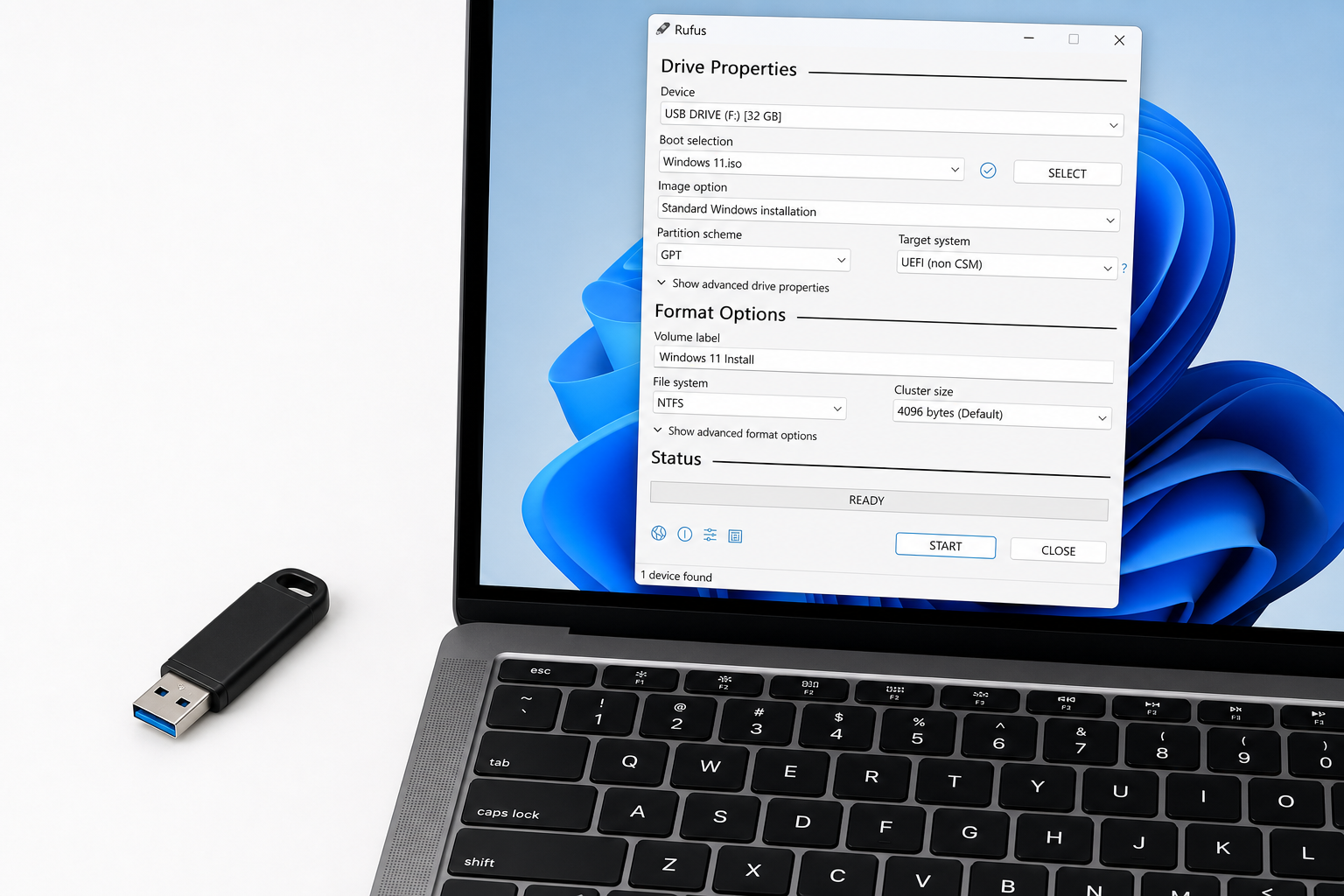
Rufus is a free, open-source utility created by Pete Batard that formats storage devices and creates bootable USB drives. It has been downloaded hundreds of millions of times and is trusted by sysadmins and enthusiasts worldwide. When Microsoft introduced Windows 11’s strict hardware requirements in 2021 — demanding TPM 2.0, Secure Boot, and a compatible CPU — Rufus responded by building an “Extended Windows 11 Installation” option that surgically removes those gates from the installer itself.
Unlike registry hacks or third-party patchers, Rufus modifies the installation media at creation time, meaning the resulting USB drive installs Windows 11 just like any standard Microsoft media — but without the hardware gatekeeping. The tool remains open source, with its full source code and change history publicly available on the official Rufus GitHub Wiki.
What’s New in Rufus 4.6 for Windows 11 Installation
Rufus 4.6 is the most significant release for Windows 11 bootable USB creation to date. It added bypass support for Windows 11 24H2 — the 2024 feature update — which tightened compatibility checks even further than earlier versions. Key additions in the 4.x series include:
- New setup.exe wrapper: Rufus 4.6 ships with a replacement
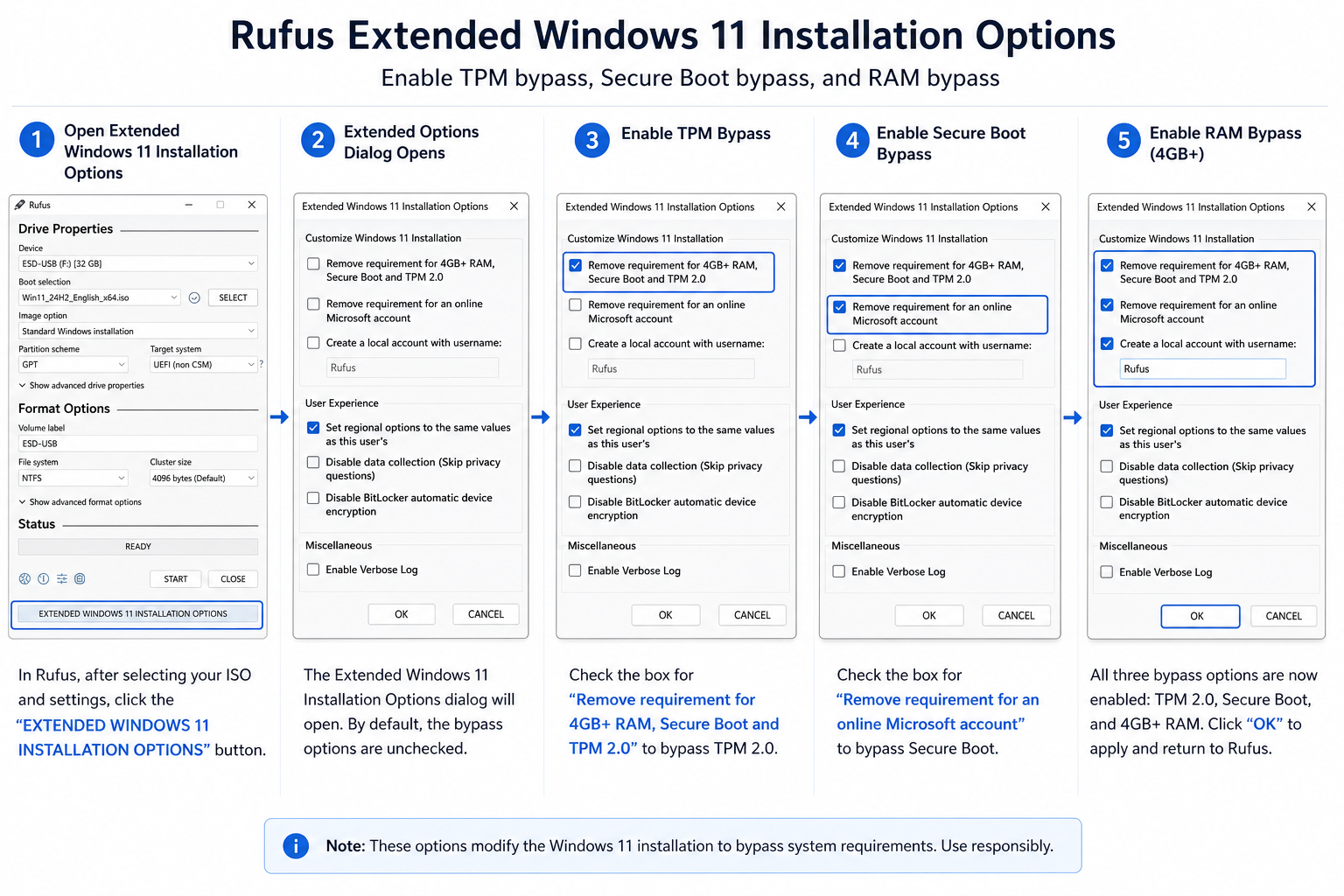
setup.exethat intercepts Windows 11 upgrade compatibility checks, making in-place upgrades possible on unsupported machines without a clean install. - Redesigned options dialog: TPM 2.0, Secure Boot, and RAM bypass options were consolidated into a single “Extended Windows 11 Installation Options” pop-up that appears after you click Start — cleaner and harder to miss.
- Local account enforcement fix: Rufus can remove the forced Microsoft Account sign-in requirement during setup, letting users create a local account instead — a frequent pain point for enterprise deployments.
- CPU compatibility bypass: Older processors not on Microsoft’s supported CPU list can now be unblocked, extending Rufus’s reach beyond just TPM and Secure Boot.
- Regional options preserved: Language and region settings are retained correctly through the bypass process, reducing post-install configuration work.
How to Create a Windows 11 Bootable USB with Rufus
Creating your install Windows 11 Rufus media takes fewer than ten steps. Here’s the straightforward process:
- Download Rufus from rufus.ie — always grab the latest stable version (4.6 or newer).
- Download the Windows 11 ISO directly from Microsoft’s official website using the Media Creation Tool or the direct ISO download option.
- Plug in a USB drive of at least 8 GB. Note that all data on the drive will be erased.
- Run Rufus and select your USB drive under “Device”.
- Click “Select” and navigate to your downloaded Windows 11 ISO file.
- Click “Start” — Rufus will display the “Extended Windows 11 Installation Options” dialog.
- Tick the bypasses you need: Remove TPM 2.0 requirement, Remove Secure Boot requirement, Remove RAM requirement (4 GB minimum), and/or Remove Microsoft Account requirement.
- Confirm and wait — the write process typically takes 10–20 minutes depending on your USB drive’s write speed.
- Boot from the USB on your target machine and run the Windows 11 installer as normal.
That’s it. The resulting media installs Windows 11 exactly as Microsoft’s official tool would — the only difference is that the hardware gate has been lifted.
Bypass Windows 11 Requirements: What Each Option Actually Does
Understanding what Rufus is removing helps you make an informed choice. Here’s a plain-English breakdown of each bypass Windows 11 requirements option:
- TPM 2.0 bypass: Removes the Trusted Platform Module check. Most PCs made before 2017 lack TPM 2.0 — this is the most commonly used bypass.
- Secure Boot bypass: Disables the requirement for UEFI Secure Boot. Often needed alongside the TPM bypass on legacy BIOS machines.
- 4 GB RAM bypass: Allows installation on machines with less than 4 GB of RAM, though performance may suffer significantly below that threshold.
- Microsoft Account bypass: Forces Windows 11 setup to offer a local account option instead of requiring a Microsoft Account during the out-of-box experience (OOBE).
- CPU bypass (4.6+): Removes the CPU compatibility check, allowing processors from unsupported generations to proceed with installation.
None of these bypasses alter the Windows 11 operating system files themselves. They only modify the installer’s compatibility verification logic — meaning you receive a genuine, unmodified copy of Windows 11.
Why IT Teams Are Adopting the Rufus Windows 11 Installation Method

Enterprise IT departments manage fleets of machines, and not every device in a business can justify a hardware refresh just to meet Windows 11’s requirements. With Windows 10 support ending in October 2026, organisations face real pressure to migrate. Rufus gives IT teams a pragmatic middle ground: extend the useful life of hardware that is otherwise perfectly functional, while still moving to a supported operating system.
Specific reasons sysadmins favour the Rufus approach include:
- No third-party risk: Rufus is open source with a transparent, auditable codebase — a critical requirement for many IT security policies.
- Scriptable workflow: Rufus supports command-line arguments, allowing IT teams to automate bootable USB creation across multiple drives.
- Consistent results: The same Rufus configuration produces the same USB every time, reducing support calls caused by inconsistent manual installs.
- Local account control: Removing the Microsoft Account requirement is essential in environments using Active Directory or on-premises identity management.
If your organisation is planning a bulk migration and needs a genuine Windows 11 licence to go with your new media, our Microsoft Windows 11 Pro OEM key delivers an authentic activation key via instant email — no physical media needed.
Install Windows 11 Rufus vs. Microsoft’s Official Media Creation Tool
Microsoft’s own Media Creation Tool is the default route for creating a Windows 11 bootable USB, but it enforces every hardware check without exception. Here’s how the two compare:
- Hardware flexibility: Rufus bypasses TPM, Secure Boot, RAM, and CPU checks; the official tool blocks incompatible hardware entirely.
- Account requirements: Rufus can remove the Microsoft Account obligation; the official tool enforces it on Windows 11 Home.
- In-place upgrades: Rufus 4.6’s setup.exe wrapper enables in-place upgrades on unsupported PCs — something the official tool refuses to do.
- ISO source: Both tools use the same Microsoft ISO files, so the Windows 11 installation content is identical.
- File system options: Rufus offers advanced formatting choices (NTFS, FAT32, UDF, exFAT) and partition scheme selection (MBR vs. GPT); the official tool handles this automatically without user control.
For supported hardware, the official tool is perfectly fine. For anything else, Rufus is the clear winner.
Is Using Rufus to Bypass Windows 11 Requirements Legal and Safe?
Rufus itself is entirely legal — it is free, open-source software licensed under the GNU General Public License. The bypass options it applies modify only the setup process, not the Windows binaries or your licence agreement. Microsoft has acknowledged that unsupported PCs running Windows 11 may not receive certain updates reliably and will display a watermark on the desktop, but no licensing violation is committed by installing Windows 11 this way.
The most important thing is to pair your Rufus installation with a valid, genuine Windows 11 licence key. Using a cracked or shared key voids your activation, exposes your machine to security risks, and may trigger Windows Activation errors down the line. If you need a cost-effective, legitimate licence, our guide on how to upgrade an incompatible Windows 10 PC to Windows 11 covers the full picture — including what to expect from unsupported hardware post-installation.
Frequently Asked Questions
Does Rufus work with the Windows 11 24H2 ISO?
Yes. Rufus 4.6 added specific support for the Windows 11 24H2 ISO, including bypass options for the tightened compatibility checks Microsoft introduced in that update. Download Rufus 4.6 or later from rufus.ie and the Extended Installation Options dialog will handle 24H2 correctly.
Will Windows 11 installed via Rufus receive updates?
Generally yes, but Microsoft explicitly warns that unsupported PCs may not receive all updates reliably. In practice, most Rufus-installed machines receive Windows Update patches normally. However, Microsoft reserves the right to block cumulative updates on hardware that doesn’t meet its minimum specifications, so some feature updates may eventually be withheld.
Do I still need a licence key after using Rufus?
Absolutely. Rufus creates the installation media and removes hardware checks — it does not provide or bypass a Windows licence. You will need a valid Windows 11 product key to activate your installation. Without activation, Windows 11 runs in a restricted state with a persistent watermark and limited personalisation options.
Can Rufus do an in-place upgrade, or only a clean install?
From Rufus 4.6 onwards, in-place upgrades are supported via the new setup.exe wrapper. You can run the setup from the USB drive while booted into your existing Windows 10 installation, and Rufus’s bypass logic will allow the upgrade to proceed on unsupported hardware — preserving your files and installed applications.
What size USB drive do I need for a Windows 11 bootable USB?
A minimum of 8 GB is required, but a 16 GB drive is recommended to ensure there is enough space for all Windows 11 installation files plus any drivers or tools you may want to include. The Windows 11 24H2 ISO is approximately 5.8 GB, leaving limited headroom on an 8 GB drive after formatting overhead.
Is there a risk of data loss when using Rufus?
Creating a bootable USB with Rufus erases everything on the selected USB drive. This is unavoidable and clearly warned within the application. Your PC’s hard drive is not touched during USB creation — data loss only occurs if you mistakenly select the wrong drive in the Device dropdown, so double-check your selection before clicking Start.
