
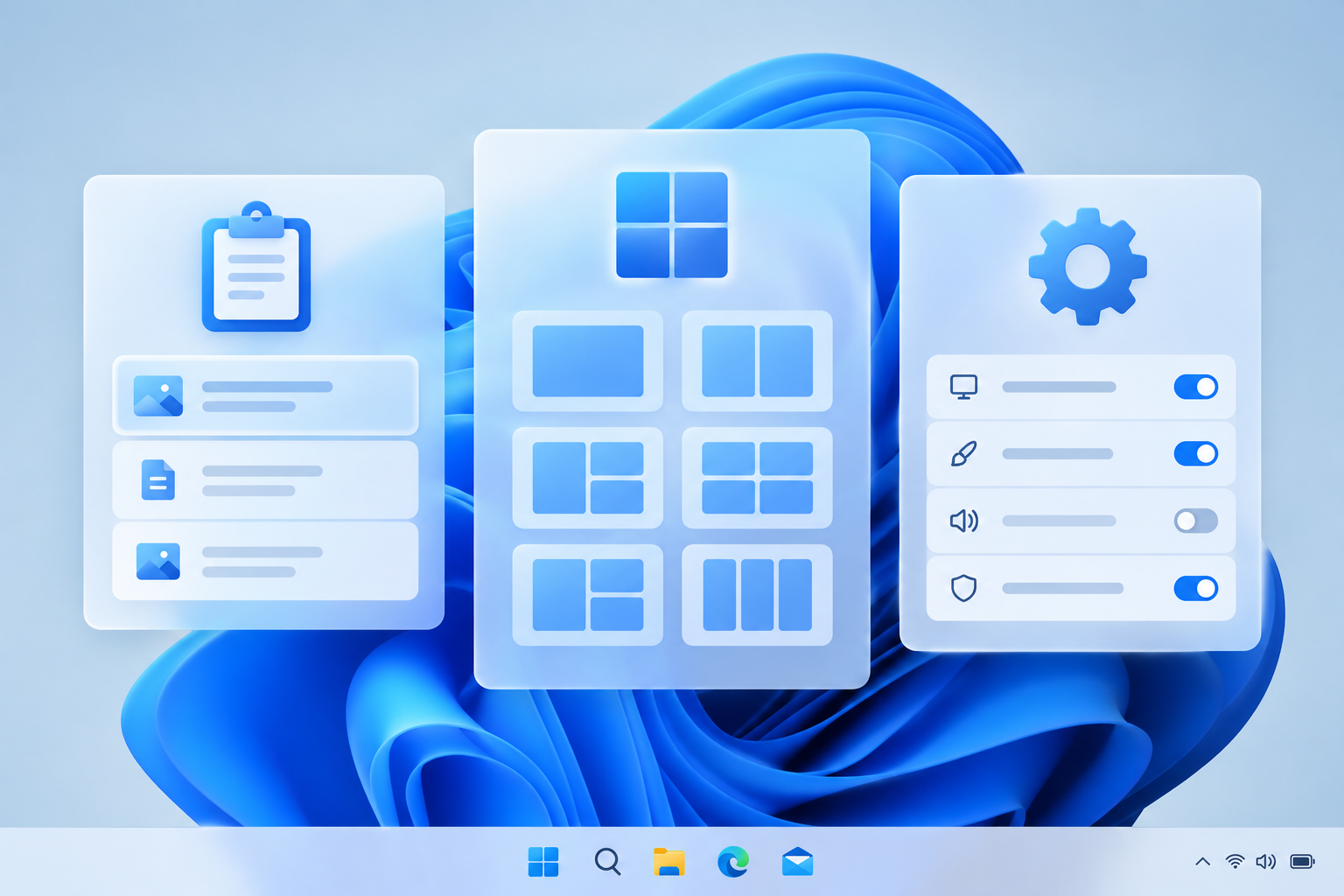
Several hidden Windows 11 features—like multi-item clipboard history, custom Snap Layouts, and a registry-level settings shortcut—sit in plain sight but go unused by even experienced admins and power users. This guide skips the basics everyone already knows and focuses on the tools that genuinely change how you work every day.
Why Hidden Windows 11 Features Deserve a Second Look
Most people who have used Windows 11 for years assume they’ve already found everything worth finding. In reality, a handful of hidden Windows 11 features live inside Settings, the taskbar, and File Explorer, and they never get triggered because nothing points you toward them. These aren’t obscure registry hacks — they’re built in, fully supported, and ready to use the moment you know where to look.
If you manage machines for a small business or just want your own PC to work harder for you, the features below are worth five minutes of setup time each. None require third-party software, though one section covers Microsoft’s own free toolkit for going further.
Clipboard History Ranks Among the Hidden Windows 11 Features
Pressing Win + V opens a running history of everything you’ve copied, not just the last item. Windows stores text, HTML, and image entries and lets you pin the ones you reuse constantly, so a signature block or a frequently typed command never needs retyping.
The feature has real limits worth knowing before you rely on it for anything important. According to Microsoft’s clipboard history guide, items can be up to 4 MB in size, and history caps out at 25 entries before older unpinned items get pushed out automatically.
Pinning and Syncing Clipboard Items
Pinned items survive a reboot and clearing clipboard history; unpinned ones don’t. If you work across multiple PCs signed into the same Microsoft account, enabling clipboard sync in Settings carries pinned entries between machines, which is handy for anyone switching between a desktop and a laptop during the workday.
Snap Layouts and Snap Groups for Real Multitasking
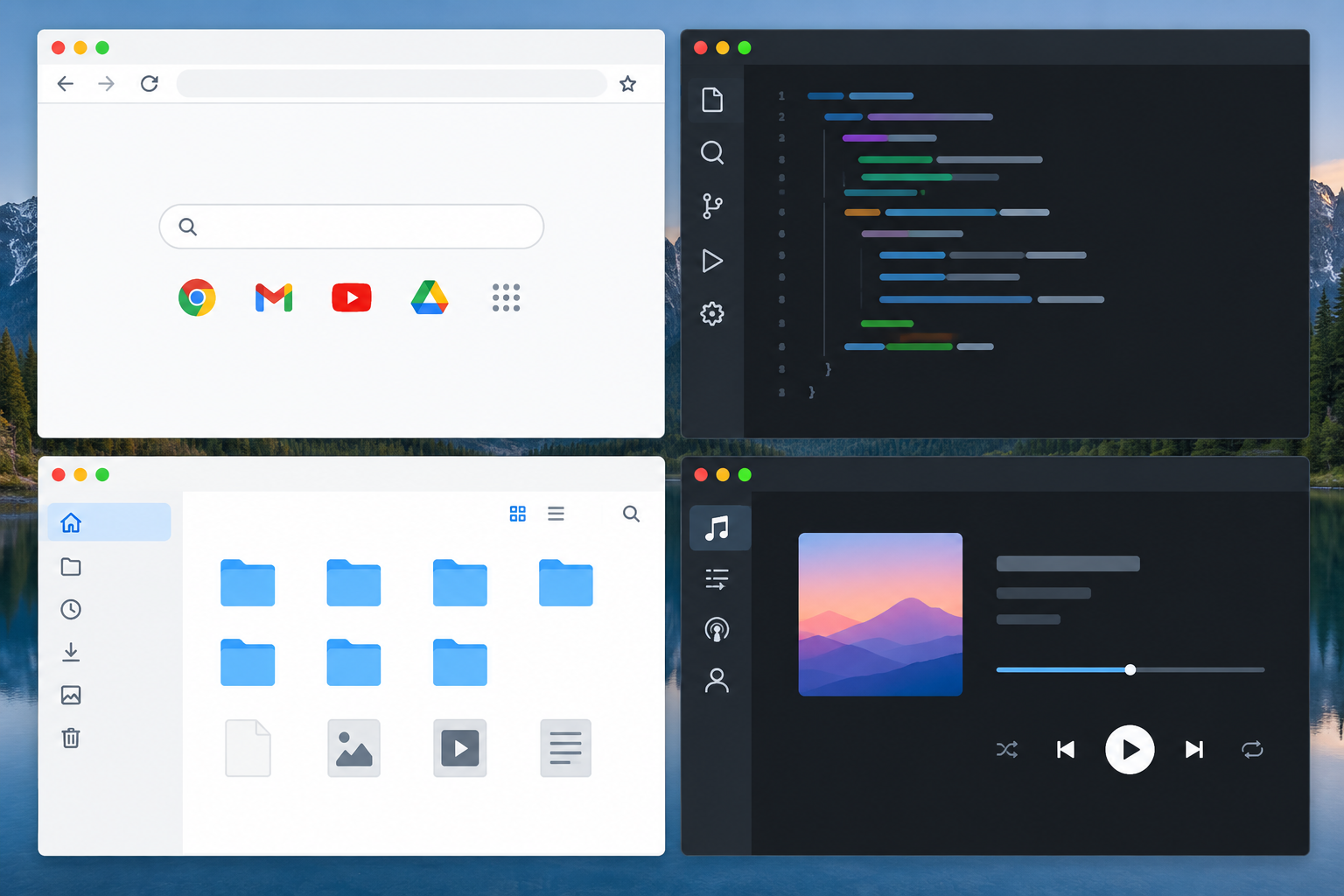
Hovering over a window’s maximize button — or pressing Win + Z — brings up a grid of layout options that snap the current window and any others into a tidy arrangement instantly. This is one of the more visible hidden Windows 11 features, yet many users still manually drag windows to screen edges out of habit.
Snap Groups remember which apps were snapped together, so clicking one taskbar icon restores the whole arrangement — useful if you regularly work with the same three or four apps side by side, like email, a browser, and a spreadsheet.
- Hover the maximize button to reveal available layouts for your screen size
- Drag a window to a screen corner to trigger the same menu
- Click a taskbar thumbnail of a Snap Group to restore the full set at once
Voice Typing and Live Captions You’re Probably Ignoring
Press Win + H anywhere text can be entered and Windows starts transcribing speech directly into the field, no dictation software required. It’s accurate enough for drafting emails or notes hands-free, and it works offline once the language pack is installed.
Live Captions, a separate accessibility feature, generates real-time captions for any audio playing on the PC — useful on calls in noisy environments or when reviewing a recorded meeting without sound. Both tools are built into Windows 11 and listed among Microsoft’s own productivity features for the OS.
PowerToys: Microsoft’s Toolkit for Lesser-Known Windows 11 Features
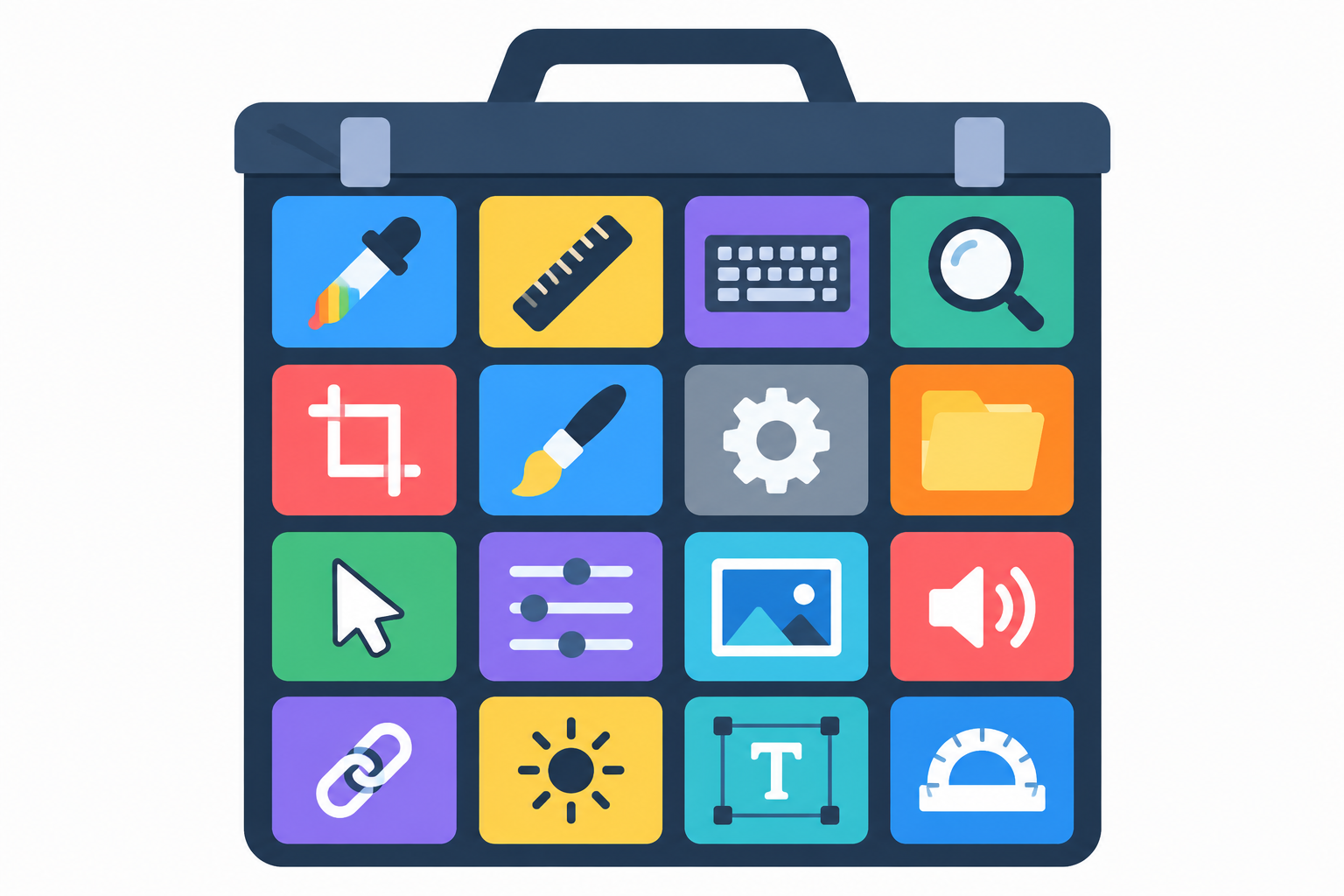
PowerToys is Microsoft’s free, official utility pack, and it’s where several of the most useful lesser-known Windows 11 features actually live once installed. It isn’t a hidden Windows 11 feature on its own — it’s a separate download — but it’s built by the Windows team specifically to extend what the OS already does.
The current package bundles well over two dozen tools. Microsoft’s own documentation describes it as a set of more than 25 free Windows utilities aimed at power users and developers.
- FancyZones — build custom window-snapping templates beyond the default Snap Layouts grid
- PowerToys Run — a quick app and file launcher triggered with a keyboard shortcut
- Color Picker — grab a hex or RGB value from anywhere on screen instantly
- PowerRename — batch-rename files using find-and-replace or regular expressions
- Keyboard Manager — remap keys or build custom shortcuts system-wide
For anyone who also wants to reclaim an underused key, it’s worth pairing PowerToys’ Keyboard Manager with a guide on how to remap the Copilot key into something you’ll actually use.
Focus Sessions and Do Not Disturb for Deep Work
The Clock app’s Focus Sessions feature starts a timer, mutes notifications, and can dim the taskbar so badges and pop-ups stop pulling your attention mid-task. Pairing it with Do Not Disturb (accessible from Quick Settings or Focus assist in Settings) silences everything except calls or apps you specifically allow through.
This combination matters more for IT teams and remote workers than it might seem: constant notification interruptions are one of the most common productivity complaints raised in workplace studies, and both tools are already installed — they just default to off.
God Mode and Other Hidden Windows 11 Feature Shortcuts
Creating a folder and renaming it exactly GodMode.{ED7BA470-8E54-465E-825C-99712043E01C} turns an ordinary folder icon into a single searchable list of hundreds of system settings, pulled from every corner of Control Panel and Settings at once. It’s one of the oldest hidden Windows 11 feature tricks still inherited from earlier Windows versions, and it still works.
It doesn’t unlock anything new — every option inside already exists elsewhere in the OS — but it collapses the usual hunt through nested menus into one scrollable, searchable window. For sysadmins troubleshooting unfamiliar machines, that alone saves real time.
Quick Settings, Taskbar, and File Explorer Tweaks Worth Knowing
A few smaller adjustments round out the list and are easy to miss because they’re buried a layer deeper than the defaults:
- Customize Quick Settings — add or remove tiles like Night Light, mobile hotspot, or accessibility toggles so the panel matches how you actually work
- Taskbar overflow icons — right-click the taskbar corner to control which system tray icons show by default versus stay hidden
- File Explorer’s compact view — tighten row spacing in Explorer to see more files per screen without scrolling
- Multiple desktops — press Win + Tab and create separate virtual desktops for work, personal browsing, or a specific project, each with its own open apps
None of these require admin rights or third-party tools, and most take under a minute to set up once you know the menu to open.
Finding More of Windows 11’s Hidden Features on Your Own
Windows 11’s hidden features tend to cluster in three places: Settings search, right-click context menus, and keyboard shortcuts. Typing a keyword into the Settings search bar — even a vague one like “notifications” or “startup” — surfaces options that aren’t visible from the main Settings navigation at all.
It’s also worth revisiting shortcuts you learned years ago; Microsoft adds new key combinations with most feature updates, and our essential Windows keyboard shortcuts guide covers the ones that still hold up today. If you’re deciding which edition actually supports the features you want — like Group Policy or BitLocker — our Windows 11 Home vs Pro comparison breaks down the real differences before you buy or upgrade.
And if you’re setting up a new license on a fresh install, our guide on how to activate Windows 11 with a product key walks through entering and troubleshooting activation so you can get to testing these features sooner rather than later.
Frequently Asked Questions
What are some hidden Windows 11 features most people miss?
Clipboard history (Win + V), Snap Layouts (Win + Z), Focus Sessions in the Clock app, and the GodMode settings folder are among the most overlooked. They’re all built into a standard install and need no extra download.
How do I enable clipboard history in Windows 11?
Go to Settings > System > Clipboard and toggle Clipboard history on, or simply press Win + V, which prompts you to turn it on if it’s disabled. Once active, every copy or cut is added to the list automatically.
What is God Mode in Windows 11?
God Mode is a folder renamed with a specific system code that displays hundreds of Windows settings in one searchable window instead of scattered across Control Panel and Settings. It doesn’t add new functionality — it just organizes existing settings into a single view.
Are PowerToys safe to install?
Yes. PowerToys is developed and maintained by Microsoft as an open-source project and is distributed through Microsoft’s own channels, including the Microsoft Store.
Do I need Windows 11 Pro for these features?
No. Clipboard history, Snap Layouts, Voice Typing, Focus Sessions, and GodMode all work on Windows 11 Home. PowerToys also installs and runs the same way on both editions.
Can I use Windows 11’s hidden features without an internet connection?
Most work offline, including Snap Layouts, GodMode, and clipboard history once enabled. Voice Typing needs an initial download of the speech recognition language pack, after which it can run offline too.
