
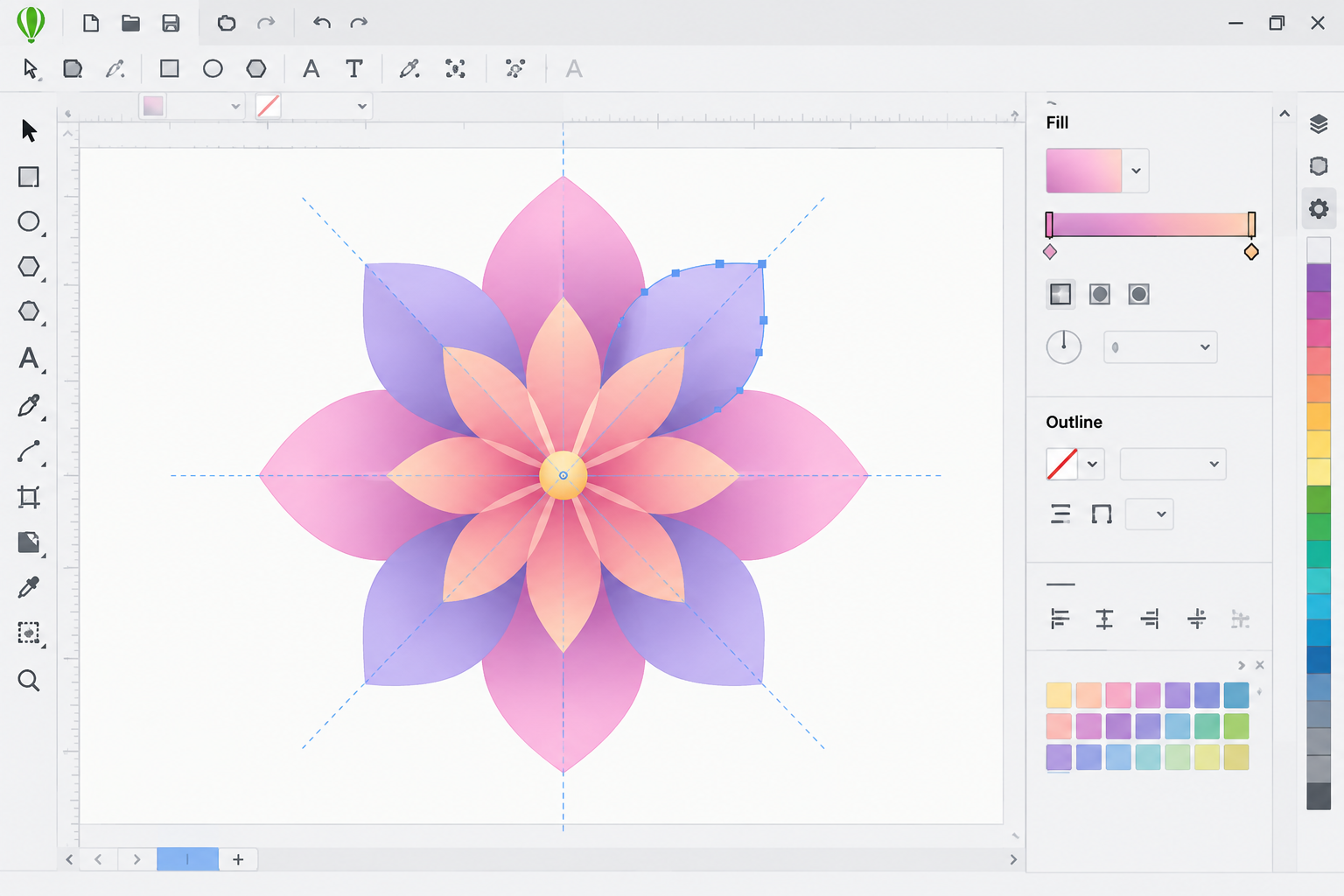
If you’ve seen the wave of intricate, mandala-style floral graphics filling design feeds lately, you’re probably wondering how they’re made so cleanly. This CorelDRAW flower design tutorial breaks the trend down into three repeatable skills: building base shapes, applying gradients for depth, and using the Symmetry tool to turn a single petal into a balanced, decorative motif. None of it requires advanced drawing skill — just a methodical workflow.
The appeal of this style is that it rewards precision over freehand talent. Once you understand how shapes, fills, and symmetry lines interact, you can produce an entire library of floral vector art in an afternoon, whether it’s for packaging, textile patterns, logos, or social media graphics.
What You Need Before Starting This CorelDRAW Flower Design Tutorial

You need a licensed copy of CorelDRAW Graphics Suite and a basic grasp of the Shape, Fill, and Transform docked toolbars. Nothing else is required — no plugins, no pre-made templates, and no drawing tablet, though one helps for freehand petal tweaks.
-
CorelDRAW Graphics Suite (Windows or Mac) installed and activated
-
The Ellipse, Pen, and Shape tools pinned to your toolbar
-
The Object docker open for managing layers and symmetry groups
-
A rough reference image or sketch of the flower shape you want
If you’re setting up CorelDRAW for the first time, our beginner-focused walkthrough covers the interface basics before you dive into floral work.
Building the Base Shapes for Your Flower
Every decorative flower motif starts from two or three simple vector shapes — typically an ellipse for the petal body and a smaller circle or teardrop for the center. Draw one petal shape, then use the Shape tool (F10) to pull its nodes into a pointed or rounded tip depending on the flower style you’re after.
Petal Construction Basics
Keep the first petal simple. Draw an ellipse, convert it to curves (Ctrl+Q), then drag the top and bottom nodes outward slightly to create a leaf-like taper. This single shape becomes the building block for the entire flower once symmetry tools take over the repetition.
A Step-by-Step CorelDRAW Flower Design Approach to Petals
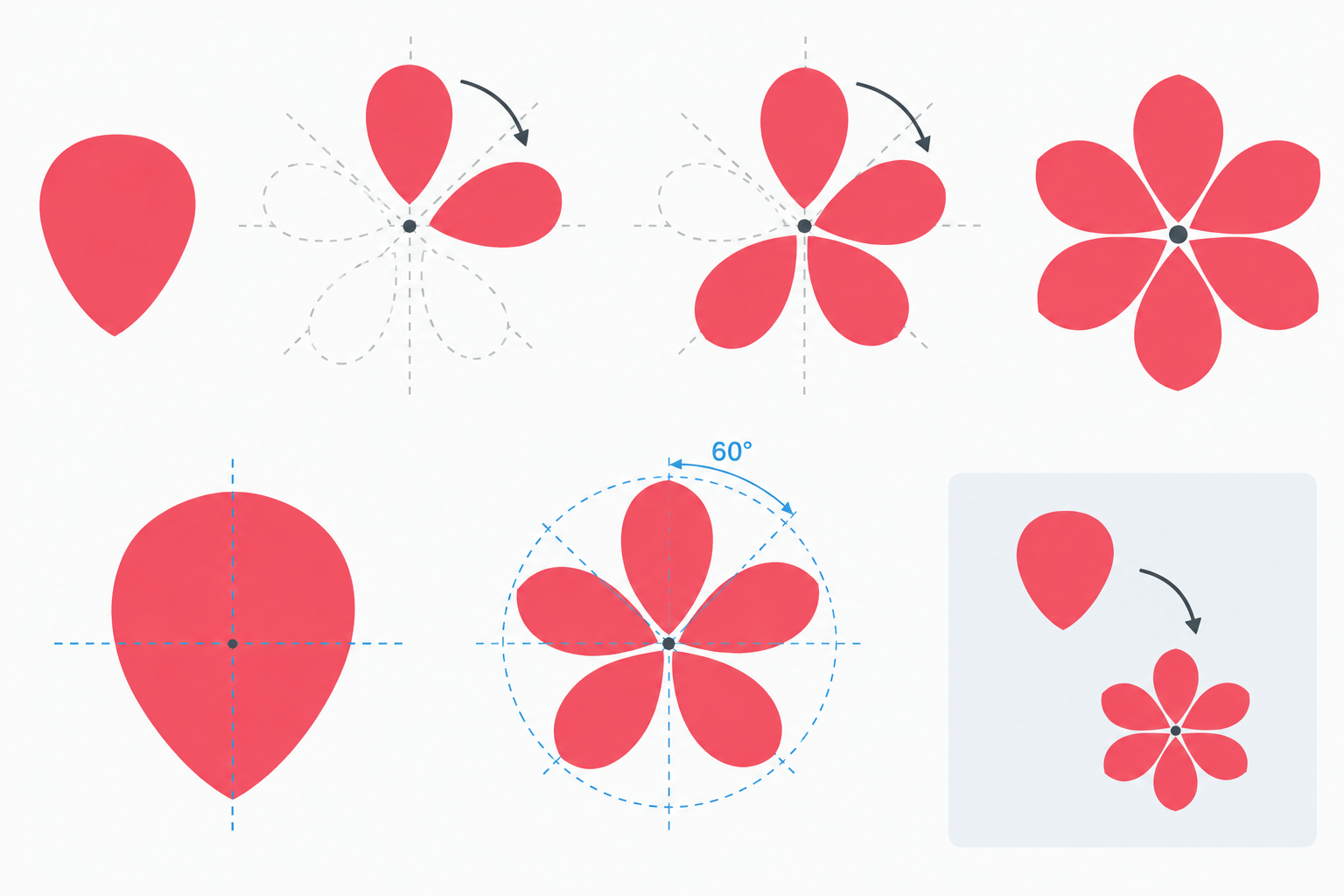
The fastest path to a finished petal cluster is to perfect one petal completely before duplicating anything. Adjust its curve smoothness, outline weight, and proportions first — fixing mistakes on five duplicated petals later wastes far more time.
-
Draw and refine a single petal shape using the Pen or Freehand tool
-
Apply a temporary flat fill so the shape is easy to see against the canvas
-
Group the petal with any inner highlight shapes it needs
-
Rotate a duplicate copy using Transform > Rotate with a precise angle (for example 60° for six petals)
-
Repeat the rotation until the full ring is complete, or switch to the Symmetry tool for automatic repetition
This step-by-step CorelDRAW flower design approach keeps every petal mathematically consistent, which is what gives these designs their clean, “too perfect to be hand-drawn” look.
Adding Gradients and Fountain Fills for Depth
Flat petals look fine, but a fountain fill (CorelDRAW’s term for a gradient) is what gives the design dimension. Select a petal, open the Fill flyout, and choose Fountain Fill. CorelDRAW offers linear, elliptical, conical, and rectangular fountain fill types, and elliptical or conical fills tend to suit rounded petals best because the color shift follows the curve of the shape naturally.
Layering Multiple Gradients
For richer petals, apply a second, more transparent gradient on a duplicate shape placed on top of the base petal — this mimics the soft color blending seen in real flowers without needing the Mesh Fill tool, although Mesh Fill is worth exploring once you’re comfortable with basic fountain fills.
-
Linear fountain fill: smooth, directional color transitions — good for flat, graphic petals
-
Elliptical fountain fill: radiates from a center point — ideal for rounded petal shapes
-
Conical fountain fill: creates a spinning, light-catching effect — useful for metallic or glossy looks
Using the Symmetry Tool in a CorelDRAW Flower Design Tutorial

CorelDRAW’s Symmetry tool automatically mirrors and repeats whatever you draw inside a symmetry group, which is exactly how the viral radial flower patterns are built so quickly. Go to Object > Symmetry > Create New Symmetry, set the number of symmetry lines you want (six is common for flowers), and anything you draw inside that group is instantly mirrored around the center point in real time.
According to Corel’s own documentation, the Symmetry tool in CorelDRAW Graphics Suite is designed to balance designs so users can build mandalas, logos, and icons in a fraction of the usual time. For flower work specifically, radial symmetry with 5 to 8 lines produces the most natural-looking petal counts.
Editing Inside a Symmetry Group
While the symmetry group is active, every edit you make to one petal — reshaping a node, nudging an outline, adjusting a gradient angle — updates all mirrored copies simultaneously. This is the single biggest time-saver in the entire workflow, since it eliminates the need to manually duplicate and rotate each petal.
Combining Shapes, Gradients, and Symmetry into a Finished Motif
Once your symmetry group is complete, break the link (Object > Symmetry > Break Apart) so you can fine-tune individual petals without affecting the rest. This is also the point to add a center shape — a small gradient-filled circle — and any background elements like leaves or a decorative border.
Flatten the finished artwork into a single group before exporting, and check that all fountain fills render correctly in your target file format (EPS and PDF handle multi-stop gradients more reliably than some simplified SVG exports).
Common Mistakes in CorelDRAW Flower Design Tutorials
Most issues in CorelDRAW flower design tutorials come down to inconsistent petal angles or gradients that don’t match in direction across the symmetry group. A few other recurring problems are worth watching for:
-
Forgetting to convert shapes to curves before reshaping nodes, which locks you into rigid ellipse geometry
-
Using too many symmetry lines for the chosen petal shape, producing an overcrowded look
-
Applying different gradient angles to each petal instead of letting symmetry mirror the fill automatically
-
Skipping the “break apart” step, which can cause export issues later
The global market for vector graphics software stood at USD 1.16 Billion in 2026, which reflects how widely vector workflows like this one are now used across print, packaging, and digital design — flower motifs are one of the most common training exercises for exactly that reason.
Where to Go Next After This Flower Design Tutorial in CorelDRAW
Once you’re comfortable with petals, gradients, and symmetry, the same workflow applies to mandalas, lace patterns, snowflakes, and repeating textile motifs. If you want to explore more advanced fill techniques, Mesh Fill and transparency blending are the natural next tools to learn.
For designers ready to upgrade their software, browsing the CorelDRAW product range at Shop Key Online is a practical next step, and our guide to vector graphics animation techniques shows how to bring static floral art to life afterward.
Frequently Asked Questions
How do I download, install, and activate CorelDRAW for this tutorial?
Sign in at corel.com before downloading, then go to the CorelDRAW download page and select your edition and operating system (Windows or Mac). After installing, launch the program and enter the serial number you received with your order when prompted to activate it.
How do I create symmetrical flower designs quickly?
Use Object > Symmetry > Create New Symmetry, set the number of symmetry lines to match your desired petal count, and draw inside the symmetry group — CorelDRAW mirrors every edit automatically around the center point.
What’s the easiest way to build petals with gradients?
Start with an elliptical or conical fountain fill on a single refined petal shape before duplicating it, since adjusting one gradient is far faster than correcting several mismatched ones afterward.
Do I need a drawing tablet to follow a CorelDRAW flower design tutorial?
No. A mouse works fine because the petal shapes are built from editable curves and mirrored with the Symmetry tool rather than drawn freehand, though a tablet can help with fine node adjustments.
Can I use these techniques in older CorelDRAW versions?
Shape building and fountain fills work in nearly every CorelDRAW release, but the dedicated Symmetry tool was introduced in CorelDRAW 2018, so versions before that require manual duplication and rotation instead.
