
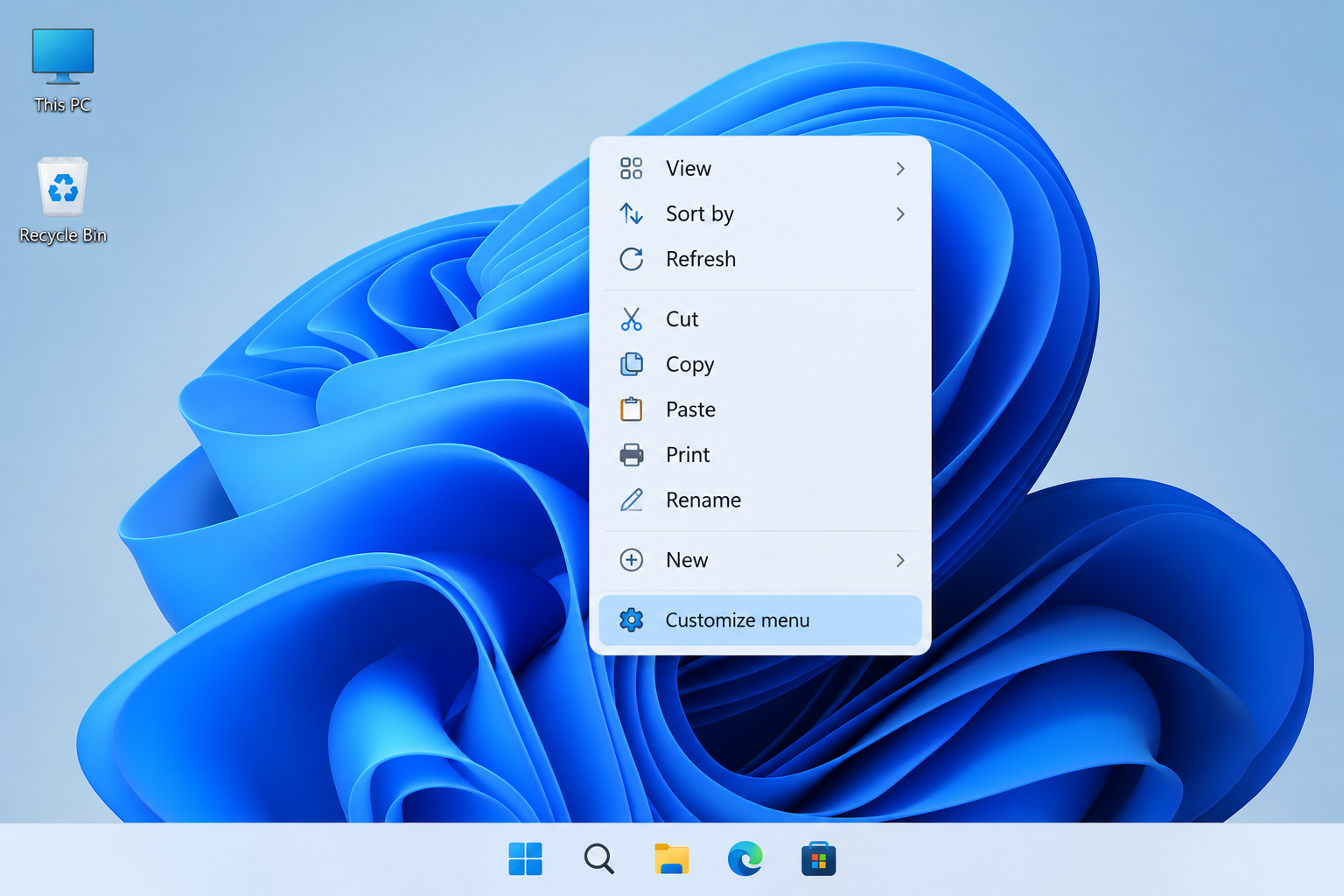
KB5127936 adds a customizable right-click menu to Windows 11’s File Explorer, letting you turn built-in commands on or off, add extras like Print, and change the order items appear in when you right-click a file or folder. The update is rolling out as an optional preview release, so not every PC will see the new menu immediately — here’s how it works and how to try it now.
If you followed the earlier right-click menu overhaul coverage, this update is the moment those changes actually reach real PCs instead of Insider builds.
What KB5127936 Changes About the Customizable Right-Click Menu
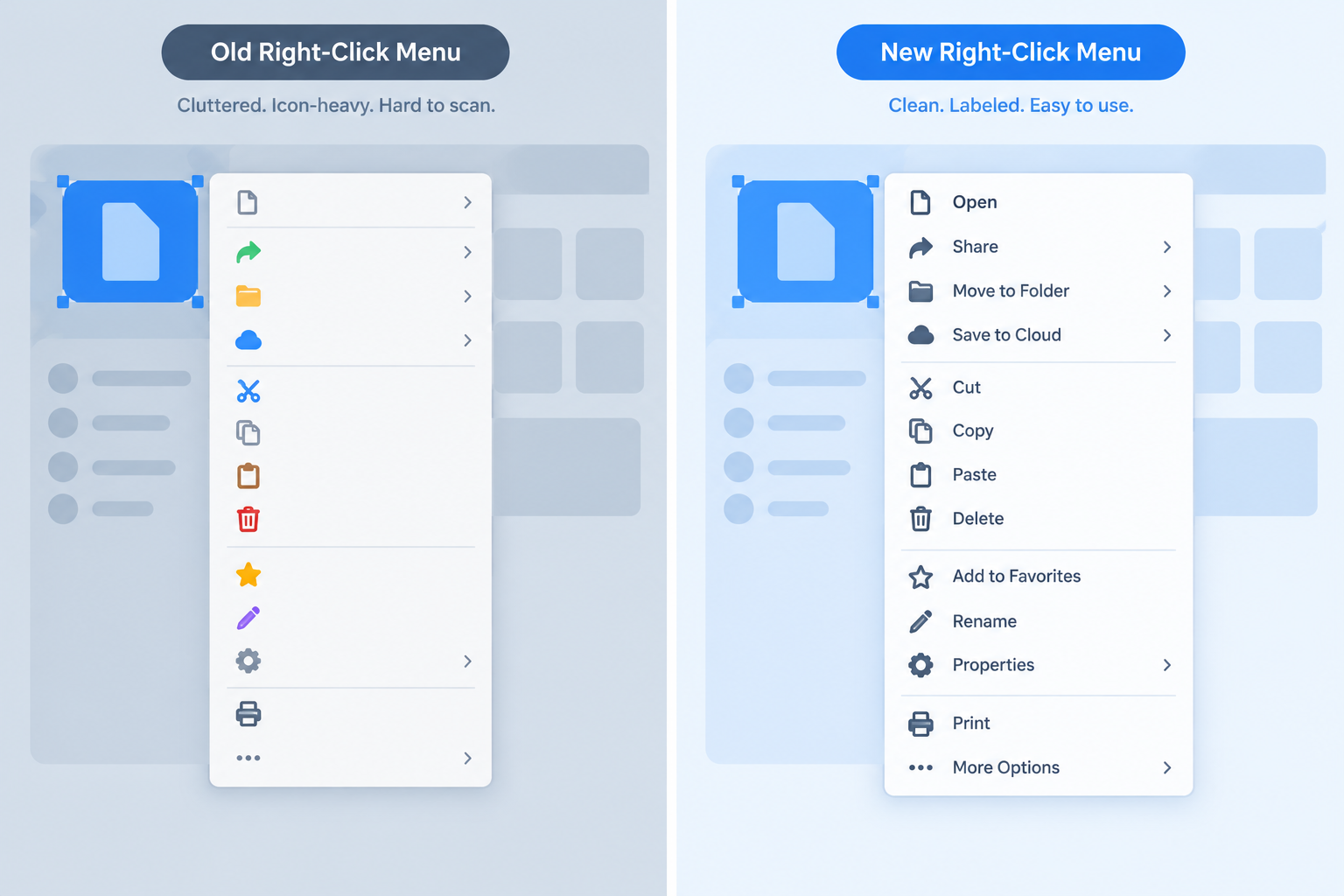
KB5127936 replaces the icon-only quick-actions row with labeled commands and adds a dedicated settings screen so you can decide exactly what shows up when you right-click a file or folder. According to Microsoft’s official release notes for KB5127936, the update introduces a context menu that is faster, simpler, and more customizable, and it opens more quickly than the previous design.
The update is optional and non-security, released for Windows 11 versions 25H2 and 26H2. Because it’s optional, you need to check for updates manually to install it rather than wait for it to land automatically with a mandatory monthly release.
How the New Customizable Right-Click Menu Works
The customizable right-click menu adds a “Customize menu” entry at the bottom of the context menu that opens a settings panel for managing what you see. From there you control which native actions appear, which third-party entries stay visible, and whether extra options show up by default.
Turning Built-In Commands On or Off
Several commonly used File Explorer commands can now be switched off if you never use them. Typical toggles include:
- Send to
- Create shortcut
- Compress to ZIP file
- Open in Terminal
- Share
Hiding the ones you don’t need shortens the menu without removing the underlying feature — you can always turn a command back on from the same settings screen.
Adding Commands Like Print to the Menu
Customizing the right-click menu also works in the other direction. Some commands that used to be buried or missing entirely, such as Print, can now be added back to the main menu so they’re one click away instead of hidden behind “Show more options.”
How to Reorder or Trim Entries in the Customizable Right-Click Menu
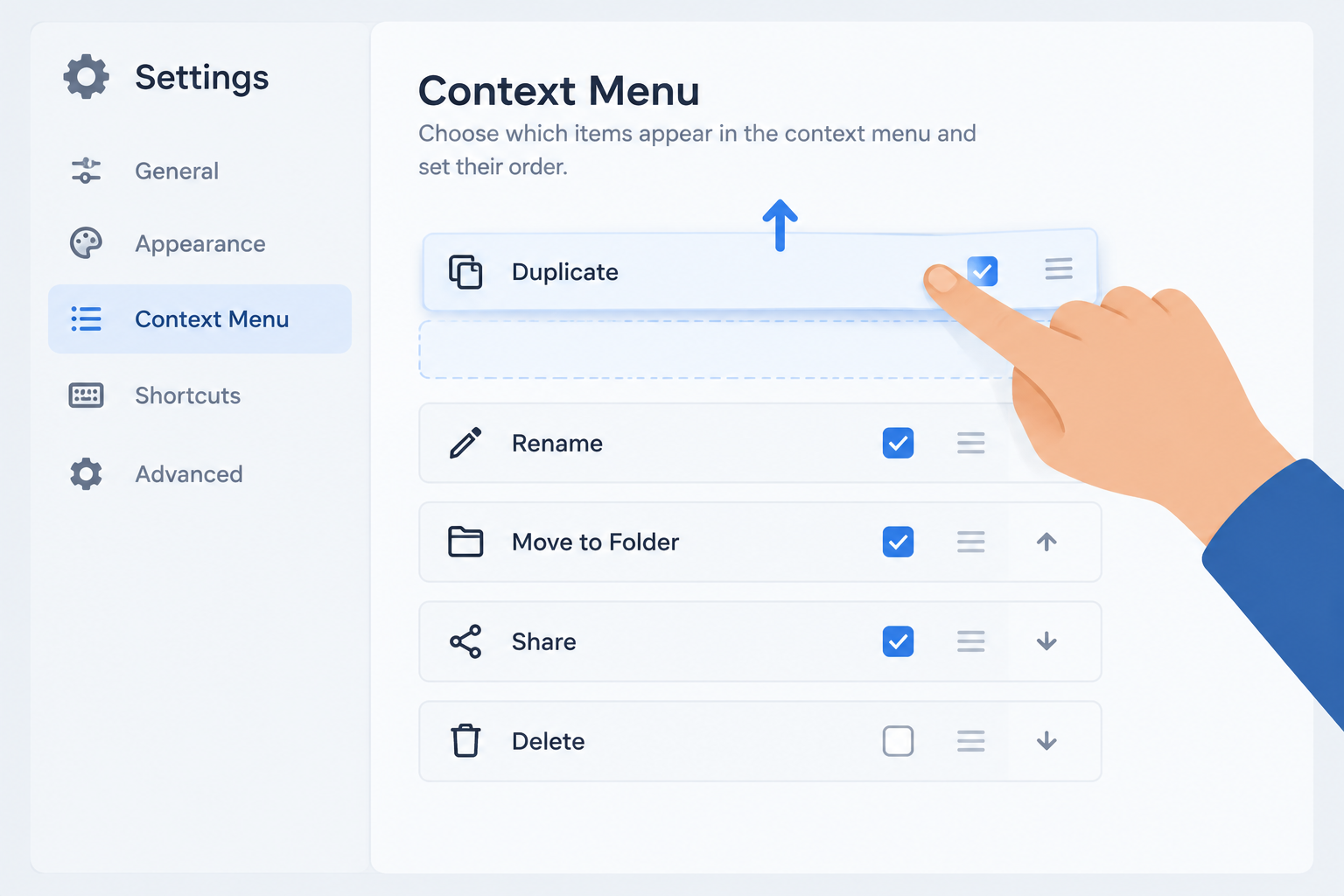
To reorder or trim entries, open the “Customize menu” panel, then use the on-screen controls to move items up or down and uncheck the ones you want removed. Changes apply immediately, so you can preview the new layout by right-clicking again right after adjusting it.
Reordering Context Menu Entries
- Right-click any file or folder in File Explorer
- Select “Customize menu” at the bottom of the list
- Use the reorder controls to move frequently used commands higher
- Close the panel and right-click again to confirm the new order
Trimming Entries You Never Use
Trimming works the same way: uncheck any built-in or app-added entry you don’t use. This is especially useful on PCs with several installed apps that each add their own context-menu entries, since those third-party additions are often what makes the classic menu feel cluttered in the first place.
Customizing the Right-Click Menu Right Now vs. Waiting for General Rollout
You can turn on the customizable right-click menu today by installing KB5127936 manually, or you can wait and let it appear on its own as Microsoft expands the rollout. Both paths get you the same feature — the difference is only in timing and how much manual setup you’re willing to do.
Enabling It Early With ViVeTool
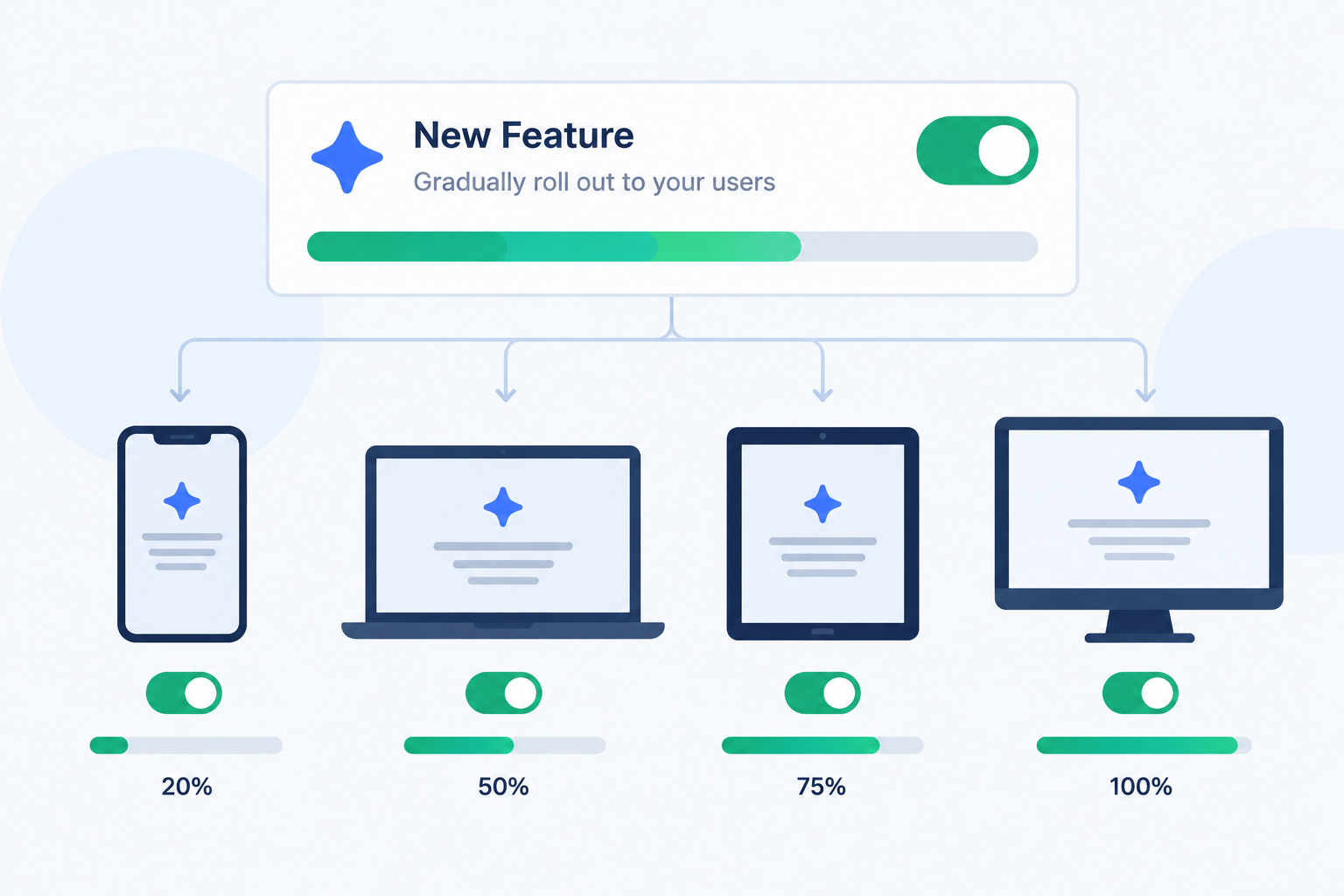
Microsoft is using a staged rollout, which means installing KB5127936 doesn’t guarantee the new menu appears immediately on every device, even on the same build. Enthusiasts who want it right away have used ViVeTool, a third-party feature-flag utility, to force-enable the underlying feature after installing the update. This approach works but isn’t officially supported, so it’s best reserved for a secondary or test PC rather than your primary work machine.
Waiting for the Gradual Rollout
If you’d rather not tinker with flags, simply keep Windows Update current and the feature should arrive on its own in the coming weeks. Microsoft tends to stage interface changes like this because Windows 11 accounts for 71% of the worldwide desktop market share as of September 2026, so even a small, unexpected issue in a change this visible could affect a huge number of PCs at once if it shipped to everyone simultaneously.
Is It Worth Installing KB5127936 Now?
Installing KB5127936 now is worth it if you like trying new Windows features early and don’t mind the occasional rough edge that comes with an optional preview update. If your PC is running smoothly and you’d rather avoid any risk, there’s no downside to waiting for the feature to roll out through normal monthly updates instead.
- Install now if: you want the customizable right-click menu immediately and are comfortable troubleshooting an optional update
- Wait if: your PC is used for critical work and you prefer fully tested, mainstream releases
- Either way: your existing license and activation are unaffected — this is a feature update, not a new Windows version
If you’re setting up a new PC or still need to license one, our Windows 11 Pro license gets you onto a supported, update-eligible build so features like this reach you through normal servicing. For a deeper look at what else changed around the same release, see our Windows 11 26H2 upgrade guide.
Frequently Asked Questions
What Is Right-Click Menu Customization in KB5127936?
Right-click menu customization in KB5127936 is a new settings panel, opened via “Customize menu,” that lets you turn built-in File Explorer commands on or off and change their order. It replaces the old fixed layout with one you control.
How Do I Reorder My Customizable Right-Click Menu?
Right-click a file or folder, choose “Customize menu,” and use the reorder controls in the panel to move entries up or down. Close the panel and right-click again to see the updated order take effect.
How Can I Turn On the Customizable Right-Click Menu Early?
Install the optional KB5127936 update through Windows Update, then check if the new menu already appears. If it doesn’t due to the staged rollout, some users force-enable it with ViVeTool, though that method is unsupported and best kept to a test device.
How Do I Restore the Old Right-Click Menu in Windows 11?
There isn’t a simple built-in toggle to fully revert to the old layout once the new menu is active, since the redesign replaces the underlying menu system rather than offering a classic-mode switch. Uninstalling the optional update is the most reliable way to go back if you decide the new design isn’t for you.
Does the Customizable Right-Click Menu Apply Only to File Explorer?
Yes, the changes in KB5127936 are focused on File Explorer’s context menu — the one you see when you right-click files, folders, and the desktop. Right-click menus inside other apps aren’t affected by this update.
