
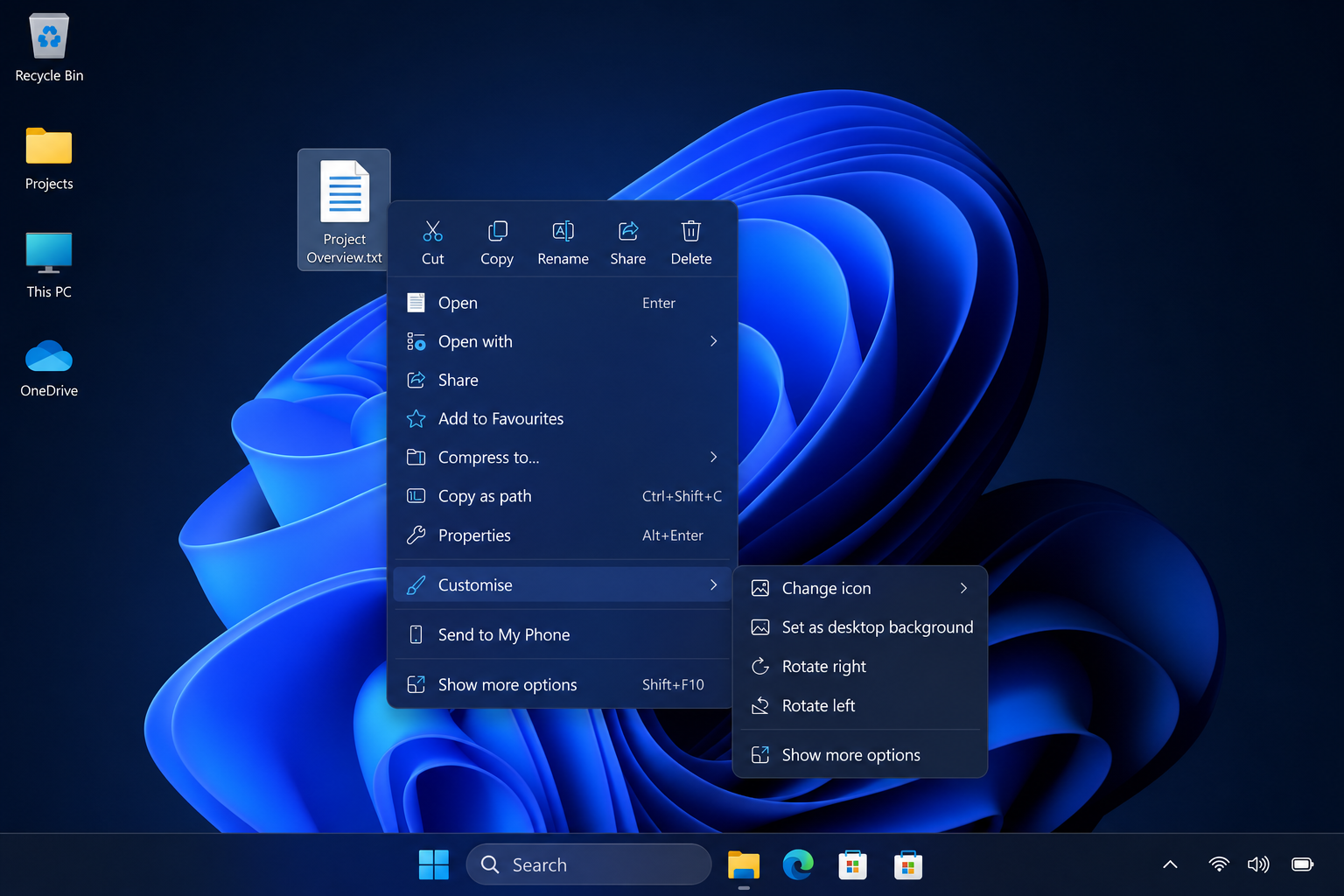
The Windows 11 right-click menu has been one of the operating system’s most controversial design decisions since launch — and Microsoft has finally admitted it needs a proper fix. As of June 2026, the company’s Windows design lead publicly confirmed that the context menu is being reworked from the ground up to be faster, simpler by default, and genuinely configurable by users. Whether you manage a fleet of business PCs or use a single home machine, this overhaul will directly change how you interact with files and folders every single day.
Why the Current Windows 11 Context Menu Has Frustrated Users
When Windows 11 launched in October 2021, Microsoft replaced the traditional full-length right-click menu with a stripped-down, modern version. The logic was clean design — but the execution frustrated millions. Common actions like Copy as path, Open with, or third-party options were buried behind a secondary “Show more options” click, adding an extra step to tasks people perform dozens of times per day.
Worse, performance suffered too. The new context menu was measurably slower to render than its Windows 10 predecessor, particularly on older or mid-range hardware. Community feedback piled up on forums, Reddit threads, and Microsoft’s own Feedback Hub, with users calling the redesign a step backwards in productivity. Power users and IT administrators — who rely heavily on right-click workflows — were especially vocal.
-
Extra click required to reach legacy menu items
-
Slower rendering compared to Windows 10’s context menu
-
Third-party app integrations hidden or inaccessible at first glance
-
Inconsistent behaviour across File Explorer and the desktop
-
No built-in way to add or remove specific items
What Microsoft Is Changing: The New Context Menu Overhaul
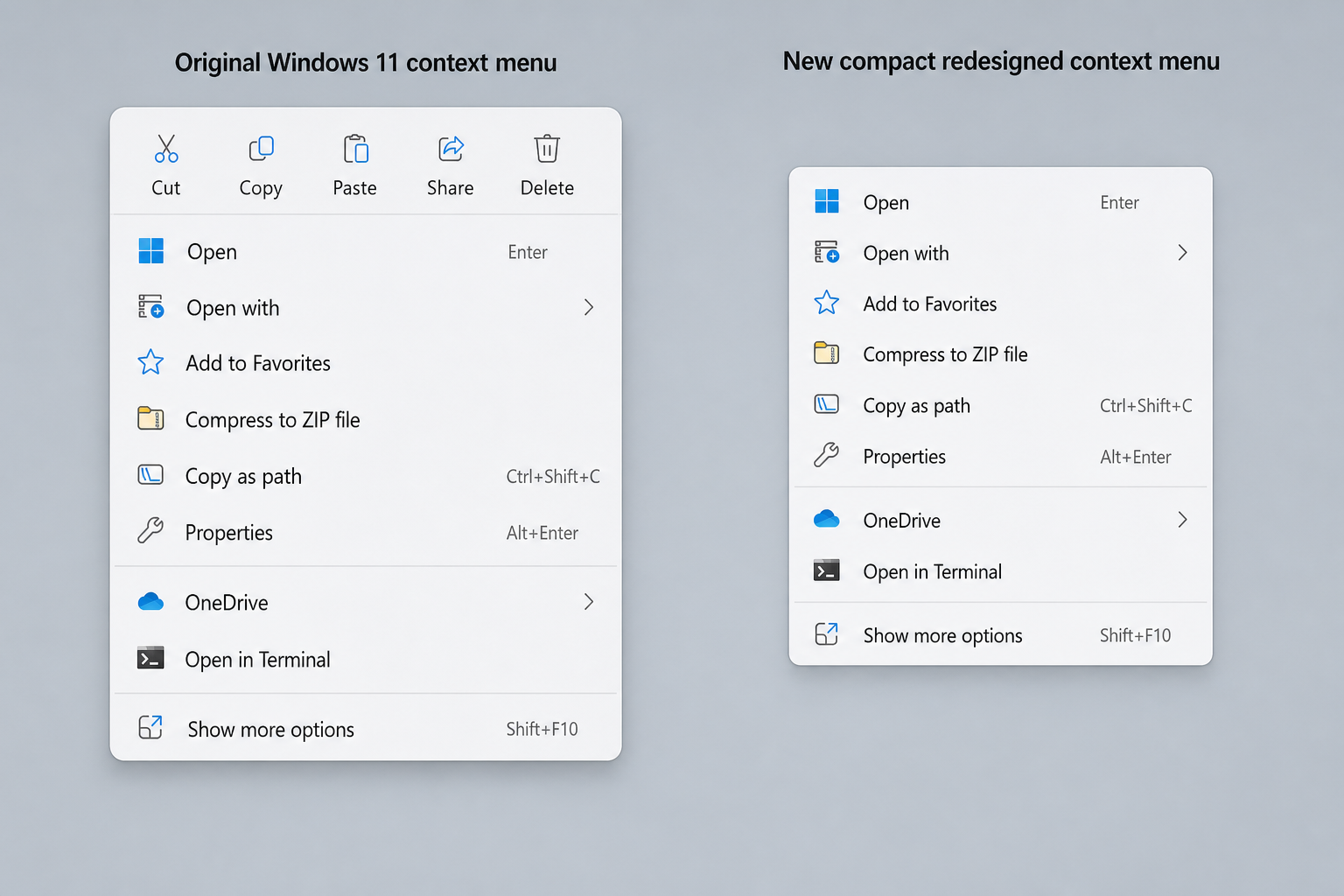
Microsoft’s redesigned Windows 11 context menu prioritises three things: speed, simplicity, and control. According to reporting by Neowin, the incoming design brings a more compact layout that loads significantly faster, with Microsoft focusing on both performance and reliability at the architectural level — not just a cosmetic refresh.
A Faster, More Compact Layout
The overhauled menu is being built to open more quickly and with fewer rendering delays. Microsoft is addressing the underlying performance bottlenecks that caused the noticeable lag many users reported. The new compact design reduces visual clutter while keeping the most-used actions front and centre, so you spend less time hunting and more time working.
User-Configurable Right-Click Menu Items
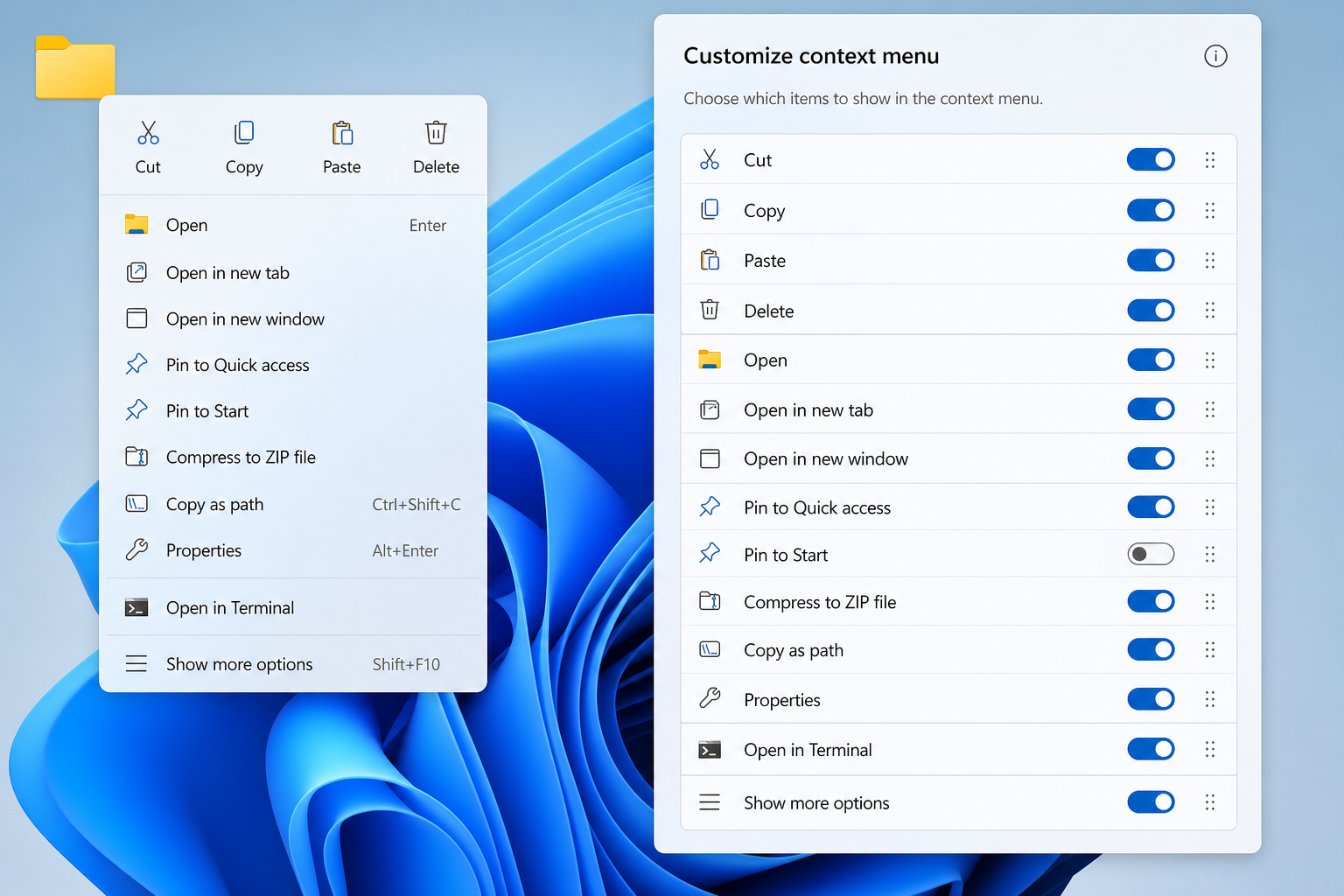
The headline feature is genuine right-click menu customisation. Microsoft has confirmed that users will be able to add and remove individual items from the context menu directly — no registry hacks, no third-party tools required. This is a significant shift from the locked-down approach that has defined Windows 11’s context menu since 2021. For IT administrators, this opens the door to standardised, role-specific menus across managed devices.
Smarter Default Options
Microsoft is also rethinking which options appear by default. Rather than showing everything for all users, the intent is for the default view to surface the actions most relevant to what you’ve right-clicked — a file, a folder, the desktop, or a selected group of items. Less noise, more signal.
How to Customise the Windows 11 Context Menu Right Now
You do not have to wait for the full overhaul to take control of your Windows 11 context menu. Several practical options exist today, ranging from built-in shortcuts to registry edits suited to advanced users and IT teams.
Use Shift + Right-Click for the Classic Menu Instantly
Holding Shift while right-clicking any file or folder immediately opens the full legacy context menu — no “Show more options” required. This is the quickest zero-configuration workaround for users who regularly need access to items like Open command window here or third-party shell extensions. It works on every Windows 11 build with no changes needed.
Restore the Classic Menu Permanently via Registry
For users who always want the full context menu without holding Shift, a registry edit makes it permanent. Navigate to HKEY_CURRENT_USER\Software\Classes\CLSID, create a new key named {86ca1aa0-34aa-4e8b-a509-50c905bae2a2}, add a sub-key called InprocServer32, and leave its default value blank. Restart Windows Explorer (not the whole PC) and the classic right-click menu is restored. Always back up your registry before making changes.
Use Group Policy for Managed Environments
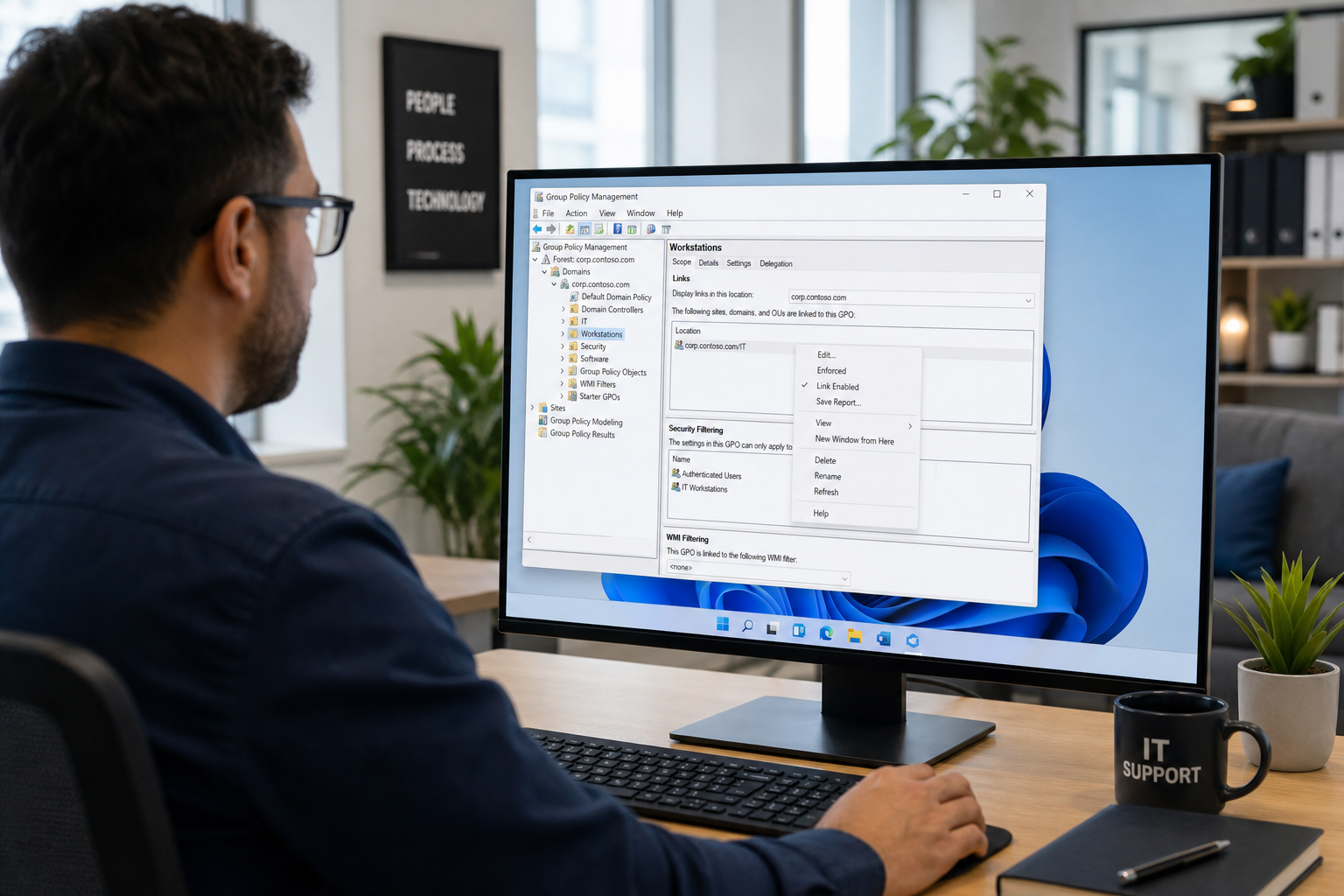
IT administrators managing Windows 11 Pro or Enterprise deployments can enforce context menu settings via Group Policy. This is particularly useful for teams where a consistent desktop experience reduces support calls and training overhead. Policies can be applied to restrict or restore specific shell extensions across all managed machines simultaneously.
Third-Party Tools for Granular Control
Tools such as Winaero Tweaker and ShellMenuView provide a graphical interface for enabling, disabling, or reordering context menu entries without touching the registry manually. These are well-established utilities used by system administrators and power users alike. That said, once Microsoft’s native right-click menu customisation feature ships, many users will find the built-in option sufficient.
What This Means for Business and IT Teams
For organisations running Windows 11 across multiple workstations, the context menu overhaul carries real operational significance. A faster, configurable context menu in Windows 11 means:
-
Reduced friction — staff spend less time navigating sub-menus for common file operations
-
Standardised workflows — admins can define which options appear for specific user roles
-
Fewer workarounds — no need to train users on registry edits or third-party tools
-
Faster onboarding — new starters get a context menu that matches their actual job tasks
If your team is still running Windows 10, it is worth noting that upgrading incompatible Windows 10 PCs to Windows 11 is achievable even on older hardware — and getting onto Windows 11 now positions your organisation to benefit from improvements like this context menu overhaul as they roll out. Microsoft has confirmed Windows 10 support ends in October 2026, making migration planning increasingly urgent.
Getting the Most from Windows 11: Licences and Setup
Taking full advantage of Windows 11’s evolving feature set — including the upcoming context menu improvements — starts with a genuine, activated licence. Shop Key Online offers Windows 11 Pro OEM from just €15.95, with instant email delivery and a 100% money-back guarantee if activation fails. For businesses needing to equip multiple workstations, genuine licences ensure you receive every feature update and security patch Microsoft rolls out — including this context menu redesign when it becomes generally available.
Windows 11 Pro is the recommended edition for business use, offering BitLocker encryption, Remote Desktop, and Group Policy — all of which become more relevant as Microsoft extends customisation options deeper into the OS. Home users are equally well served: Windows 11 Home OEM is available from €9.80 and receives the same feature updates through Windows Update.
Frequently Asked Questions
When will the new Windows 11 right-click menu be available?
Microsoft’s Windows design lead publicly discussed the overhaul in June 2026, describing it as actively in development. Based on Microsoft’s typical Insider Preview pipeline, a phased rollout through the Windows Insider Programme is the likely next step before general availability. Keep Windows Update enabled to receive it as soon as it reaches your channel.
Will I lose access to any existing context menu options?
No. Microsoft’s stated goal is to make the menu simpler by default while giving users the ability to surface any option they need. Items that are currently hidden behind “Show more options” will still be accessible — the difference is you will be able to pin them to the primary view without a secondary click.
Can IT admins control the context menu across all company PCs?
Yes. Windows 11 Pro and Enterprise editions support Group Policy and Microsoft Intune for managing shell settings at scale. Once the native customisation feature ships, it is expected to be manageable through the same policy frameworks, giving administrators central control without touching individual machines.
Does the right-click menu change affect all apps or just File Explorer?
The current Windows 11 context menu inconsistency exists partly because different surfaces (File Explorer, the desktop, the taskbar) use different menu implementations. Microsoft’s overhaul is reported to target the core context menu system, which should bring more consistent behaviour across these different areas of the OS.
Is it safe to edit the registry to restore the classic context menu?
The registry edit is widely used and well-documented, but it does carry risk if done incorrectly. Always export a backup of your registry before making changes, and follow a step-by-step guide. If you manage multiple PCs, using Group Policy or a deployment script is safer and more scalable than editing the registry on each machine individually.
