
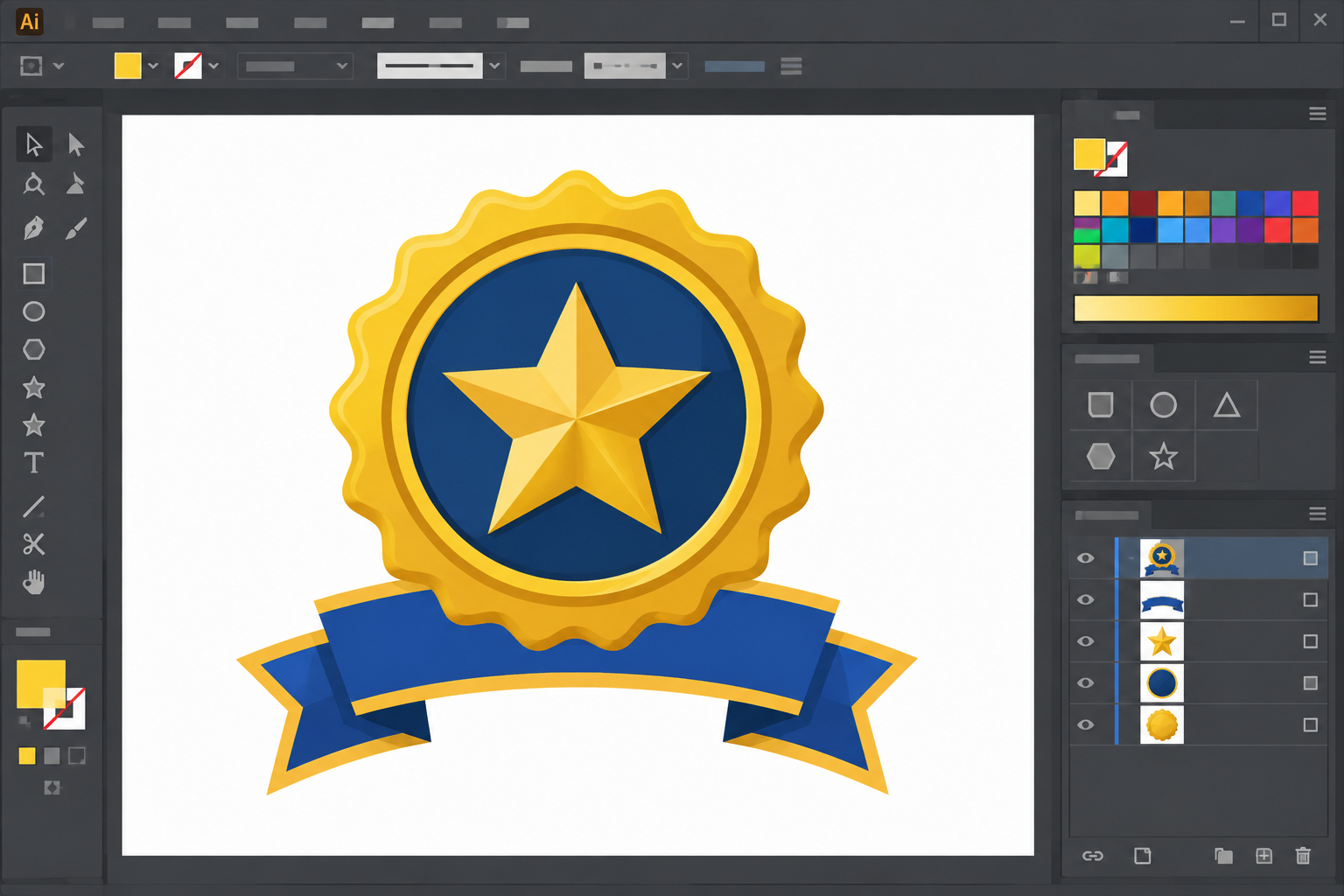
An achievement badge design CorelDRAW project combines geometric shape building, curved typography, and layered finishing effects to produce a polished emblem for certificates, merit graphics, or recognition programs. The good news is that CorelDRAW’s vector tools make every one of those steps repeatable, so once you build your first badge you can reuse the same workflow for dozens of variations.
Badges look deceptively simple, but a professional result depends on precise alignment, consistent spacing, and the right combination of shape, color, and curved text. This guide breaks the process into stages you can follow in order: setting up the canvas, building the shape, placing the typography, and applying finishing touches that make the badge feel dimensional and print-ready.
Why Achievement Badges Matter in Certificate and Merit Design
A well-designed badge gives a certificate or merit graphic instant visual authority. It acts as a focal point that communicates achievement at a glance, before a viewer even reads the accompanying text.
Badges are used far beyond school certificates — organizations apply the same visual language to loyalty programs, training completions, sports awards, and professional certifications. Because the format is so widely reused, designers benefit from building a flexible CorelDRAW template rather than starting from scratch every time.
- Badges reinforce credibility on official documents and certificates
- A reusable badge template saves hours on recurring projects
- Vector-based badges scale cleanly from business cards to large banners
- Consistent badge branding strengthens recognition across a series of awards
Setting Up Your Canvas for Achievement Badge Designs in CorelDRAW
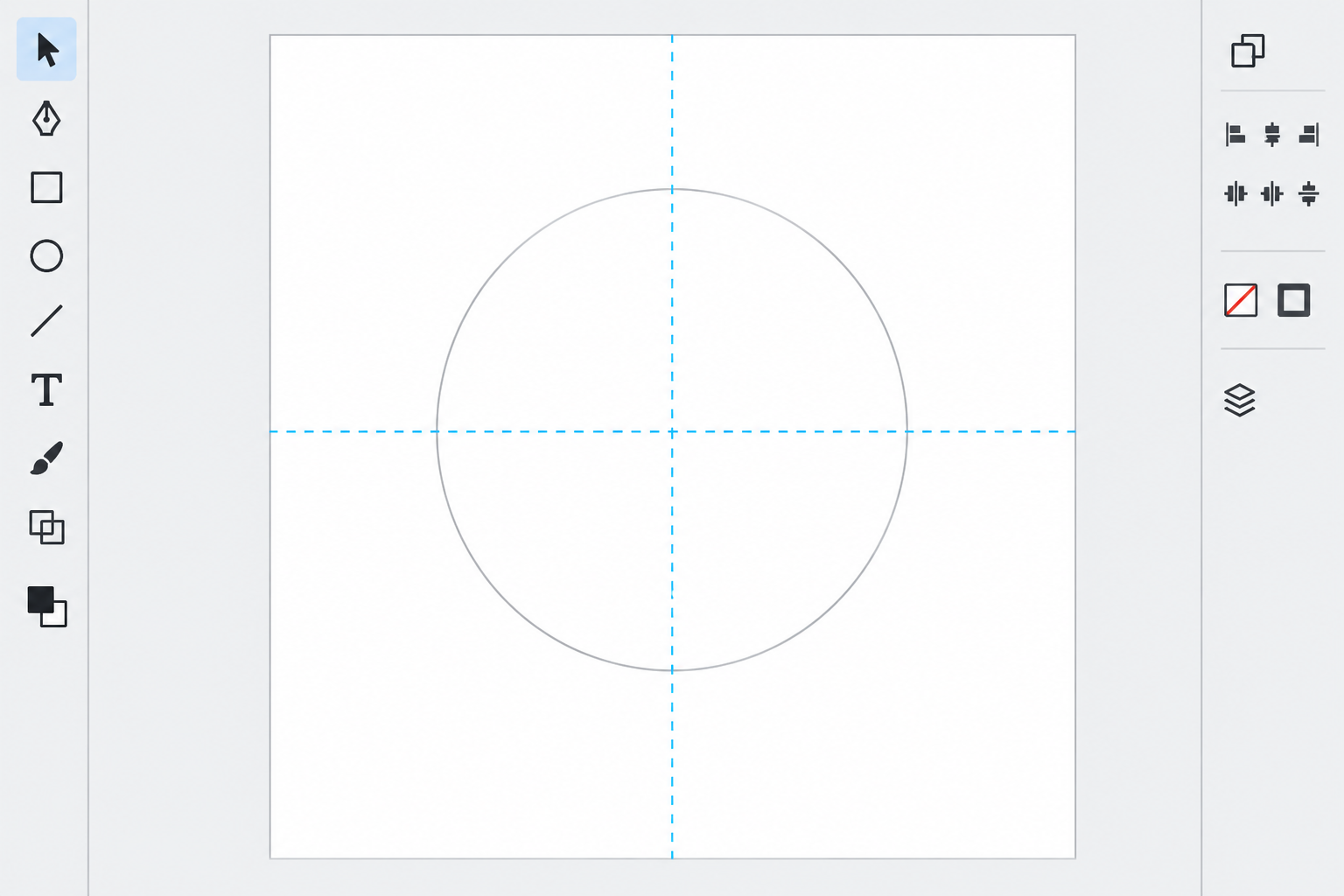
Start by creating a square or circular document with guides centered on the page, since achievement badge designs in CorelDRAW rely heavily on symmetrical alignment. Set your page size to match the final output — a square canvas works well for round or shield-shaped badges destined for certificates.
Enable rulers and drag out horizontal and vertical guides through the center of the page. Turn on Snap to Guides so every shape you add locks naturally to the center point. This single setup step prevents the lopsided badges that result from eyeballing alignment later in the process.
Building the Badge Shape with Core Vector Tools
The badge shape itself is built from a handful of CorelDRAW’s native tools: the Ellipse, Polygon, Star, and Shape tools. Layering two or three of these shapes concentrically creates the classic medallion silhouette seen on most merit graphics.
Using the Polygon and Star Tools for Badge Shapes
Draw your base shape with the Polygon tool, setting the number of sides in the property bar before dragging — holding Ctrl keeps the shape symmetrical as you drag. For a scalloped or sunburst edge, switch to the Star tool and increase the point count, then use the Shape tool to drag a node outward until the points reach the proportion you want.
Stack a slightly smaller circle or polygon on top of the outer shape to create the inner badge “field” where your text and icon will sit. Use the Align and Distribute panel to center every layer precisely rather than relying on the eye.
Creating the Ribbon or Banner Base
Many achievement badges include a ribbon or banner beneath the medallion for a title or date. Build this with two overlapping triangles or a rectangle with notched ends, then apply a subtle gradient to suggest folded fabric. Group the ribbon separately from the medallion so you can reposition or resize it independently later.
Typography Placement for a Professional CorelDRAW Badge Design

Text placement is what separates an amateur badge from a professional CorelDRAW badge design — curved, evenly spaced type reads as intentional, while straight or cramped text looks like an afterthought. Plan your text hierarchy before typing: a short headline (the achievement name), a supporting line (date or category), and sometimes a small motto.
Curving Text Around the Badge
Draw a circle slightly inside the outer edge of your badge to act as a path, then use Text > Fit Text to Path to wrap your headline around it. Adjust the text’s distance from the path and letter spacing (kerning) in the property bar until the curve looks smooth rather than squeezed on one side.
Font Pairing and Hierarchy Tips
Choose a bold, condensed font for the main headline so it remains legible even when curved, and pair it with a simpler sans-serif for supporting details. A few practical rules keep typography readable at small sizes:
- Limit the badge to two font families maximum
- Keep curved headline text in all capitals for even visual weight
- Avoid long words on tight curves — abbreviate where appropriate
- Leave breathing room between the text path and the badge’s inner edge
Finishing Touches for Certificate and Merit Graphics
Finishing effects give a flat vector badge the dimensional, metallic, or embossed look associated with real award medallions. These effects are applied after the shapes and text are locked in place, since they’re easier to fine-tune once the composition is final.
Adding Gradients, Bevels, and Shadows
Apply a linear or conical gradient fill to the outer ring to simulate a metallic sheen, then add a subtle drop shadow behind the entire badge group to lift it off the certificate background. CorelDRAW’s Bevel effect, applied sparingly to the outer edge, adds a sense of depth without making the badge look cluttered.
Exporting Your Badge Design in CorelDRAW for Print and Web
Once finishing touches are complete, group all elements and export your badge design in CorelDRAW as both a vector file (for scalable reuse on future certificates) and a high-resolution PNG (for quick placement into Word or PDF templates). For print certificates, export at 300 DPI or higher; for web or digital certificates, a 72–150 DPI PNG with a transparent background is usually sufficient.
Working with a certificate’s layered design, especially one with multiple gradients, bevels, and curved text paths, is noticeably smoother on a well-specced machine. Corel’s own documentation lists a minimum of 8 GB RAM, with 16 GB RAM or higher recommended for CorelDRAW, which is worth keeping in mind if your badge projects regularly involve several effect layers and high-resolution exports.
Common Mistakes to Avoid When Creating an Achievement Badge Design CorelDRAW Project
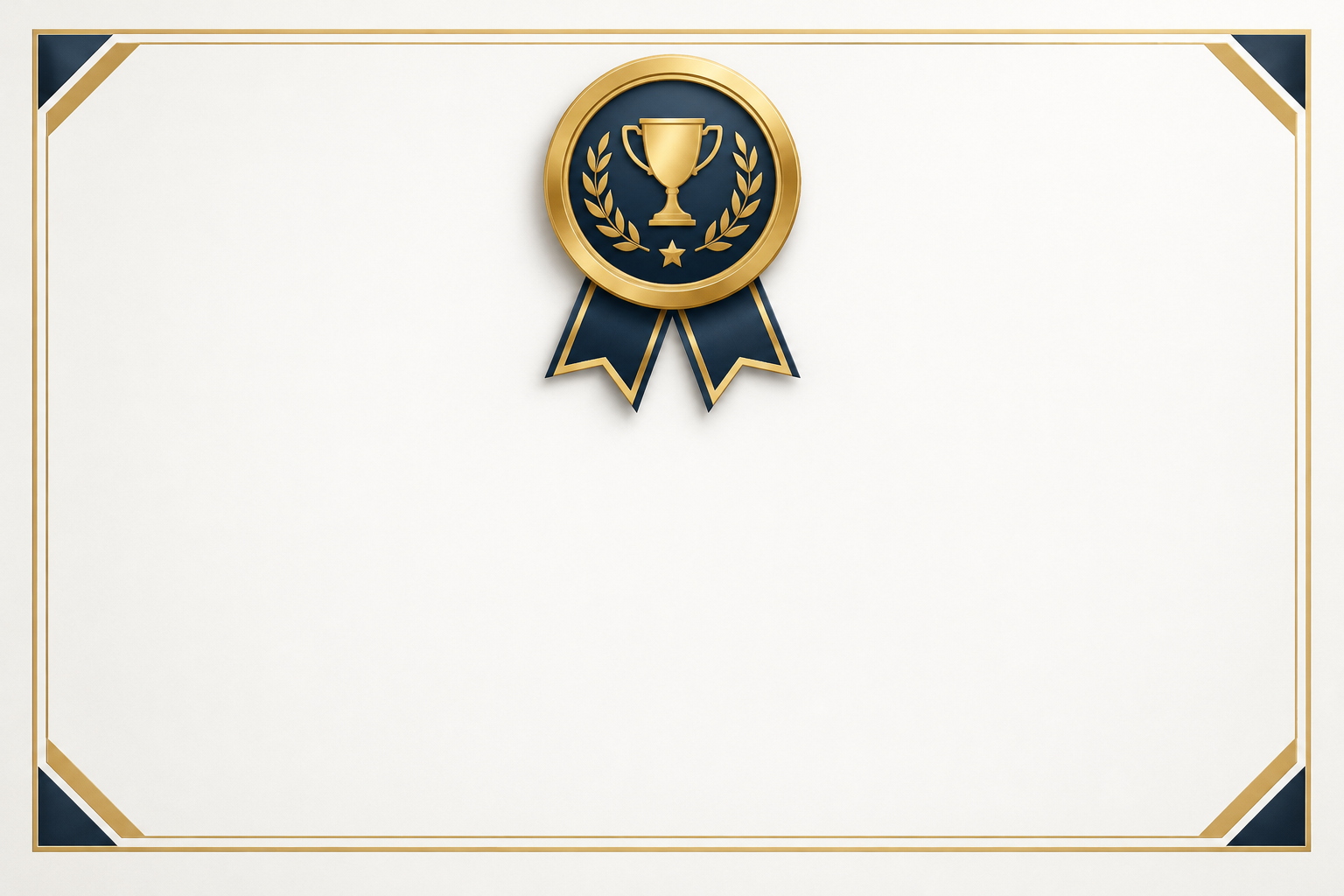
Most badge design problems trace back to a handful of avoidable habits rather than a lack of skill. Watching for these early saves rework later in the process.
- Skipping center guides, which leads to visibly off-center medallions
- Using too many fonts, which makes small badge text harder to read
- Over-applying bevels or shadows, which flattens contrast instead of adding depth
- Exporting only one file format, which limits reuse across print and digital certificates
- Forgetting to group layers, which makes later edits slow and error-prone
If you’re new to the software entirely, it helps to get comfortable with the interface and core tools first — the CorelDRAW tutorial for beginners on our blog covers the basics before you move on to badge-specific techniques. For more practice with decorative shape-building, our decorative vector art tutorial applies similar concentric-shape and gradient techniques to a different subject.
Frequently Asked Questions
How do I download and install CorelDRAW before starting a badge project?
Sign in at corel.com, go to the official download page, and select the edition and operating system that matches your license. Once the installer finishes, launch CorelDRAW and you’ll be ready to set up your badge document.
How do I activate CorelDRAW after installation?
When you first open the program, it will prompt you for a serial number. Enter the serial number you received with your order to activate the license and unlock full functionality.
What software works best for achievement badge design CorelDRAW projects?
CorelDRAW is well suited to this work because its native Polygon, Star, and Shape tools combined with Fit Text to Path cover every stage of badge construction in one application. Browsing the full range of CorelDRAW software options can help you pick the edition that matches your platform and workflow.
How long does achievement badge design in CorelDRAW typically take for beginners?
A simple single-color badge can be built in under an hour once you know the tools, but a fully finished badge with gradients, curved text, and a ribbon base usually takes a few practice sessions to get comfortable with. Reusing your first badge as a template speeds up every project after that.
Can I reuse a CorelDRAW badge design for multiple certificate templates?
Yes — group and save your badge as a separate vector file so you can drop it into different certificate layouts without rebuilding it. Swapping only the curved headline text and ribbon date keeps your badge series visually consistent.
What file format should I export my finished badge in?
Export a vector format for future editing and a high-resolution PNG for placement into certificate templates. Use 300 DPI or higher for printed certificates and a transparent-background PNG for digital or web use.
