

Autodesk AECO integrations are a batch of newly announced connections that link Revit, AutoCAD, Autodesk Construction Cloud, and Autodesk Forma to the third-party tools architecture, engineering, and construction teams already rely on. For firms juggling design software, project management platforms, and field apps, the most important ones are those that remove manual data re-entry between BIM models and downstream tools like scheduling, cost estimating, and field reporting software.
What Are the New Autodesk AECO Integrations?

Autodesk periodically rolls out batches of partner integrations across its Architecture, Engineering, Construction, and Operations (AECO) product line, covering everything from early design in Forma to field coordination in Autodesk Construction Cloud. The latest round spans design visualization, quantity takeoff, scheduling, safety management, and data analytics, each one plugging directly into Revit, AutoCAD, or Autodesk Construction Cloud rather than requiring a separate export-import step.
These releases are not isolated. Autodesk has been steadily expanding its partner ecosystem, and the company now says its AECO Technology Partner Ecosystem connects to over 400 integrations across its solutions. For a firm running five or six different platforms on a single project, that scale matters more than any single feature.
Why Multi-Tool Workflows Need Autodesk AECO Integration
Most mid-size and large AEC firms do not run one software stack — they run six or seven, stitched together with spreadsheets and manual uploads. Autodesk AECO integration matters because it removes the handoff points where data gets stale, duplicated, or simply lost between disciplines.
A structural engineer updating a Revit model, a quantity surveyor pulling takeoffs, and a site superintendent logging RFIs in the field are all working from what should be the same dataset. Without integration, each of them maintains a separate copy. With it, updates in one tool can surface in another automatically, which is the whole point of connected BIM workflows.
Top Autodesk AECO Integrations for Architects and Engineers
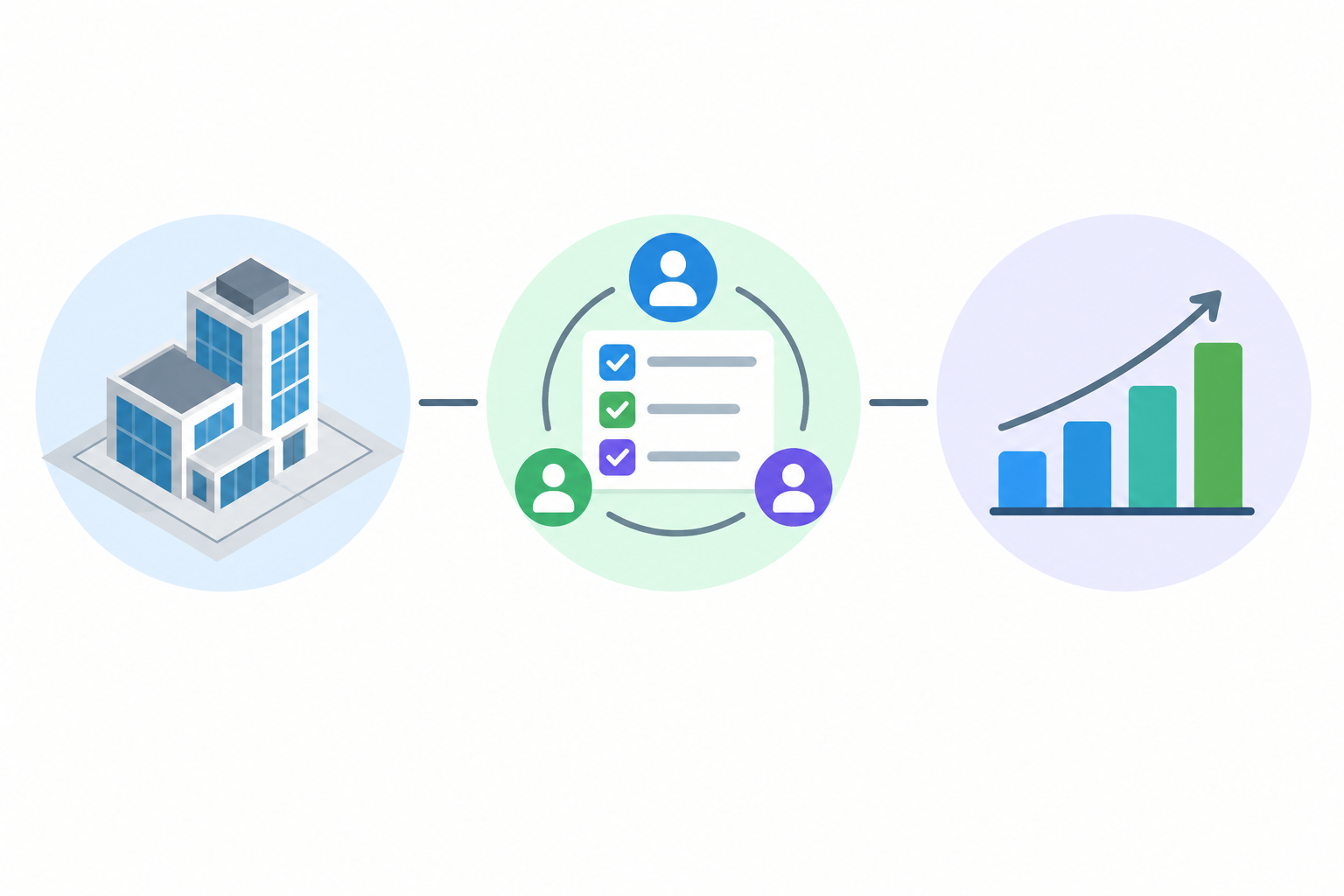
Not every new integration is equally relevant to every role. Here is how to think about which ones deserve your attention first.
Design and Visualization Integrations
Tools that sync directly with Revit and AutoCAD for rendering, reality capture, or early massing studies save the most time for architects, since design iteration happens constantly and manual re-import kills momentum. If your team already does concept massing in Forma, look for integrations that carry that data straight into Revit without rebuilding geometry.
Project Management and Collaboration Integrations
For engineers managing document control, RFIs, and submittals, integrations with Autodesk Construction Cloud matter most. These typically sync issues, tasks, and models between ACC and platforms like scheduling or cost-management software, cutting down on duplicate data entry across teams.
Data and Analytics Integrations
A smaller but growing group of integrations focuses on pulling project data out of Autodesk tools into business intelligence or reporting platforms. These are most valuable for firm leadership and BIM managers who need portfolio-level visibility rather than single-project detail.
- Design-stage tools: reality capture, rendering, and massing connectors for Revit and Forma
- Collaboration tools: issue, task, and model-sync connectors for Autodesk Construction Cloud
- Estimating and takeoff tools: quantity and cost plugins that read directly from Revit models
- Field tools: safety, inspection, and daily-log apps that push data back into the common data environment
- Analytics tools: reporting dashboards built on top of Autodesk project data
How These Integrations Across Autodesk AECO Solutions Change Daily Work
Connected workflows show up as fewer manual exports and faster issue resolution, not as a dramatic feature you notice on day one. Autodesk’s own data on its Construction Cloud partner ecosystem backs this up: the company reports a 121% increase in digital collaborators since 2020, alongside 2.5x more collaboration events on issues and tasks over the same period. That growth tracks closely with how many integrations have been added to the platform in that time.
In practice, that means a model change in Revit can trigger an updated issue list in the field app your superintendent uses, instead of someone manually re-keying it. For teams managing several active projects at once, that compounding time saving is the real argument for paying attention to integrations across Autodesk AECO solutions rather than treating them as a minor release note.
Choosing the Right Autodesk AECO Integrations for Your Stack
Start by mapping where your team currently loses time moving data between tools, not by adopting every new integration on the list. A firm doing mostly single-discipline AutoCAD drafting has very different needs from one running full BIM coordination across Revit, structural analysis, and field apps.
A few practical questions to ask before adopting a new integration:
- Does it connect to a tool your team already uses daily, or would it require switching platforms?
- Does the integration sync data both ways, or only push information out of Autodesk?
- Who on the team will own setup and troubleshooting if the connection breaks?
- Is the licensing for both the Autodesk product and the partner tool already in place?
If you are still building out your core Autodesk toolkit, it is worth comparing the current AutoCAD versions and Autodesk Revit 2025 for Windows licensing options before layering integrations on top, since several of the newest connectors are built specifically for the current Revit and AutoCAD releases.
Getting Started With Autodesk Software and License Activation
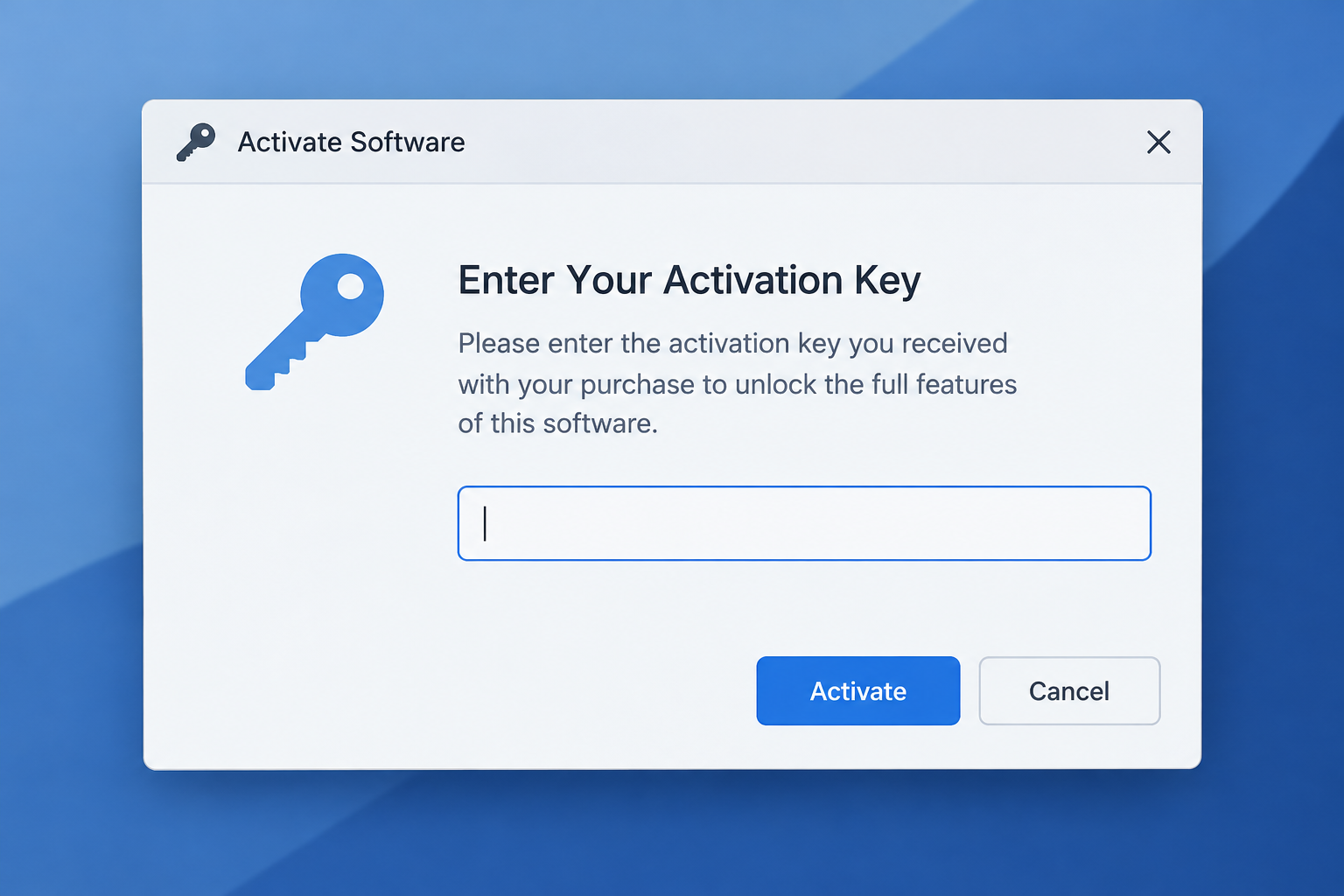
Before any integration can do its job, the underlying Autodesk software needs to be installed and activated correctly. For AutoCAD, that means downloading the installer from the official Autodesk site, signing into your Autodesk account, locating your product version in the dashboard, and entering your serial number and product key when prompted during setup. Revit follows the same pattern: install the software, and when it prompts for activation on first launch, choose “Enter a serial number” and follow the on-screen steps to complete it.
Getting this foundation right matters more once integrations are in play, since a partner tool syncing to a half-activated or mismatched version of Revit or AutoCAD is a common source of sync errors. If your team is still deciding between versions, our AutoCAD for beginners guide and our breakdown of Revit 2027 new features are useful starting points before you commit to a license.
Frequently Asked Questions
Which Autodesk AECO integrations work with AutoCAD?
Most of the newest integrations are built around Revit and Autodesk Construction Cloud rather than AutoCAD directly, since AutoCAD is more often used for 2D drafting and detailing than for the collaborative BIM workflows these connectors target. That said, several reality-capture and rendering tools do support AutoCAD files alongside Revit models.
How do I download Autodesk Revit after buying a license key?
Download the Revit installer from the official Autodesk website, then log in to your own Autodesk account. From your dashboard, locate Revit and select the correct year version — it can take five to ten minutes to appear after a new purchase before you can install it.
How do I activate AutoCAD for Windows?
After installing AutoCAD, launch it and choose the “Enter a serial number” option when prompted. Enter your serial number and product key, select “Next,” and follow the remaining on-screen instructions to finish activation.
Do I need the full AEC Collection to use these integrations?
No. Integrations are typically tied to individual products like Revit, AutoCAD, or Autodesk Construction Cloud rather than requiring the entire AEC Collection bundle. You only need the specific Autodesk product the integration connects to, along with an active license for it.
Will new integrations work with older Autodesk product versions?
Support varies by integration and partner, and some connectors are built specifically for current product releases. Check the integration provider’s documentation for the exact Revit or AutoCAD version it supports before relying on it for production work.
How do I activate Autodesk 3ds Max or Maya after installation?
The process mirrors Revit and AutoCAD: install the software, select “Enter a serial number” when prompted, enter your serial number and product key, then follow the on-screen steps to complete activation.
