
An authentication error blocks your Gmail message when Yahoo, Sky, or another provider can’t verify your domain with SPF or DKIM records. The fix almost always means publishing a missing DNS record or correcting one that’s misconfigured, and normal delivery usually returns once the DNS change has propagated. This guide walks through why it happens and exactly how to resolve it.
What Causes an Authentication Error When Gmail Sends to Yahoo or Sky?
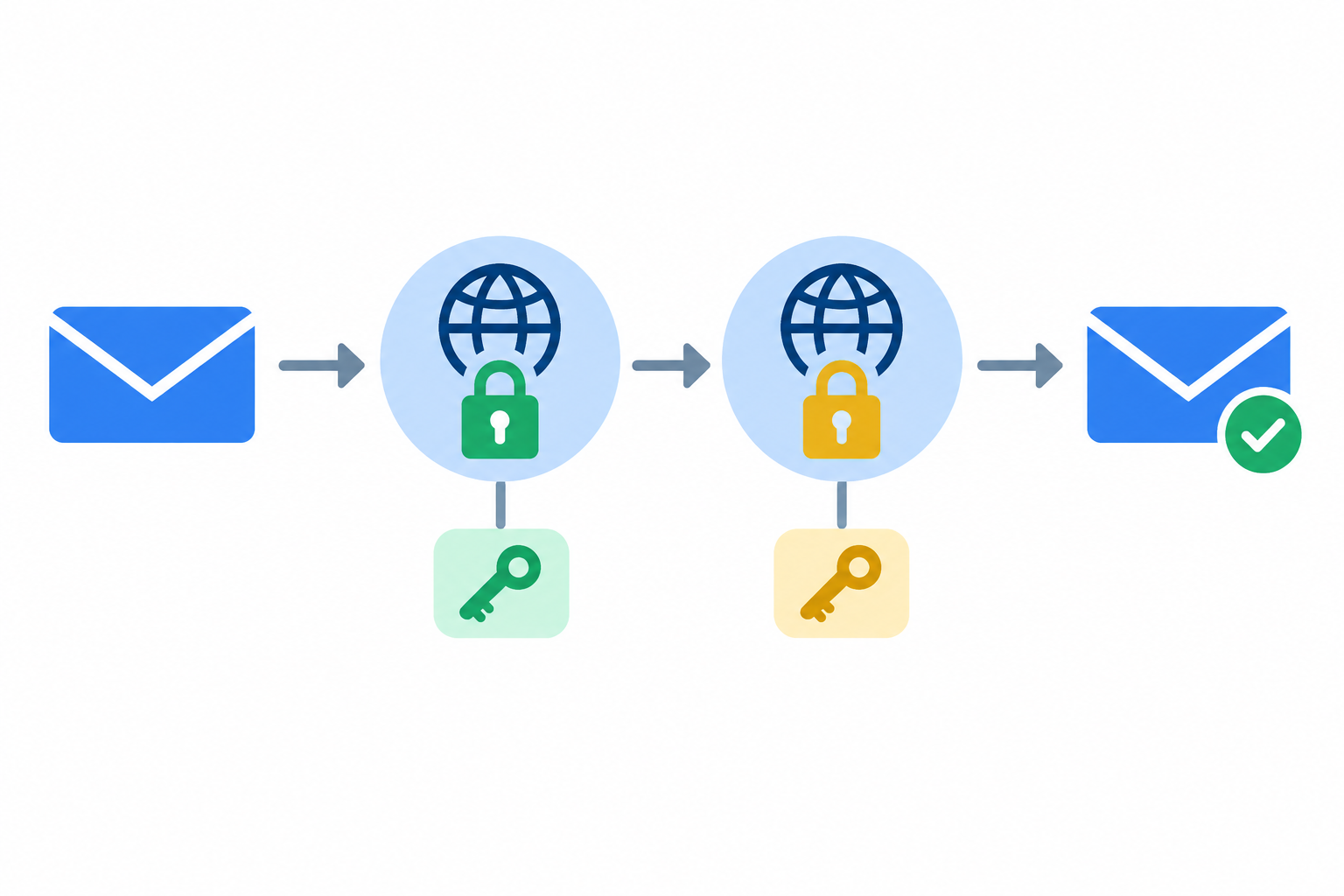
The bounce message you’re seeing — something like “This mail has been blocked because the sender is unauthenticated” — means the receiving mail server couldn’t confirm your message was really sent by your domain. Sky email is handled by Yahoo’s infrastructure, and Yahoo, along with Gmail itself, now rejects mail that doesn’t pass at least one authentication check.
Two technical records make this verification possible:
- SPF (Sender Policy Framework): a DNS record listing which mail servers are allowed to send on behalf of your domain.
- DKIM (DomainKeys Identified Mail): a cryptographic signature added to outgoing mail that proves the message wasn’t altered in transit and really originated from your domain.
If neither is set up correctly — or if you’re sending through a third-party tool, CRM, or forwarding service that isn’t included in your SPF record — the receiving server treats the message as potentially spoofed and refuses it.
Why Yahoo and Sky Now Reject Unauthenticated Gmail Messages
This isn’t a new bug — it’s a deliberate policy shift across the email industry. Major mailbox providers tightened their rules to cut down on phishing and spoofed mail that impersonates trusted brands. Gmail’s own email sender guidelines confirm that starting February 1, 2024, anyone sending 5,000 or more messages a day to Gmail accounts must authenticate with SPF, DKIM, and DMARC. Yahoo (which also powers Sky, BT, and several other UK mail brands) rolled out matching requirements around the same time.
Even if you’re not sending bulk volume, these providers increasingly apply the same scrutiny to smaller senders, especially when a message comes from a custom domain routed through Gmail, a forwarding rule, or a marketing platform rather than directly from Gmail’s own servers.
Common Authentication Errors and What They Mean
Not every bounce is identical. Reading the exact error text tells you which check failed and points you to the fix.
“550-5.7.26 This Mail Is Unauthenticated”
This specific code from Gmail or Yahoo means the message arrived with no valid SPF or DKIM signature at all, or with one that doesn’t match the sending domain. It’s the most common of the authentication errors reported by small business owners switching domains or email platforms.
SPF Softfail or Permerror
A softfail means your SPF record exists but doesn’t list the server that actually sent the mail. A permerror usually means the SPF record itself is malformed — often from having more than one SPF TXT record on the domain, which isn’t allowed.
DKIM Signature Failure
This happens when the DKIM key in your DNS doesn’t match the one your mail server used to sign the message, often because the DKIM record was never activated after being generated, or a domain migration broke the DNS entry.
How to Fix an Authentication Error Step by Step
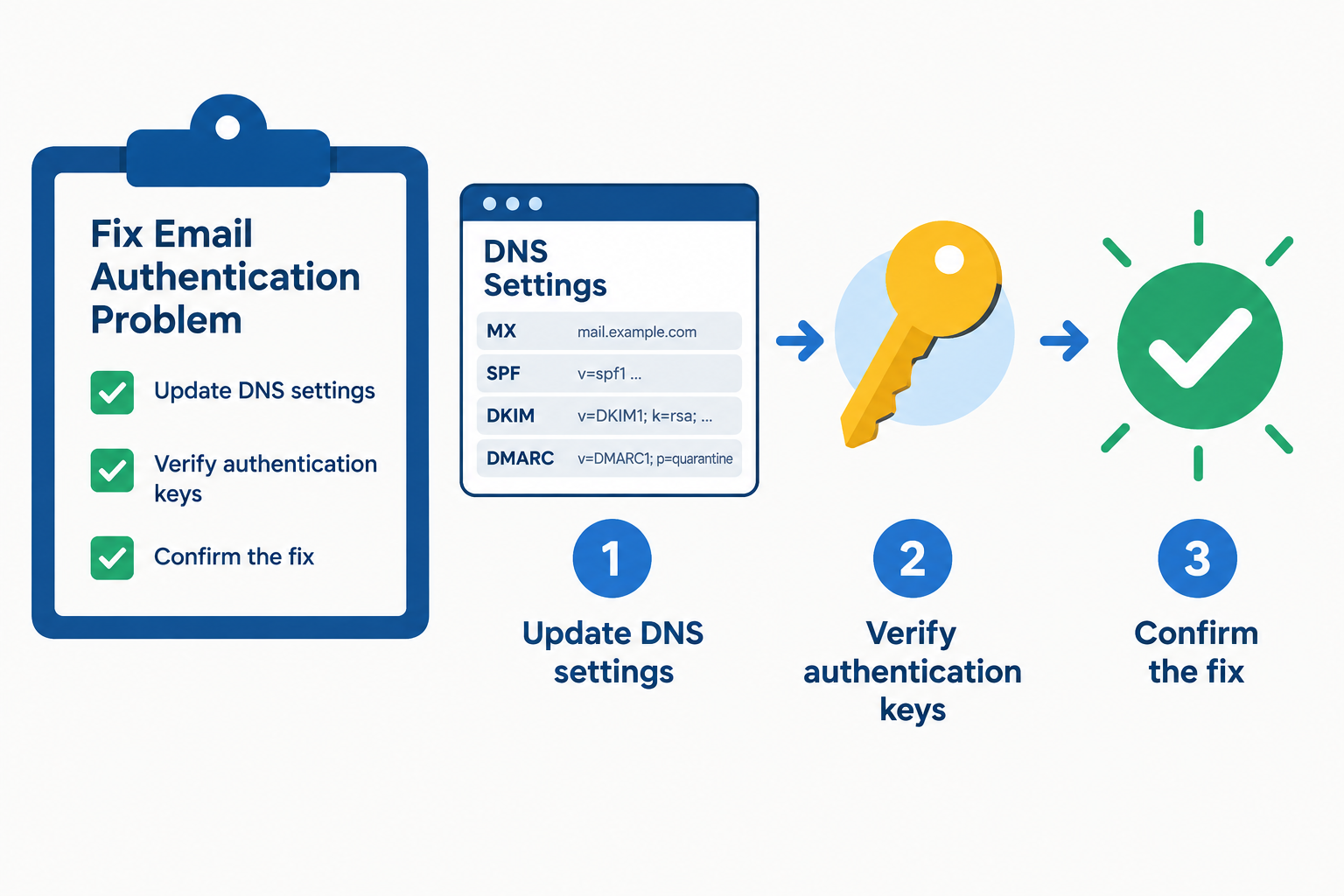
Resolving the block means auditing and correcting your domain’s authentication records, then confirming the fix with a test message.
1. Set Up or Correct Your SPF Record
- Check your current SPF record using a DNS lookup tool or your domain registrar’s dashboard.
- Make sure it includes every service that sends mail on your behalf — your email provider, any marketing tool, helpdesk software, or invoicing system.
- Confirm there is only one SPF TXT record per domain; merge multiple records into a single line if you find more than one.
2. Enable DKIM Signing
If you use Google Workspace, generate a DKIM key in the Admin console under Apps > Gmail > Authenticate email, then publish the generated TXT record at your domain host and turn on signing. Free Gmail accounts can’t add custom DKIM — this step applies to domains sending through Google Workspace or another business email platform.
3. Add a DMARC Record
DMARC ties SPF and DKIM together and tells receiving servers what to do with mail that fails both. Start with a monitoring-only policy (p=none) so you can see authentication results without risking legitimate mail being rejected, then tighten the policy once you’ve confirmed everything passes.
After publishing or correcting any record, allow time for DNS propagation before resending — most changes take effect within a few hours, though full propagation can occasionally take longer depending on your registrar’s TTL settings.
Preventing Future Authentication Failure
Once the immediate authentication error is resolved, a short routine keeps it from coming back:
- Review your SPF record whenever you add or drop a sending service.
- Check DKIM status after any domain or hosting migration.
- Set up DMARC reporting so you get alerted to failures before recipients do.
- Avoid sending the same message to large contact lists directly from a personal Gmail account — route bulk mail through a platform designed for it.
If spam complaints or inconsistent authentication keep flagging legitimate mail as suspicious, it’s worth reviewing how Gmail’s spam filter evaluates sender reputation, since authentication status feeds directly into that scoring.
When an Authentication Error Isn’t Your Fault

Sometimes the block has nothing to do with your own domain settings. A compromised third-party app with access to your Gmail account, a forwarding rule you didn’t set up, or a shared sending IP with a poor reputation can all trigger the same rejection message. It’s worth periodically checking which third-party apps have access to your Gmail account and removing anything you no longer recognize or use, since unauthorized senders can undermine your domain’s authentication standing without your knowledge.
Frequently Asked Questions
How to fix an SPF or DKIM authentication error?
Check your domain’s SPF record to confirm it lists every service sending mail on your behalf, then verify your DKIM key is published and active in your DNS settings. Most mail platforms, including Google Workspace, have a dedicated authentication section that shows the exact record to copy. After updating the records, send a test message and allow a few hours for DNS changes to take effect.
How do I check if my domain’s DKIM is working?
Send a test email to a service that returns full email headers, or use your domain host’s DNS lookup tool to confirm the DKIM TXT record matches what your mail server expects. In Google Workspace, the Admin console shows whether DKIM signing is currently authenticating outgoing mail as “started” or not yet active.
Why does Yahoo block Gmail messages sent to Sky addresses?
Sky Mail runs on Yahoo’s infrastructure, so any message sent to a Sky address is filtered through Yahoo’s authentication rules. If your sending domain lacks a valid SPF or DKIM record, Yahoo rejects the message the same way it would for any other unauthenticated sender.
What’s the difference between an authentication failure and normal spam filtering?
Authentication failure happens before a message is even evaluated for spam content — it’s rejected outright because the sending server can’t be verified. Spam filtering, by contrast, happens after a message passes authentication and looks at content, sender reputation, and recipient engagement to decide whether it lands in the inbox or the spam folder.
Do personal Gmail accounts need to set up SPF and DKIM?
Regular personal Gmail accounts sending mail directly through Gmail’s own servers are automatically authenticated by Google. The setup steps in this guide apply to custom domains, Google Workspace accounts, or any mail routed through a third-party sending service.
