
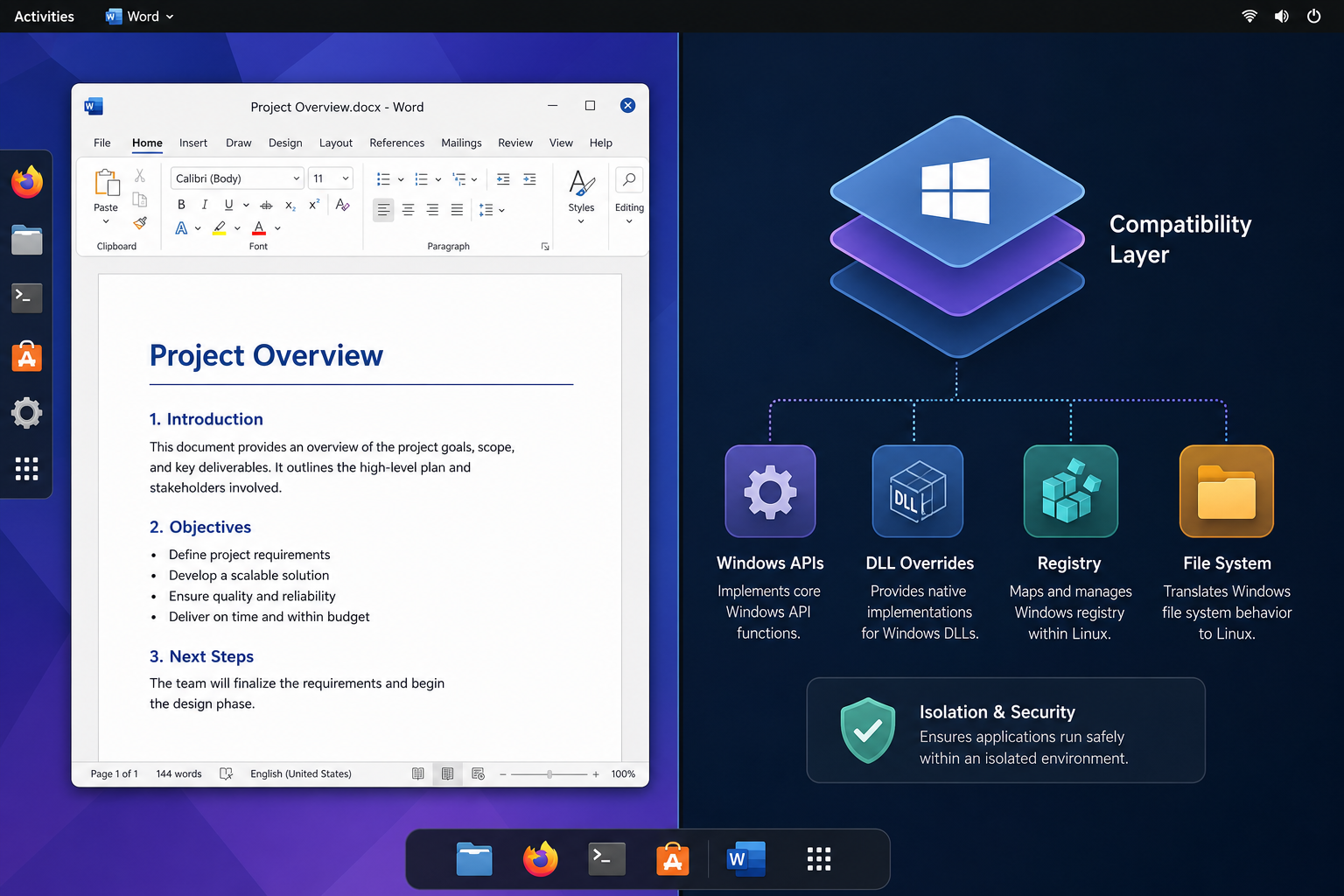
Running office on linux without a full Windows virtual machine is possible today through three practical routes: Wine-based wrappers, the official Microsoft 365 browser apps, and lightweight containerized installs. Each one gets you real Microsoft Word, Excel, or PowerPoint — not a clone — with different trade-offs in compatibility, offline access, and setup effort.
For years, the advice for Linux users who needed genuine Microsoft Office was blunt: dual-boot into Windows or spin up a full virtual machine. Both work, but both cost you disk space, RAM, and the annoyance of rebooting or running two operating systems side by side just to edit a Word document. The good news is that the tooling around office on linux has matured a lot, and recent community projects have made non-VM options far more reliable than they used to be.
Why People Want Office on Linux Without a VM
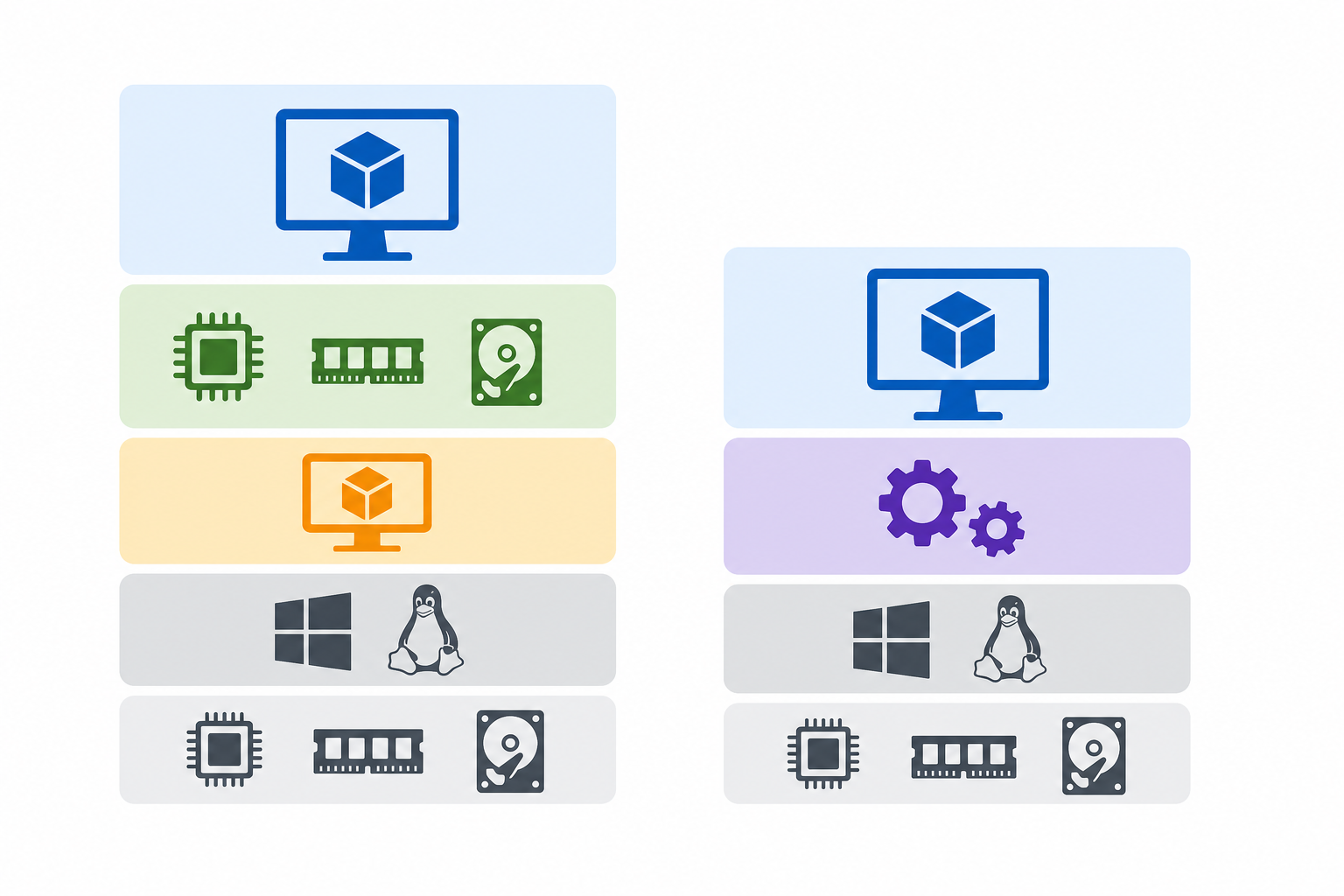
Full virtualization works, but it duplicates resources: a Windows VM with Office installed easily eats 4-8GB of RAM and 40GB+ of storage before you’ve opened a single spreadsheet. Dual-booting avoids the resource overhead but forces a full reboot every time you switch tasks — a dealbreaker for anyone juggling a client call in Teams and a code editor in the same session.
The three approaches below skip both problems. They either run Office’s actual Windows binaries directly on Linux through a compatibility layer, run Office in a browser tab, or isolate a minimal Windows environment inside a container that starts and stops far faster than a full VM.
Method 1: Wine Wrappers for Office on Linux
Wine translates Windows API calls into Linux-native ones, letting you run the actual Office executable without emulating an entire operating system. This is the closest thing to “real” desktop Office you’ll get on Linux, but success depends heavily on which Office version you’re installing.
Which Office Versions Work Best With Wine
Community testing and the Wine Application Database consistently show that older, MSI-based Office installers behave far better under Wine than the newer Click-to-Run versions Microsoft ships with Microsoft 365 subscriptions. In practice:
- Office 2016 and Office 2019 install cleanly on Wine in most distributions, with Word and Excel rated as fully or mostly functional.
- Office 2021 works in many setups but can need extra Wine configuration tweaks for fonts and licensing dialogs.
- Microsoft 365 (subscription Office) is the hardest to get running because Click-to-Run relies on background services that Wine doesn’t fully replicate.
A Recent Community Approach Worth Knowing
One recent open-source project packages a working Office 365 install through Nix, wrapping the Wine environment, dependencies, and configuration into a single reproducible build so you don’t have to hand-tune Wine yourself. It’s a good illustration of where the Wine-for-Office scene is heading: less manual registry editing, more “run one command and get a working install.” If you’re comfortable with Nix or want a template to adapt, projects like this are worth studying even if you don’t run Nix day to day.
The trade-off with any Wine route is that you’re on your own for support. If activation fails or a feature breaks after a Windows update changes something on Microsoft’s end, there’s no vendor to call — you’re relying on community forums and your own troubleshooting.
Method 2: Browser-Based Office on Linux
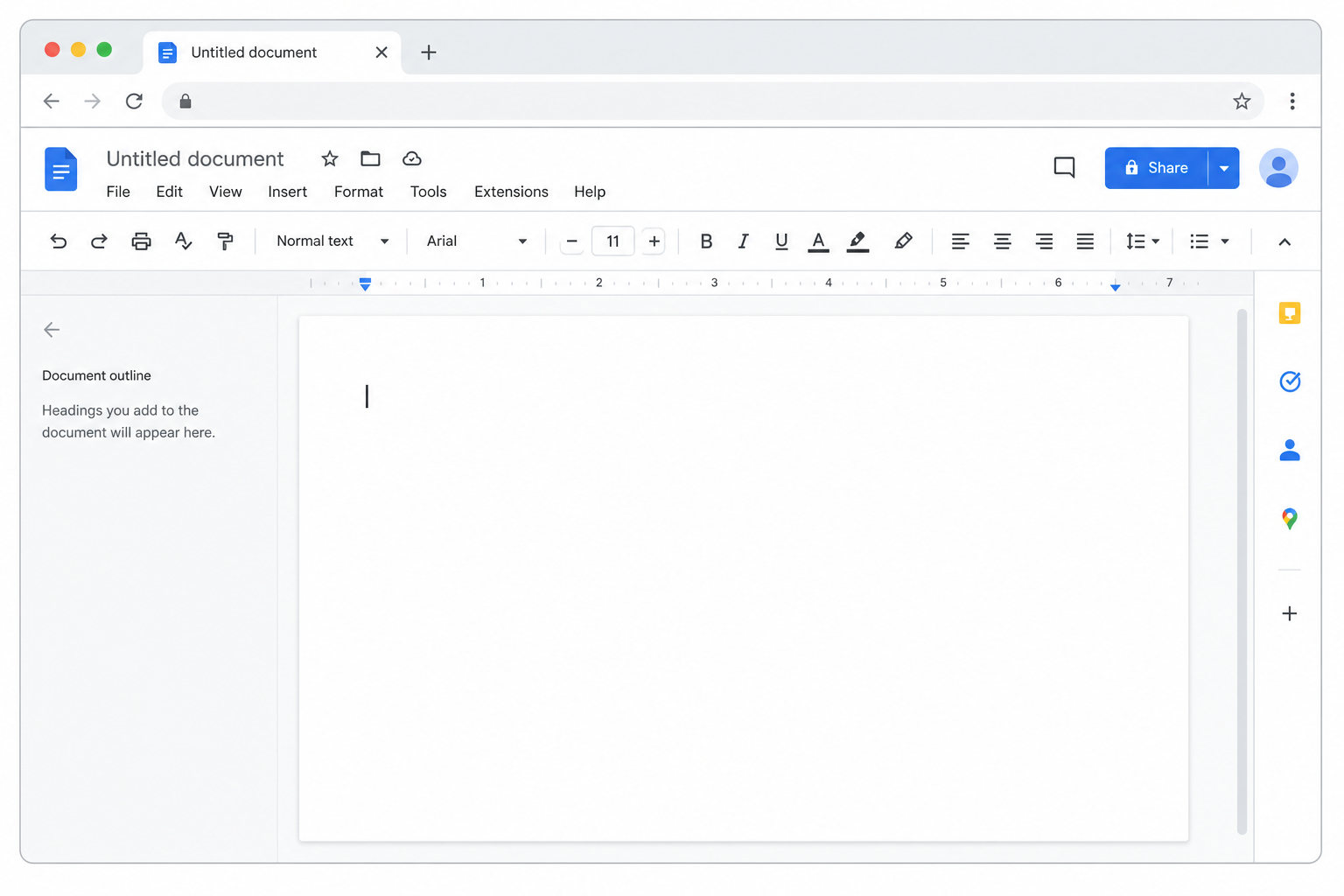
The simplest way to get real Microsoft Office on Linux is to skip local installation entirely and use Microsoft’s own web apps. Microsoft 365 for the web gives you Word, Excel, PowerPoint, and OneNote running entirely in the browser — Chrome, Firefox, or any modern browser Linux supports.
What You Gain and What You Lose
Because it runs server-side, browser Office sidesteps every compatibility question that comes with Wine. There’s nothing to install, no font substitution issues, and it works identically whether you’re on Ubuntu, Fedora, or Arch. The cost is that you lose full offline access, some advanced formatting and macro features, and you’re dependent on a stable internet connection.
For a lot of freelancers, students, and office admins, this is genuinely enough. If your daily work is drafting documents, building simple spreadsheets, and sharing files through OneDrive or SharePoint, browser Office covers it without any of the Wine setup overhead. It’s also the option Microsoft actively supports and updates, which matters if you want long-term reliability over a clever workaround.
Method 3: Containerized Office on Linux
A middle ground between Wine and a full VM is running a minimal, purpose-built container that hosts just enough of a Windows environment to run Office — without the overhead of a general-purpose virtual machine. Projects in this space (often built on lightweight KVM or Docker-based Windows containers) start faster than a full VM, use less disk space because they strip out anything unrelated to running the app, and can be scripted to launch a single Office window rather than a whole desktop.
How This Differs From a Traditional VM
A traditional VM boots an entire Windows desktop: taskbar, background services, updates, the works. A containerized approach typically boots only what’s needed to run the target application, then presents that single window back to your Linux desktop through a seamless integration layer. You get Office looking like a native Linux app, but it’s technically still running inside an isolated Windows environment behind the scenes.
This method suits people who need one specific Office app to behave exactly like it does on Windows — including macros, add-ins, or file formatting quirks that Wine sometimes gets wrong — without wanting the full weight of a dual-boot setup or a general VM.
Comparing the Three Approaches

Here’s how the methods stack up against the factors that matter most for day-to-day use:
- Wine wrappers — Best for older Office versions (2016-2021), fully offline, but compatibility varies by app and version, and support is community-driven only.
- Browser-based Office — Best for simplicity and reliability, officially supported by Microsoft, but requires internet and drops some advanced features.
- Containerized approaches — Best for exact compatibility with a specific Office build, lighter than a full VM, but more technical to set up and maintain than the other two.
None of these is universally “best” — the right choice depends on which Office version you’re licensed for, how often you need offline access, and how much time you want to spend configuring things versus just opening a document.
Licensing Still Matters on Linux
Whichever method you choose, you still need a genuine Office licence to activate the software — Wine and containers don’t bypass Microsoft’s activation servers, and browser Office still requires a signed-in Microsoft account tied to a valid subscription or one-time-purchase licence. Running Office through Wine on Linux doesn’t change how activation works: you enter the same 25-character product key and it verifies against Microsoft’s servers exactly as it would on Windows.
If you’re setting up an older, perpetual-licence Office version specifically because it plays better with Wine, Office 2019 Professional Plus (from €35.95) and Office 2021 Professional Plus OEM (from €19.15) are both one-time purchases that avoid the Click-to-Run complications subscription Office brings to a Wine install. Full browsing of current options is available in the Microsoft Office category at Shop Key Online, where each listing includes the download and activation instructions for that specific version.
A Note on Support When Things Go Wrong
Activation troubleshooting looks the same regardless of which Linux method you’re using: check you’ve selected the matching edition for your key, confirm there are no typos, and disable any VPN during activation, since Microsoft’s servers sometimes reject requests coming through masked regions. If a key genuinely won’t activate after that, a 100% money-back guarantee applies if activation fails and support cannot resolve it — worth knowing before you commit time to a Wine setup only to find the licence itself is the problem.
Which Method Should You Actually Use?
If you just need to write documents and build spreadsheets without fuss, start with browser-based Office — it’s free to use with a Microsoft account and requires zero configuration. If you depend on offline access and are running an older Office version like 2016 or 2019, a Wine wrapper is worth the setup time. If you need one specific Office build to behave exactly as it would on Windows, including macros and add-ins that Wine struggles with, a containerized approach is the more reliable — if more technical — path.
Whichever route you pick, the constant is licensing: a genuine, correctly matched product key is what makes any of these methods activate and stay activated over time.
FAQ
Can I run Microsoft Office on Linux without Wine?
Yes. The browser-based Microsoft 365 web apps run Word, Excel, and PowerPoint entirely through a browser tab, with no Wine, container, or VM required. You only need a Microsoft account and an internet connection.
Does Wine support the latest Microsoft 365 subscription apps?
Support is inconsistent. Older MSI-based installers (Office 2016-2021) tend to work better under Wine than Click-to-Run subscription installs, because Click-to-Run depends on background services Wine doesn’t fully emulate.
How do I activate Office once it’s installed on Linux via Wine?
Activation works the same way it would on Windows: open the app, go to the account or activation prompt, and enter your 25-character product key. The key verifies against Microsoft’s activation servers regardless of the underlying operating system.
Is a containerized Office install faster than a full virtual machine?
Generally yes. Because a containerized approach only boots the minimal environment needed to run the target app rather than a full Windows desktop, it typically starts faster and uses less storage and RAM than a general-purpose VM.
Which Office version is easiest to get running on Linux?
Office 2016 and Office 2019 are widely reported as the most Wine-compatible versions, since they use traditional MSI installers rather than the Click-to-Run mechanism found in Office 2021, Office 2024, and Microsoft 365 subscriptions.
What happens if my Office key won’t activate after installing on Linux?
Check that you’ve installed the matching edition for your key and that there are no typos, then disable any VPN and retry. If it still fails, a 100% money-back guarantee applies if activation fails and support cannot resolve the issue.
