

OpenAI computer use Windows support has arrived, and it changes the rules for enterprise IT automation in a meaningful way. For the first time, AI agents powered by OpenAI’s Computer-Using Agent (CUA) model can navigate Windows desktop applications, click buttons, fill forms, and orchestrate multi-step workflows — entirely without custom integrations or API bridges. Whether you manage a ten-seat SMB or a sprawling enterprise environment, this development deserves a careful look.
What Is OpenAI’s Computer Use Capability?
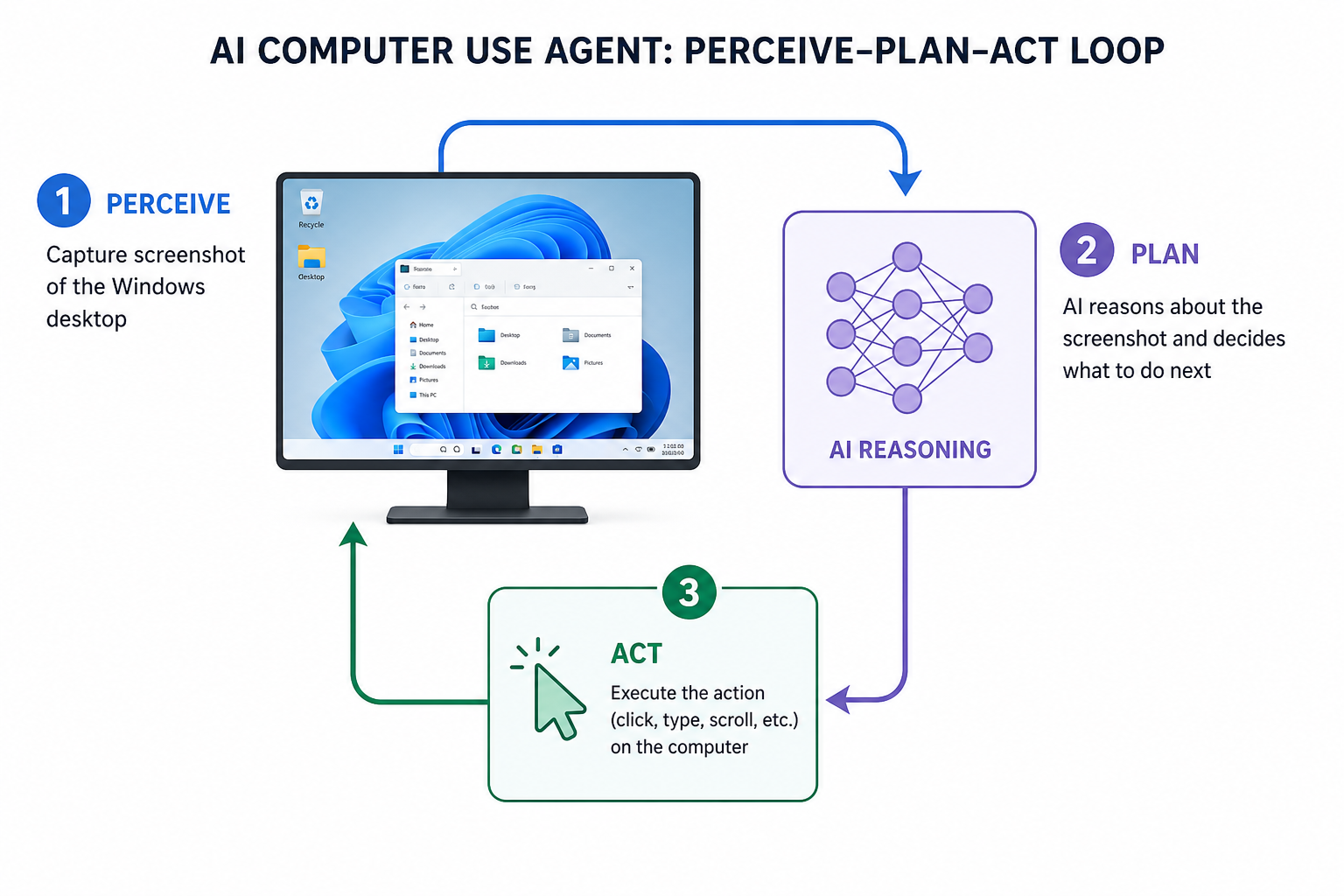
OpenAI’s Computer-Using Agent combines GPT-4o’s vision capabilities with advanced reasoning through reinforcement learning, according to OpenAI’s official CUA announcement. Rather than relying on structured APIs, the CUA model reads the screen visually — just as a human operator would — and issues mouse clicks, keyboard inputs, and scroll commands to interact with any application it can see.
The key milestone here is native Windows support. Previously, computer use agents operated most reliably within browser-based or macOS-first environments. Extending that capability to the Windows desktop — where the vast majority of enterprise software still lives — dramatically expands the practical scope of AI agent automation.
How AI Agent Windows Automation Actually Works
AI agent Windows automation through the CUA model follows a perceive-plan-act loop. The agent captures a screenshot of the current state of the desktop, reasons about what action is needed to progress toward the goal, and then issues the corresponding input event. This cycle repeats until the task is complete or the agent encounters an ambiguity it needs to escalate to the user.
- Screen perception: The model processes a live screenshot as its visual context, identifying UI elements such as buttons, text fields, menus, and dialogue boxes.
- Reasoning step: Using reinforcement-learning-trained reasoning, the agent decides the optimal next action — a click, a keystroke, a drag, or a wait.
- Action execution: The chosen action is sent to the Windows environment and executed natively, without needing the target application to expose any API.
- Verification: A fresh screenshot confirms whether the action produced the expected outcome before the next step begins.
OpenAI reported that the CUA model achieves a 38.1% success rate on the WebArena benchmark — a meaningful leap over earlier agent approaches that relied solely on DOM parsing or accessibility trees.
Key Use Cases for Enterprise Windows Environments
The real-world value of computer use agent technology becomes apparent when you map it to day-to-day enterprise pain points. Here are the workflows where Windows-native AI agent control delivers the highest immediate ROI.
IT Help-Desk and Provisioning Automation
IT teams spend a disproportionate amount of time on repetitive provisioning tasks — creating user accounts, applying group policy settings, running diagnostic scripts, and updating software across machines. A computer use agent can handle all of these through the native Windows GUI, removing the need for scripted RPA tools that break whenever a UI changes.
Data Entry and Legacy Application Integration
Many enterprises run legacy line-of-business applications that predate modern APIs. AI desktop control allows agents to interact with these applications exactly as a human would — reading data from one window and entering it in another — without any modification to the legacy software itself. This is a game-changer for industries like insurance, logistics, and manufacturing that are locked into older systems.
Finance and Compliance Workflows
Month-end close processes, invoice approvals, and compliance reporting often involve navigating multiple desktop applications in a fixed sequence. AI agent Windows automation can handle these multi-step processes reliably, maintain an audit log of every action taken, and hand off to a human reviewer only when exceptions arise.
Software Testing and Quality Assurance
QA teams can deploy computer use agents to run regression tests across Windows desktop applications, simulating user interactions at scale without writing and maintaining brittle UI test scripts. The vision-based approach means tests adapt naturally when the interface is restyled, as long as the core functionality is unchanged.
OpenAI Computer Use Windows Support vs. Competing Approaches
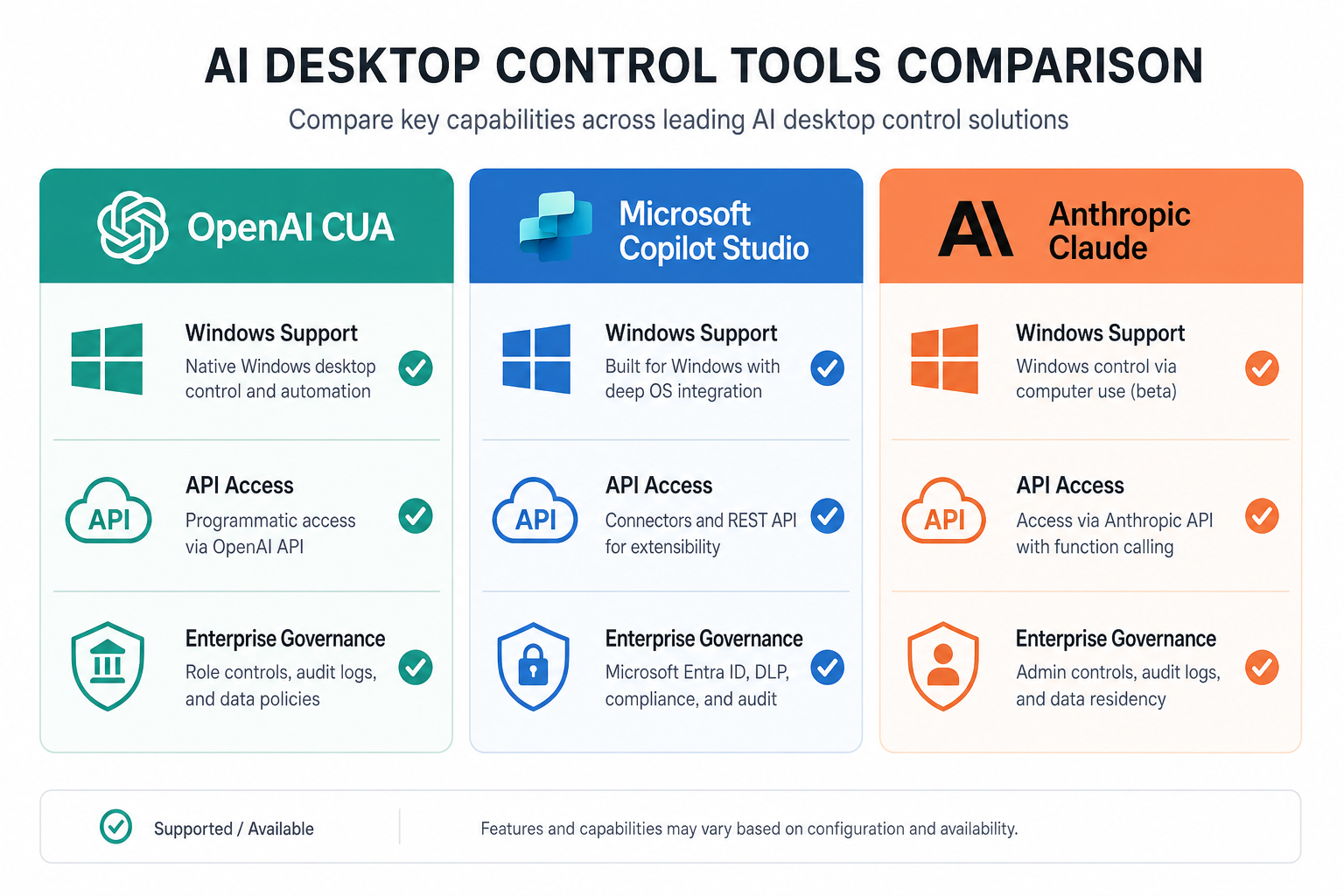
OpenAI isn’t alone in this space. Anthropic’s Claude has offered computer use capabilities for some time, and Microsoft has introduced its own Computer Use tool inside Copilot Studio, which lets Copilot agents interact with Windows applications and websites. However, there are meaningful distinctions:
- OpenAI CUA via Codex/ChatGPT agent: Tightly integrated with ChatGPT’s agent framework, available through the API for developers, with Windows support now confirmed in the Codex app.
- Microsoft Copilot Studio computer use: Designed for low-code Power Platform workflows, better suited to teams already embedded in the Microsoft 365 ecosystem.
- Anthropic Claude computer use: Strong on cross-platform reliability but historically stronger on macOS and Linux desktop environments than Windows.
For IT teams who want to build custom AI agent pipelines against the OpenAI API, the new Windows support removes a significant constraint. For teams who need a no-code solution inside Microsoft 365, Copilot Studio may still be the faster path to deployment.
Is Your Windows PC Ready for AI Desktop Control?
Running AI desktop control agents — especially locally — places real demands on hardware. If you’re running agents on-device rather than through a cloud API endpoint, the system requirements matter.
Microsoft has already established that Copilot+ PCs require at least 16GB of RAM and a Neural Processing Unit (NPU) capable of 40+ TOPS (Trillion Operations Per Second). While OpenAI’s CUA model runs inference in the cloud and only requires a stable internet connection from the client device, enterprises exploring on-device agent orchestration should ensure their Windows machines are properly resourced. Our detailed guide on Windows 11 AI PC requirements and why 16GB RAM is the new standard covers exactly what your hardware needs to handle these emerging AI workloads.
Beyond RAM, a licensed, fully updated version of Windows is essential. AI agent frameworks depend on stable OS APIs and security layers that can only be guaranteed on an activated, up-to-date system. If you’re still running an unactivated or legacy version of Windows, now is the right time to get that sorted before your organisation begins deploying AI agents.
Security and Governance Considerations
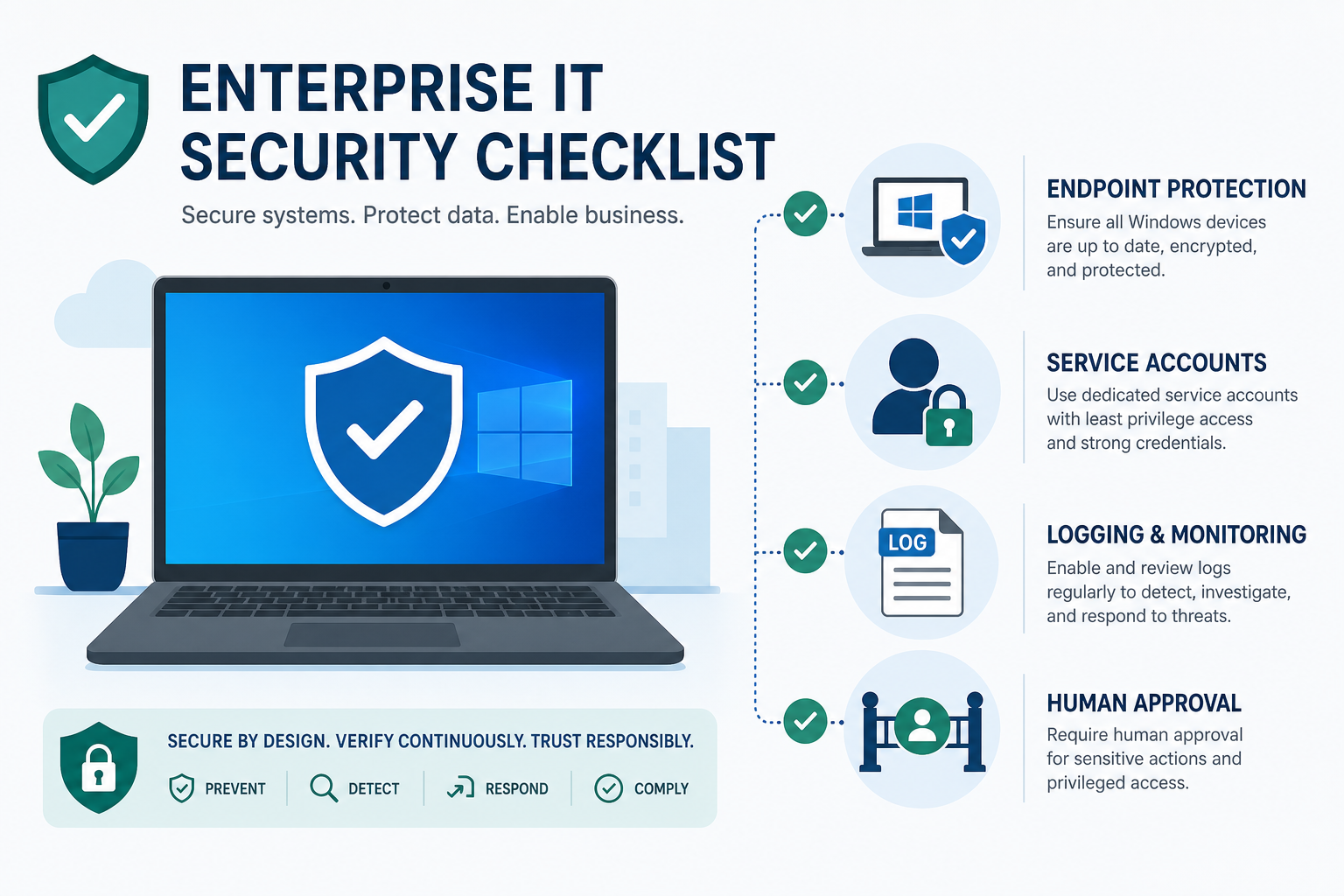
AI agent Windows automation introduces a new category of risk that IT security teams must address proactively. An agent that can control the desktop has, by definition, the same access to files, applications, and network resources as the user account under which it runs. That means:
- Principle of least privilege: Always run computer use agents under a dedicated service account with only the permissions the task requires — never an admin account unless absolutely necessary.
- Action logging: Every screenshot, action, and decision the agent takes should be logged and retained for audit purposes. Most enterprise agent frameworks support this natively.
- Human-in-the-loop gates: Define clear escalation points where the agent must pause and request human approval before proceeding — particularly for irreversible actions like deletions or financial transactions.
- Sandboxed environments: Test new agent workflows in isolated VMs or staging environments before deploying to production desktops.
Microsoft’s own guidance on computer use in Copilot Studio echoes these recommendations, and they apply equally to any OpenAI-powered computer use agent operating on Windows machines.
Getting Your Windows Environment AI-Agent Ready
Deploying OpenAI computer use Windows support in an enterprise context isn’t a flip-a-switch exercise. Here’s a practical starting checklist for IT managers:
- Audit your Windows licences: Ensure every machine in scope is running a genuine, activated copy of Windows 11 Pro or Windows 10 Pro — the features and security policies that AI agent frameworks depend on are only available in Pro editions.
- Patch to the latest cumulative update: AI agent APIs interact with accessibility and UI automation layers that are periodically improved in Windows updates. Running current patches minimises incompatibilities.
- Identify your first automation target: Start with a single, well-defined, repetitive task — data entry into a legacy app is a classic first candidate. Crawl before you run.
- Define your governance framework: Write a policy document that specifies which tasks agents may perform autonomously, which require approval, and how agent actions are logged and reviewed.
- Pilot with a small user group: Run a 30-day pilot with a handful of power users before broader rollout. Collect feedback on accuracy, speed, and any edge cases the agent struggles with.
The Bigger Picture: AI Desktop Control and the Future of Windows
OpenAI computer use Windows support is part of a broader shift in how AI integrates with operating systems. Rather than living as a sidebar chatbot, AI is becoming an active participant in the desktop environment — capable of navigating applications, synthesising information across multiple windows, and completing multi-step tasks end-to-end.
This aligns directly with Microsoft’s own Copilot+ PC strategy, which embeds AI deeply into the Windows 11 experience. The two directions are converging: Microsoft building AI into Windows from the inside, and OpenAI (along with Anthropic and others) building AI agents that can operate on any Windows surface from the outside. For enterprise IT teams, this means the investment in a well-maintained, correctly licensed Windows environment pays dividends beyond the operating system itself — it becomes the foundation on which AI agent productivity is built.
If you’re planning to deploy AI agents across your organisation’s Windows fleet, having the right Windows licences in place is the non-negotiable first step. Explore our range of Windows 11 Pro Retail keys — starting from €17.95 — to ensure every machine is properly activated and ready for the AI-agent era.
FAQ: OpenAI Computer Use on Windows
What is OpenAI’s computer use agent and how does it work on Windows?
OpenAI’s Computer-Using Agent (CUA) is an AI model that combines GPT-4o’s vision capabilities with reinforcement-learning-based reasoning. On Windows, it captures screenshots, interprets the UI visually, and issues mouse and keyboard inputs to control applications — exactly as a human operator would, but at machine speed and without requiring application-level API access.
Do I need special hardware to run AI agent Windows automation?
For cloud-based agent inference (the most common deployment model), your Windows machine only needs a stable internet connection. For on-device orchestration or local model execution, Microsoft recommends at least 16GB of RAM and a capable NPU. Most modern business laptops with Windows 11 Pro will meet the baseline requirements for cloud-based AI desktop control.
Is AI desktop control safe to use in an enterprise environment?
It can be, provided proper governance is in place. Best practices include running agents under least-privilege service accounts, logging all agent actions for audit, defining human-in-the-loop approval gates for high-risk actions, and piloting in sandboxed environments before production rollout. The technology itself is neutral — the safety level is determined by how it is configured and governed.
How does OpenAI’s computer use compare to Microsoft’s Copilot Studio computer use tool?
Both use vision-based AI to control Windows desktop applications, but they target different buyers. OpenAI’s CUA is API-first and suited to developers building custom agent pipelines. Microsoft’s Copilot Studio computer use is a low-code tool embedded in the Power Platform ecosystem, better suited to business users already working within Microsoft 365. Many enterprises will ultimately use both, depending on the use case.
Which version of Windows is best for deploying a computer use agent?
Windows 11 Pro is the recommended choice for enterprise AI agent deployments. It provides the modern UI automation APIs, Group Policy controls, and security features (including Windows Defender and BitLocker) that are essential for governing agent behaviour safely. Windows 10 Pro remains a valid option for machines that cannot upgrade yet, but planning a migration path to Windows 11 is advisable given the October 2026 end-of-support date for Windows 10.
Can a computer use agent work with Office applications like Excel or Word?
Yes. Because the CUA model operates via screen vision rather than application APIs, it can interact with any visible Windows application — including Microsoft Office apps like Excel, Word, and Outlook. This makes it particularly valuable for automating document-heavy workflows such as report generation, data consolidation across spreadsheets, and email triage.
