
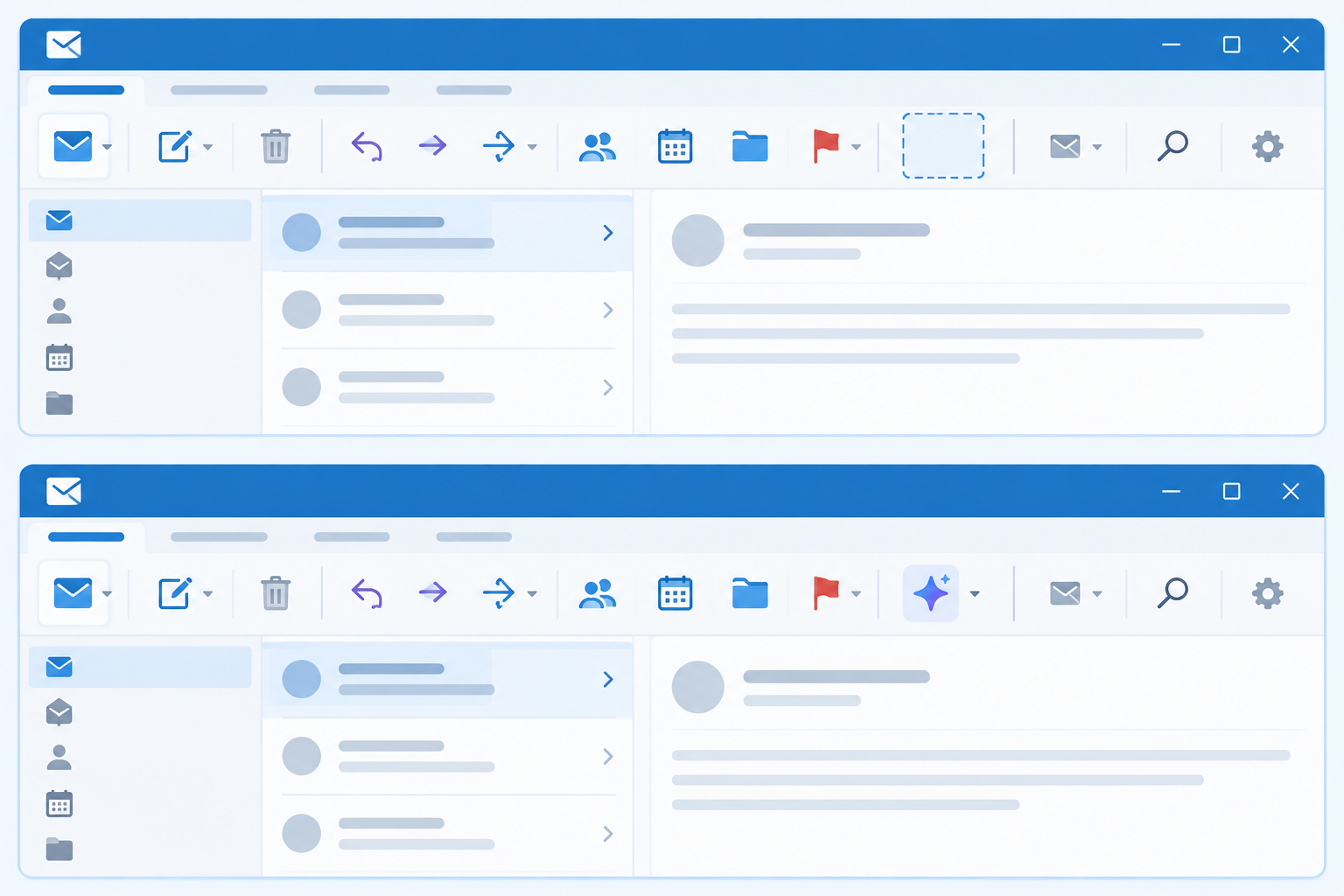
If you noticed Outlook Copilot buttons missing from the ribbon in classic Outlook for Windows, you weren’t imagining things and you weren’t alone. Microsoft confirmed this as a known issue, traced it to a recent client update, and has since rolled out a fix. This guide explains what went wrong, who was affected, and exactly what to do if the buttons still haven’t come back on your machine.
Outlook Copilot Buttons Missing: What Users Experienced
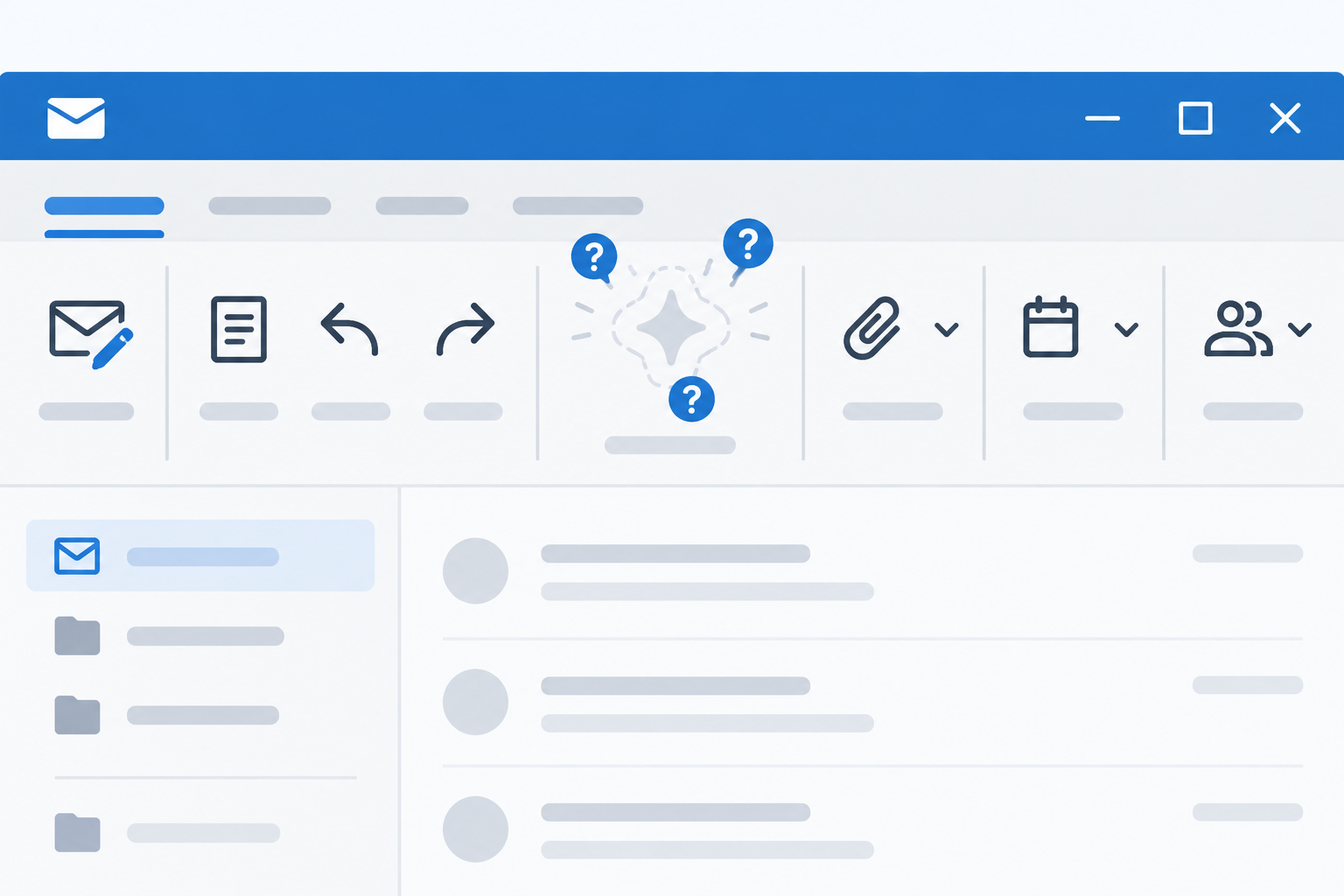
The problem was simple to describe but frustrating to live with: users who had Copilot working perfectly fine in classic Outlook suddenly found the Copilot Chat and Copilot ribbon entry points gone after installing a routine update, with no setting changed and no license removed on their end.
Common symptoms reported by affected users included:
- The Copilot icon disappearing from the Home tab ribbon in classic Outlook for Windows
- Copilot Chat no longer appearing in the navigation pane
- Copilot continuing to work normally in Word, Excel, and PowerPoint on the same device
- No error message or notification explaining the change
- The issue persisting even after restarting Outlook or signing out and back in
Because Copilot kept working fine in other Microsoft 365 apps, many people assumed it was a licensing glitch specific to their account rather than a broader client bug — which made it harder to self-diagnose.
What Caused the Outlook Copilot Buttons Missing Issue
Microsoft identified the root cause as a defect introduced in a specific classic Outlook client update. According to Microsoft’s own known-issues documentation, the Copilot entry points disappeared after classic Outlook for Windows updated to build 20026.20182 or higher. That single build number is the key detail: if your Outlook version matched or exceeded it, you were in the affected pool regardless of your subscription tier.
The bug sat in how that build evaluated Copilot’s entry point registration in the ribbon, rather than in licensing itself. That’s why troubleshooting steps aimed purely at licenses — refreshing a Microsoft 365 login, reassigning a Copilot seat, or re-entering a product key — did nothing for people hit by this specific build issue. It was a client-side display problem, not an entitlement problem.
Who Was Affected
The issue was reported across both personal Microsoft 365 subscriptions and organizational tenants running classic Outlook for Windows. Outlook on the web and the newer “new Outlook” client were generally reported as unaffected, which is why many people’s quick workaround was simply switching clients temporarily while the fix rolled out.
How Microsoft Fixed the Missing Copilot Buttons in Outlook
Microsoft resolved the problem with a service-side correction rather than requiring every user to manually patch their install. The known-issues page for this bug is now marked STATUS: FIXED, confirming the Outlook team corrected the behavior that stripped the Copilot entry point from the ribbon in the affected build.
For most users, the fix applied automatically once Microsoft pushed the correction through, and the Copilot buttons reappeared after a simple Outlook restart. No reinstall or key re-entry was required for the majority of cases, which is a meaningful relief for small teams that don’t have in-house IT support to chase down ribbon problems one machine at a time.
How to Restore Copilot Buttons Missing from Outlook
If your Copilot buttons have not reappeared yet, work through these steps in order before assuming something else is wrong:
- Close Outlook completely, then reopen it — the fix often only applies on a fresh session.
- Go to File > Account > Update Options > Update Now to pull the latest client build.
- Confirm your update channel; Microsoft recommends being on the Current Channel or Monthly Enterprise Channel for the fastest access to Copilot fixes.
- Refresh your license: open any Microsoft 365 app, go to File > Account, and select Update License.
- Restart all Office apps after refreshing the license, not just Outlook.
If the buttons are still missing after those steps, try Outlook on the web or the new Outlook client as a temporary workaround while you confirm your classic Outlook build has fully updated past the affected version.
Manual Fixes If Outlook Copilot Button Missing Persists
A small number of users needed one additional manual step even after the service-side fix landed. In the File > Options > Advanced menu, look for a setting called “Show Apps in Outlook.” Some users found that toggling this option off, restarting Outlook, then toggling it back on forced the ribbon to re-render the Copilot entry point correctly.
If that still doesn’t resolve it, these checks cover most remaining cases:
- Verify your Copilot license is active and assigned in the Microsoft 365 admin center (for business accounts)
- Check that your organization’s update policy isn’t holding Outlook on an older, unaffected-but-outdated build
- Disable any VPN temporarily and retry, since some licensing checks are sensitive to network routing
- As a last resort, remove and re-add your email account in Outlook to force a full settings sync
Why This Matters for Small Businesses and Freelancers
A missing ribbon button sounds minor until you depend on it daily. For small business owners, freelancers, and office admins who use Copilot to draft replies, summarize long threads, or triage a crowded inbox, losing the entry point without warning breaks a workflow people had already built habits around. Unlike a crash or an outage, this bug gave no error message — it just quietly removed a tool, which made it harder for non-technical users to know whether to wait it out or escalate.
It’s also a useful reminder that ribbon and ribbon-add-in problems in Outlook are rarely tied to your Office license itself. If you’re running a properly activated copy of Microsoft 365 or a standalone Office 2024 Pro Plus license, a missing button is almost always a client build or configuration issue rather than a sign your activation has lapsed. Keeping Outlook on a current, supported update channel is the simplest way to avoid repeat incidents like this one.
This wasn’t the first time Microsoft has had to walk back a Copilot interface decision after user pushback — the company previously had to admit the floating Copilot button design was a mistake and adjust it based on feedback. Taken together, these episodes show Copilot’s integration into Office apps is still being actively refined, and ribbon-level issues are likely to keep surfacing as the feature matures.
Frequently Asked Questions
How do I fix Outlook Copilot buttons missing after an update?
First, make sure Outlook is fully updated to the latest build via File > Account > Update Options > Update Now, since Microsoft’s fix was rolled out as a service-side and client update together. Then refresh your Microsoft 365 license from File > Account > Update License and restart all Office apps. Most users see the Copilot buttons return immediately after these two steps.
How to download the latest Outlook build to restore Copilot?
Open any Office app, go to File > Account > Update Options, and select Update Now to force Outlook to check for and download the current build. If your organization manages updates centrally, your IT admin may need to approve the rollout for your update channel before it reaches your device.
How to install updates that fix missing Copilot buttons in Outlook?
Updates install automatically through the same Update Now process described above — there’s no separate patch to download manually for this particular fix, since Microsoft resolved it primarily through a service-side correction. Restarting Outlook after the update check completes is usually enough to trigger the Copilot ribbon entry to reappear.
How to activate a Copilot license if it shows as missing?
If Copilot is missing because of a licensing issue rather than the ribbon bug, go to File > Account, select Update License, and sign in with the Microsoft account tied to your Copilot subscription. For a standalone Office license, activation happens automatically once you sign in with the same account used during setup at setup.office.com.
Why is the Copilot button greyed out instead of missing entirely?
A greyed-out button usually points to a licensing or permissions problem rather than the display bug covered in this guide — for example, a Copilot seat that hasn’t fully propagated to your account yet. Try Outlook on the web to confirm whether Copilot works there; if it does, the issue is local to your classic Outlook client configuration.
Does reinstalling Outlook fix missing Copilot buttons?
Reinstalling is rarely necessary for this specific bug since Microsoft’s fix applied at the service level. If buttons are still missing after updating and refreshing your license, removing and re-adding your email account often resolves lingering ribbon display issues without a full reinstall.
