
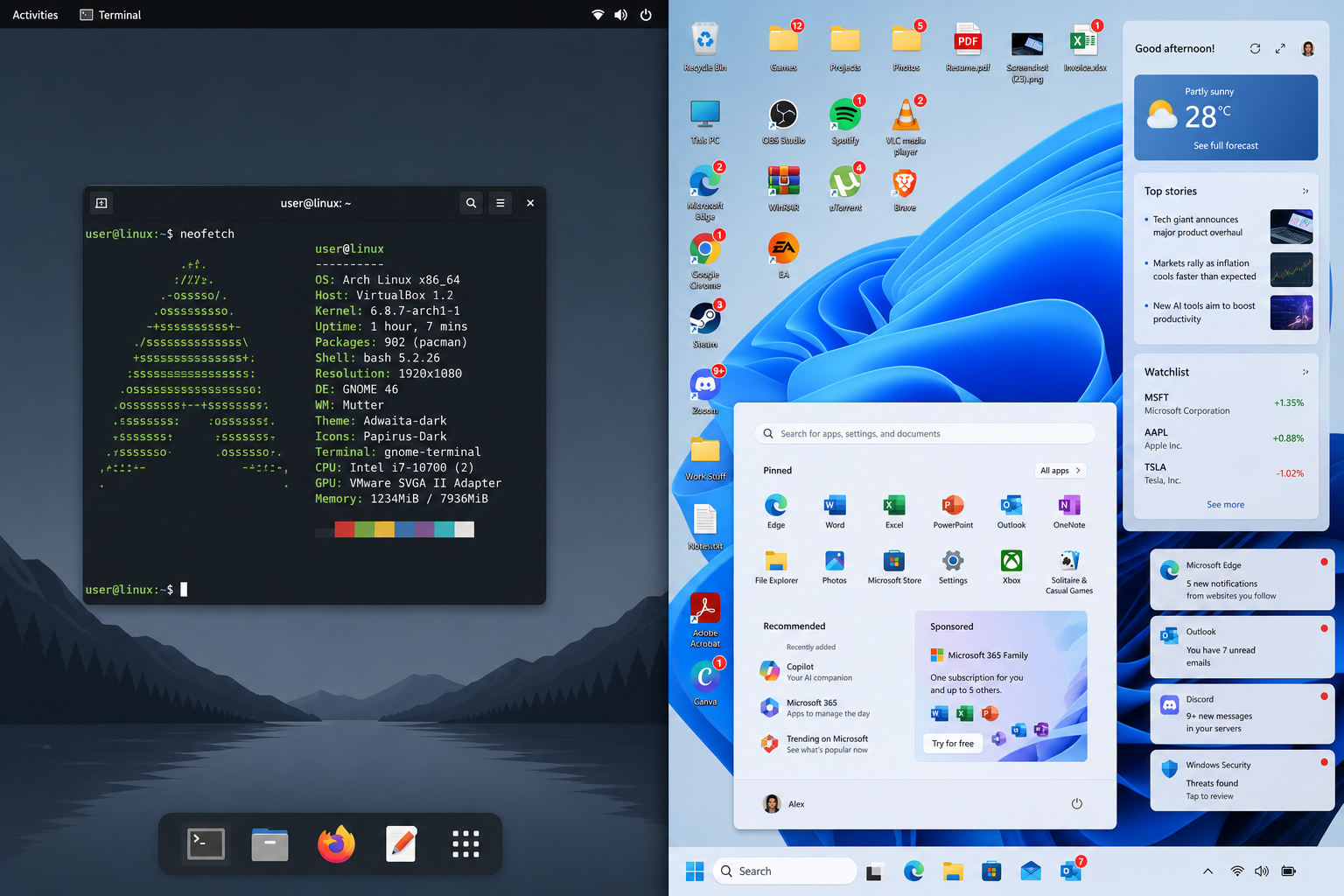
Windows 11 common problems are not just minor annoyances — for anyone coming from a tightly controlled Linux environment, they feel like a step backward in nearly every dimension that matters. After spending years on distributions like Ubuntu, Fedora, or Arch, switching to Windows 11 exposes a series of design regressions, forced features, and performance headaches that Microsoft has yet to seriously address. This breakdown covers nine of the most painful Windows 11 issues, with practical workarounds that power users can apply today.
1. The Locked Taskbar — One of the First Windows 11 Issues You’ll Hit
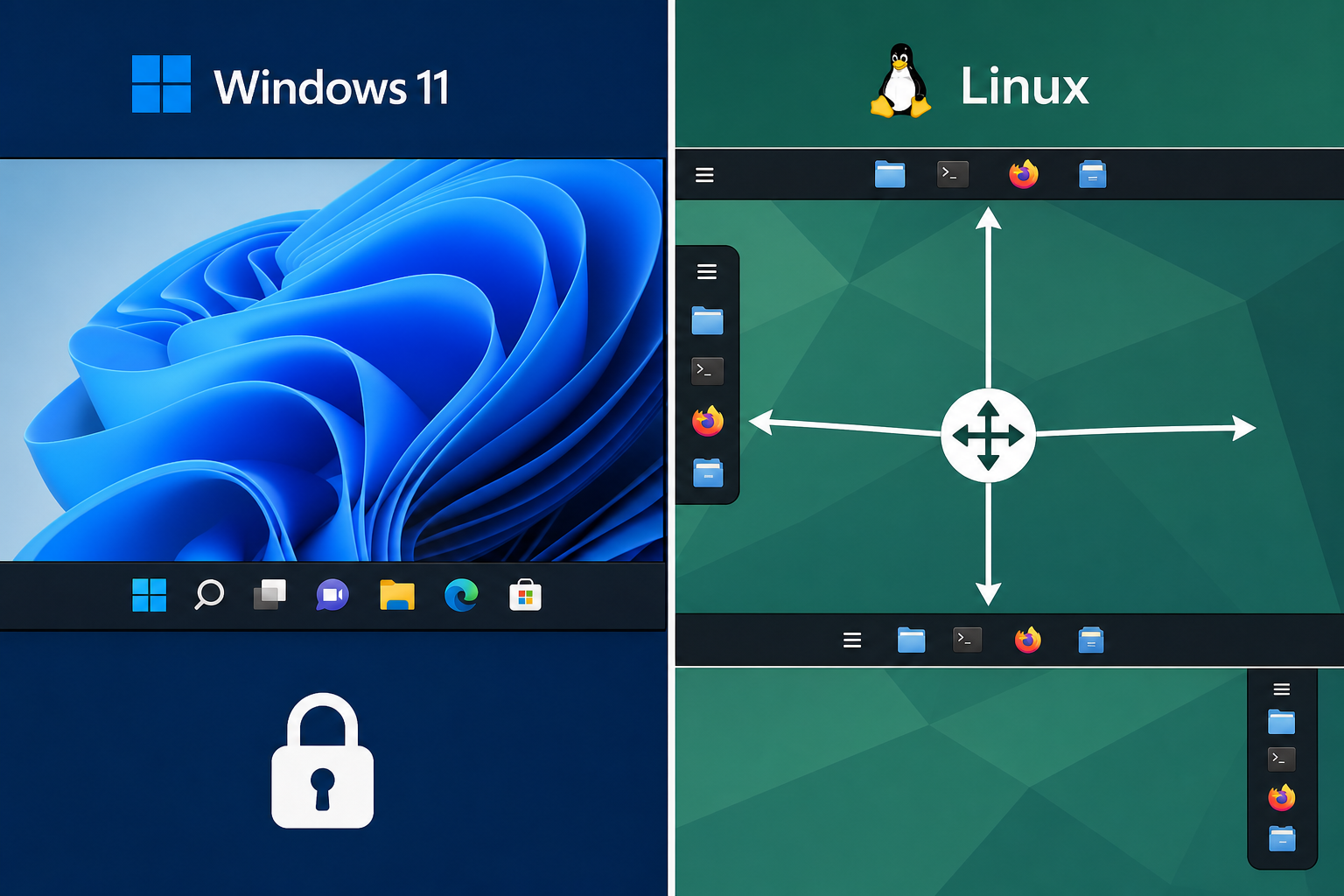
One of the most immediately jarring Windows 11 flaws for any power user is the stripped-down taskbar. In Windows 10, you could move it to the top or sides of the screen, resize icons, and fine-tune it via the UI. Windows 11 removed all of that — the taskbar is locked to the bottom, cannot be repositioned, and its settings are buried and minimal.
Workaround: The free tool ExplorerPatcher restores much of the classic taskbar behaviour, including repositioning and grouping controls. Note: third-party shell patches can break after major Windows updates, so always check compatibility before upgrading.
2. Forced Microsoft Account Sign-In
One of the top Windows 11 common problems reported by switchers from Linux is the insistence on a Microsoft account during setup. Linux respects local accounts by default; Windows 11 Home makes offline setup deliberately obscure, hiding the local account option behind network disconnection tricks or OOBE workarounds.
Workaround: During setup, disconnect your internet connection before reaching the account screen, or use the command OOBE\BYPASSNRO from Shift+F10 at the setup screen. Windows 11 Pro users can choose “Domain join instead” to create a local account directly.
3. Advertisements Inside the Operating System
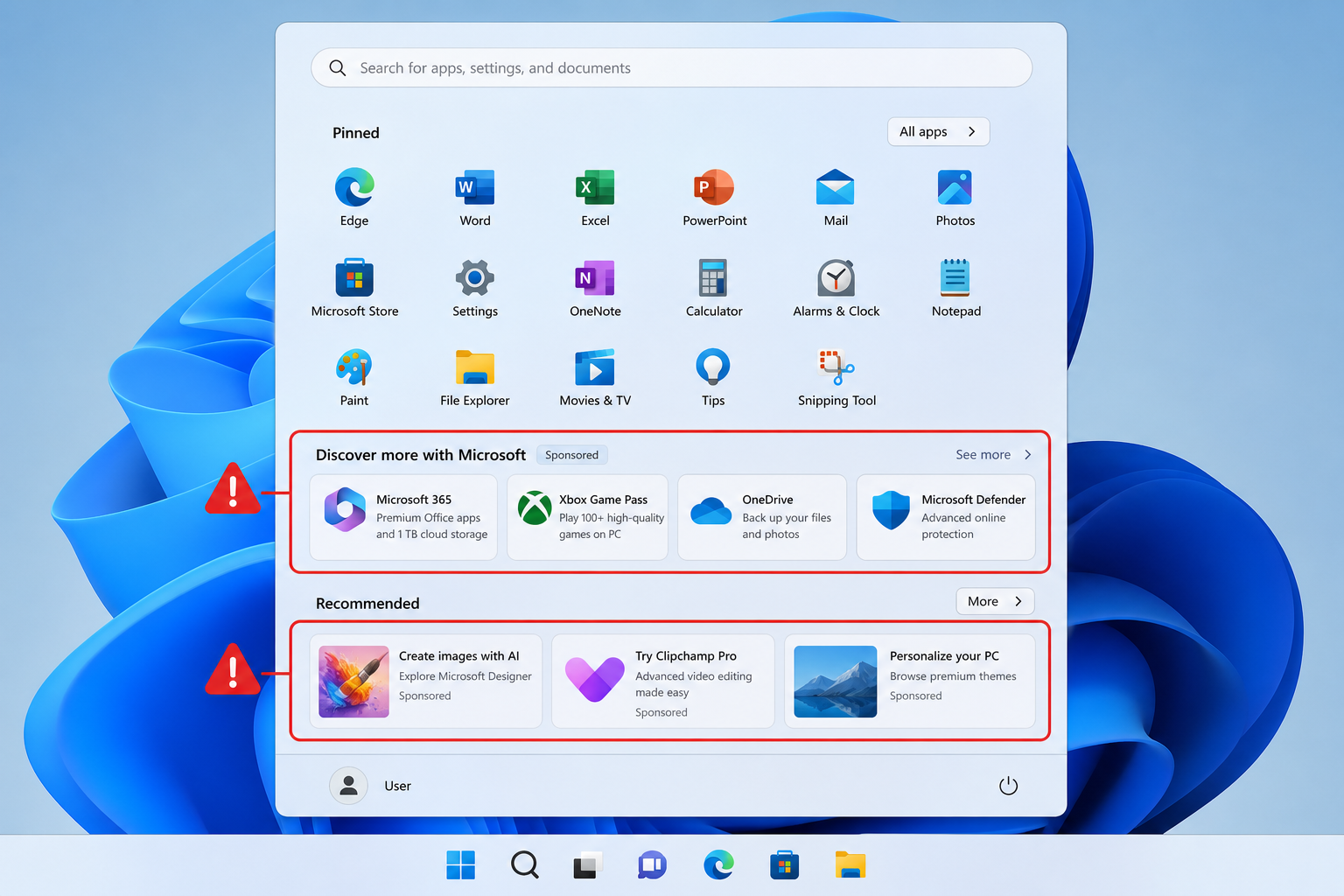
If you’re accustomed to an ad-free desktop environment, Windows 11 issues around in-OS advertising will feel deeply invasive. Microsoft embeds promotional content into the Start menu (as “recommended” app tiles), the lock screen, the File Explorer sidebar, and even in Settings itself. These are not third-party infections — they are baked in by design.
Workaround: Navigate to Settings → Personalisation → Start and disable “Show recommendations for tips, app promotions, and more.” In Settings → Privacy & Security → General, toggle off all four advertising-related switches. For the lock screen, go to Settings → Personalisation → Lock Screen and switch from “Windows Spotlight” to a plain picture or slideshow.
4. Context Menu Truncation Kills Muscle Memory
The redesigned right-click context menu in Windows 11 hides most options behind “Show more options” (or Shift+F10). For power users accustomed to full context menus with direct access to 7-Zip, Git Bash, or other shell extensions, this is a daily friction point — and one of the most-cited Windows 11 flaws in developer communities.
Workaround: A simple registry tweak restores the classic full context menu permanently:
-
Open Registry Editor (regedit) as Administrator.
-
Navigate to
HKEY_CURRENT_USER\Software\Classes\CLSID. -
Create a new key:
{86ca1aa0-34aa-4e8b-a509-50c905bae2a2}. -
Inside it, create a subkey named
InprocServer32with a blank default string value. -
Restart Explorer or reboot.
5. Background Resource Usage: One of the Costliest Windows 11 Common Problems
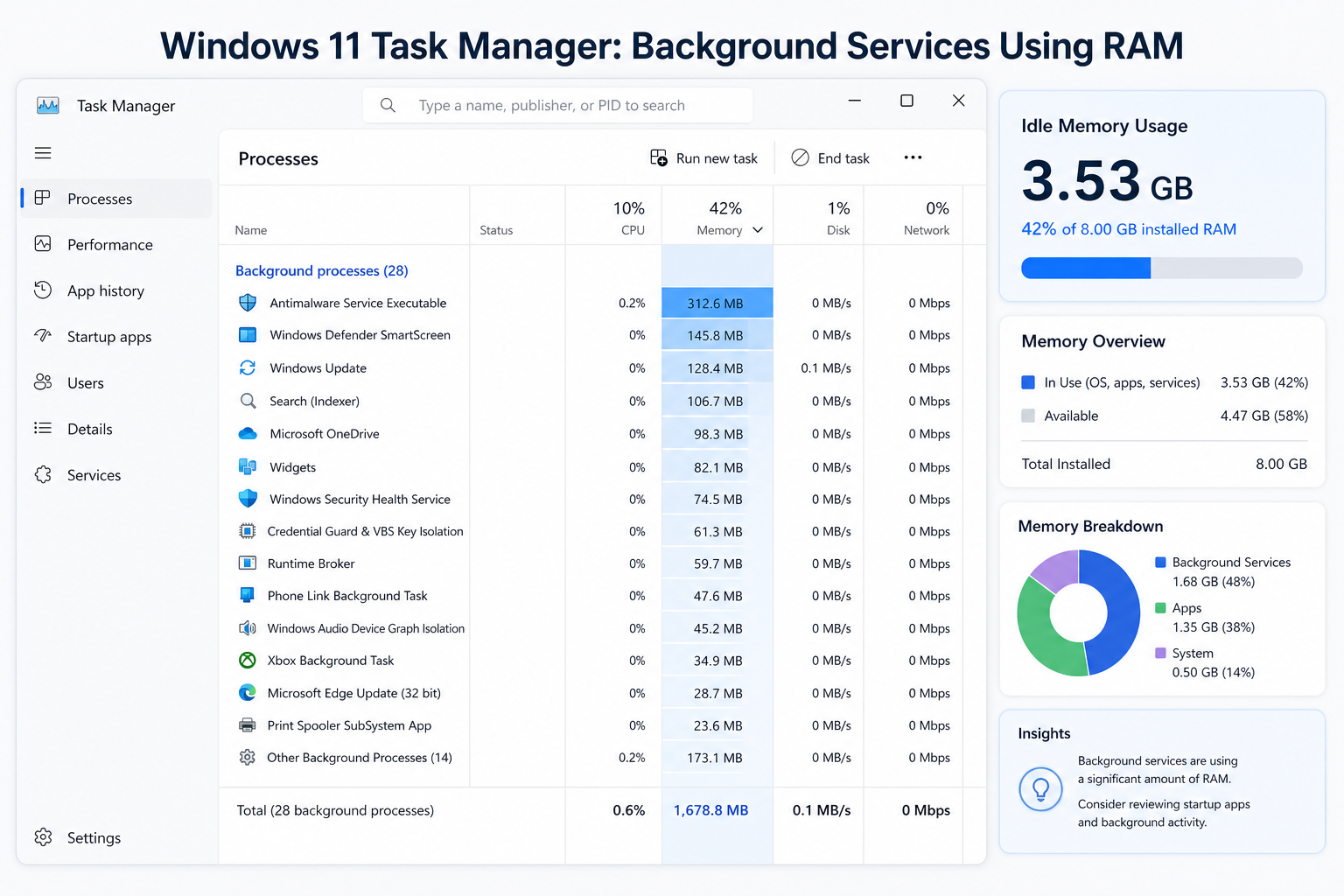
Windows 11 issues around RAM and CPU consumption are a recurring theme. A fresh Windows 11 install idles at roughly 3–4 GB of RAM — compared to under 500 MB on a lean Linux desktop. Background services including Xbox Game Bar, Widgets, Copilot, and telemetry processes consume resources even when you’re not using them.
Workaround: Use Task Manager → Startup apps to disable unnecessary startup entries. In Settings → Privacy & Security → Diagnostics & Feedback, set telemetry to “Basic” (or “Security” on Enterprise). You can also disable the Widgets service entirely via PowerShell:
winget uninstall "Windows Web Experience Pack"For a deeper clean, tools like WinUtil (Chris Titus Tech’s open-source debloater) let you remove telemetry, disable unnecessary services, and apply performance tweaks in a controlled GUI — far closer to the granular control Linux users expect.
6. No Real Control Over Windows Update — One of the Windows 11 Flaws Linux Users Hate
Linux users choose when and what to update, with full package manager transparency. Windows 11 problems in this area are well-documented: updates reboot your machine, install automatically, and occasionally introduce regressions. The Microsoft Windows Release Health dashboard regularly lists known issues introduced by monthly updates — including cases where patches have broken audio drivers, printer connectivity, and boot sequences.
Workaround: In Settings → Windows Update → Advanced Options, set Active Hours to a wide window (up to 18 hours) and use “Pause updates” for up to five weeks. On Windows 11 Pro, Group Policy lets you defer feature updates for up to 365 days via gpedit.msc → Computer Configuration → Administrative Templates → Windows Update.
If you’re running into specific update errors, our guide on fixing the Windows 11 update 0x800f0922 error walks through step-by-step recovery from one of the most common patch failures.
7. Snap Layouts Are Promising but Incomplete
Snap Layouts, introduced in Windows 11, are a genuine improvement and the one area that goes beyond what most stock Linux desktop environments offer. Hovering over the maximise button reveals preset window arrangements you can snap into quickly. However, this is one of the Windows 11 flaws that rewards closer inspection — Snap Layouts do not remember your custom arrangements across sessions, they don’t work reliably with apps that override their own window chrome, and they offer no scripting interface.
Workaround: Use Microsoft PowerToys’ FancyZones (free, open source) for persistent, fully customisable zone layouts that survive reboots and work with virtually every app.
8. Privacy Settings Are Deliberately Obscure
Among the most serious Windows 11 issues for security-conscious users is the sheer scope of data collection enabled by default. Advertising IDs, activity history, app diagnostics, location access, microphone and camera permissions — all are turned on unless you manually opt out, scattered across multiple Settings sub-menus.
-
Settings → Privacy & Security → General — disable advertising ID and suggested content.
-
Settings → Privacy & Security → Activity History — turn off activity history and clear existing data.
-
Settings → Privacy & Security → Diagnostics & Feedback — set to Basic, disable tailored experiences.
-
Settings → Privacy & Security → Search Permissions — disable SafeSearch cloud integration if unneeded.
On Windows 11 Pro, Group Policy and the Registry give you finer control over telemetry endpoints that the UI does not expose.
9. The Start Menu Has Become a Discovery Engine
The Start menu overhaul in Windows 11 replaced the familiar, customisable live tile grid with a fixed layout that mixes pinned apps with Microsoft-curated “recommended” items. For a Linux user used to application launchers that simply list what is installed, this feels deeply anti-user. The “recommended” section surfaces recently opened files and promoted apps with no quick toggle to remove it entirely from the UI.
Workaround: You cannot fully remove the Recommended section without a third-party shell tool. Start11 (paid) and the open-source ExplorerPatcher both restore a more functional Start menu. Alternatively, open Settings → Personalisation → Start and set “Show recently opened items” and “Show recommendations” both to Off — this at least empties the section even if the layout space remains.
Windows 11 Common Problems: Should You Still Make the Switch?
Despite these Windows 11 common problems, the OS remains the dominant platform for gaming, creative software, and corporate environments. Many of the flaws documented here have viable workarounds — but they require effort that Linux users never expect to spend on a fresh OS install. The real takeaway is that Windows 11 is manageable for power users willing to invest time in configuration, and frustrating for those who are not.
If you’re planning a fresh install or building a new machine, a legitimate licence is the cleanest starting point. Our Windows 11 Pro Retail key (from €17.95) gives you full installation rights, access to Group Policy, and greater control over updates and privacy settings than the Home edition — making every workaround in this guide easier to apply.
For a deeper look at hardware compatibility before you commit, see our guide on upgrading an incompatible Windows 10 PC to Windows 11 — useful if you’re transitioning from an older machine.
Frequently Asked Questions
What are the most common Windows 11 problems for new users?
The most widely reported Windows 11 common problems include the locked-down taskbar that cannot be repositioned, mandatory Microsoft account sign-in during setup, persistent in-OS advertisements, the truncated right-click context menu, and high background RAM usage from built-in services. Most have practical workarounds using built-in Settings, Registry edits, or free tools like ExplorerPatcher and PowerToys.
Does Windows 11 use more RAM than Windows 10?
Yes. A clean Windows 11 installation typically idles at 3–4 GB of RAM, compared to roughly 2–2.5 GB on Windows 10. The difference comes from additional background services, the Widgets panel, Copilot integration, and expanded telemetry processes. Disabling unused services and the Widgets package can recover several hundred megabytes.
Can I fix Windows 11 flaws without third-party tools?
Many Windows 11 issues can be addressed through built-in Settings, Group Policy (Pro edition), and Registry Editor. The right-click context menu, telemetry levels, advertising toggles, and update deferral are all configurable without installing anything extra. For deeper fixes — like restoring taskbar mobility or a functional Start menu — open-source tools like ExplorerPatcher offer the most complete solution.
Is Windows 11 Pro worth it over Home for power users?
For power users, Windows 11 Pro is significantly more capable. It unlocks Group Policy Editor, BitLocker full-disk encryption, domain join for enterprise networks, and finer update deferral controls. These features address several of the core Windows 11 problems around privacy and update management that Home edition leaves largely uncontrollable. The price difference between Home and Pro is modest, especially when buying a retail key.
How do I stop Windows 11 from restarting automatically for updates?
Go to Settings → Windows Update → Advanced Options and configure Active Hours to cover your working day (up to 18 hours). Enable “Notify me when a restart is required” and use the Pause Updates toggle for short-term deferral. Windows 11 Pro users can go further with Group Policy to delay feature updates by up to 365 days and quality updates by up to 30 days, giving full control over the update schedule.
