
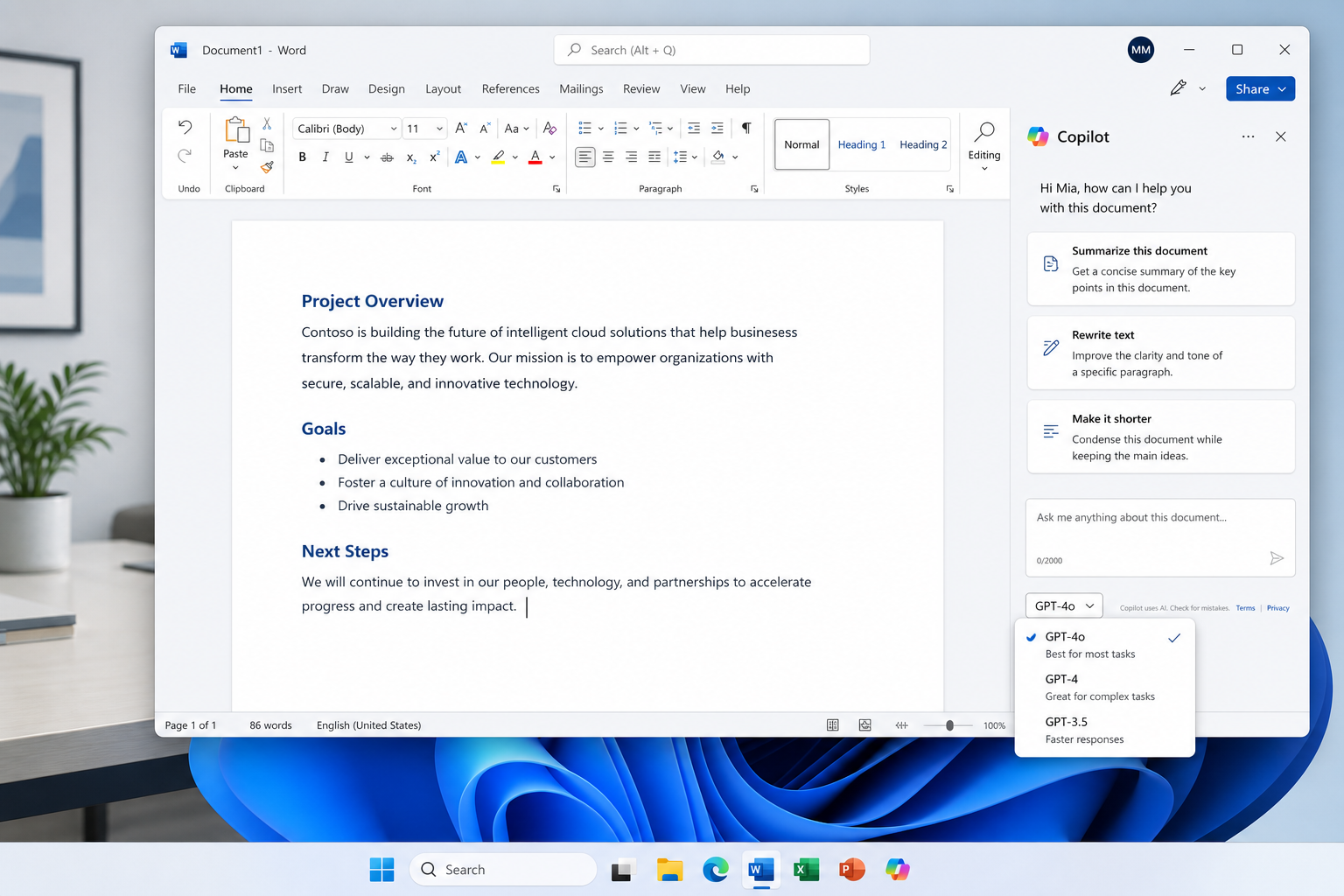
Copilot with Grok is Microsoft’s new option to run your Copilot prompts through xAI’s Grok models instead of the default OpenAI models — and it’s arriving first as an opt-in preview for eligible Microsoft 365 business customers. If you’ve noticed a model picker appearing inside Word, Excel, or PowerPoint, this is what it does and why it matters.
For years, Copilot ran almost entirely on OpenAI’s GPT family behind the scenes. Microsoft has been quietly diversifying that lineup — first with Anthropic’s Claude for certain tasks, and now with Grok, the model built by xAI. The result is a more flexible Copilot experience where the underlying “brain” answering your question can change depending on the model you (or your admin) select, not just the interface you’re typing into.
What Is Copilot with Grok, Exactly?
Copilot with Grok is a model-selection feature that lets eligible users pick Grok as the AI model powering their Copilot responses, instead of the default OpenAI-based model. It doesn’t replace Copilot — it sits inside the existing Copilot apps as an additional engine option.
According to Microsoft’s own announcement, Grok is being introduced as a preview for Frontier program customers, with admin opt-in required before end users see the option. That means most everyday Microsoft 365 subscribers won’t see a Grok toggle unless their organization’s IT admin has specifically enabled it in the Microsoft 365 admin center.
-
Available inside Word, Excel, and PowerPoint’s Copilot pane for enrolled tenants
-
Requires admin-level opt-in — it is not on by default
-
Positioned as a preview feature, not a full replacement for OpenAI models
-
Runs as a separate subprocessor, meaning prompts routed to Grok are handled under a different data-processing agreement than OpenAI-powered requests
Why Microsoft Added a Third Model Option
Microsoft’s stated goal is “model choice” — giving users the flexibility to pick the AI engine best suited to a specific task, rather than locking every Copilot interaction to a single vendor. This mirrors what Microsoft already did with Claude, and it reflects a broader industry shift toward multi-model AI assistants where no single provider has to handle every request.
How Copilot with Grok Differs From the Default OpenAI Models
The core difference is training data, tone, and how each model handles ambiguous or current-events prompts. OpenAI’s models, which power Copilot by default, are tuned for structured productivity tasks — drafting documents, summarizing spreadsheets, building presentations. Grok, built by xAI, has a different training approach and has historically leaned toward a more direct, less filtered conversational style, though Microsoft has indicated the enterprise version inside Copilot is tuned for business use rather than the casual “personality” Grok is known for elsewhere.
Data Handling Is a Real Distinction
Choosing Grok means your prompt and any attached data are processed by a different subprocessor than the default Copilot flow. Some early reporting on the rollout has noted that the Grok option is currently blocked in the UK and EU, likely due to regional data-processing and regulatory requirements that don’t yet apply to the OpenAI-powered default. If your organization operates under strict data residency rules, this is the single most important difference to understand before opting in.
Availability and Access
Unlike the default Copilot experience, which is available to any licensed Microsoft 365 Copilot user, access to Grok is currently limited to:
-
Organizations enrolled in Microsoft’s Frontier program
-
Tenants where an IT admin has explicitly opted in
-
Regions where the feature isn’t currently restricted (the UK and EU are excluded at this stage)
When Should You Switch to Copilot with Grok?

Switch to Grok when you want a second opinion on open-ended or research-style prompts, or when your workflow benefits from a model trained on different data than OpenAI’s. It’s not a universal upgrade — it’s a tool for specific situations.
Good Reasons to Try It
-
Cross-checking output: Running the same prompt through two models can surface different phrasing, structure, or angles worth comparing before you finalize a document.
-
Research-heavy tasks: If Grok’s training emphasizes more recent or broader web data for certain topics, it may produce fresher context on fast-moving subjects.
-
Curiosity about model behavior: Teams evaluating AI vendors for future tooling decisions may want hands-on comparison data before committing further budget to one provider.
When to Stick With the Default
For most day-to-day Office tasks — formatting a report, cleaning up a spreadsheet formula, drafting routine emails — the default OpenAI-powered Copilot remains the more tested, broadly supported option. It’s available to every licensed user regardless of region, it doesn’t require admin configuration, and it’s what Microsoft has optimized its Word, Excel, and PowerPoint integrations around from the start.
Is Copilot with Grok Available to You Right Now?
If you’re a solo Microsoft 365 subscriber or a small business without a dedicated IT admin managing Frontier enrollment, the honest answer is: not yet. The feature is rolling out in stages, starting with larger enterprise customers who’ve joined Microsoft’s early-access programs. Home users and standard Microsoft 365 Personal or Family subscribers running Word, Excel, or PowerPoint with a genuine Office 2024 Pro Plus license won’t see a model picker at this stage.
That’s worth keeping in mind if you’ve seen headlines suggesting Grok is “in Copilot now” — technically true, but only for a narrow slice of enterprise users so far.
Setting Up Copilot on Genuine Windows and Office Before You Worry About Model Choice
Before any model-switching feature matters, Copilot needs a properly licensed, activated Windows and Office environment to run smoothly. Copilot integrates directly into Word, Excel, and PowerPoint, so a genuine, correctly activated Office installation avoids the sync and licensing errors that sometimes get mistaken for AI feature bugs.
-
Make sure Windows is genuinely activated — a Windows 11 Pro OEM key activates directly through Microsoft’s servers and passes the built-in genuine-software check
-
Confirm your Office suite is a supported version — Office 2021 and Office 2024 are the current lines that support Copilot features
-
Keep both Windows and Office updated, since Copilot’s model options roll out through incremental updates, not one-time installs
Running an outdated or improperly licensed copy of Windows or Office is one of the most common reasons Copilot features fail to appear or behave inconsistently — regardless of which underlying model you’re trying to use.
What This Means for the Future of Copilot
Copilot with Grok signals that Microsoft is moving away from a single-vendor AI strategy and toward a model-agnostic Copilot platform. Expect more model options to appear over time, not fewer, as Microsoft continues integrating providers like Anthropic and xAI alongside OpenAI. For everyday users, the near-term impact is small — most people will keep using the default model without noticing a difference. For IT admins and larger organizations, though, model choice adds a genuine strategic lever: the ability to route sensitive or specialized tasks to the model best suited for them, rather than accepting a one-size-fits-all AI assistant.
As Microsoft phases this in more broadly, expect clearer guidance from the company on which tasks benefit most from each model, and possibly wider regional availability once data-processing agreements catch up. Until then, treat Grok as an early preview worth watching rather than a feature to rebuild your workflow around today.
Frequently Asked Questions
How do I download Copilot with Grok?
You don’t download it separately — Grok appears as a model option inside the existing Copilot pane in Word, Excel, and PowerPoint once your organization’s admin enables it through the Microsoft 365 admin center. There’s no standalone app or installer for the Grok option itself.
How do I install Copilot to access these model options?
Copilot is built into Microsoft 365 apps rather than installed separately, so you need an active Microsoft 365 subscription with Copilot licensing and a genuine, activated Office installation. Once Copilot is enabled on your account, any additional models like Grok appear automatically inside the same interface when your tenant is opted in.
How do I activate a model like Grok inside Copilot?
Activation isn’t something an individual user toggles — a Microsoft 365 admin must opt the tenant into the Frontier preview program before the Grok option becomes visible to end users. Once enabled tenant-wide, eligible users typically see a model selector inside the Copilot chat pane.
Can I use Copilot with Grok if I’m in the UK or EU?
Not currently — early reporting on the rollout indicates the Grok option is blocked in the UK and EU, likely due to regional data-processing requirements. Users in those regions will continue using the default OpenAI-powered Copilot until Microsoft addresses the regulatory requirements.
Does switching to Grok cost extra?
Microsoft hasn’t announced separate pricing for the Grok option — it’s being introduced as part of existing Microsoft 365 Copilot licensing during the preview phase. Pricing details could change once the feature moves beyond preview status.
Will Grok replace OpenAI as Copilot’s default model?
No indication of that so far. Microsoft has framed Grok as an additional choice alongside OpenAI’s models and Anthropic’s Claude, not a replacement, reinforcing its stated strategy of giving users multiple model options rather than standardizing on one.
