
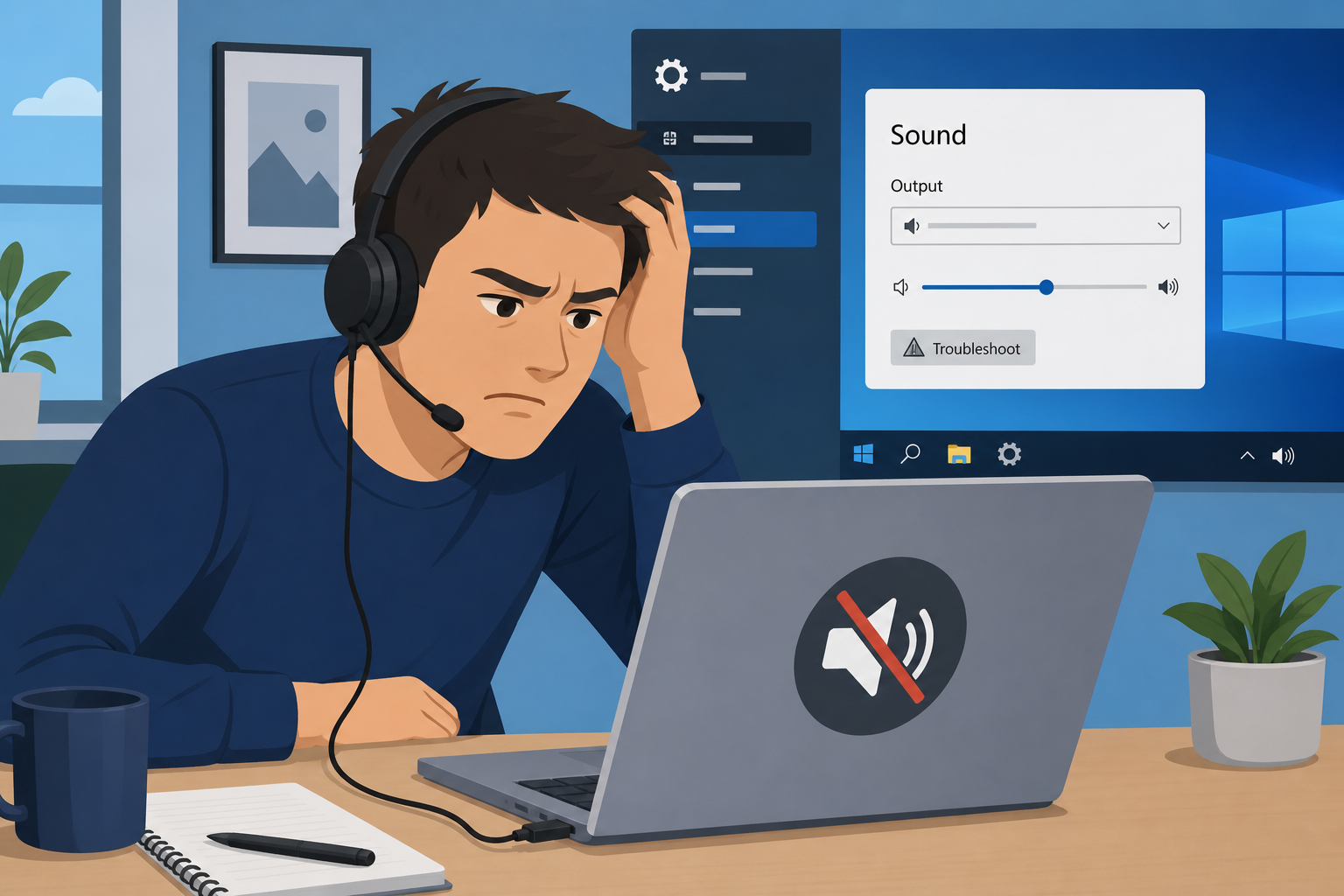
The Windows 11 audio bug currently affecting some PCs comes from an emergency out-of-band update that Microsoft shipped to fix other problems — but introduced a new sound issue in the process, and the full fix isn’t expected until the October Patch Tuesday release. If your speakers, headset, or USB audio interface suddenly went silent after installing a recent update, you’re not alone, and there are workarounds you can try right now.
This guide breaks down exactly what went wrong, which devices are affected, and the practical steps that have helped affected users get sound working again while they wait for Microsoft’s permanent patch.
What Caused the Windows 11 Audio Bug?
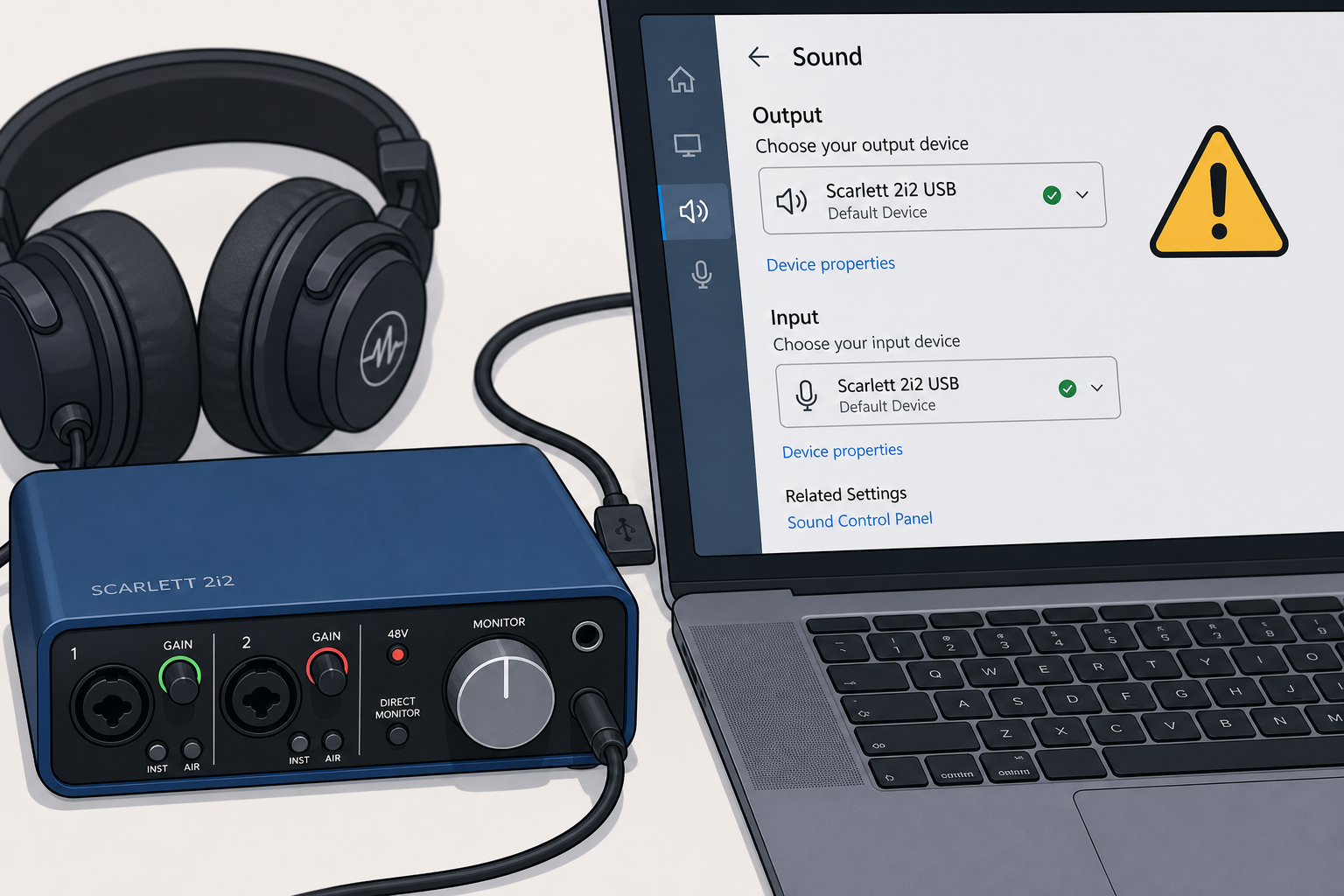
The Windows 11 audio bug traces back to an out-of-band (OOB) emergency update Microsoft released in mid-September 2026 to patch unrelated issues, including Remote Desktop failures and problems affecting Claude Cowork sessions. While fixing those bugs, the update introduced a regression that breaks certain USB audio configurations.
According to Microsoft’s own release notes on Microsoft’s Windows message center, the emergency update addressed several security and stability issues, but acknowledged that USB Audio Class 1.0 devices could still fail in multichannel or 3D audio modes after installation. In plain terms: the cure for one bug created a side effect in the audio stack that Microsoft hasn’t fully resolved yet.
The company has confirmed that a complete fix is tied to the next scheduled Patch Tuesday release, expected on October 13, 2026. Until then, affected users are stuck relying on manual workarounds rather than a single official patch.
Why Wasn’t This Caught Before Release?
Emergency out-of-band updates are typically tested on a narrower device matrix than a full monthly Patch Tuesday rollout, since the goal is to ship a fix quickly for a specific, often security-related, problem. That speed trade-off is likely why the USB audio regression slipped through — the update solved the Remote Desktop and virtual machine issues it targeted, but didn’t get the same breadth of hardware testing a scheduled update usually receives.
Which Devices Are Affected by the Windows 11 Audio Bug?
Not every Windows 11 PC is affected — the bug is specific to certain USB audio hardware and multichannel configurations. Reports and Microsoft’s own advisory point to a fairly narrow but still disruptive set of scenarios:
- USB Audio Class 1.0 devices, which can throw driver errors (including Device Manager Code 39) in multichannel or surround-sound modes
- External USB DACs, audio interfaces, and some USB headsets used by streamers, musicians, and gamers
- Devices relying on 8-channel or 3D spatial audio output, where the emergency update’s partial fix does not fully restore functionality
- Some onboard and Bluetooth audio setups have also reported intermittent silence, static, or devices disappearing from the sound output list after the update
Standard 3.5mm analog headphones and most built-in laptop speakers appear largely unaffected, which is consistent with the bug being tied specifically to USB audio class drivers rather than the entire Windows audio stack.
Is the Windows 11 Audio Bug Fixed Yet?
No — as of now, the Windows 11 audio bug is only partially fixed. Microsoft’s emergency update resolved the 8-channel and 3D audio failures for many users, but USB Audio Class 1.0 devices can still experience Code 39 errors and silent output. A complete resolution is expected with the October Patch Tuesday cumulative update rather than another emergency patch.
That timeline means anyone relying on affected hardware for work calls, streaming, recording, or gaming has to bridge the gap with manual troubleshooting rather than waiting passively for Windows Update to sort it out.
Workarounds to Try While Waiting for the Official Patch
Several fixes have worked for affected users, though results vary depending on the exact hardware and driver version involved. Try them in this order.
1. Roll Back the Problematic Update
If sound stopped working immediately after an update, uninstalling that specific patch is usually the fastest way to restore audio. Go to Settings > Windows Update > Update history > Uninstall updates, find the recent cumulative or out-of-band update, and remove it. This won’t fix the underlying issue permanently, but it buys you working sound until the real patch lands. If you want a safer, more detailed walkthrough — including how to pause future updates so the problem doesn’t reappear — a full guide is available in our Windows Update rollback walkthrough.
2. Update or Reinstall the Audio Driver Manually
Rather than relying on Windows Update’s driver package, get the latest audio driver directly from your hardware manufacturer’s website (Realtek, Focusrite, Logitech, etc., depending on your device). Uninstall the current driver in Device Manager, restart, then install the manufacturer’s version. This often resolves Code 39 errors tied to the audio bug even before Microsoft’s fix arrives.
3. Run the Windows Audio Troubleshooter
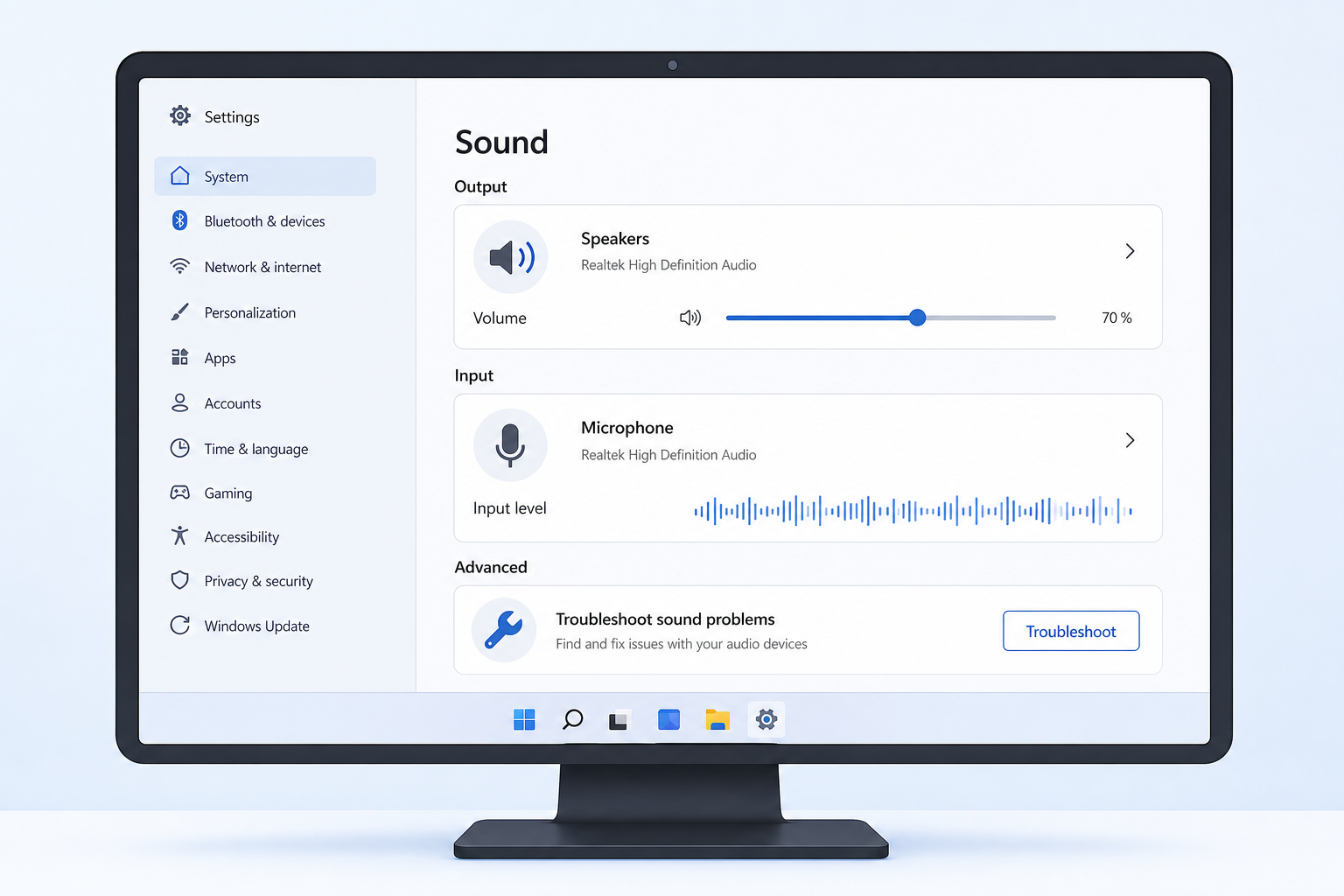
Microsoft’s built-in troubleshooter can catch and reset several common playback issues automatically. Go to Settings > System > Troubleshoot > Other troubleshooters, and run “Playing Audio.” It won’t fix every case tied to this specific bug, but it takes under two minutes and occasionally resolves the issue outright.
4. Switch USB Ports or Try a Different Audio Mode
Since the bug is linked to certain multichannel and 3D audio modes, changing your device’s output format can help. In Sound Settings > Device properties, try switching from surround/3D formats down to stereo output, or plug the USB device into a different port (preferably a rear USB port on desktops, which sometimes uses a different controller).
5. Restart the Windows Audio Service
Sometimes the audio service itself hangs rather than the driver failing outright. Open Services (search “services.msc”), find “Windows Audio,” right-click and restart it. If it’s stopped entirely, set it to start automatically and start it manually.
Should You Wait for the Official Patch or Act Now?
If your work or daily use depends on reliable audio — calls, streaming, content creation — don’t wait passively. Apply the workarounds above now, since Microsoft’s confirmed timeline puts the full fix at the October Patch Tuesday release rather than another emergency update. For most casual users on standard analog audio, the current bug may not even be noticeable, but anyone on affected USB hardware should treat this as an active issue to manage, not one to ignore.
It’s also a good reminder of a broader pattern: emergency out-of-band updates prioritize speed for a specific fix, sometimes at the cost of broader compatibility testing. Keeping a recent restore point or knowing how to roll back a patch safely is worth doing before your next major update, not after something breaks.
Keeping Your Windows 11 System Stable Long-Term
Audio regressions like this one are usually temporary, but they highlight the value of running a genuine, properly licensed copy of Windows 11 that receives verified updates directly from Microsoft’s servers. Counterfeit or improperly licensed installations can behave unpredictably around driver updates and troubleshooting tools, making problems like this harder to diagnose and fix. If you’re setting up a new machine or reinstalling Windows as part of your troubleshooting process, a genuine Windows 11 Pro OEM license or Windows 11 Home OEM license ensures you’re working with an activation that passes Microsoft’s genuine-software checks and receives every update, including the eventual fix for this audio bug, without complications.
FAQ
How do I check if the Windows 11 audio bug is affecting my PC?
Open Device Manager, expand “Sound, video and game controllers,” and look for a yellow warning icon or a Code 39 error on your USB audio device. If your sound disappeared or became silent shortly after installing a recent Windows update, that timing is a strong indicator this bug is the cause.
How to download the fix for the Windows 11 audio bug?
There is no standalone downloadable fix yet — the complete resolution is scheduled to arrive through Windows Update as part of the October Patch Tuesday cumulative update. Until then, apply the manual workarounds covered above, particularly the manufacturer driver reinstall.
How to install a manufacturer audio driver instead of the Windows default?
Uninstall the current driver in Device Manager by right-clicking your audio device and selecting “Uninstall device,” then restart your PC. Download the latest driver directly from your audio hardware manufacturer’s support page and run the installer, rather than letting Windows Update reinstall its own version automatically.
How to activate a fresh Windows 11 installation if I need to reinstall to fix audio issues?
During setup, enter your genuine product key when prompted, or activate afterward via Settings > System > Activation. A properly licensed key from an authorized source activates instantly against Microsoft’s servers and continues receiving all official updates, including future audio fixes.
Will rolling back the update affect my other Windows features?
Uninstalling a specific update only removes the changes that update introduced, so unrelated features should continue working normally. However, any security fixes bundled in that same update will also be temporarily removed, so it’s best treated as a short-term measure until the permanent patch is available.
Is the Windows 11 audio bug a security issue?
No, this is a driver and compatibility regression, not a security vulnerability. It affects sound output on specific USB audio hardware rather than exposing any security risk to your system.
The Bottom Line
The Windows 11 audio bug is a frustrating but narrow problem tied to a specific emergency update and specific USB audio hardware — not a system-wide failure. Microsoft has acknowledged the issue and committed to a full fix with the next scheduled Patch Tuesday release, but you don’t have to sit in silence until then. Rolling back the update, reinstalling manufacturer drivers, or adjusting your audio output format will get most affected devices working again in the meantime.
