

CorelDRAW printing issues that cause letters or whole words to vanish from printed pages after a recent update are almost always caused by font substitution conflicts or an outdated printer driver — not file corruption. The good news is that most cases can be fixed in minutes once you know where to look, and you rarely need to roll back your entire software install to get clean output again.
Designers who rely on CorelDRAW for production work know how disruptive it is to send a job to print — or export a client-ready PDF — only to find random characters missing, replaced with boxes, or swapped for the wrong glyph. This problem tends to spike after a Windows update or a CorelDRAW patch, which points toward a conflict between the application, the font rendering engine, and the printer driver rather than a design mistake on your part.
What Causes CorelDRAW Printing Issues After an Update?
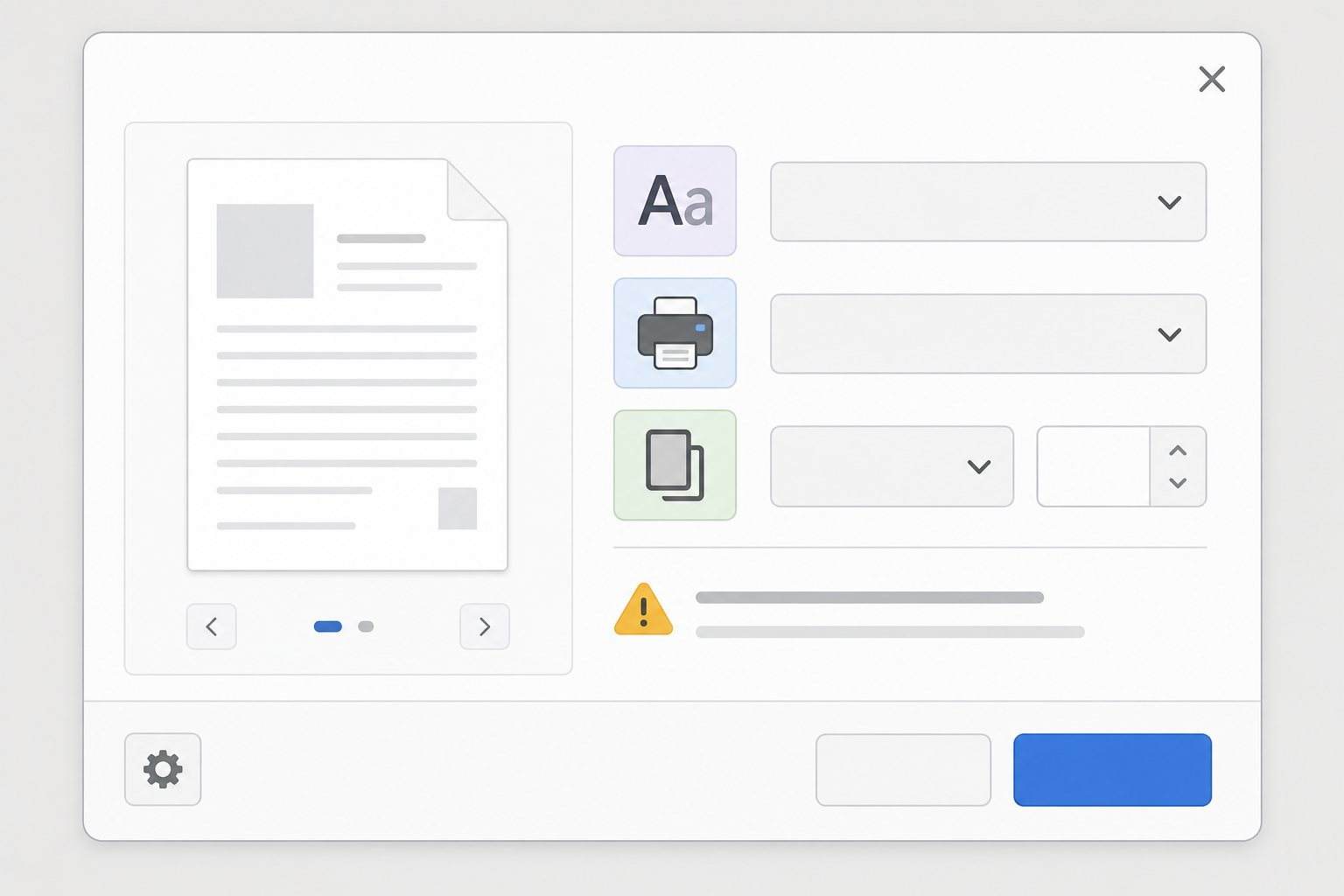
The root cause is usually a mismatch between how CorelDRAW renders text on screen and how the printer driver or PostScript engine interprets that same text at output time. When Windows or CorelDRAW updates change font handling behind the scenes, fonts that previously printed fine can suddenly lose certain glyphs.
Common triggers include:
- A Windows update that changes how GDI or ClearType fonts are rasterized for printing
- A CorelDRAW patch that alters text engine or PDF/PostScript export behavior
- OpenType fonts with restricted embedding permissions that silently drop characters in print
- Outdated or mismatched printer drivers that can’t correctly interpret the font data CorelDRAW sends
- Corrupted font caches left over from a previous Windows or font-manager update
Because several of these factors can overlap, the same symptom — missing characters when printing from CorelDRAW — can have different root causes on different machines, which is why a methodical fix checklist works better than guessing.
Missing Characters When Printing from CorelDRAW: Root Causes
Missing characters when printing from CorelDRAW typically show up in one of three patterns: specific letters disappear consistently in certain fonts, random characters drop out intermittently, or entire text blocks print blank while the rest of the design is fine. Each pattern points to a different layer of the problem.
Consistent Missing Letters in One Font
If the same letters are always missing regardless of the document, the font itself likely has restricted embedding rights or a damaged character table. This is common with free or pirated fonts that were never built to full OpenType spec.
Intermittent, Random Missing Characters
If the problem comes and goes across print jobs, the issue is more likely tied to the printer driver or a Windows patch that changed font rasterization. Several users traced an intermittent version of this exact symptom to a specific Windows update, which one laser-engraving equipment maker’s support team identified as update KB5121003 causing intermittent missing letters in CorelDRAW print output, recommending a PostScript driver workaround until a permanent fix shipped.
Blank Text Blocks
If whole paragraphs print blank, check whether the text frame is linked to an external file or whether the font was removed from the system entirely after the update, leaving CorelDRAW with no substitute to fall back on.
Font Fixes for CorelDRAW Printing Problems
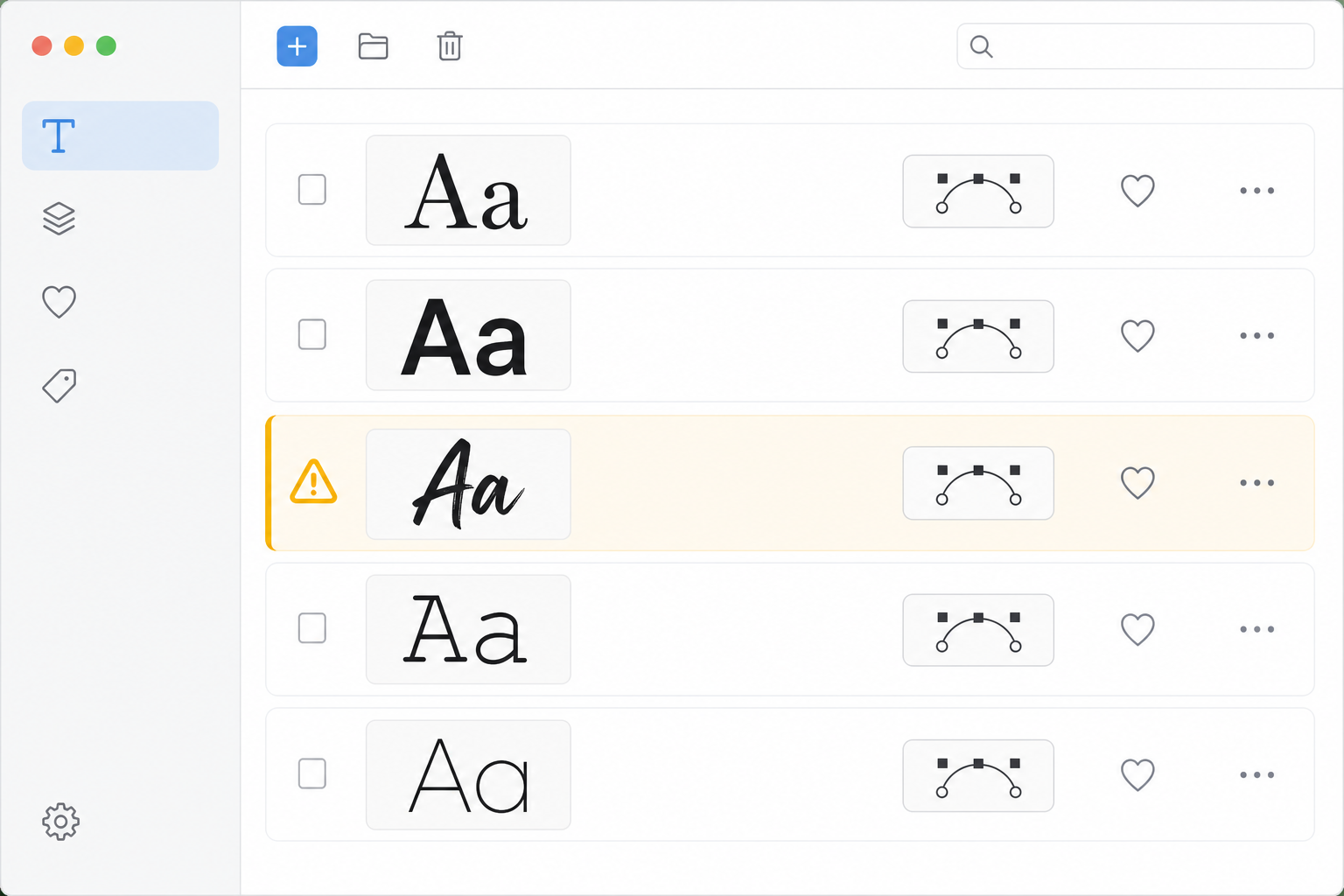
Font-related CorelDRAW printing problems are usually solved by either converting problem text to curves, re-embedding the font correctly, or replacing a font with embedding restrictions. Start with the least destructive fix and work up from there.
Convert Text to Curves Before Printing
Converting text to curves turns each character into a vector shape rather than a font reference, which removes the font engine from the printing process entirely. This is the most reliable short-term fix: select the text, right-click, and choose Convert to Curves. Always keep a separate editable copy of the file before doing this, since curved text can no longer be edited as text.
Check for Font Substitution and Embedding
Open the Text menu and review your font list for any fonts flagged with restricted embedding permissions. Corel’s own documentation walks through how CorelDRAW handles default, embedded, and substitute fonts, including how to set substitution rules so a missing or restricted font doesn’t silently drop characters at print time.
Update or Reinstall the Affected Font
If a specific font is consistently losing characters, reinstall it from a verified source. A corrupted font cache from an earlier Windows update can also cause this — clearing the Windows font cache and restarting often resolves glyph-level corruption without touching CorelDRAW at all.
Driver Fixes for Printing Issues in CorelDRAW
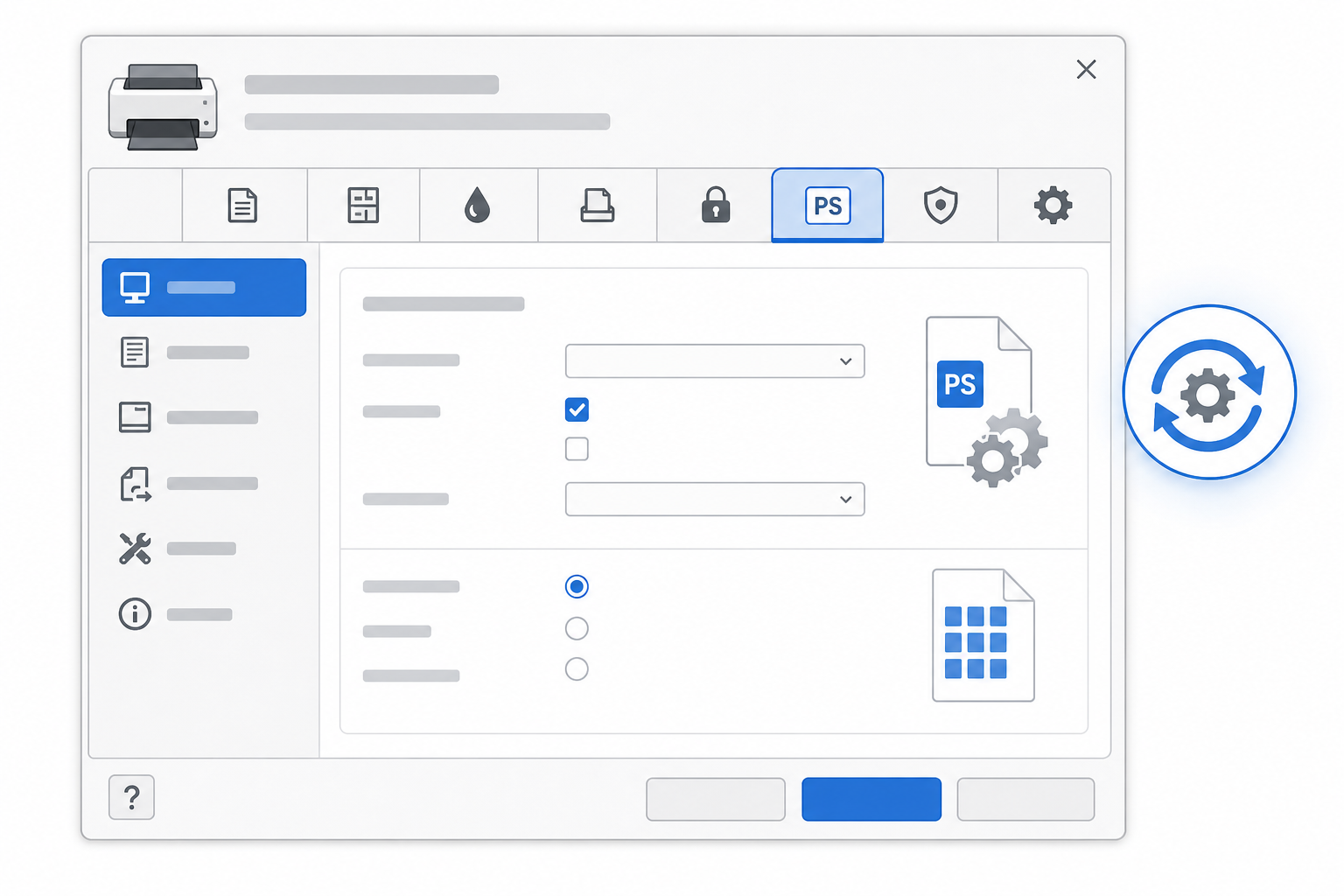
Printing issues in CorelDRAW that persist across multiple fonts and files almost always trace back to the printer driver rather than the document. Updating, switching, or reconfiguring the driver resolves the majority of these cases.
Update Your Printer Driver
Check your printer manufacturer’s site for a driver release dated after the Windows update that triggered the problem. Manufacturers frequently patch drivers specifically to address font rasterization bugs introduced by Windows patches.
Roll Back a Recent Windows Update
If the issue appeared immediately after a specific Windows update, temporarily rolling back that update can confirm it’s the cause. This isn’t a long-term fix, but it isolates the problem so you can decide whether to wait for a patch or switch drivers.
Use the PostScript Driver Instead of PCL
Many printers ship with both PostScript and PCL driver options. PostScript drivers handle font data more predictably in professional design software, and switching to the PostScript version of your printer driver in the Print dialog’s driver settings often eliminates missing-character problems immediately.
Step-by-Step Checklist to Resolve CorelDRAW Printing Issues
Work through this checklist in order — most CorelDRAW printing issues are resolved within the first three steps:
- Reprint the file on a different printer or as a PDF to confirm whether the problem is driver-specific
- Convert the affected text to curves as a temporary workaround and reprint
- Check the font for embedding restrictions and swap it for a fully licensed alternative if needed
- Update your printer driver to the latest version from the manufacturer
- Switch to the PostScript driver option if your printer supports it
- Clear the Windows font cache and restart your computer
- Roll back the most recent Windows update if the timing lines up with when the problem started
If none of these steps help, it’s worth testing the same file on another machine with a current CorelDRAW installation to rule out a corrupted local install rather than a universal bug.
When to Consider Reinstalling or Upgrading CorelDRAW
A clean reinstall is worth trying when font and driver fixes don’t resolve the problem and the issue only started after a CorelDRAW update specifically, rather than a Windows patch. Reinstalling resets the application’s font cache and text engine configuration, which sometimes clears corruption that accumulated during the update process.
If you’re troubleshooting an older release that’s shown repeated font and printing quirks, moving to a newer edition such as the CorelDRAW Technical Suite 2025 for Windows can also resolve issues tied to legacy text-engine bugs that Corel has since patched, such as those addressed in the CorelDRAW Graphics Suite 2025 – March 2025 release (v26.0.0.101) update. For anyone still getting comfortable with the software’s print and export settings, our CorelDRAW tutorial for beginners covers the core interface and output workflow in more depth.
Frequently Asked Questions
How do I fix CorelDRAW printing issues after an update?
Start by converting the affected text to curves as an immediate workaround, then check whether the font has embedding restrictions. If the problem affects multiple fonts, update your printer driver and try switching to the PostScript driver option before considering a Windows update rollback.
Why does CorelDRAW print missing characters only on some fonts?
This usually means the affected fonts have restricted embedding permissions or a damaged character table, while other fonts on your system are built to a more complete OpenType specification. Reinstalling the problem font from a verified source often resolves it.
Does converting text to curves fix printing issues in CorelDRAW permanently?
Converting to curves fixes the immediate print job because it removes the font engine from the equation, but it isn’t a permanent solution since the text can no longer be edited. Keep an editable backup copy and address the underlying font or driver cause separately.
How do I download CorelDRAW after buying a license key?
Sign in at corel.com with the account linked to your purchase, then go to the official CorelDRAW download page and select your edition for Windows or Mac before starting the download.
How do I install CorelDRAW on Windows or Mac?
Run the downloaded installer and follow the on-screen setup steps for your operating system. Once installation finishes, launch the application to begin the activation process.
How do I activate CorelDRAW with my serial number?
When you first open CorelDRAW after installing it, the program will prompt you for a serial number. Enter the serial number you received with your order to activate the software.
