
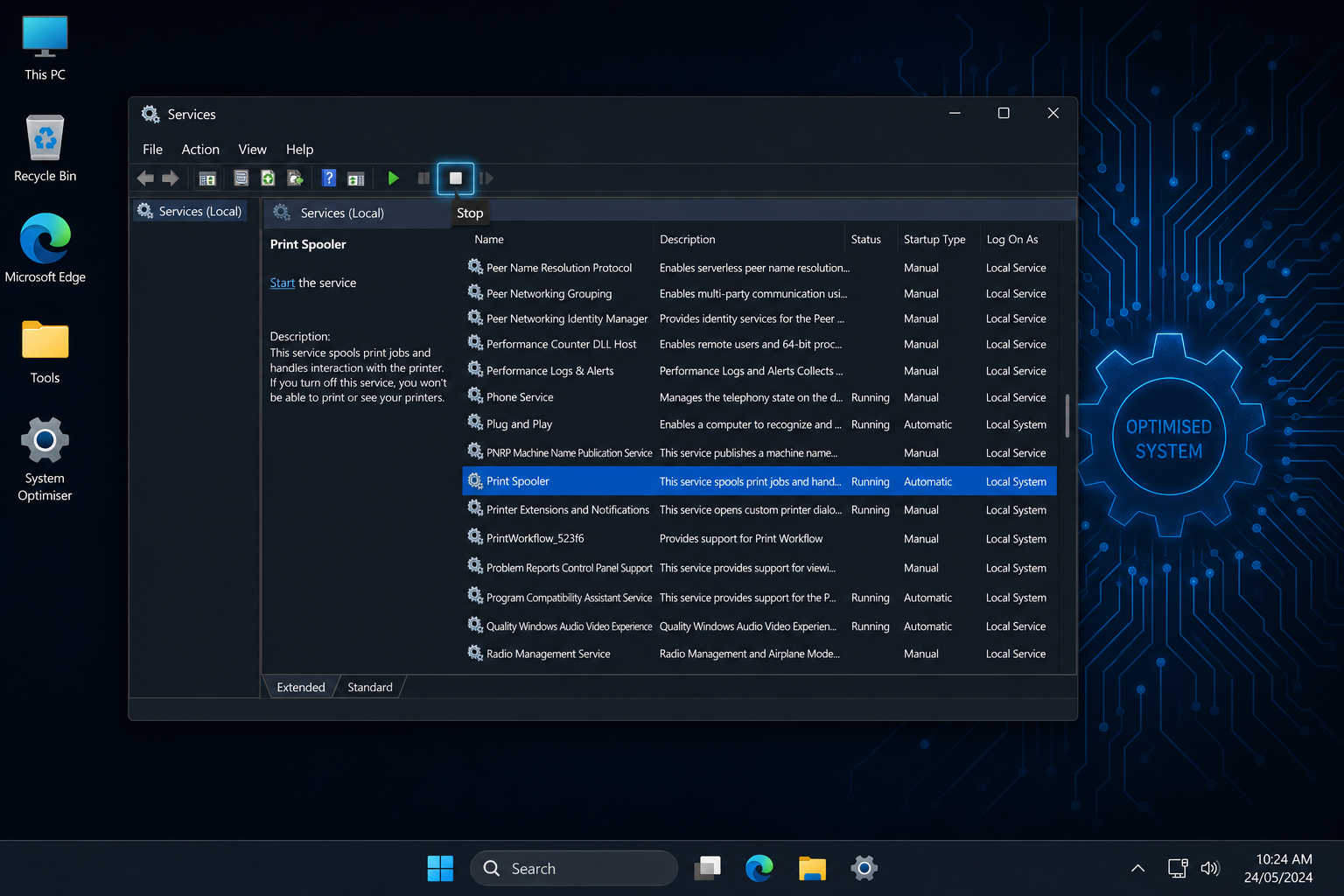
Every time you boot your PC, Windows quietly launches dozens of background services before you’ve even opened a browser tab. Most of them exist to support large corporate networks — not your home setup. Knowing how to disable Windows background services you genuinely don’t need is one of the most effective, zero-cost ways to claw back RAM, reduce unnecessary CPU activity, and keep your machine feeling snappy. This guide covers four services that most home users can safely switch off, with step-by-step instructions for each.
Why Windows Runs Background Services You Don’t Need

Microsoft designs Windows to serve millions of different environments — government agencies, hospitals, schools, gaming rigs, and family laptops all run the same underlying operating system. To keep every scenario covered, Windows ships with a broad set of services enabled by default, regardless of whether you’ll ever use them. The result is that a home PC can be quietly burning CPU cycles and RAM on processes designed for enterprise environments it will never connect to.
The good news: turning off the wrong service won’t brick your machine. Windows will simply restart the service if it’s needed during an update, or you can re-enable it at any point. The key is knowing which services are safe to stop — and that’s exactly what the four entries below cover.
How to Open Windows Services
Before diving into specific services, here’s the universal method to access and manage any of them:
-
Press Windows + R, type
services.msc, and hit Enter. -
Locate the service by name in the list.
-
Double-click the service to open its Properties window.
-
Click Stop to halt it immediately.
-
Change Startup type to Disabled using the dropdown.
-
Click Apply, then OK.
You can reverse this at any time by setting the Startup type back to Automatic or Manual and clicking Start. Always check the service’s description in the Properties window before disabling — it briefly explains the service’s purpose and any dependencies.
1. Print Spooler — One of the Background Services You Can Disable
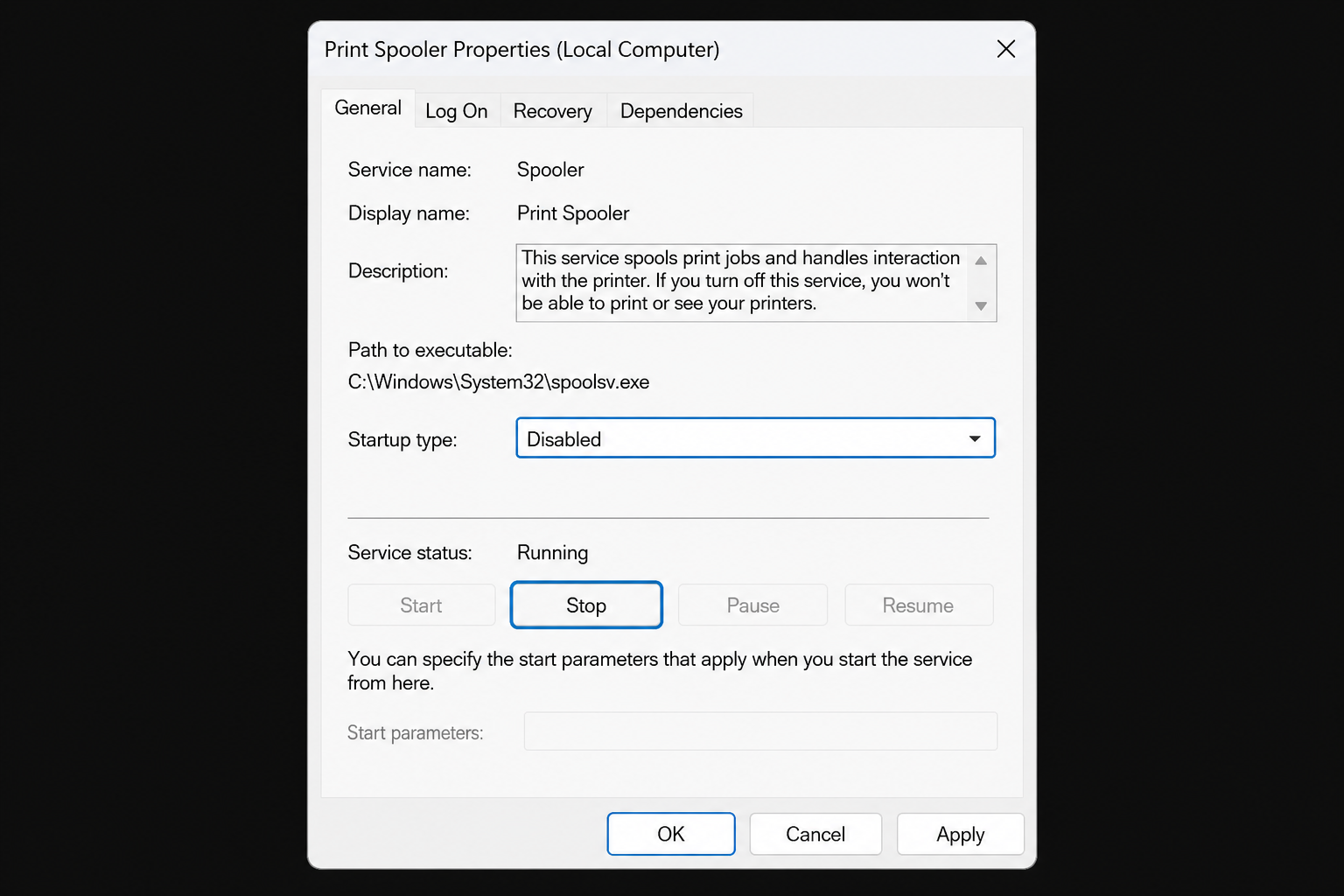
Print Spooler is one of the most well-known Windows services to disable for users who haven’t touched a printer in years. The service manages print jobs as they travel from applications to a connected printer, queuing them up so they’re processed in order. That’s genuinely useful in a busy office — but if your PC hasn’t printed a single document in memory, Print Spooler is just idling on your system for no reason.
Print Spooler uses relatively modest resources on its own, so disabling it won’t produce a dramatic performance jump. What it will do is remove an unnecessary attack surface. The PrintNightmare vulnerability (CVE-2021-34527), discovered in 2021, demonstrated just how deep Print Spooler’s access to the Windows kernel runs — a regular user account could exploit it to take over an entire server. Microsoft has since patched CVE-2021-34527, but the episode is a reminder that a service you never use still carries real risk. If you don’t print, disable Print Spooler.
-
Service name: Print Spooler (Spooler)
-
Safe to disable if: No printer is connected or used
-
Performance impact: Minimal, but security benefit is meaningful
2. Smart Card — Corporate Authentication Built Into Every Windows Install
Smart Card is another prime candidate when you want to stop background services Windows doesn’t need on a home machine. The service allows Windows to communicate with physical smart card readers — the chip-on-a-card authentication hardware used widely in government departments, military organisations, and large enterprises. Staff insert a card or badge into a reader to log in or authorise sensitive actions without typing a password.
This is solid enterprise security — and completely irrelevant to the vast majority of home users, who will never plug a smart card reader into their PC. Despite that, Windows enables the Smart Card service by default for everyone. Disabling it won’t make your system feel dramatically faster, but it removes a layer of unnecessary complexity and keeps your services list honest. If you ever do connect a smart card reader in future, simply re-enable the service.
-
Service name: Smart Card
-
Safe to disable if: You don’t use a physical smart card or card reader
-
Performance impact: Negligible — the benefit is cleaner configuration
3. Distributed Link Tracking Client — Designed for Shared Network Drives
The Distributed Link Tracking Client is one of those Windows services to disable that most people have never heard of, yet it’s been running quietly on their PC for years. Its job is to maintain the integrity of shortcuts — specifically, when a file that a shortcut points to gets moved to a different location, this service helps Windows track down the file’s new address so the shortcut doesn’t break.
In a corporate environment with shared network drives, multiple servers, and hundreds of staff constantly reorganising files, this is valuable. On a home PC where files live on a single local drive or in cloud storage like OneDrive, the service has almost no practical work to do. The shortcuts you create at home generally stay intact because you’re working within a simple, single-machine file structure rather than a sprawling multi-location network.
Disabling the Distributed Link Tracking Client is low risk. If your workflow doesn’t rely on shortcuts pointing to files spread across multiple network drives, you are unlikely to notice its absence at all.
-
Service name: Distributed Link Tracking Client (TrkWks)
-
Safe to disable if: You use local storage or cloud storage without complex network shares
-
Performance impact: Minor — reduces background disk activity
4. Windows Search — The Heaviest of These Background Services
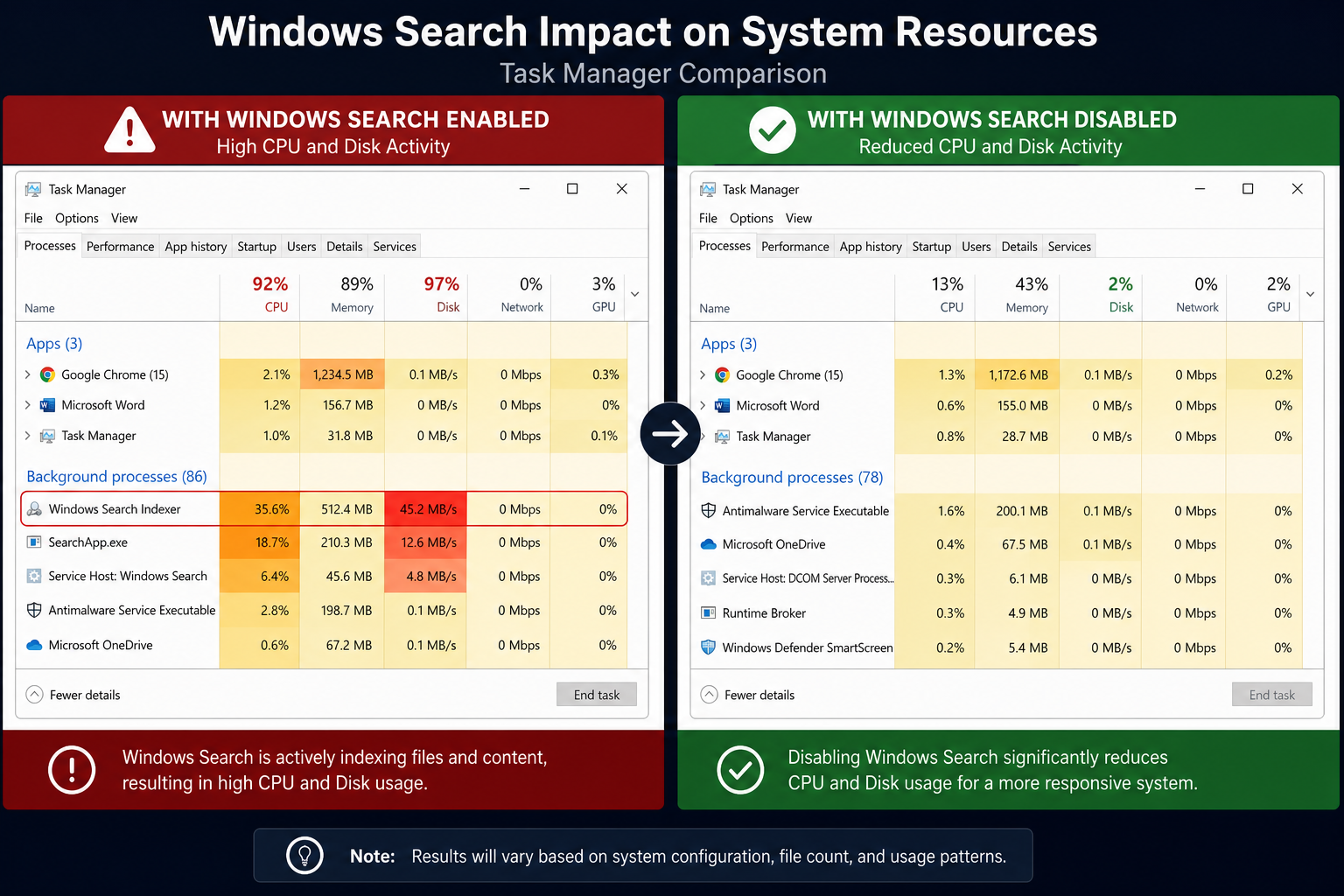
Of all the Windows background services covered here, Windows Search has the most noticeable impact on day-to-day performance. The service continuously indexes your files — scanning drives, cataloguing documents, and keeping a searchable database up to date — so that when you type something into the Start menu, results appear almost instantly.
The indexing process itself is what causes the drag. Windows Search performs frequent reads and writes to your drive, consuming both RAM and CPU in the background. On a PC with a traditional spinning hard drive (HDD) rather than a solid-state drive (SSD), the effect is especially pronounced: you’ll notice random slowdowns and spikes in disk activity, particularly shortly after boot when indexing is heaviest.
It’s also worth noting that Windows Search can be inconsistent. Many users find it fails to surface obvious files or returns unhelpful results, making it a service whose resource cost isn’t always matched by its usefulness. Disabling it means the Start menu search box will still work — it just won’t have a pre-built index to draw from, so results will be slower to appear. For users who rely on quick file searches daily, that trade-off may not be worth it. For everyone else, it’s one of the easiest ways to turn off Windows services and genuinely feel the difference.
-
Service name: Windows Search (WSearch)
-
Safe to disable if: You rarely use the Start menu to search for files, or your PC runs an HDD
-
Performance impact: Noticeable — especially on older hardware with spinning drives
Should You Disable All Four Background Services at Once?
There’s no harm in disabling all four of these services in one session, but a methodical approach makes troubleshooting easier. Disable one service, use your PC normally for a day or two, and only move on to the next if you haven’t noticed any issues. That way, if something does behave unexpectedly, you know exactly which change caused it.
Remember: these four are specifically chosen because they serve corporate use cases that simply don’t apply to most home setups. They are not critical Windows system services. Re-enabling any of them takes less than a minute.
Getting More From Your Windows Licence
Trimming unnecessary services is a great first step, but the operating system underneath matters too. If you’re still running an older version of Windows or want a clean, licensed install to optimise, ShopKeyOnline has genuinely affordable options. Windows 11 Pro OEM is available from €15.95 with instant email delivery, and if you want a full productivity bundle, the Windows 11 Pro Retail + Office 2021 Pro Plus bundle is priced from €36.90. Both come with official download links and a 100% money-back guarantee on activation.
Frequently Asked Questions
Will disabling these services cause Windows to stop working?
No. The four services covered in this guide — Print Spooler, Smart Card, Distributed Link Tracking, and Windows Search — are not core system services. Windows will continue to function normally without them. You can re-enable any service at any time through the Services manager (services.msc) by setting its Startup type back to Automatic or Manual.
How do I know if a Windows service is safe to stop?
Open Services (Windows + R, then type services.msc), double-click the service, and read the description in the Properties window. It explains what the service does and whether other services depend on it. If a service has dependants, Windows will warn you before stopping it. When in doubt, set Startup type to Manual rather than Disabled — the service will only launch when something specifically requests it.
Does disabling Windows Search improve performance on SSDs?
The performance gain from disabling Windows Search is more pronounced on PCs with traditional hard disk drives (HDDs), which suffer more from the constant background read/write activity the indexer generates. On an SSD, the impact is smaller because SSDs handle random I/O far more efficiently. That said, disabling it still frees up some RAM and CPU, which can help on any machine that’s running low on memory.
What is the PrintNightmare vulnerability and should I still worry about it?
PrintNightmare (CVE-2021-34527) was a critical security flaw discovered in 2021 that allowed attackers to exploit the Print Spooler service to gain system-level control of a Windows PC or server. Microsoft released a patch shortly after disclosure, so fully updated systems are protected. However, disabling Print Spooler entirely on machines that never print remains the cleanest possible mitigation — a service that isn’t running cannot be exploited.
Can I disable Windows background services on Windows 10 as well as Windows 11?
Yes. The Services manager (services.msc) and the four services discussed here — Print Spooler, Smart Card, Distributed Link Tracking, and Windows Search — exist in both Windows 10 and Windows 11. The process for disabling them is identical across both versions. The same advice applies: stop the service, set Startup type to Disabled, and apply the change.
