
What Microsoft’s Latest Media Player Update Actually Changed

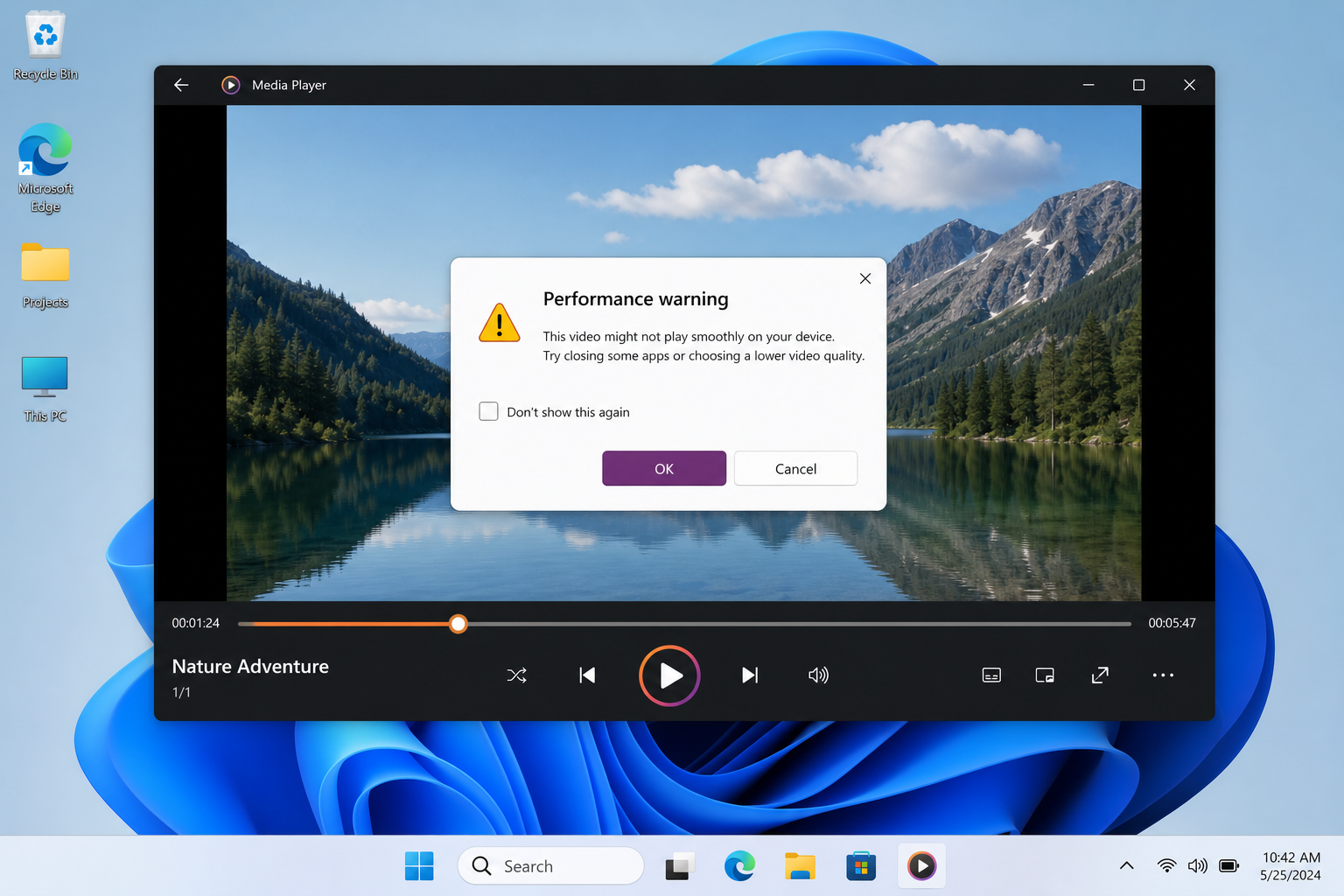
Windows Media Player performance issues have been a persistent complaint since the app was reintroduced as the default media player in Windows 11 — and despite a fresh update rolling out in 2025, many users are still hitting the same walls. The update delivered bug fixes and minor UI refinements, but independent testing and user reports confirm that sluggish load times, elevated RAM usage, and video stuttering are still present, particularly on mid-range hardware.
According to a detailed breakdown by Windows Latest, the modern Media Player app still uses roughly 3× more RAM at idle compared with the legacy Windows Media Player, and it still cannot play HEVC (H.265) video without a paid codec add-on from the Microsoft Store. Legacy WMP, meanwhile, continues to open videos almost instantly — a fact that says a lot about where the new app currently stands.
So what did the update actually address? Microsoft patched several crash-on-launch bugs reported on 24H2 systems, improved library scanning stability, and added minor UI tweaks. It did not resolve the core Windows Media Player lag fix that power users are looking for — the fundamental architectural overhead that makes the app feel heavy on machines with 8 GB of RAM or less.
Known Windows Media Player Problems in 2025
Before diving into fixes, it helps to know exactly what you are dealing with. The most widely reported Windows Media Player problems after the latest update include:
- High RAM usage at idle: The app can consume 200–400 MB of RAM before a single file is opened, an issue confirmed across both 24H2 and 25H2 builds.
- Video stuttering on 4K and 1080p content: Users on Reddit’s r/WindowsHelp report frame drops and stutter on systems that handle the same files without issue in VLC or MPC-HC.
- Slow library indexing: Large music or video libraries can take several minutes to index, with the UI becoming unresponsive during scans.
- HEVC playback blocked without a paid codec: H.265 files refuse to play unless you purchase the HEVC Video Extensions add-on (typically around £0.79–£1.29 on the Microsoft Store).
- Thumbnail and metadata loading delays: Album art and video thumbnails regularly fail to appear on first launch, requiring a full app restart.
- Conflict with Nvidia drivers on 24H2/25H2: Nvidia has confirmed that certain Windows 11 updates — including KB5066835 — can negatively impact GPU-accelerated video decoding, which directly worsens Media Player playback on Nvidia-equipped machines.
Step-by-Step Media Player Lag Fix for Windows 11

A reliable Media Player lag fix starts with the simplest possible actions before moving to more involved steps. Work through these in order and test playback after each one.
1. Check for App Updates via the Microsoft Store
Open the Microsoft Store, go to Library → Get updates, and let any pending Media Player update install. This ensures you are on the latest patched build, not an older version that may carry already-fixed bugs.
2. Reset or Repair the App
Go to Settings → Apps → Installed apps, find Media Player, click the three-dot menu, and choose Advanced options. Use Repair first; if stutter continues, use Reset. Resetting clears the local cache and library database, which resolves many Windows Media Player lag and indexing issues without losing your media files.
3. Restore the Media Library Cache
Open the legacy Windows Media Player (search for it in the Start menu — it is still present on most Windows 11 installations), press Ctrl + M to reveal the menu bar, then go to Tools → Advanced → Restore Media Library. This can resolve corrupted database entries that slow down both the old and new players. Microsoft’s own support documentation covers this approach on the Troubleshoot Windows Media Player Errors page.
4. Adjust Hardware-Accelerated GPU Scheduling
On machines with Nvidia GPUs particularly, disabling Hardware-Accelerated GPU Scheduling (HAGS) can ease Windows 11 media playback stuttering. Navigate to Settings → System → Display → Graphics → Change default graphics settings and toggle HAGS off, then reboot and retest.
5. Update or Roll Back Your GPU Driver
If you installed a Windows 11 feature update recently — especially 24H2 or 25H2 — and video playback degraded immediately afterwards, check Nvidia or AMD’s driver release notes. Nvidia confirmed in late 2025 that KB5066835 introduced a GPU performance regression; installing the corrective driver released alongside that advisory resolved playback stuttering for a large number of affected users.
6. Change Display Resolution Temporarily
This sounds counterintuitive, but multiple users on r/WindowsHelp confirmed that switching the display resolution to 1920×1080 via Settings → System → Display cleared up 4K video stutter after the 24H2 update — likely because it sidesteps a rendering pipeline issue introduced in that build. Revert once Microsoft pushes a proper fix.
Windows 11 Media Playback: When the Built-In App Just Isn’t Enough

If you have worked through the steps above and Windows 11 media playback is still sluggish, it may simply be that the built-in app is not the right tool for your hardware or your workflow. The good news is that several excellent, genuinely lightweight alternatives exist — all free unless noted.
VLC Media Player
VLC is the gold standard for lightweight, format-agnostic playback. It handles HEVC, AV1, MKV, FLAC, and virtually every other format natively, with no codec packs required. On an 8 GB RAM system where the built-in Media Player stutters on 1080p files, VLC typically plays the same file at near-zero CPU overhead. It is free, open source, and updated regularly by VideoLAN.
MPC-HC (Media Player Classic – Home Cinema)
MPC-HC is the classic Windows lightweight player, now maintained by the community under the Clsid2 fork. It opens files in under a second on even modest hardware, uses minimal RAM, and supports madVR for high-quality video rendering if you want to push quality higher. Ideal for older PCs or anyone frustrated by Media Player lag fix attempts that have not paid off.
PotPlayer
Kakao’s PotPlayer sits between VLC and a full home-theatre suite. It supports hardware decoding, has a built-in codec engine, and offers granular audio and video control without the bloat of commercial media suites. The interface is more customisable than VLC’s and the footprint remains small — a sensible pick if you want more control than Media Player but do not want to troubleshoot codec packs.
Should You Stick with Windows 11 or Consider Upgrading?
Media Player performance issues are, in the grand scheme of Windows 11’s feature set, a relatively minor frustration. But they are a symptom of a broader truth: Windows 11 runs best on hardware with at least 16 GB of RAM and a modern GPU with up-to-date drivers. If your machine meets those specs and you are still experiencing Windows Media Player problems, the fixes above should resolve them.
If your system is underpowered or running an older licence, it may be worth reviewing your setup. Running a fully activated, legitimate copy of Windows 11 ensures you receive every cumulative update — including the Media Player patches — as soon as they are cleared for release. A stale or unactivated installation can silently miss updates that address exactly these kinds of Windows Media Player problems.
ShopKeyOnline carries genuine Windows 11 Pro OEM keys from €15.95, with instant email delivery and a 100% money-back guarantee if activation fails. For users who also want to refresh their productivity suite at the same time, the Windows 11 Pro + Office 2021 Pro Plus bundle brings both together at a significant saving.
Quick Checklist: Fixing Media Player Performance Issues
Use this summary as a quick-reference guide before switching to a third-party player:
- Update Media Player via the Microsoft Store Library tab.
- Repair or Reset the app in Settings → Apps → Advanced options.
- Restore the media library via legacy WMP’s Tools → Advanced menu.
- Disable Hardware-Accelerated GPU Scheduling if you have an Nvidia GPU.
- Update your GPU driver to the latest release that addresses Windows 11 24H2/25H2 regressions.
- Temporarily switch resolution to 1920×1080 if 4K stutter appeared after a feature update.
- If none of these resolve Windows 11 media playback problems, switch to VLC, MPC-HC, or PotPlayer.
Frequently Asked Questions
Why does Windows Media Player use so much RAM on Windows 11?
The modern Media Player app is built on a UWP (Universal Windows Platform) framework that loads additional background services even when idle. Independent testing shows it uses roughly 3× the RAM of the legacy Windows Media Player before any file is opened. This is a known architectural overhead, not a bug that has been patched as of mid-2025.
Can I get the old Windows Media Player back on Windows 11?
Yes. The legacy Windows Media Player is still available on Windows 11. Go to Settings → Apps → Optional features → Add an optional feature, search for “Windows Media Player”, and install it. It will appear alongside the new Media Player app and continues to open files much faster on lower-spec hardware.
Does the Media Player update fix HEVC playback?
No. As of the latest update, HEVC (H.265) video still requires the paid HEVC Video Extensions codec from the Microsoft Store, typically priced around £0.79. If you regularly play H.265 files, VLC or PotPlayer are free alternatives that include native HEVC support out of the box.
Will reinstalling Windows 11 fix Media Player performance issues?
A clean reinstall can help if corrupted system files are involved, but it is rarely necessary for Media Player problems specifically. In most cases, resetting the app, updating drivers, and adjusting GPU settings resolves the issue without the disruption of a full reinstall. Try all the steps in this guide first.
Is it safe to use a third-party media player instead of the built-in one?
Absolutely. VLC, MPC-HC, and PotPlayer are all well-established, regularly updated applications with strong security track records. Millions of Windows users rely on them daily. Switching to a third-party player for local media playback does not affect system security, Windows Update, or any other Windows 11 functionality.
